Shoot 1 – Spring is coming
Description
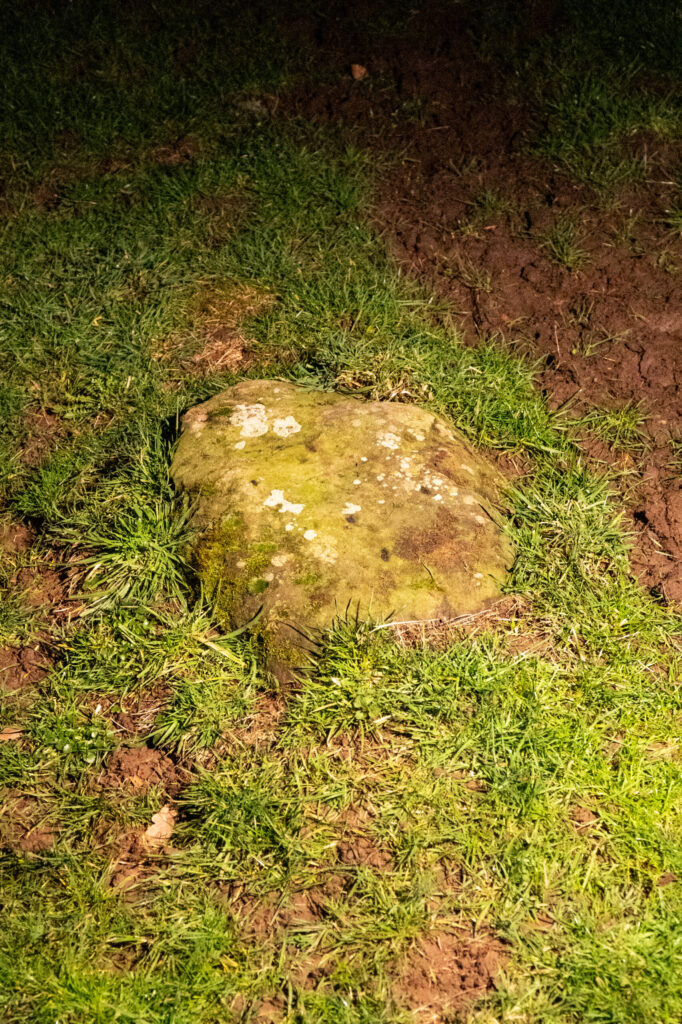
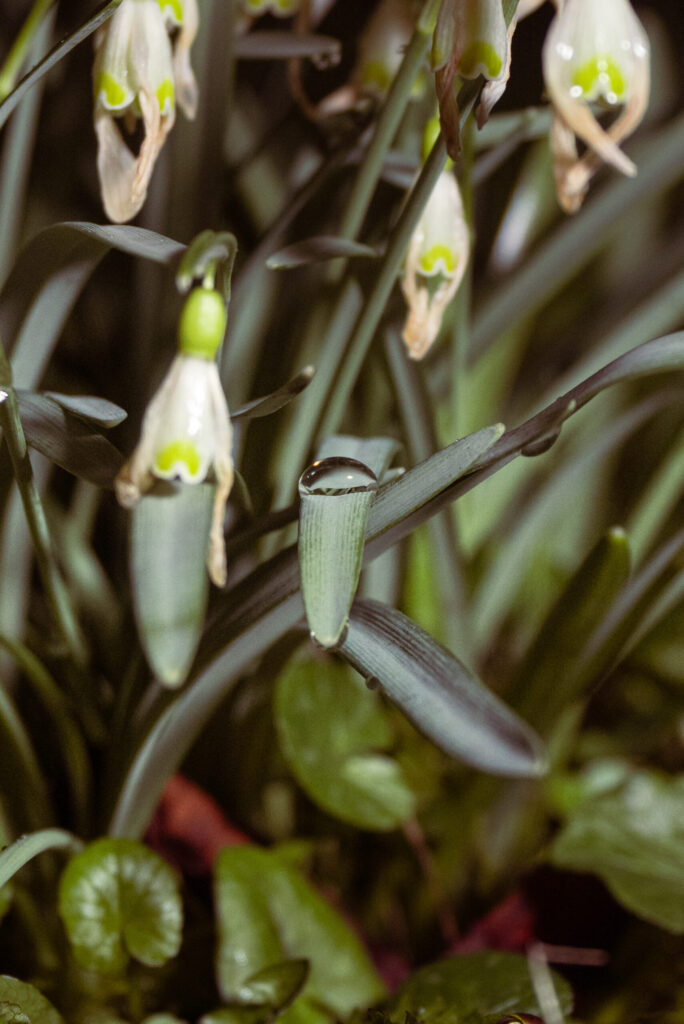
View Full Shoot
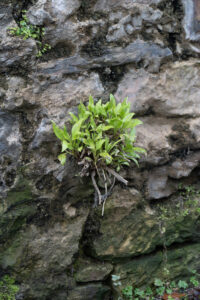
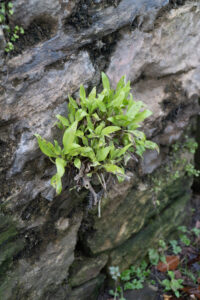
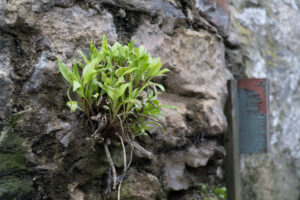
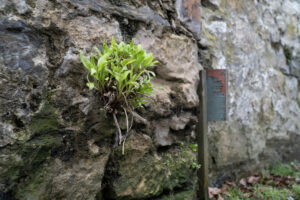
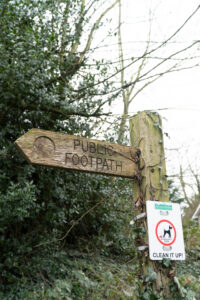
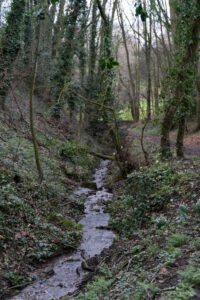
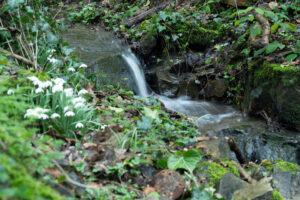
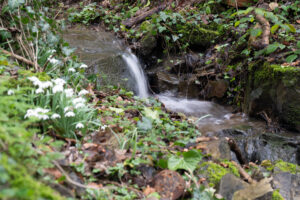
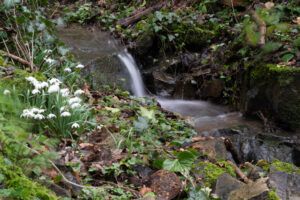
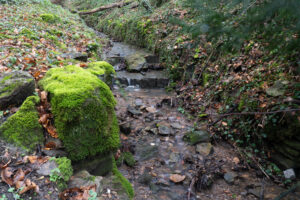
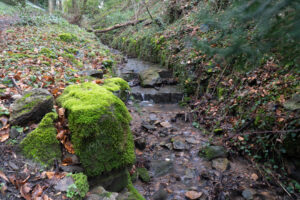
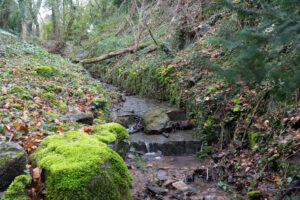
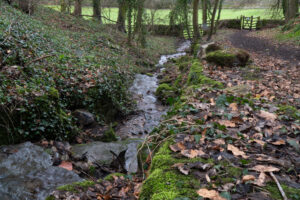
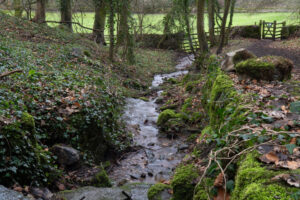
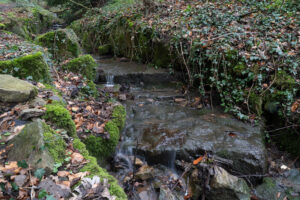
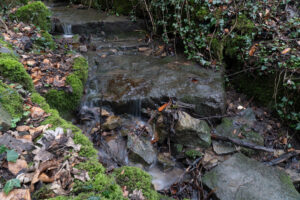
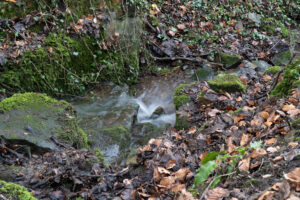
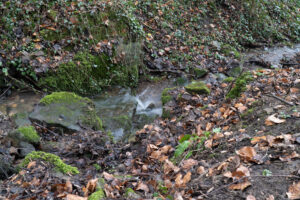
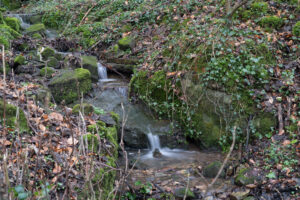
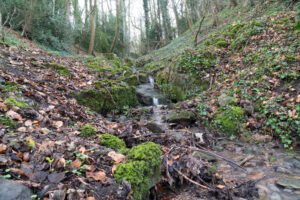
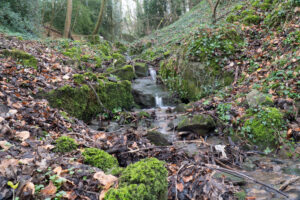
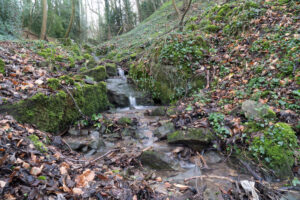
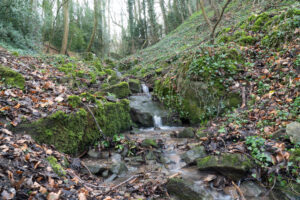
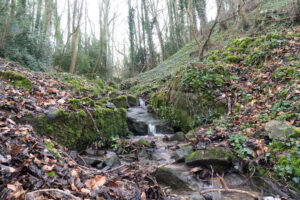
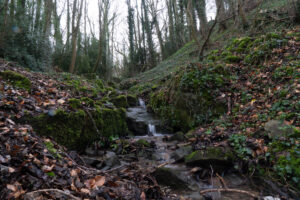
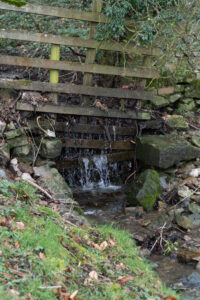
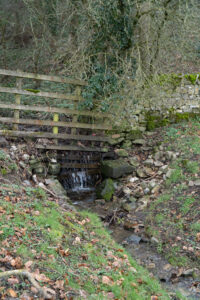
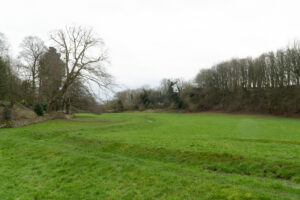
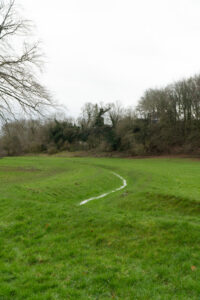
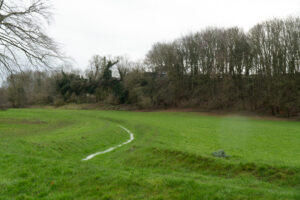
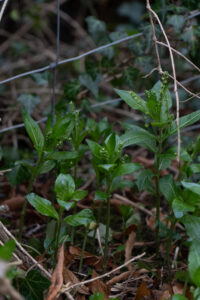
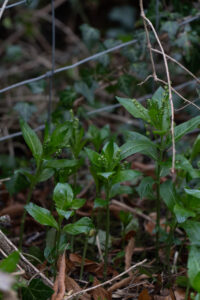
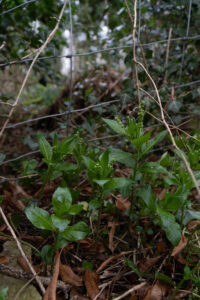
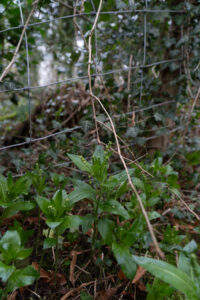
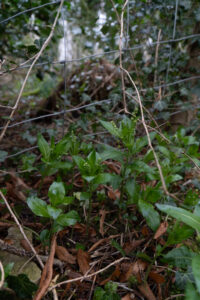
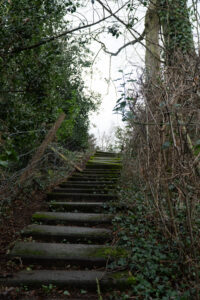
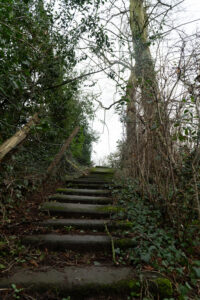
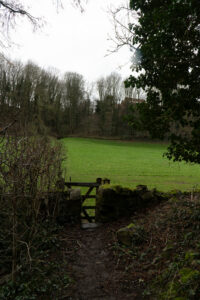
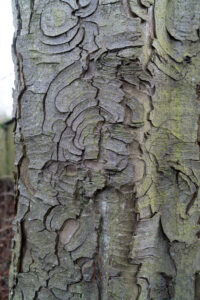
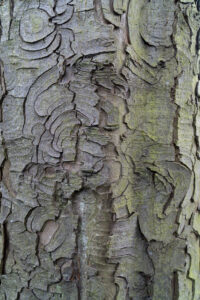
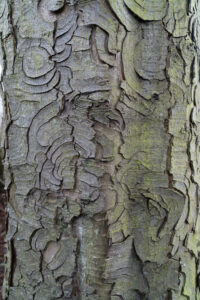
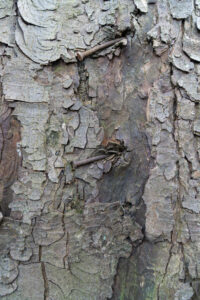
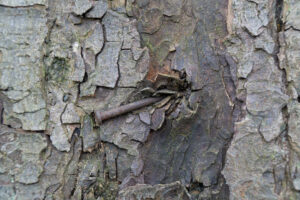
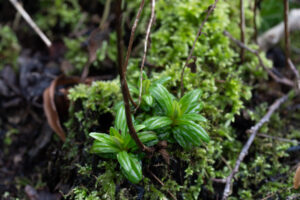
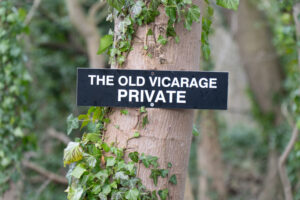
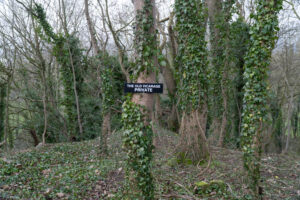
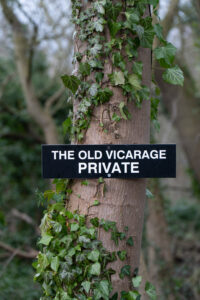
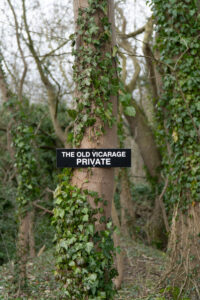
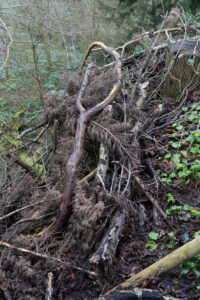
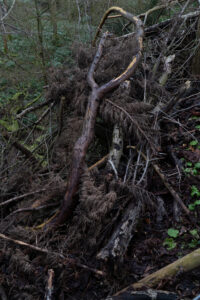
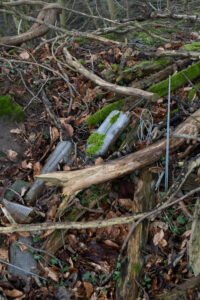
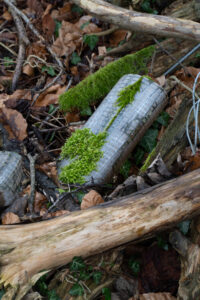
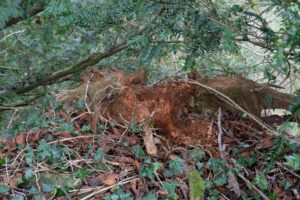
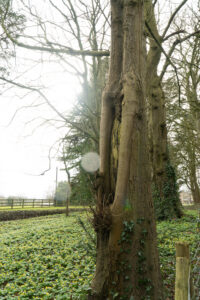
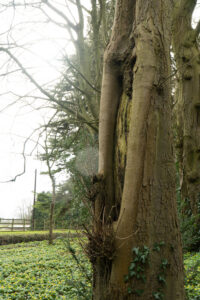
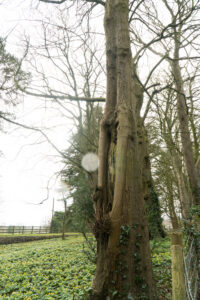
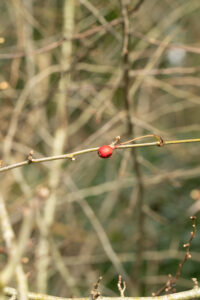
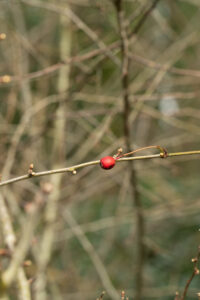
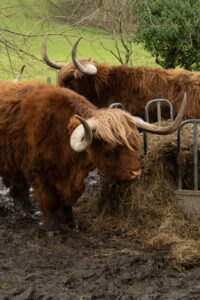
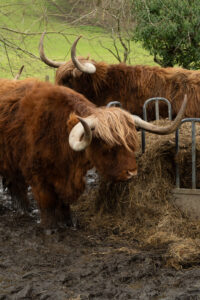
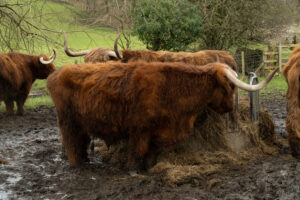
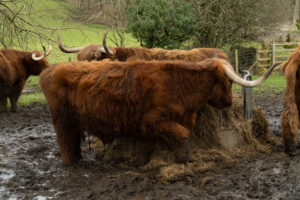
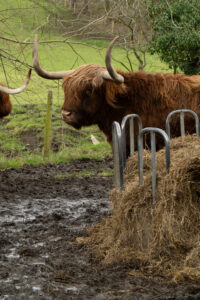
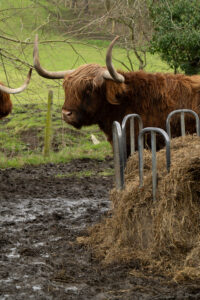
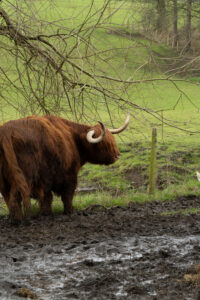
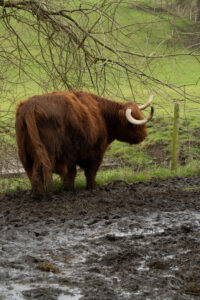
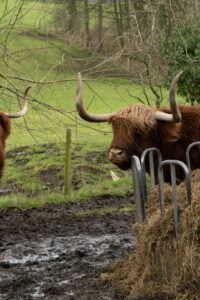
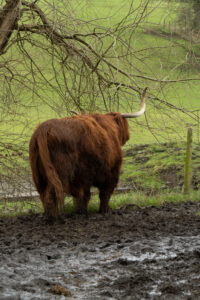
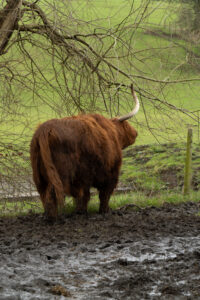
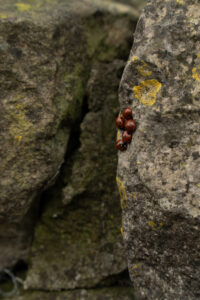
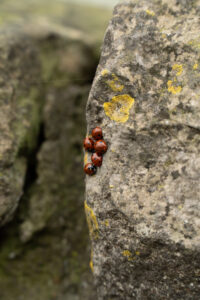
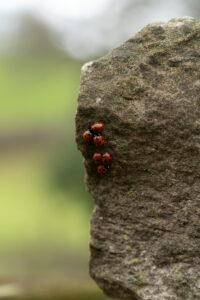
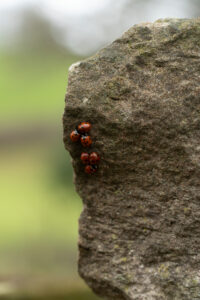
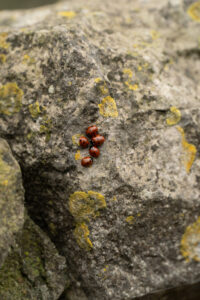
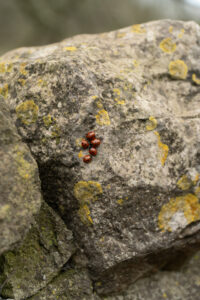
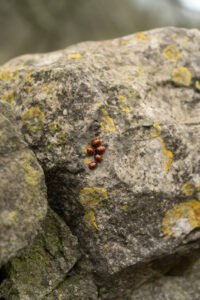
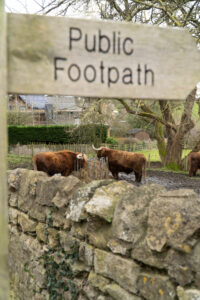
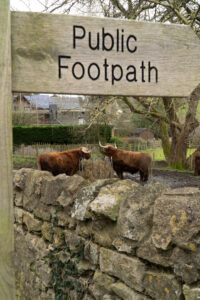
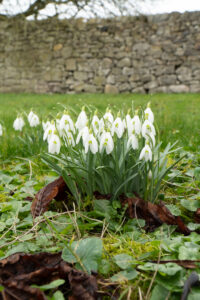
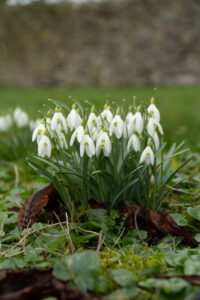
Lightroom Enhanced Edited Selection
Talk about
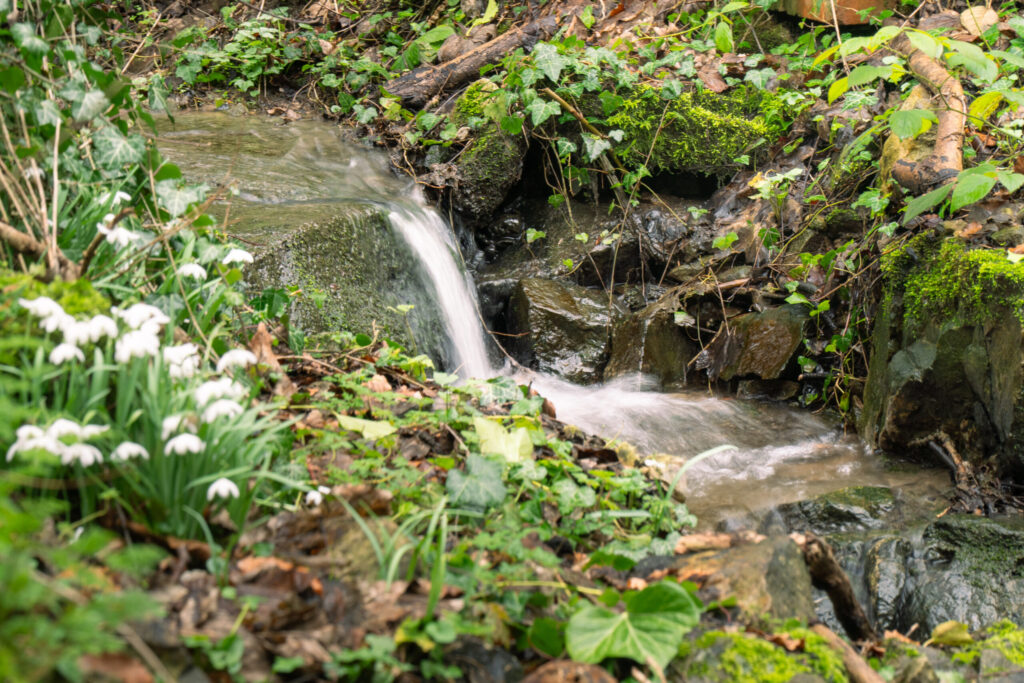
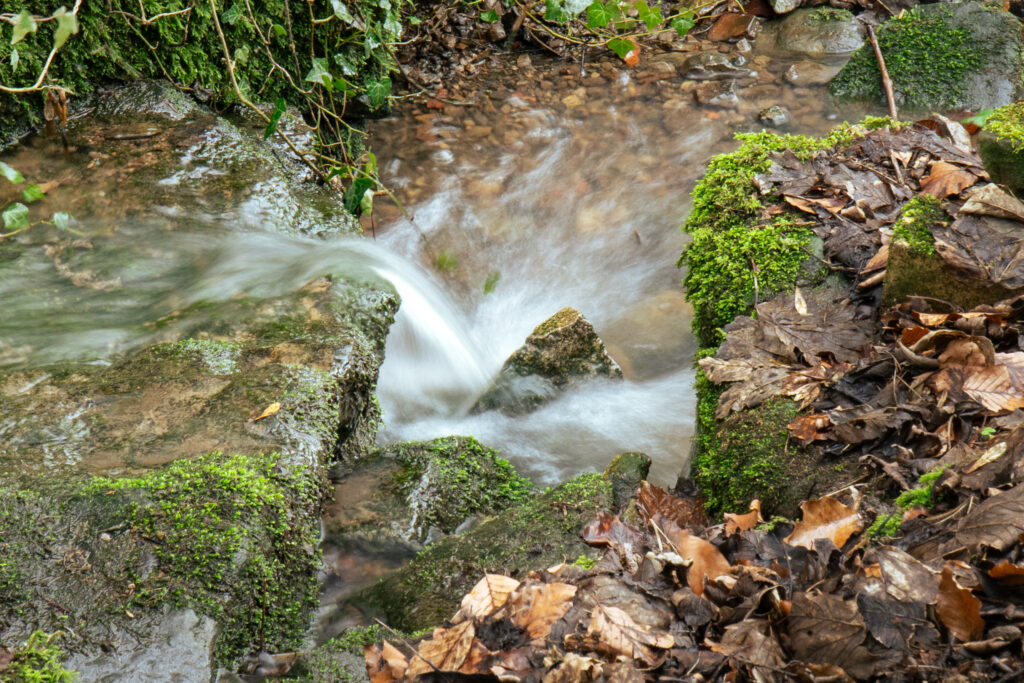
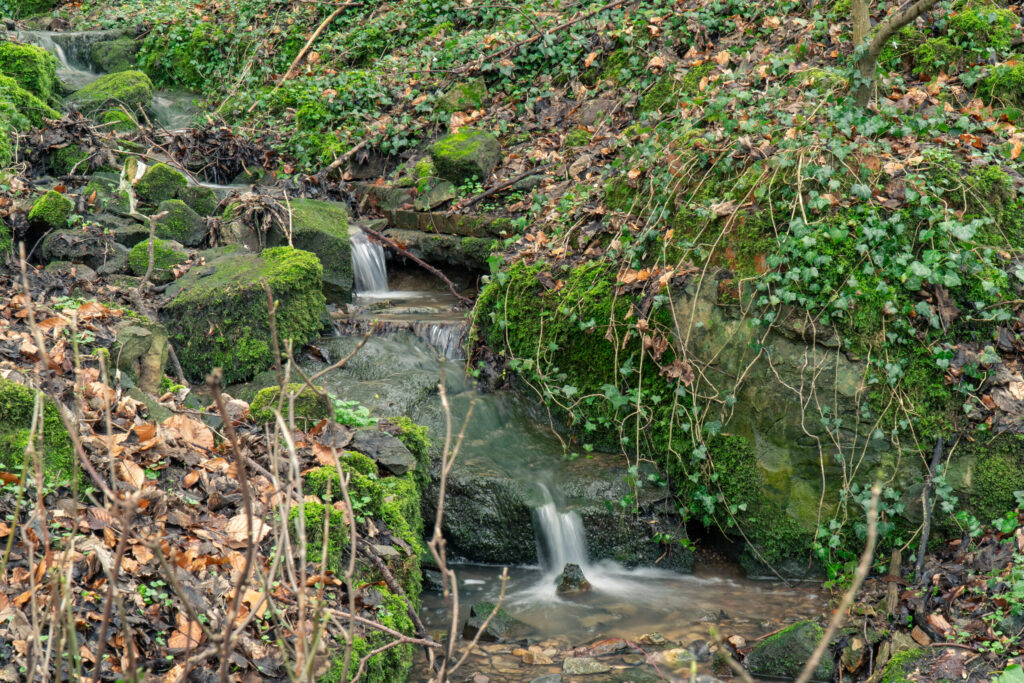
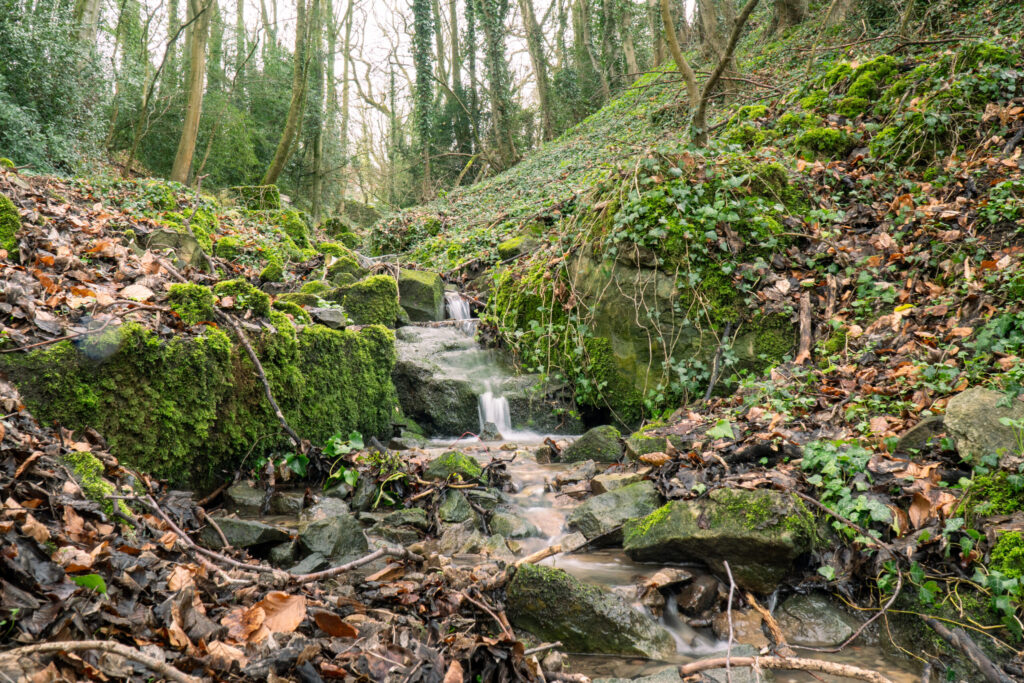
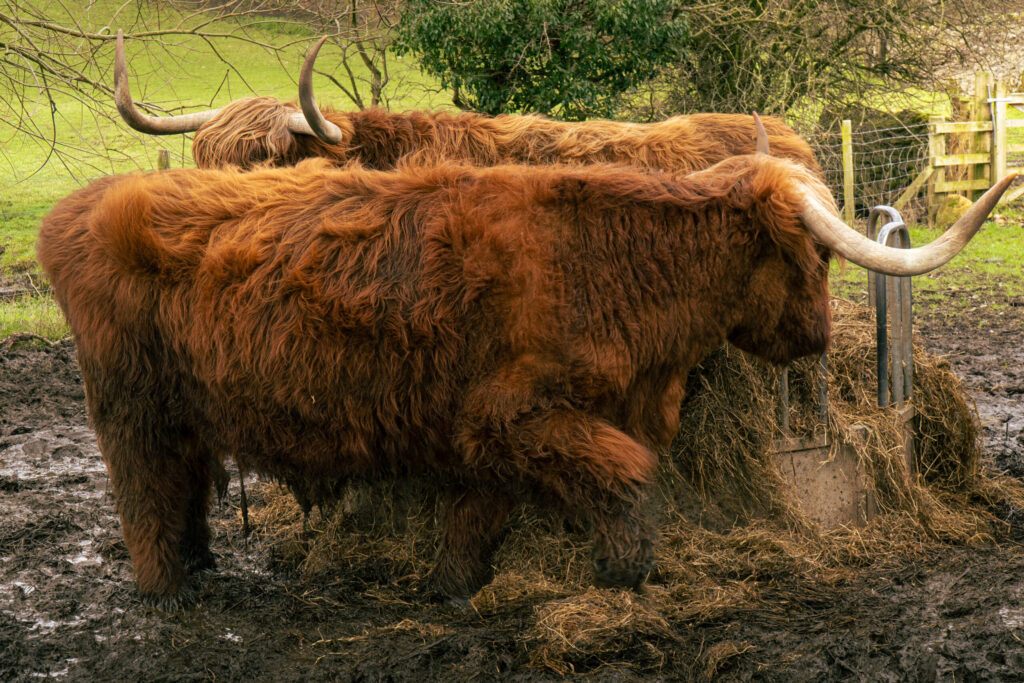
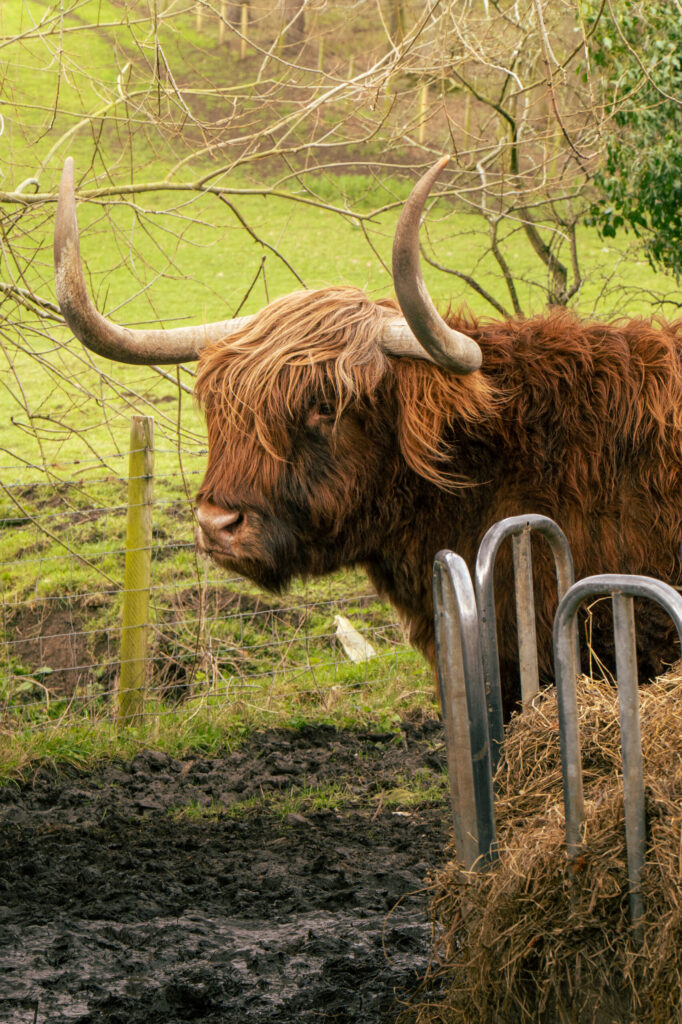
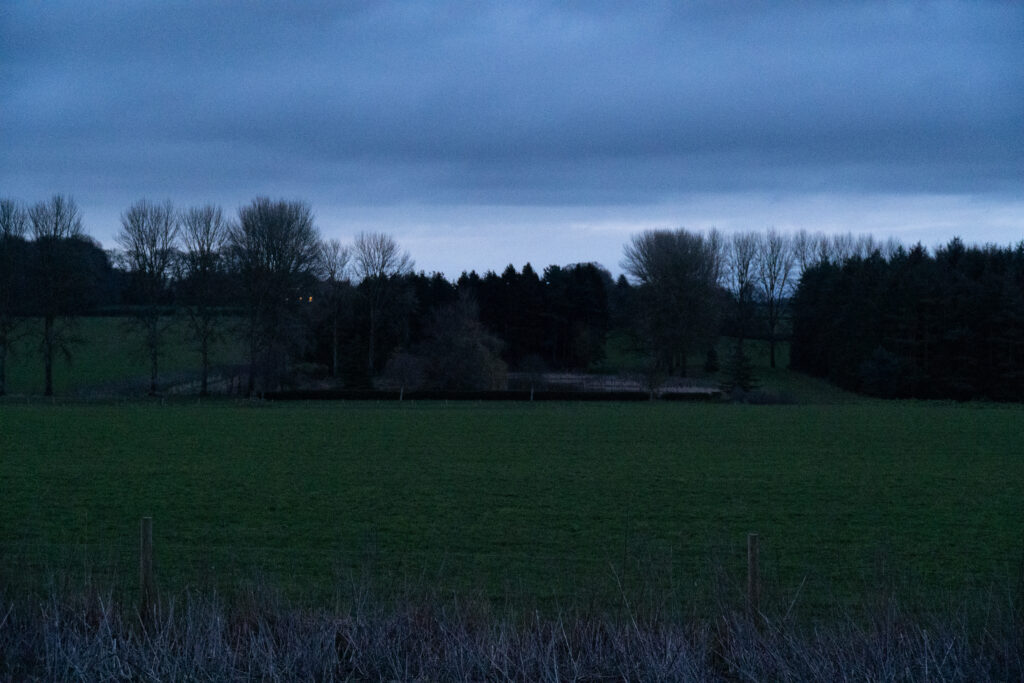
Shoot 2 – Sun down
Description
View Full Shoot
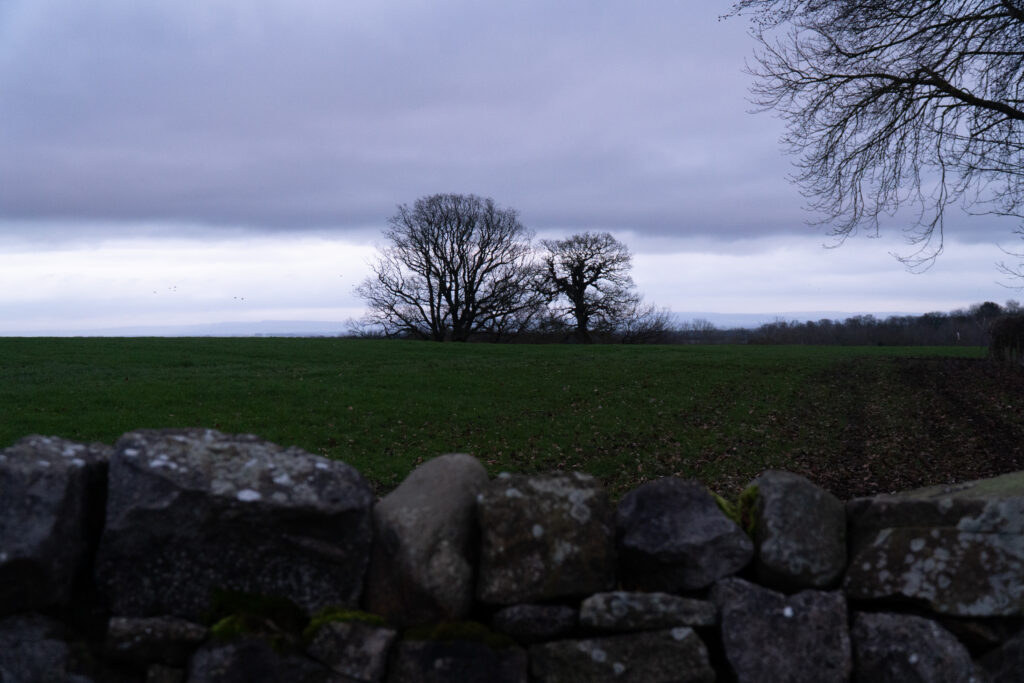
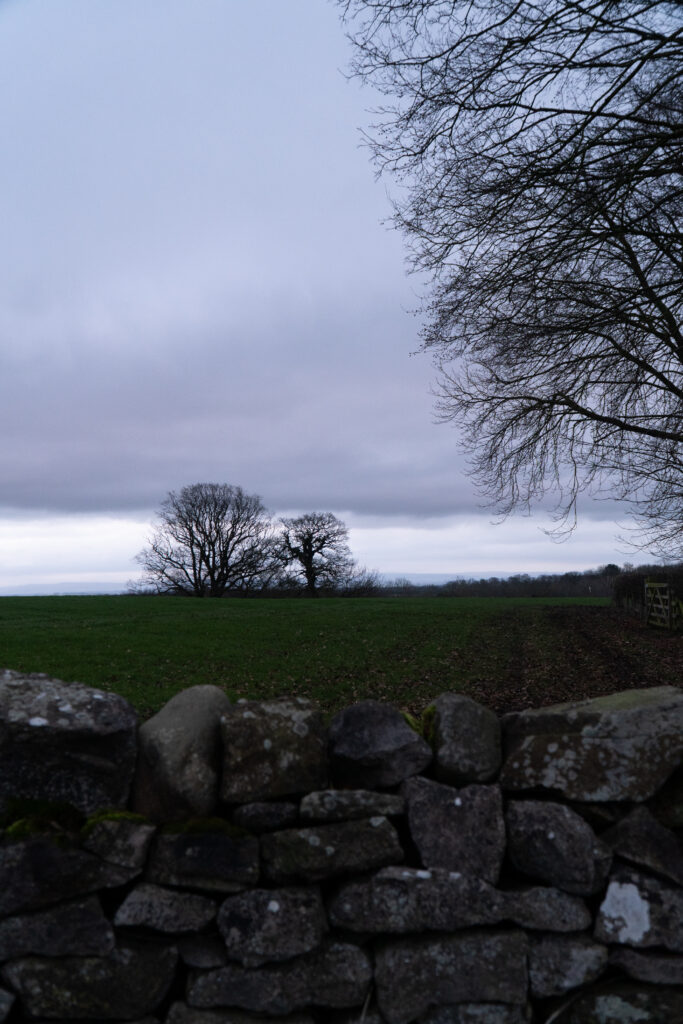
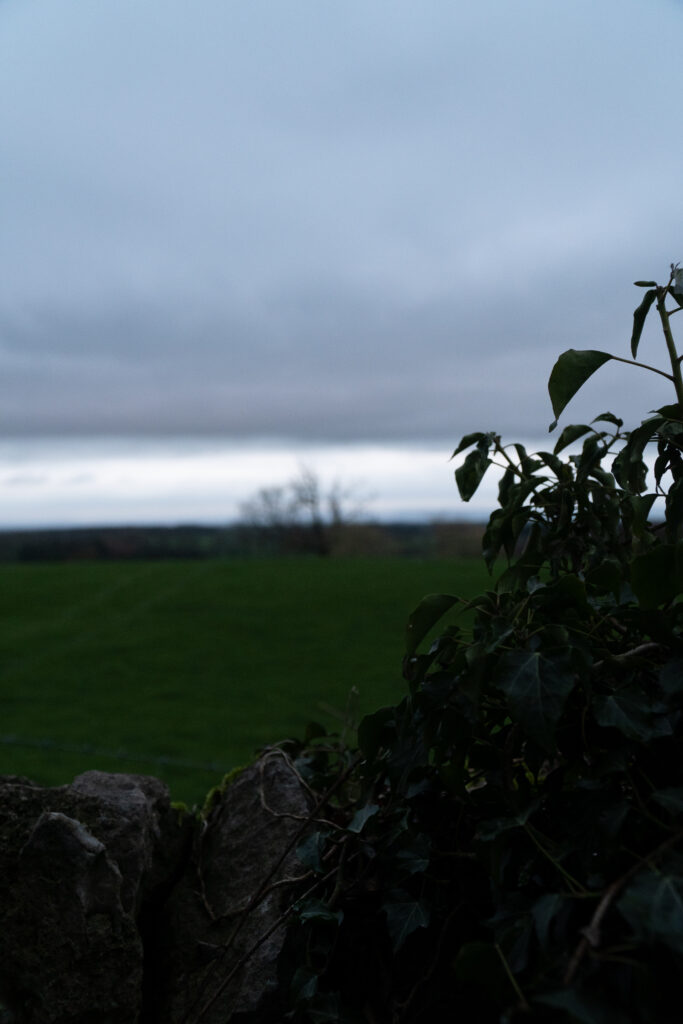
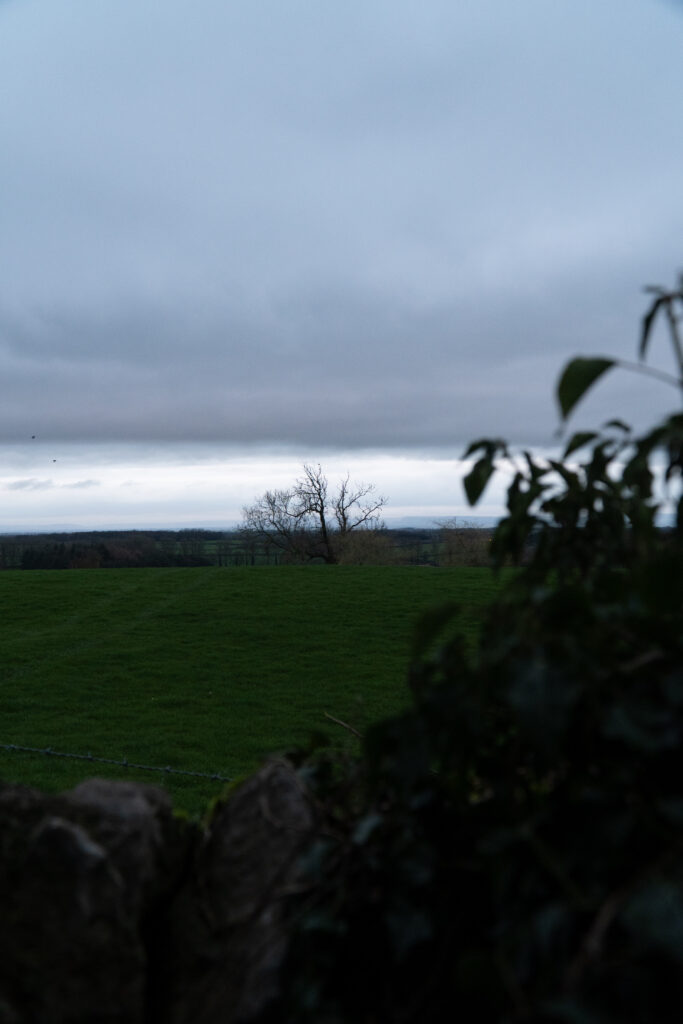
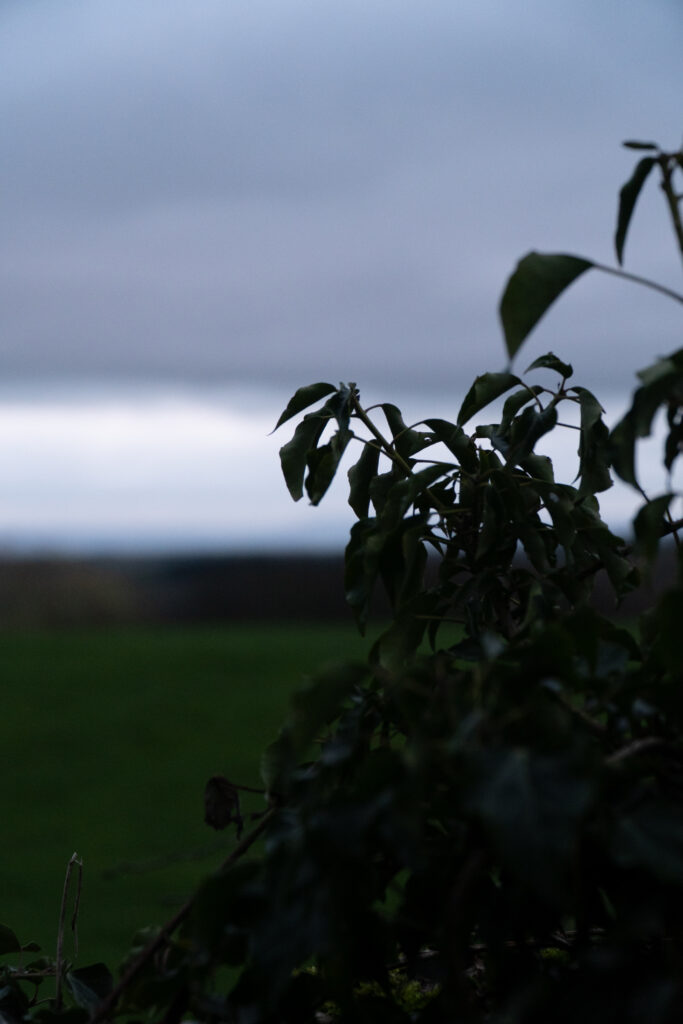
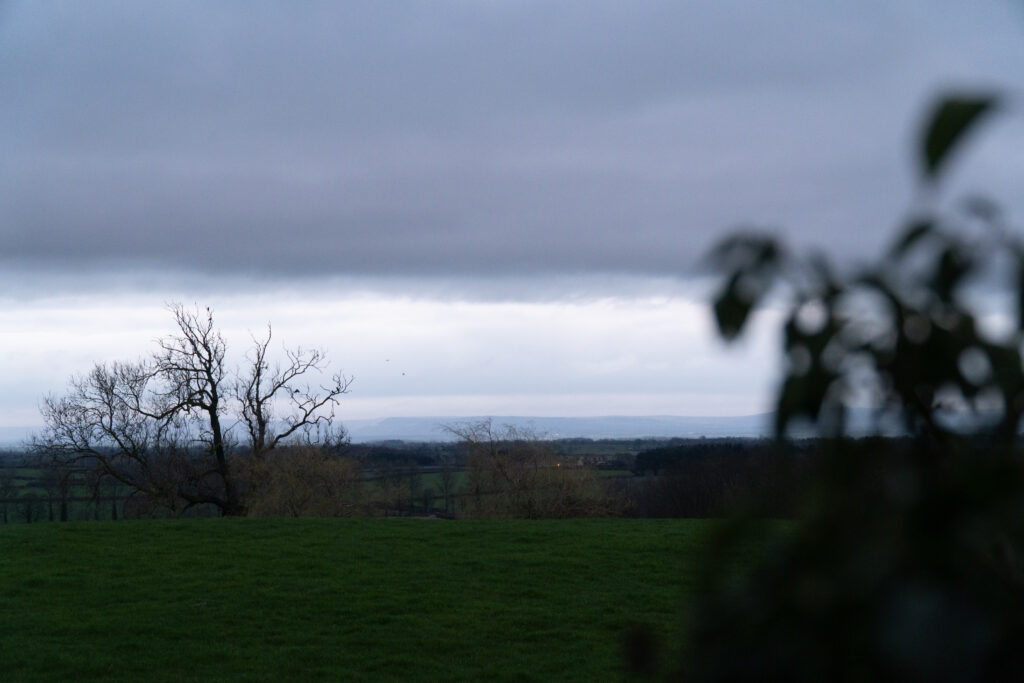
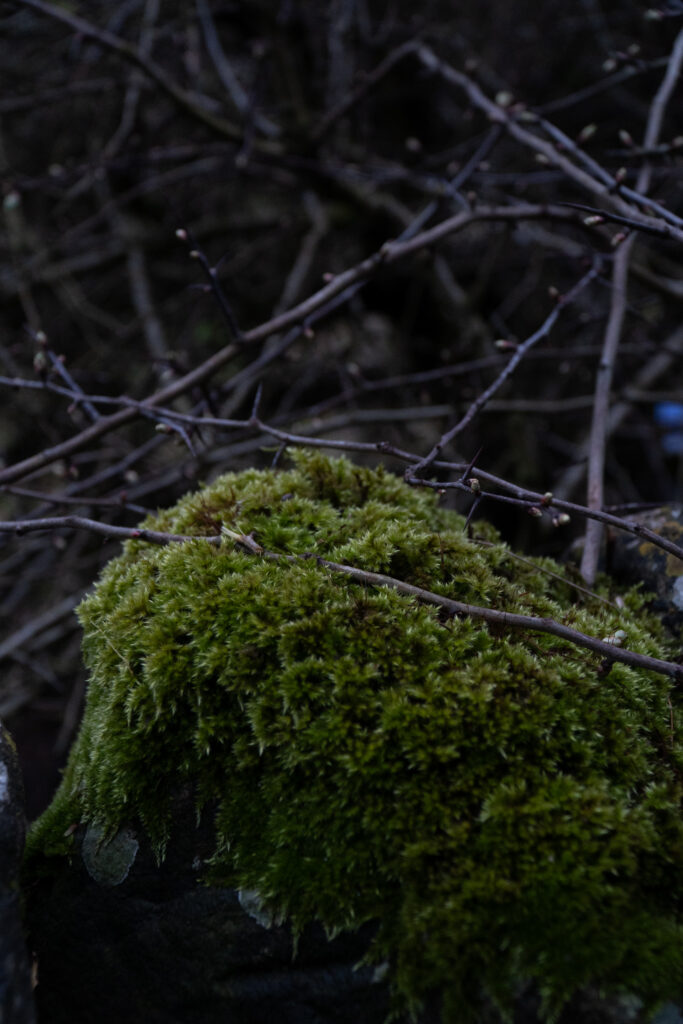
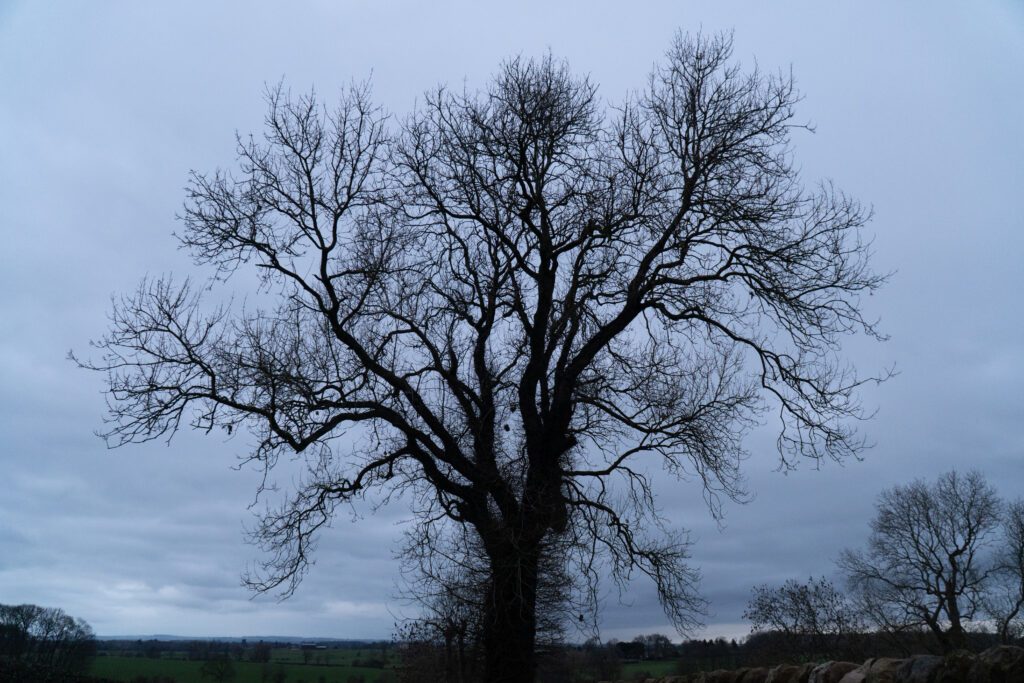
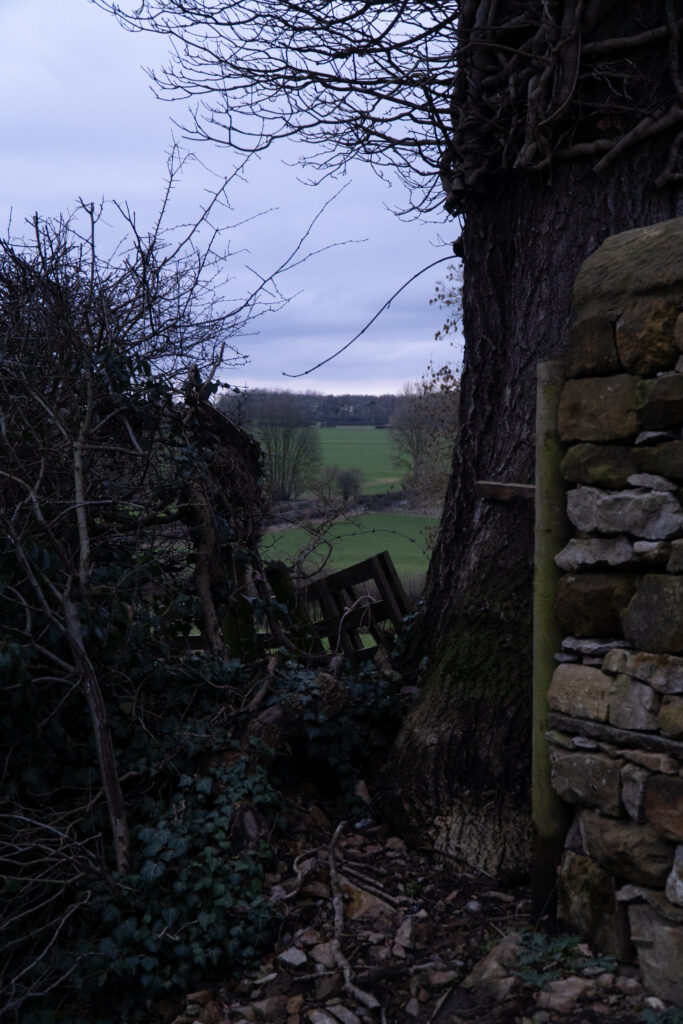
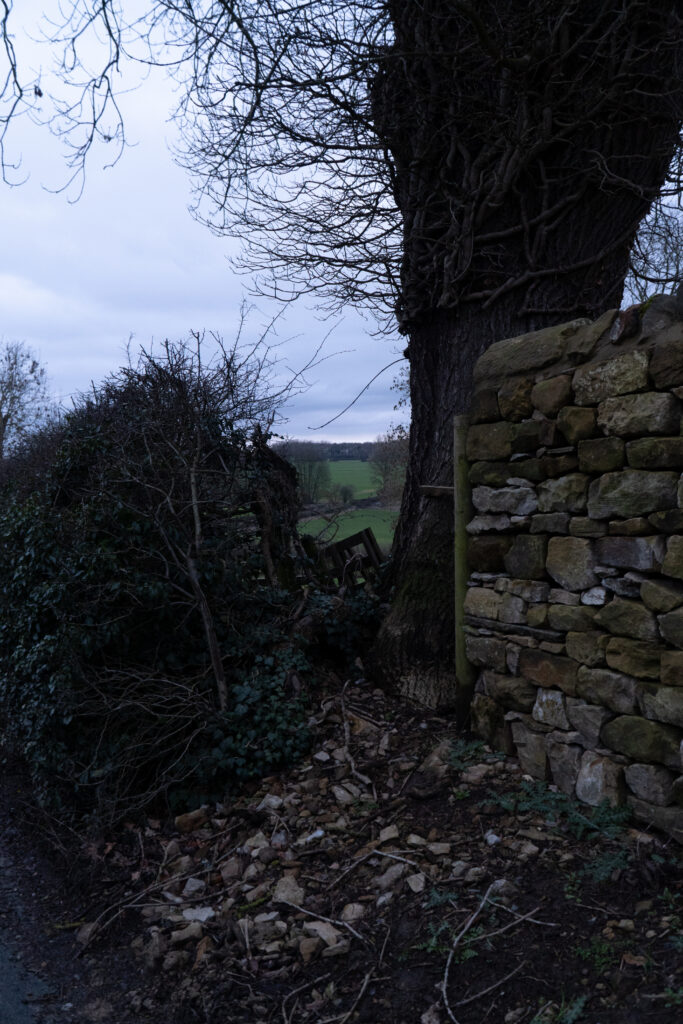
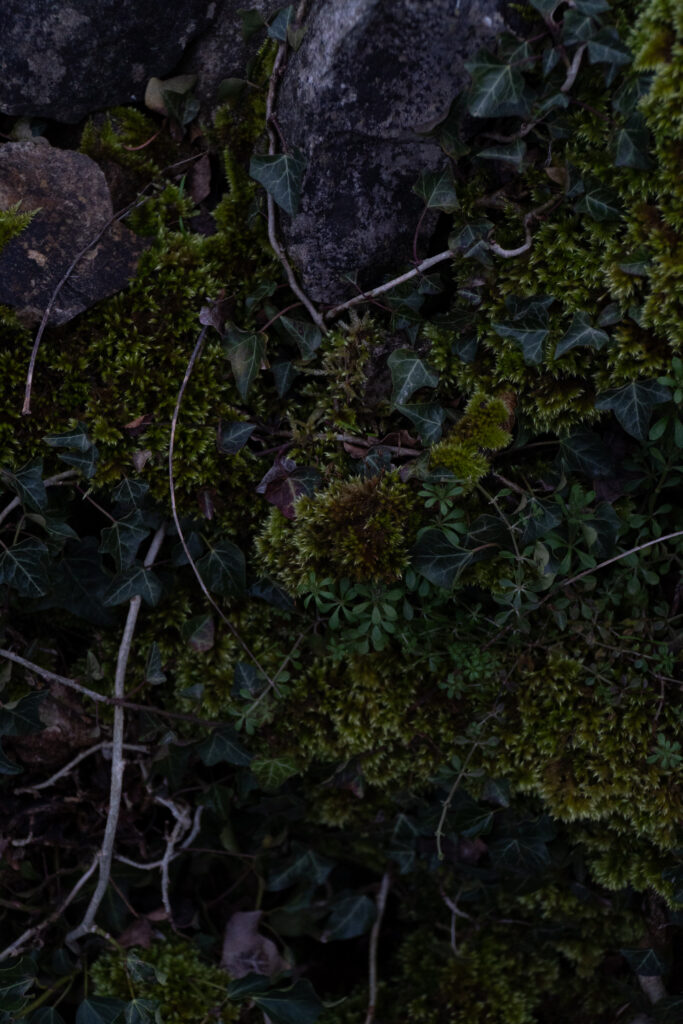
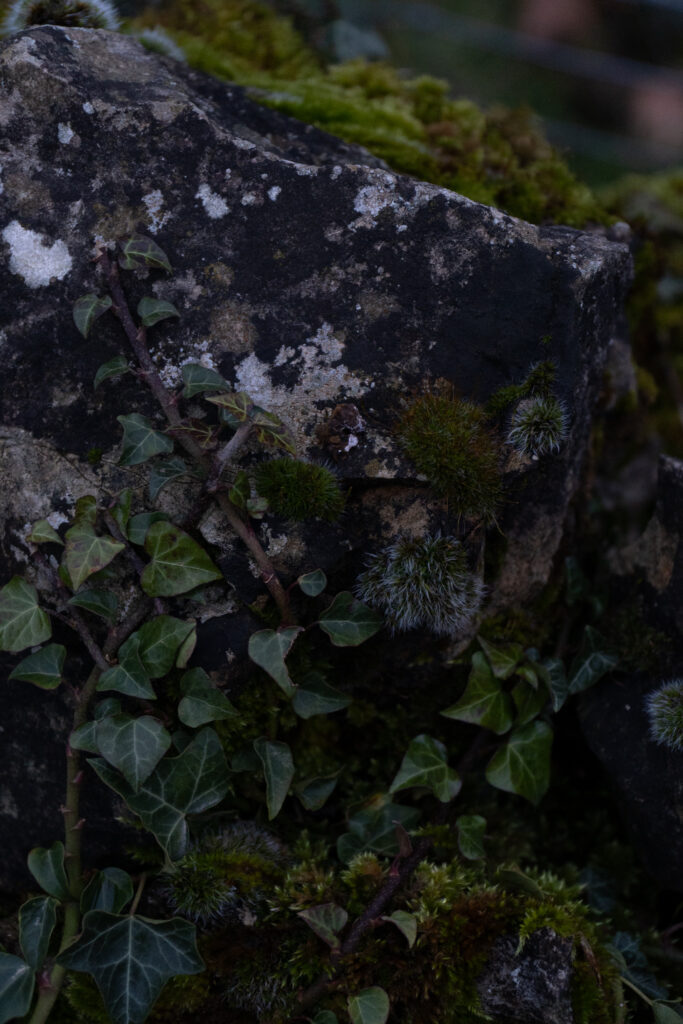
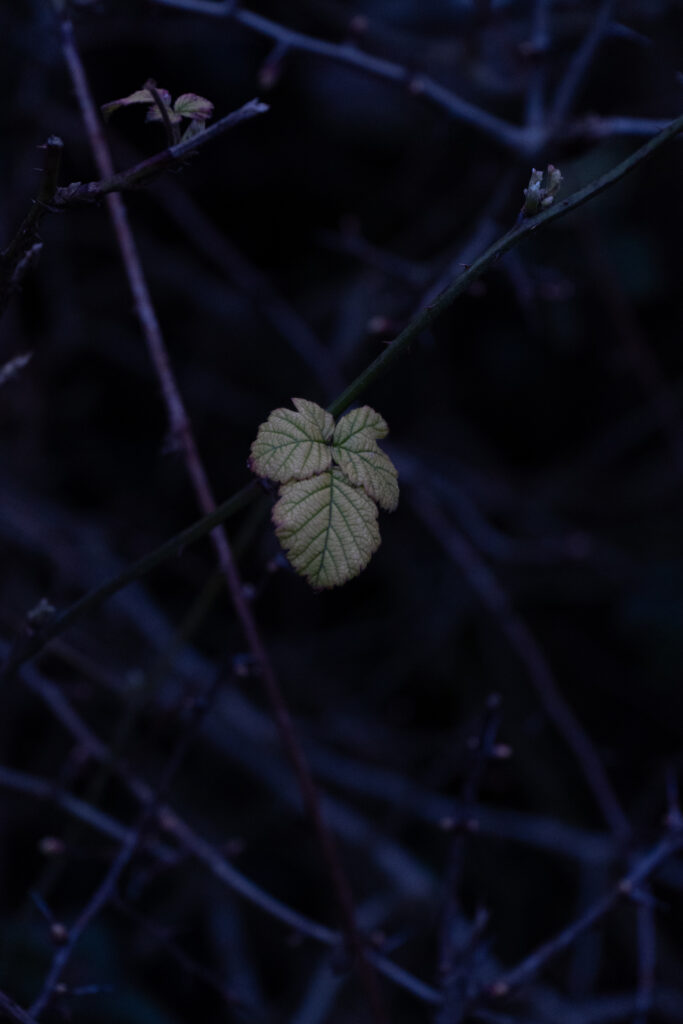
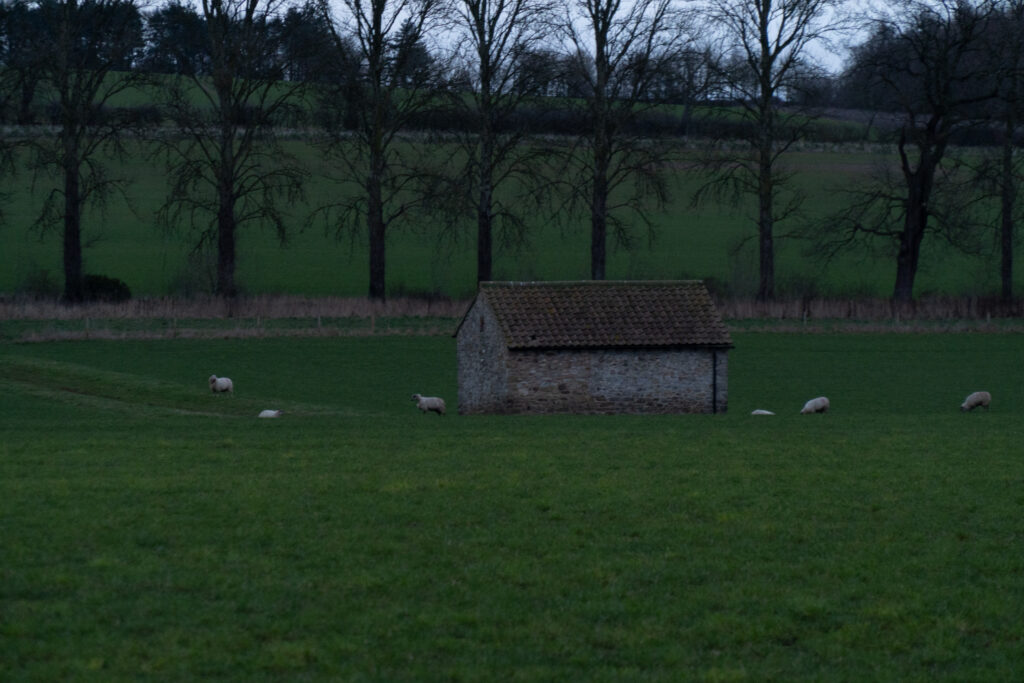
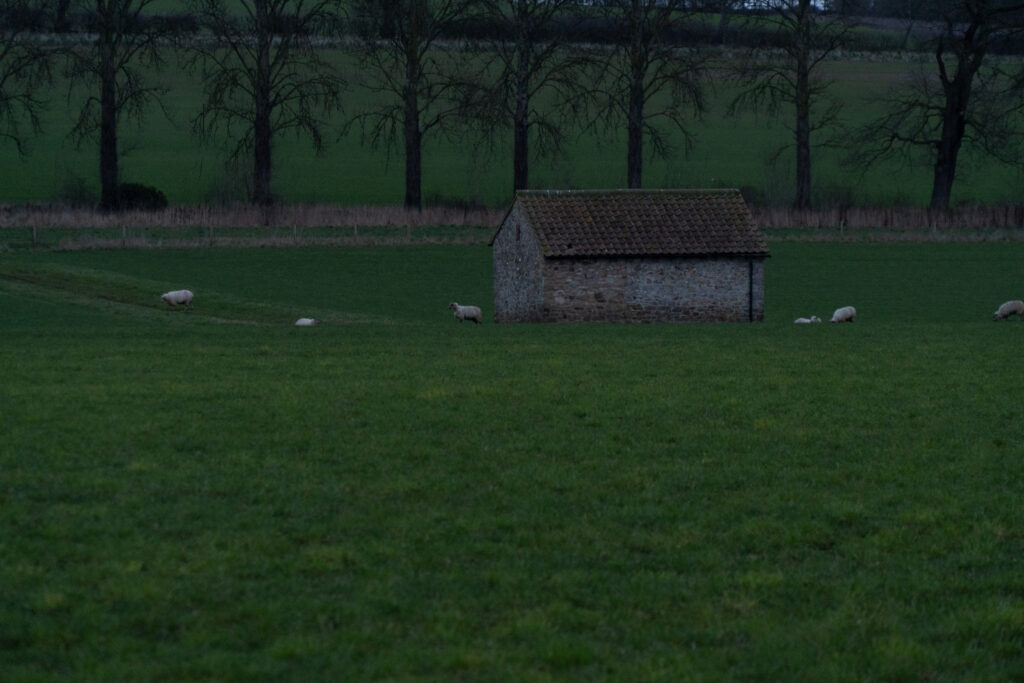
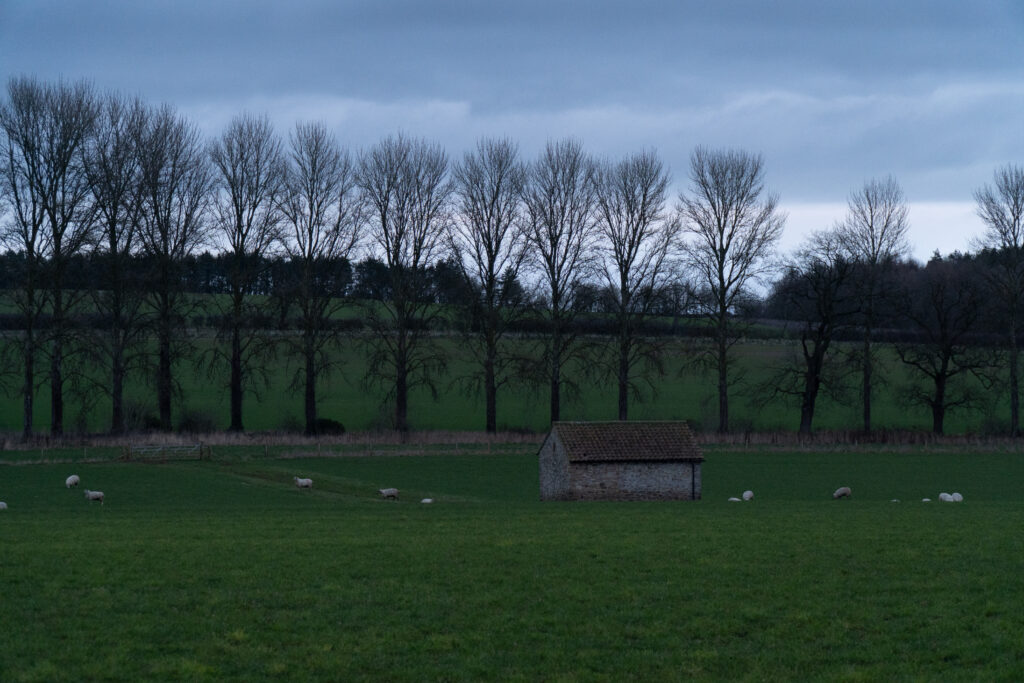
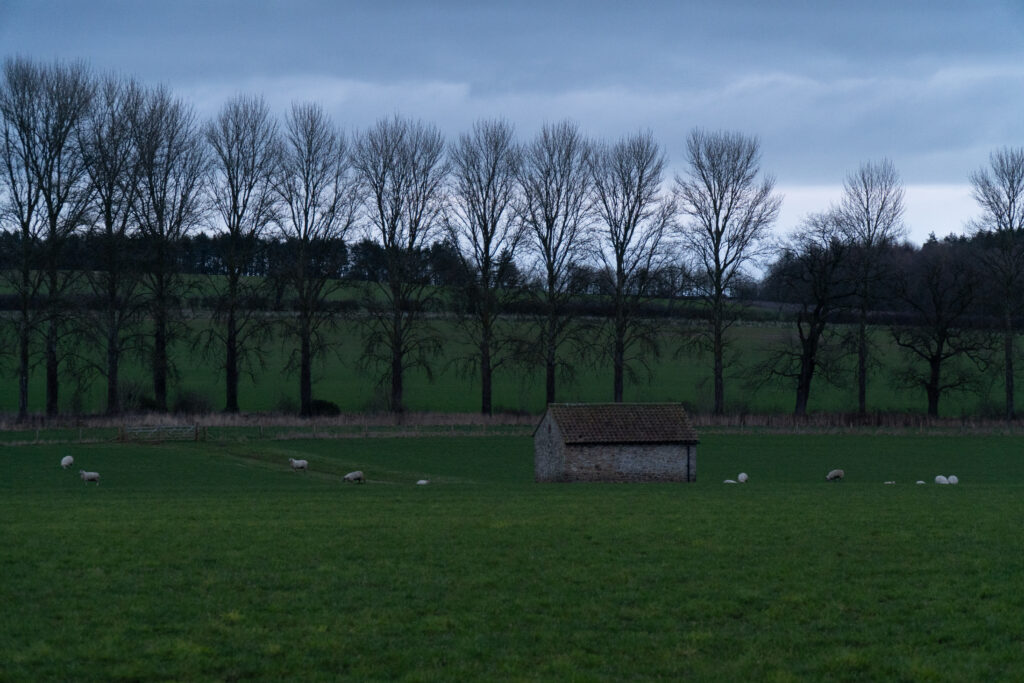
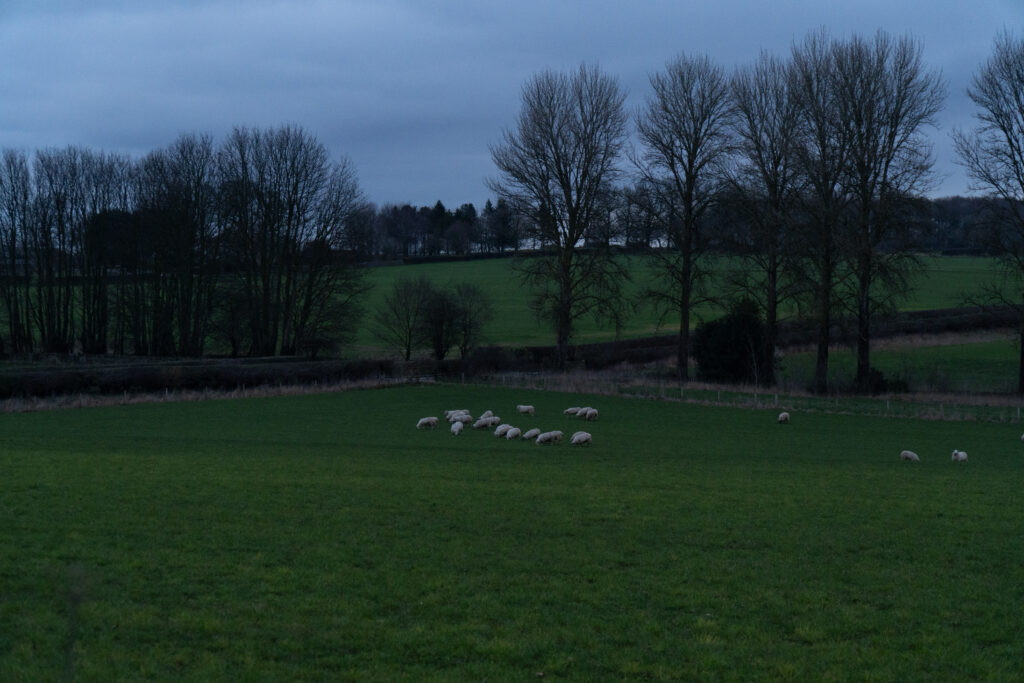
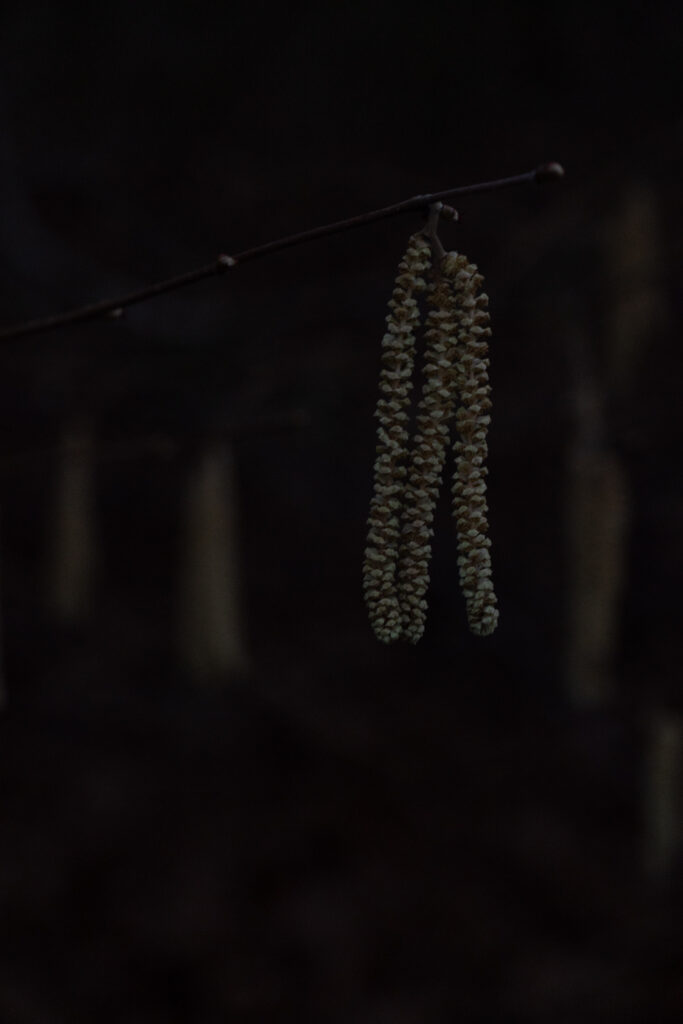
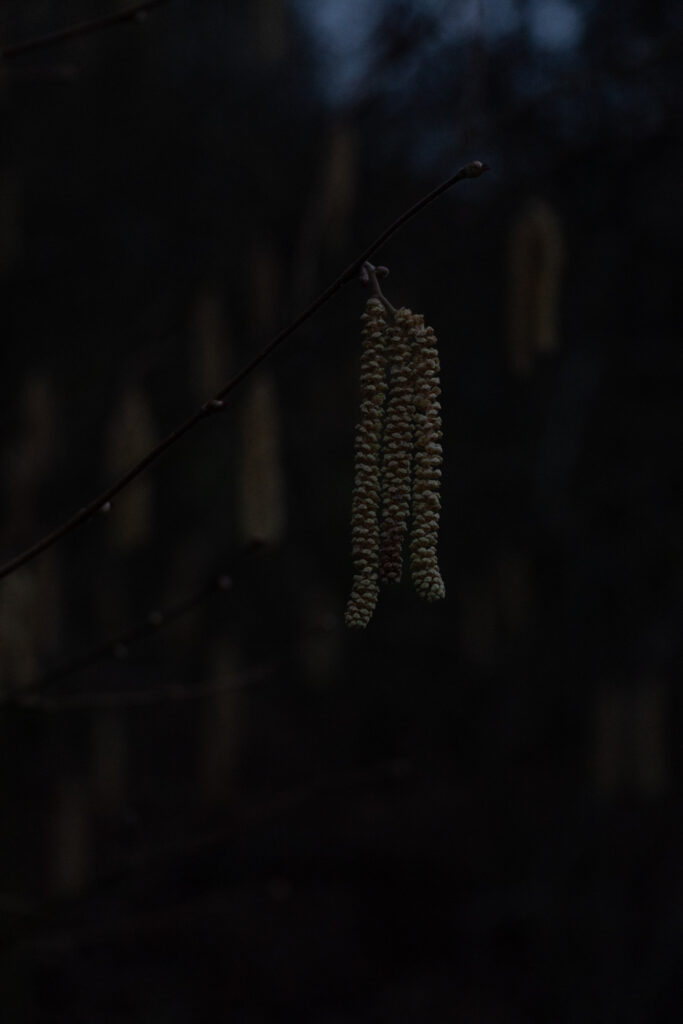
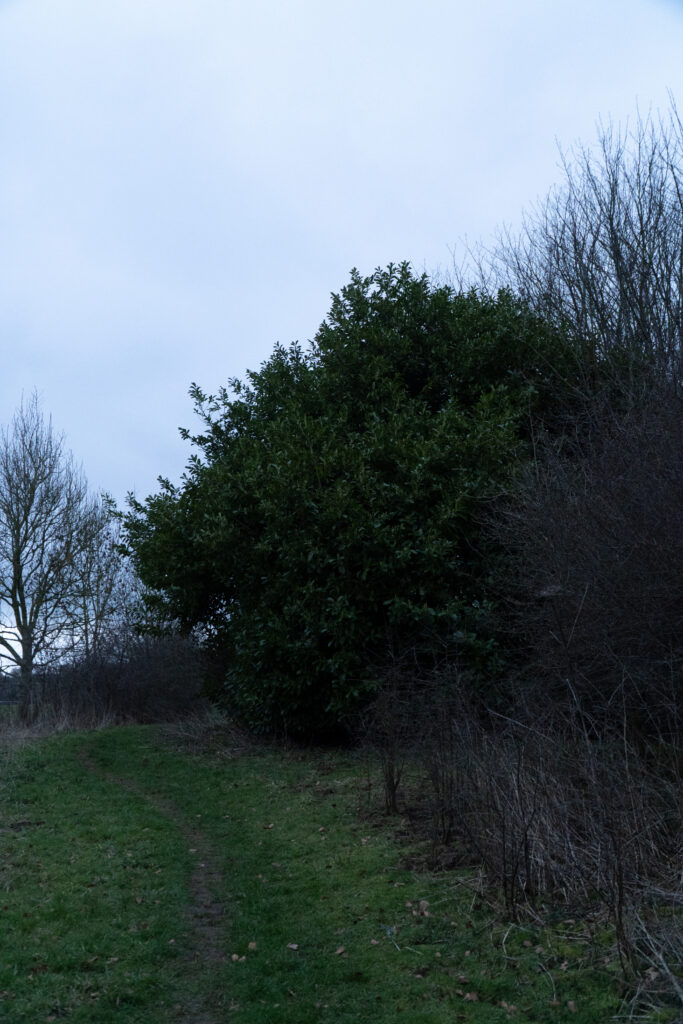
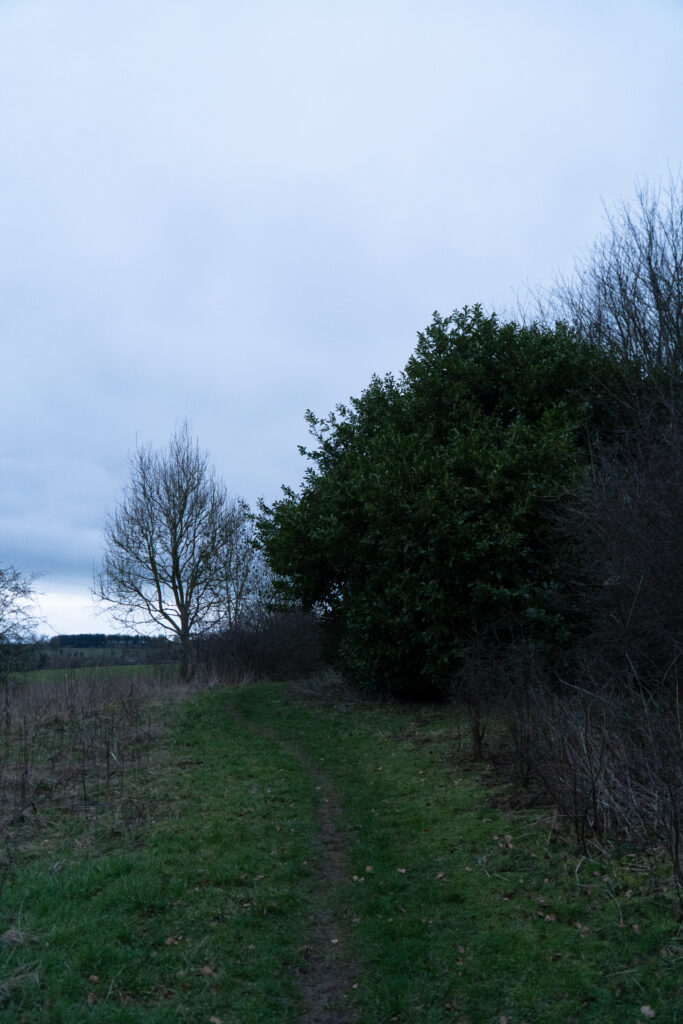
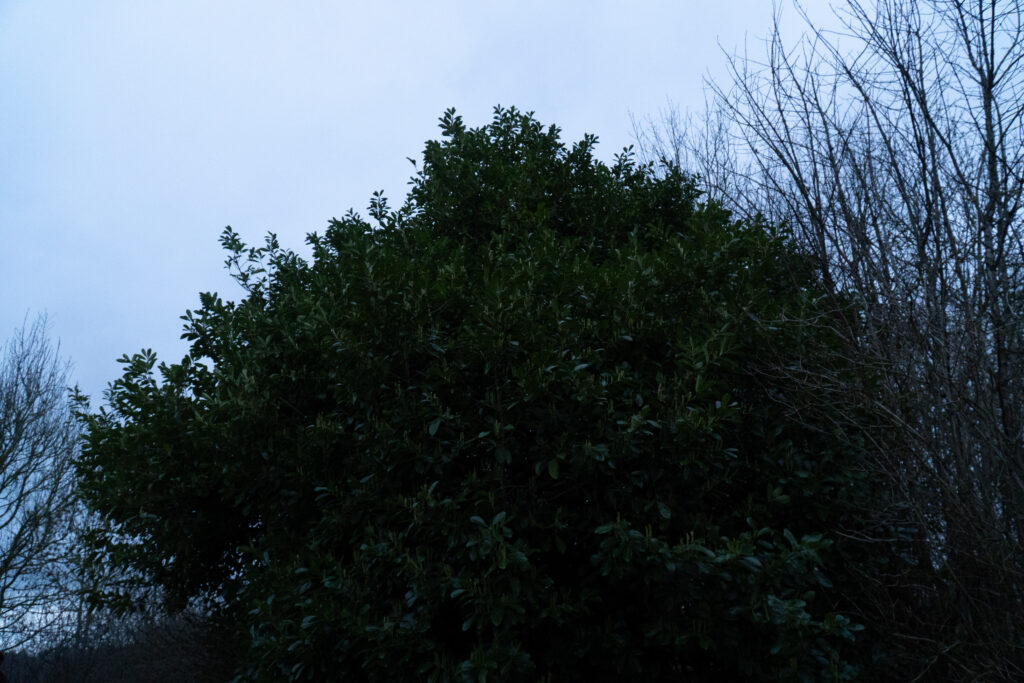
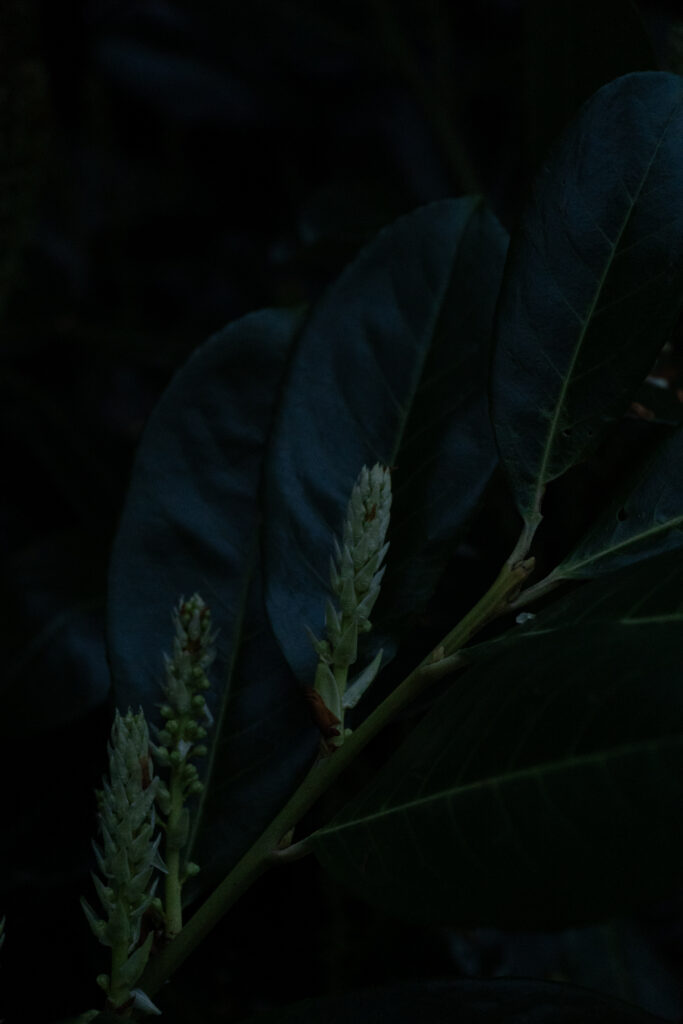
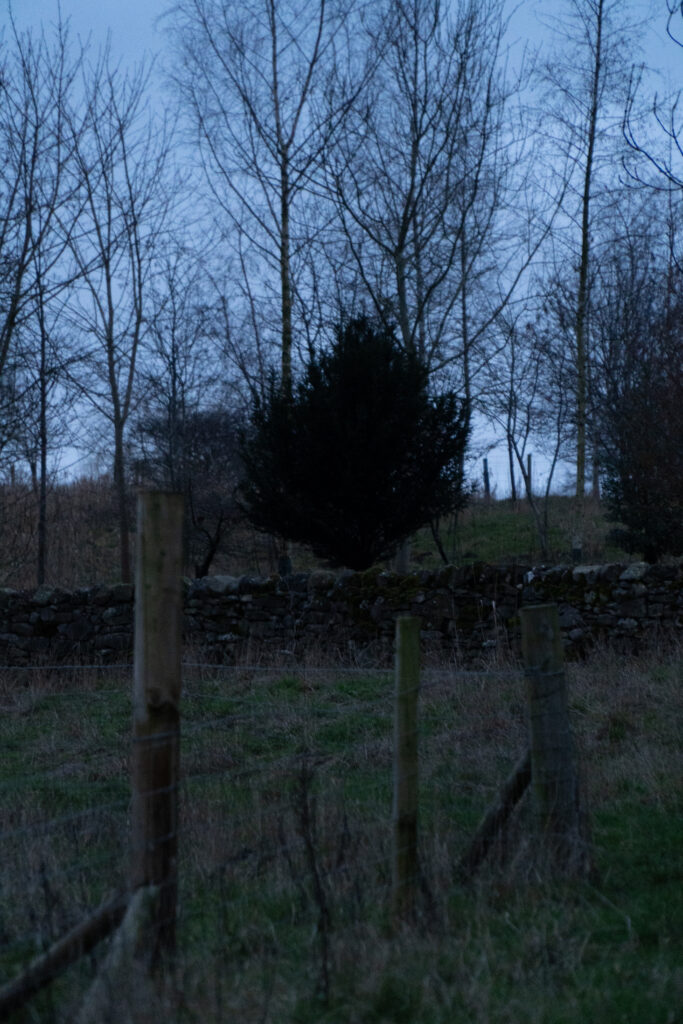
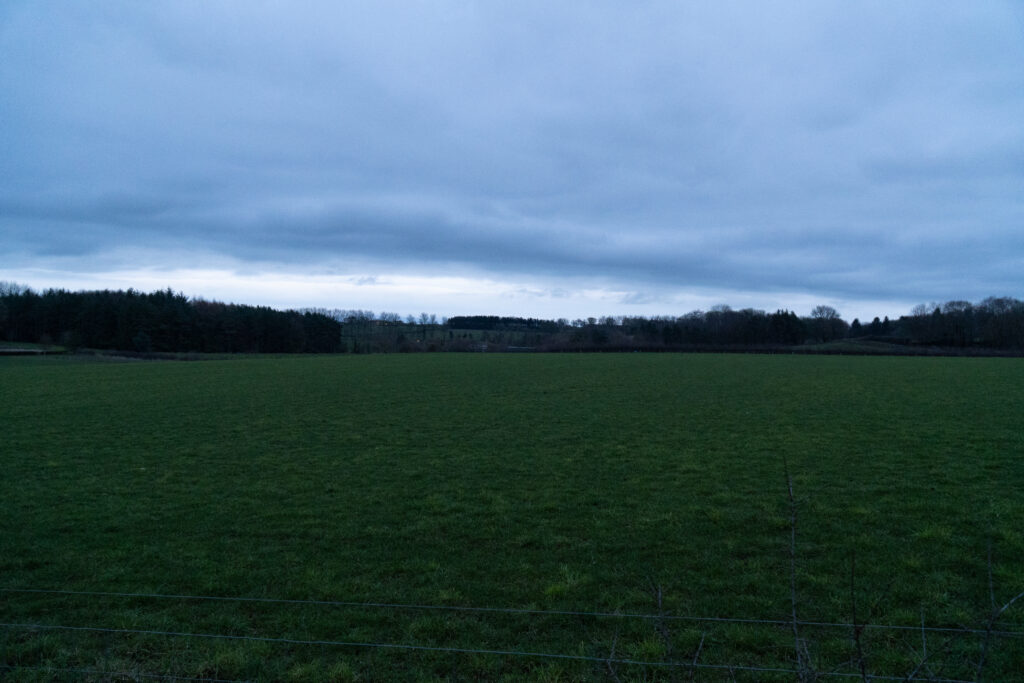
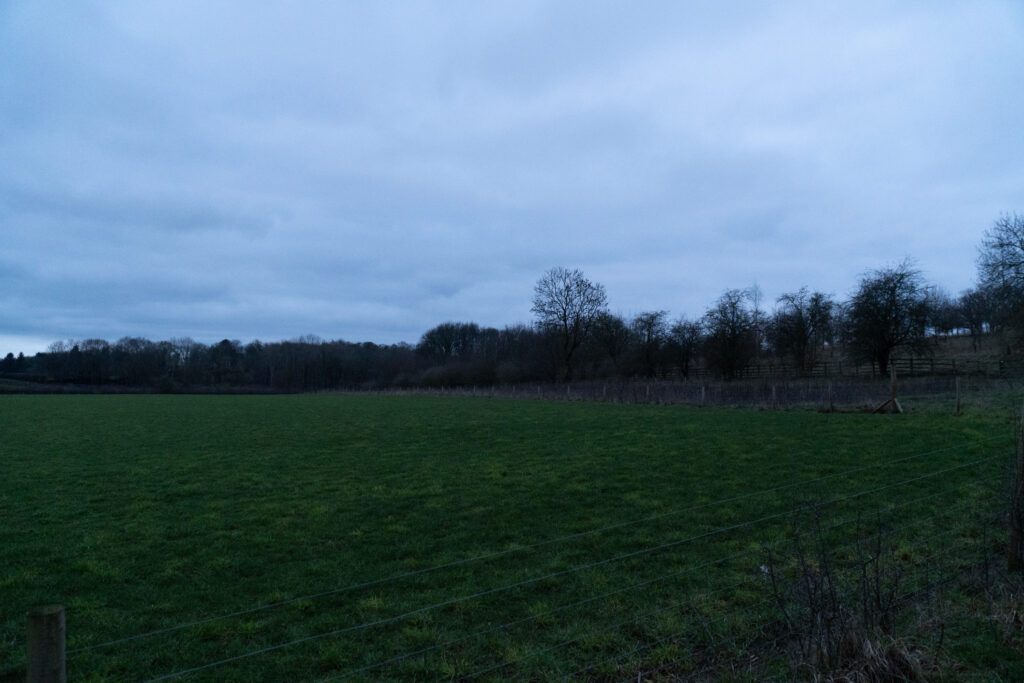
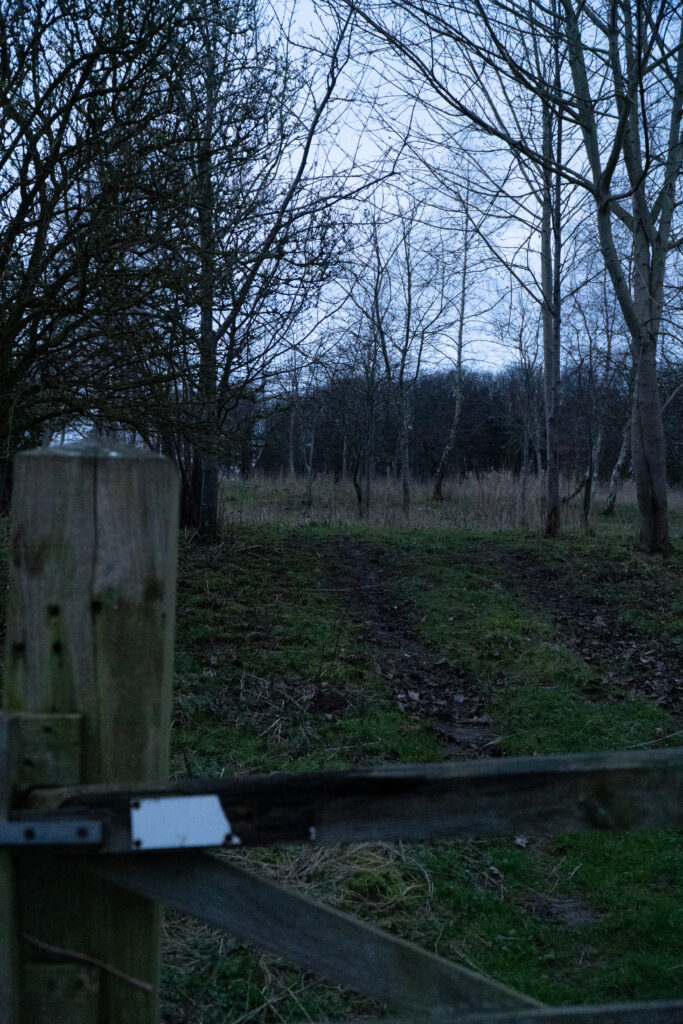
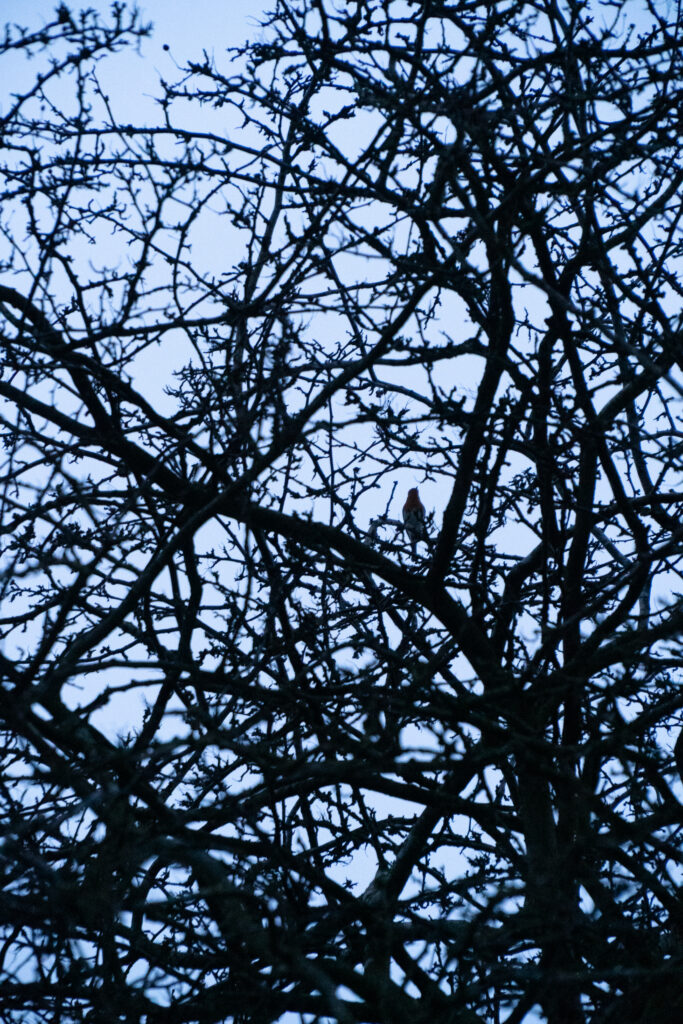
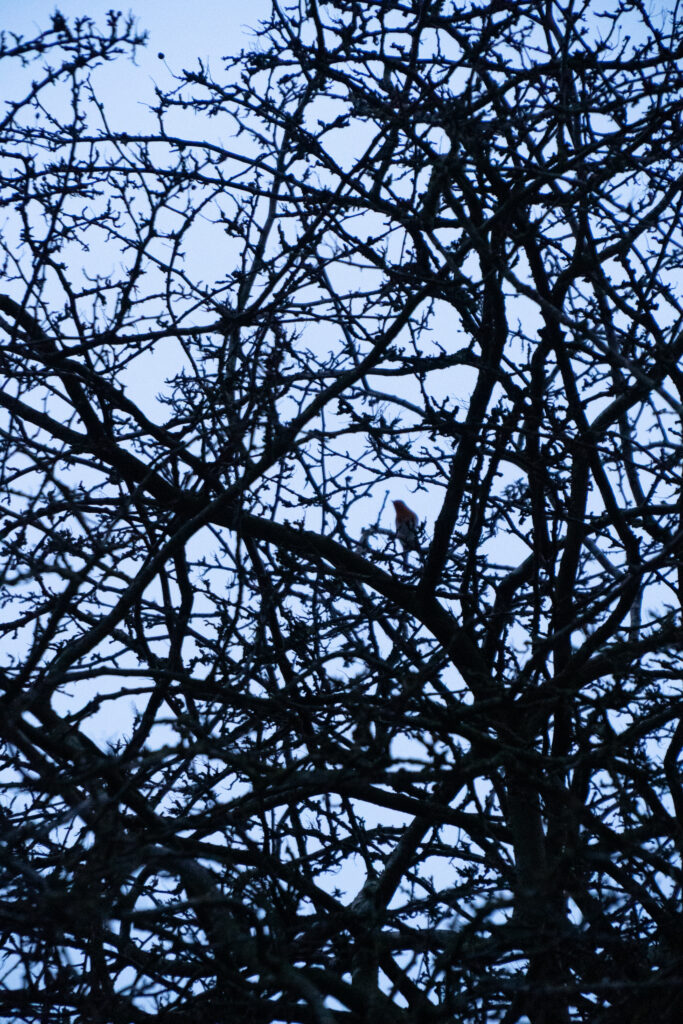
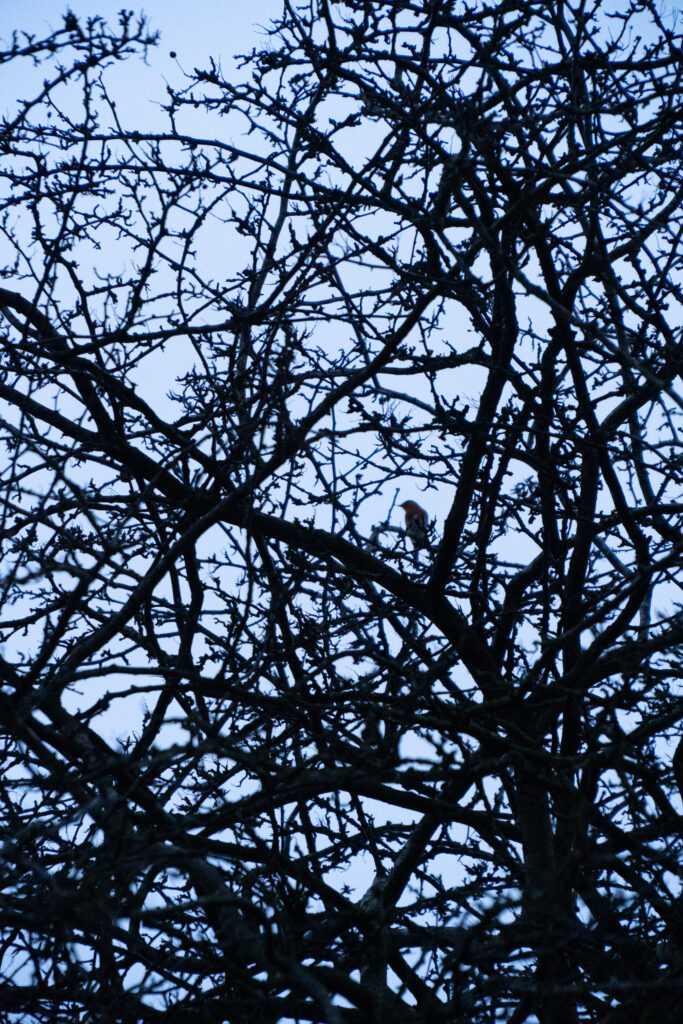
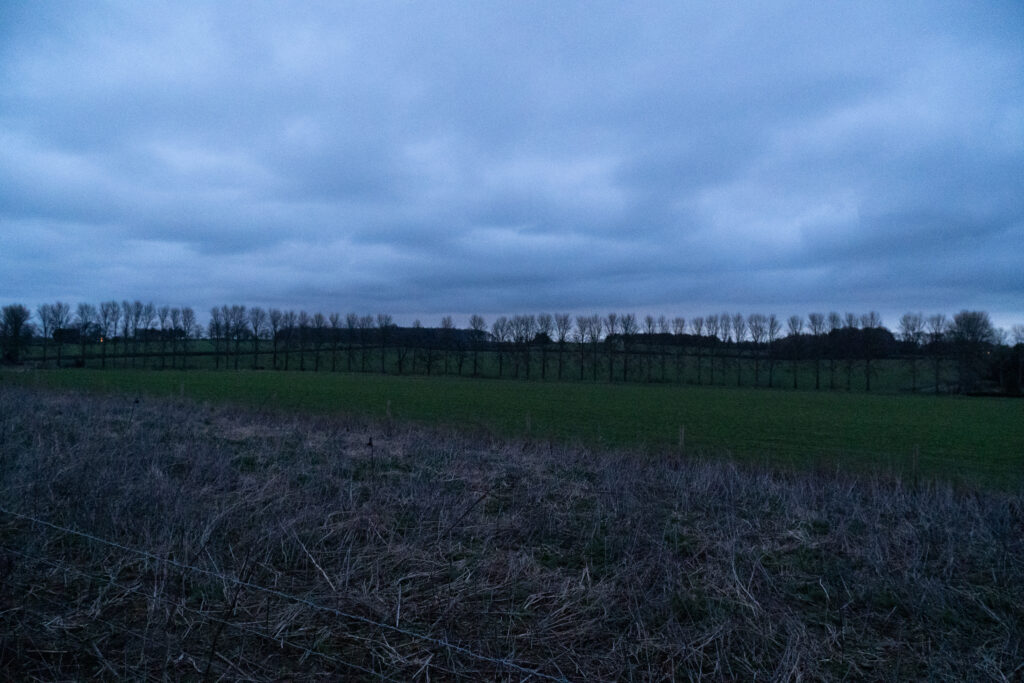
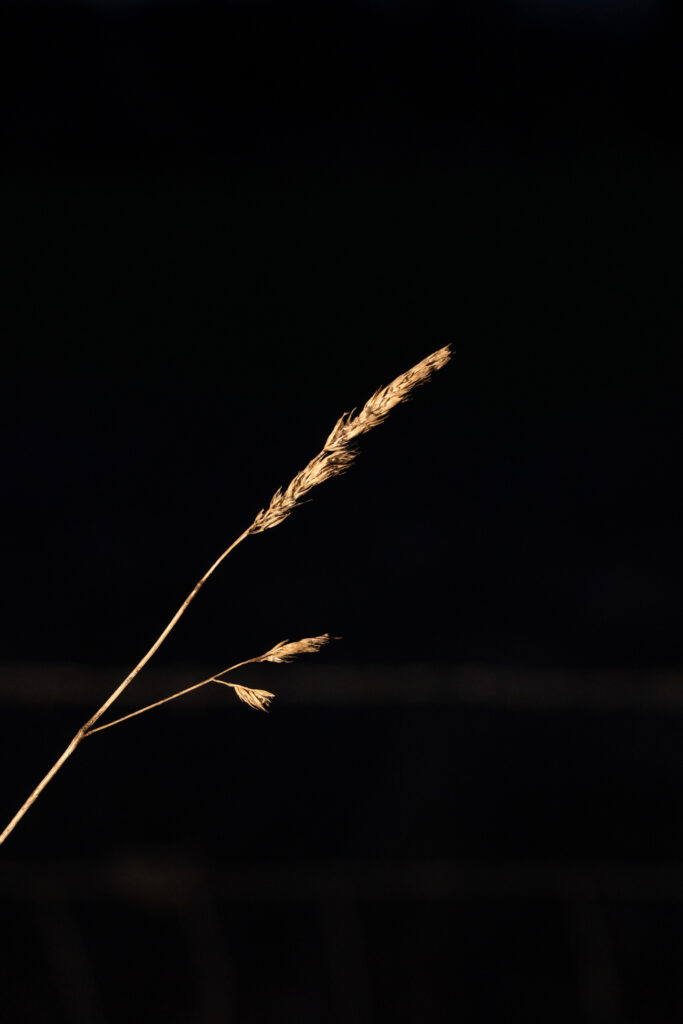
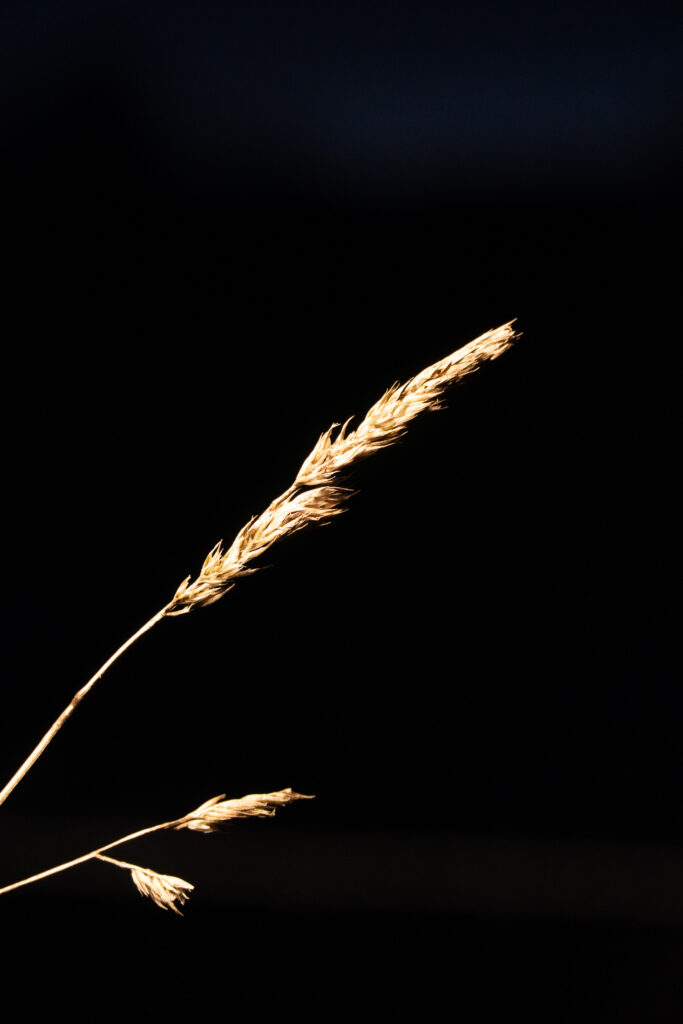
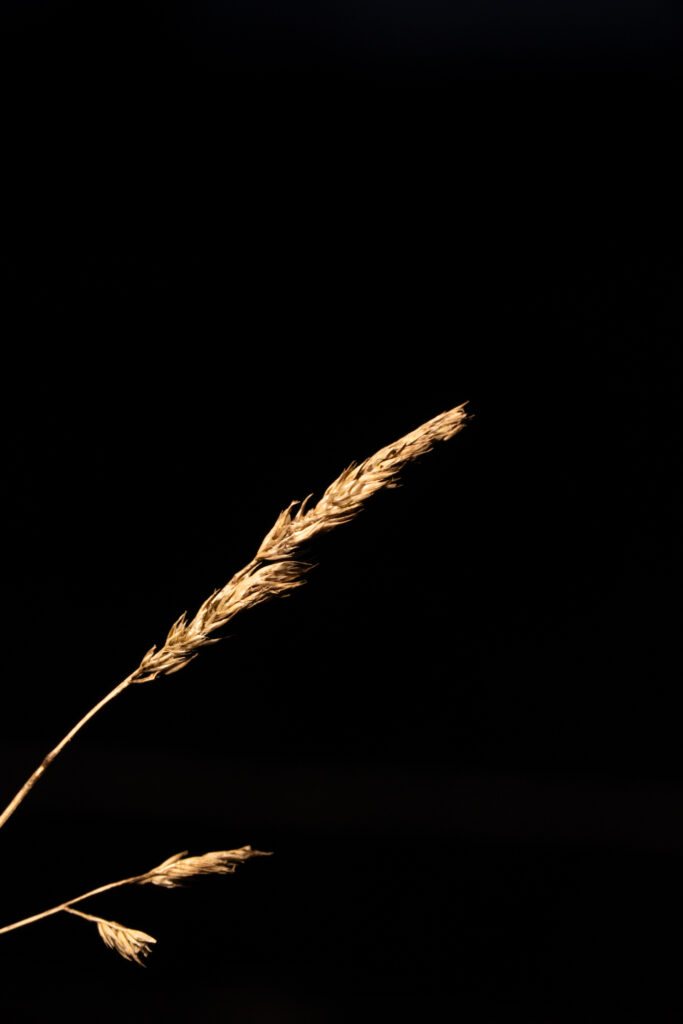
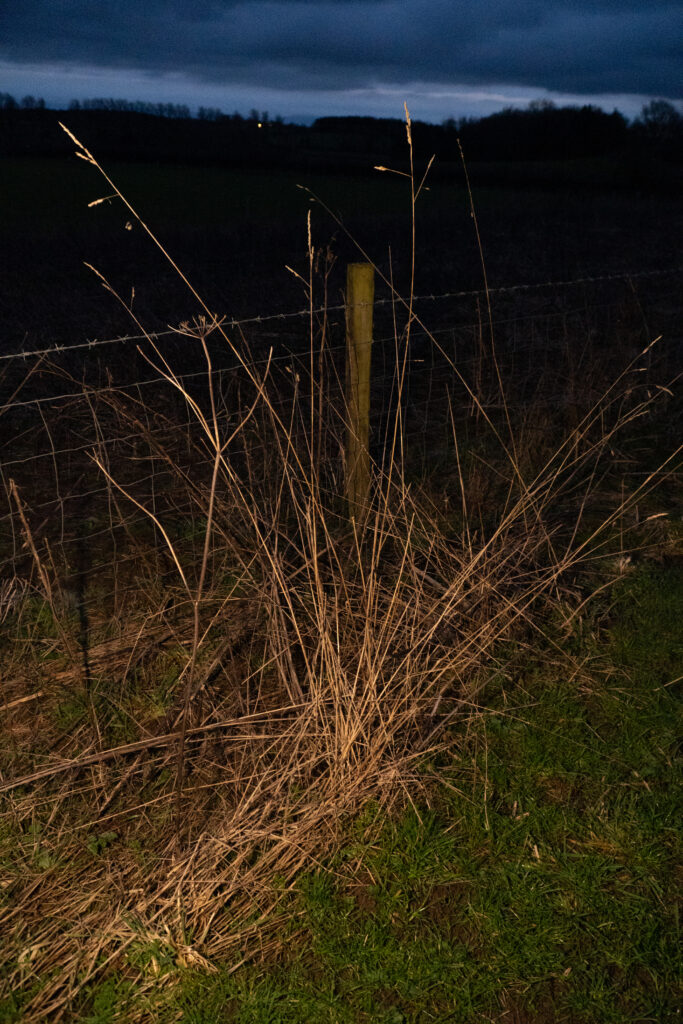
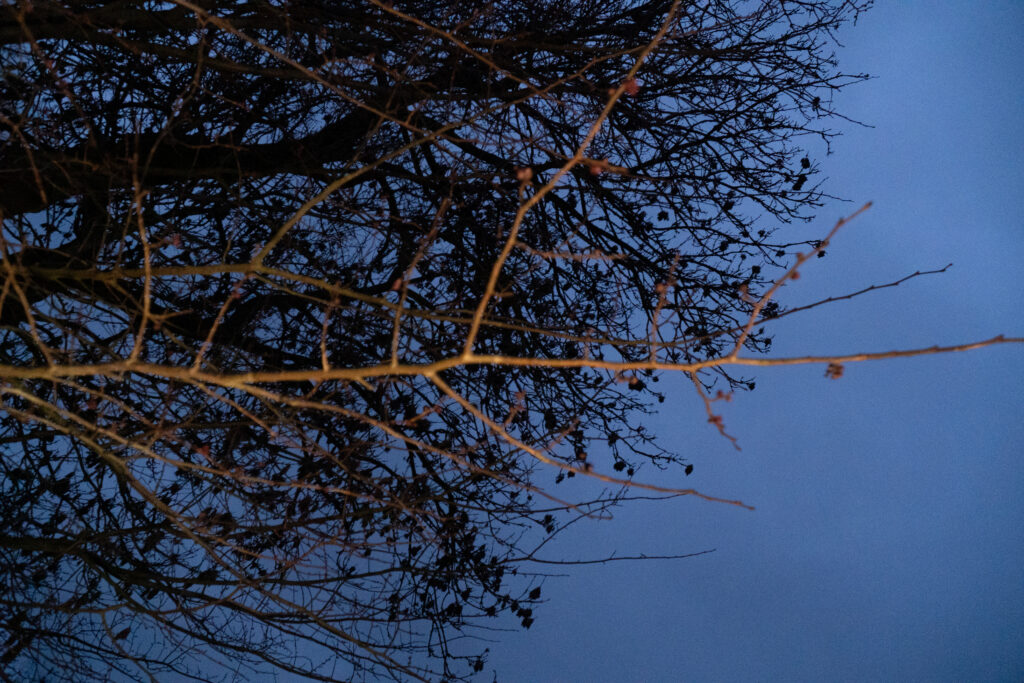
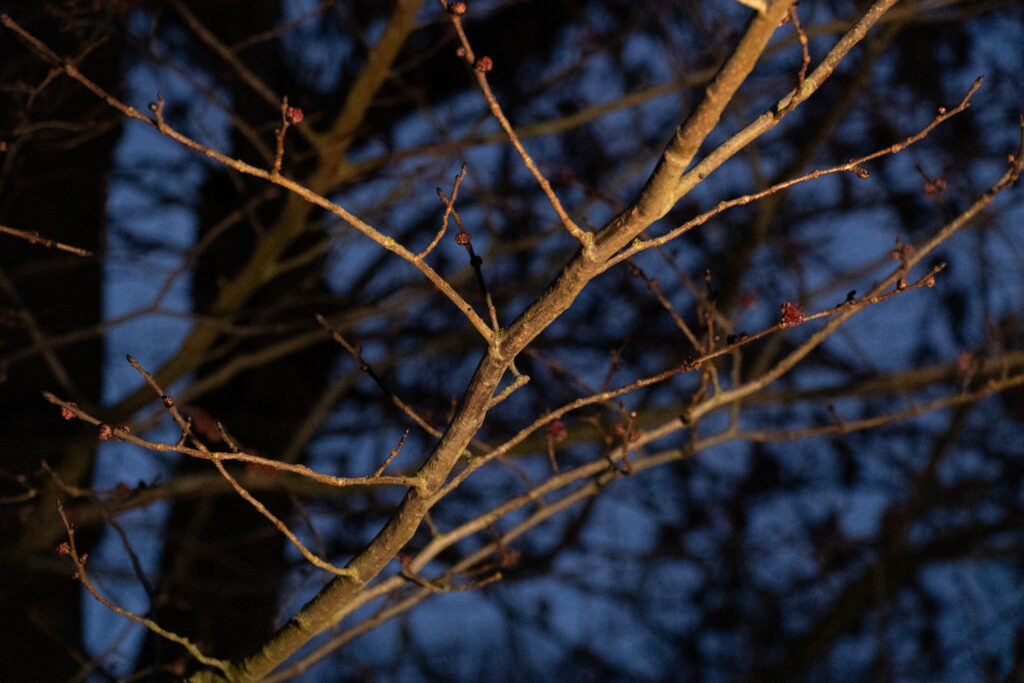
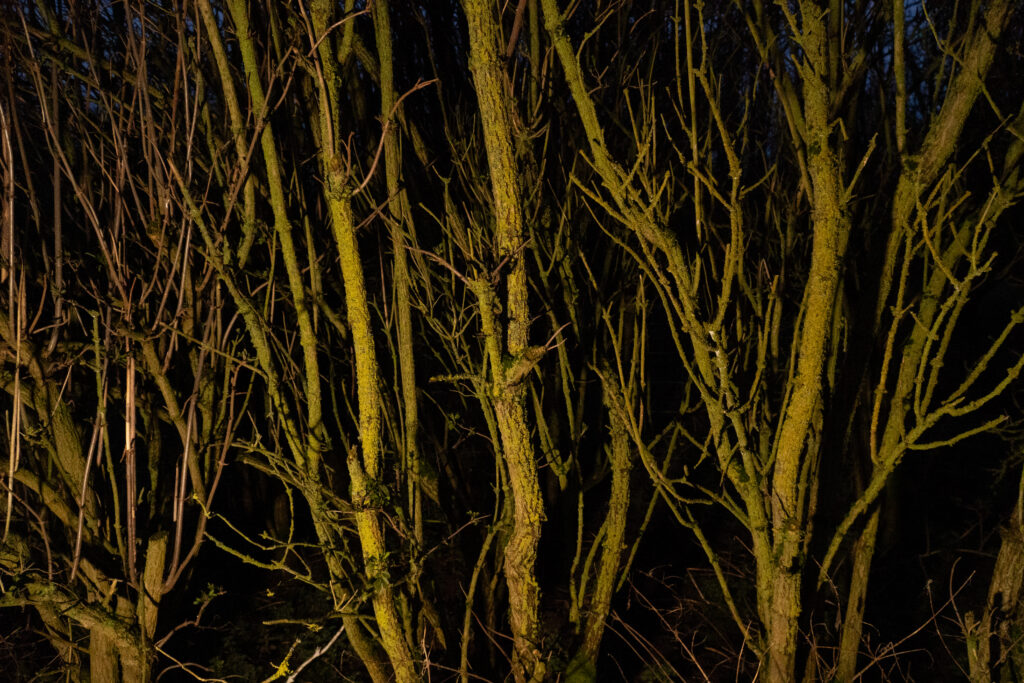
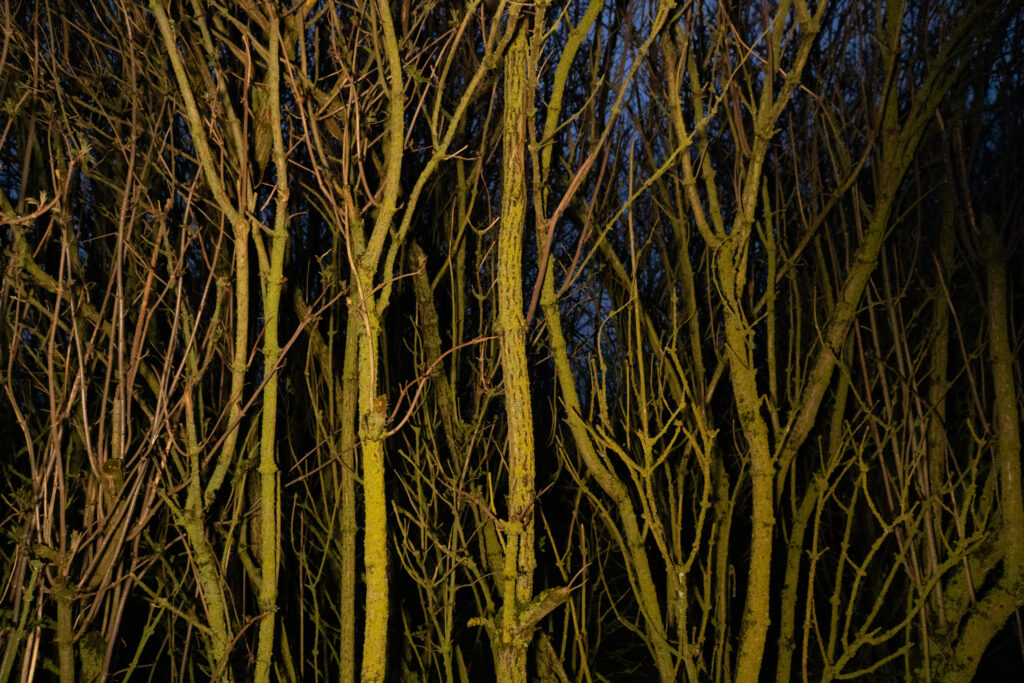
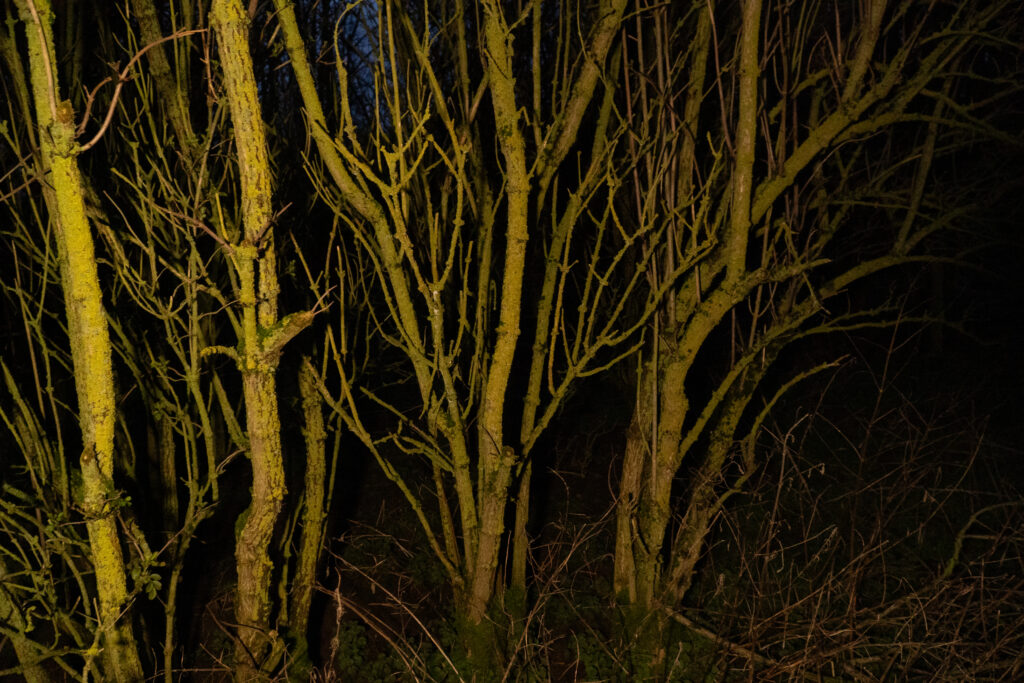
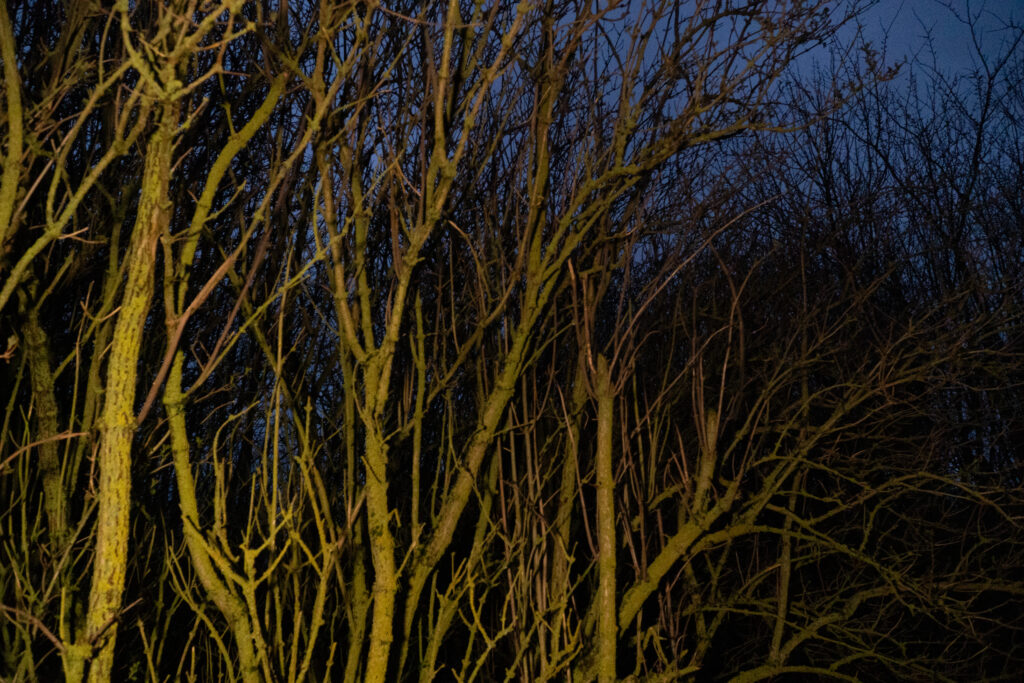
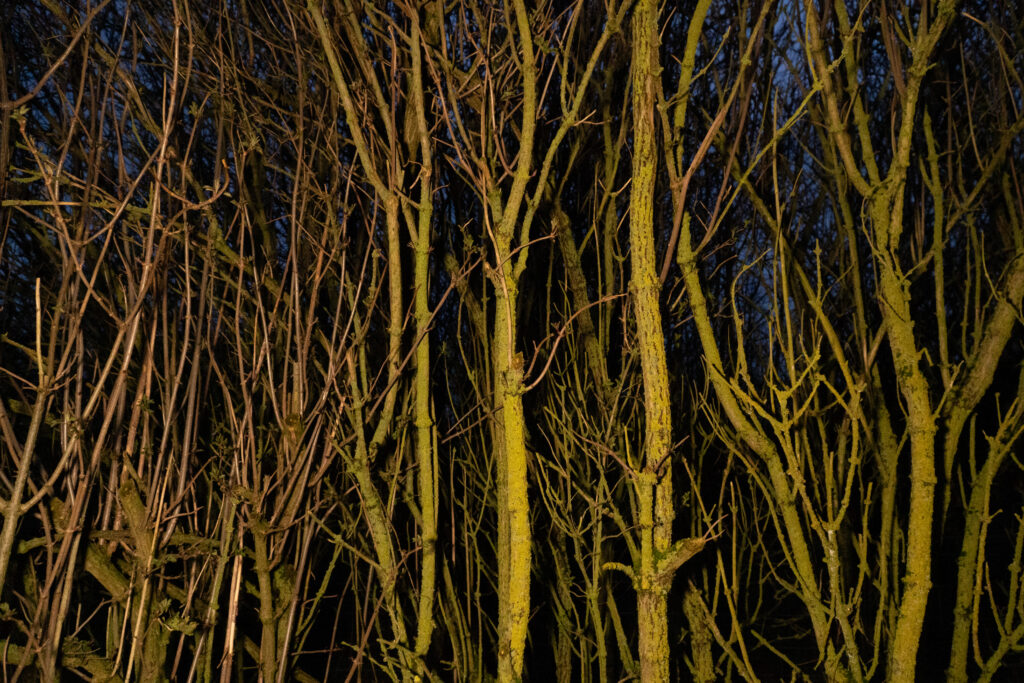
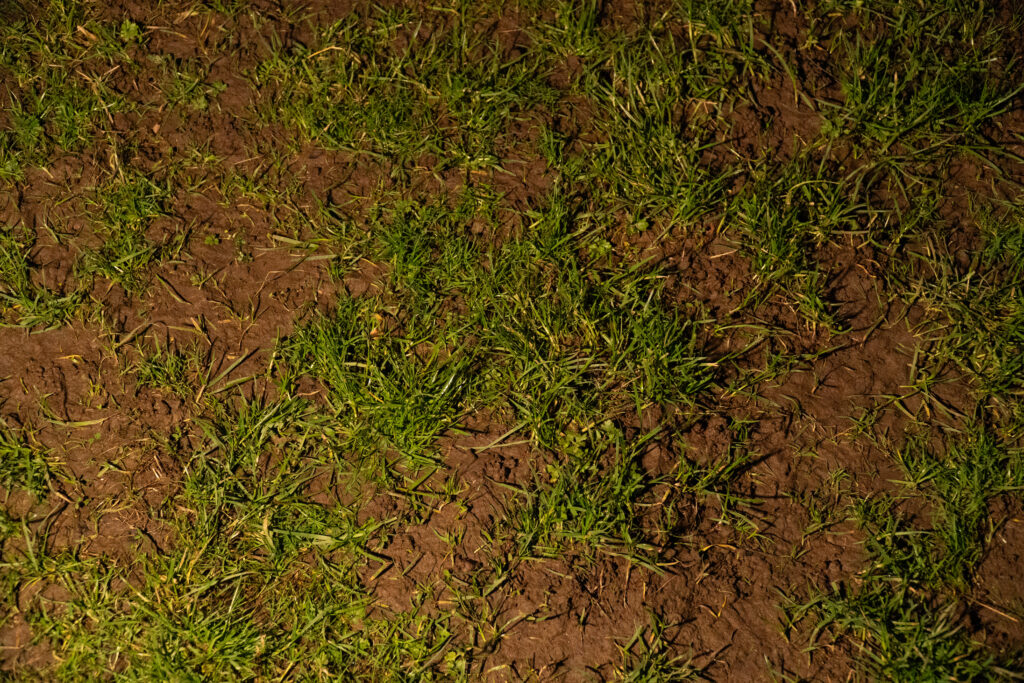
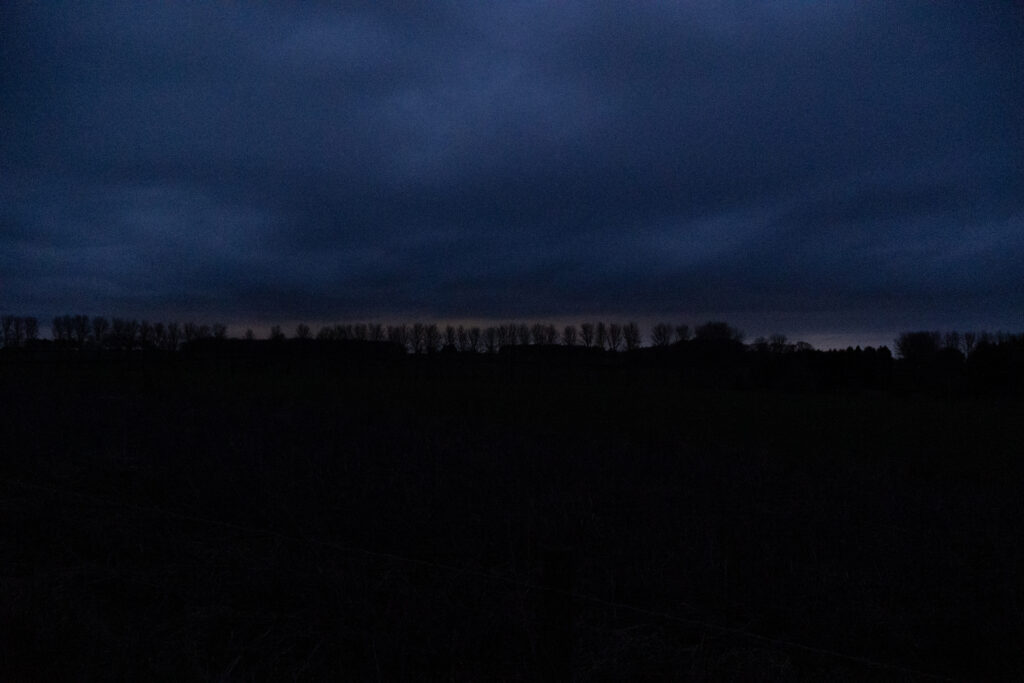
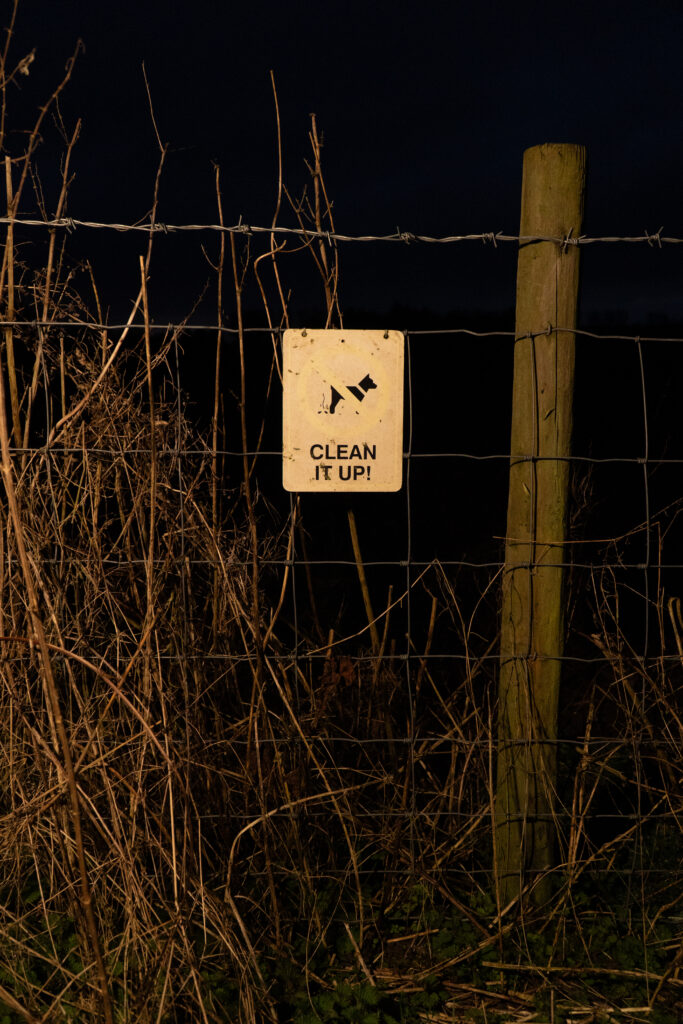
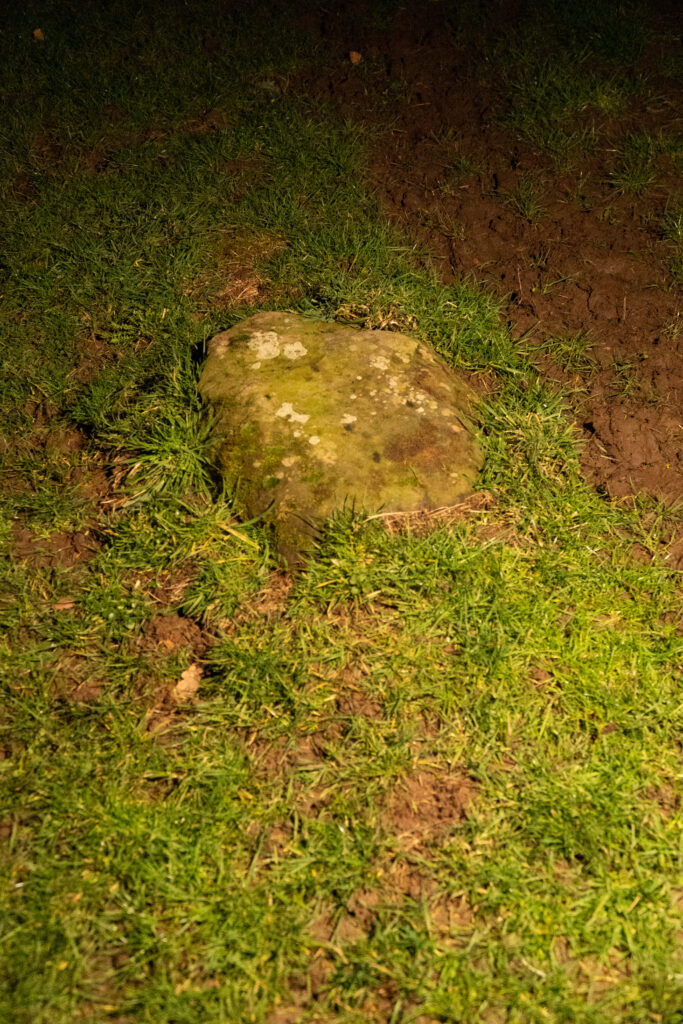
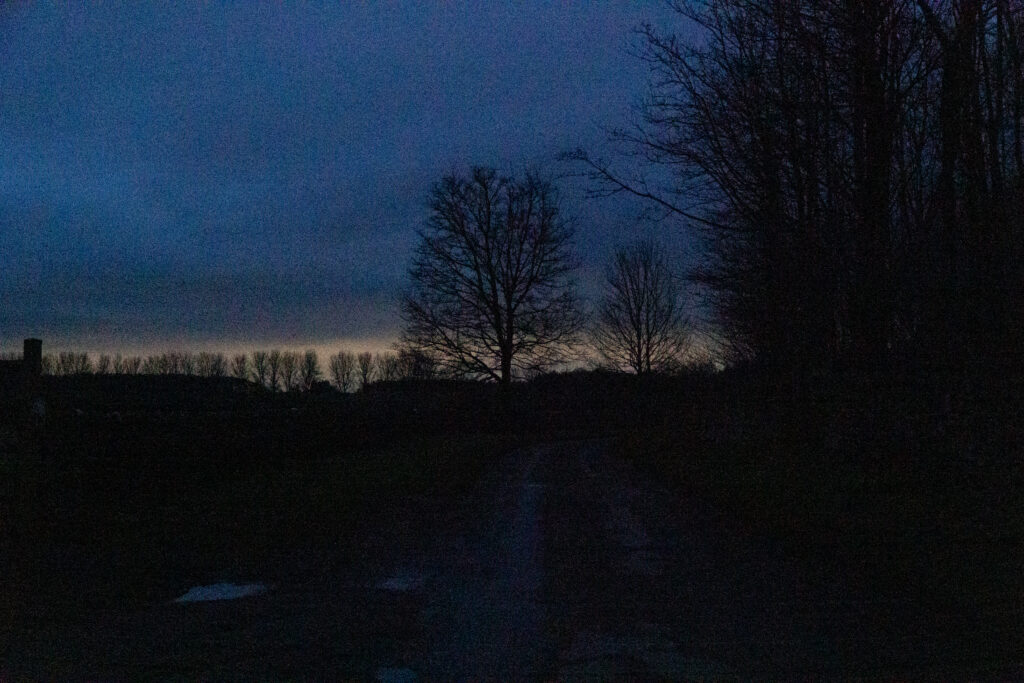
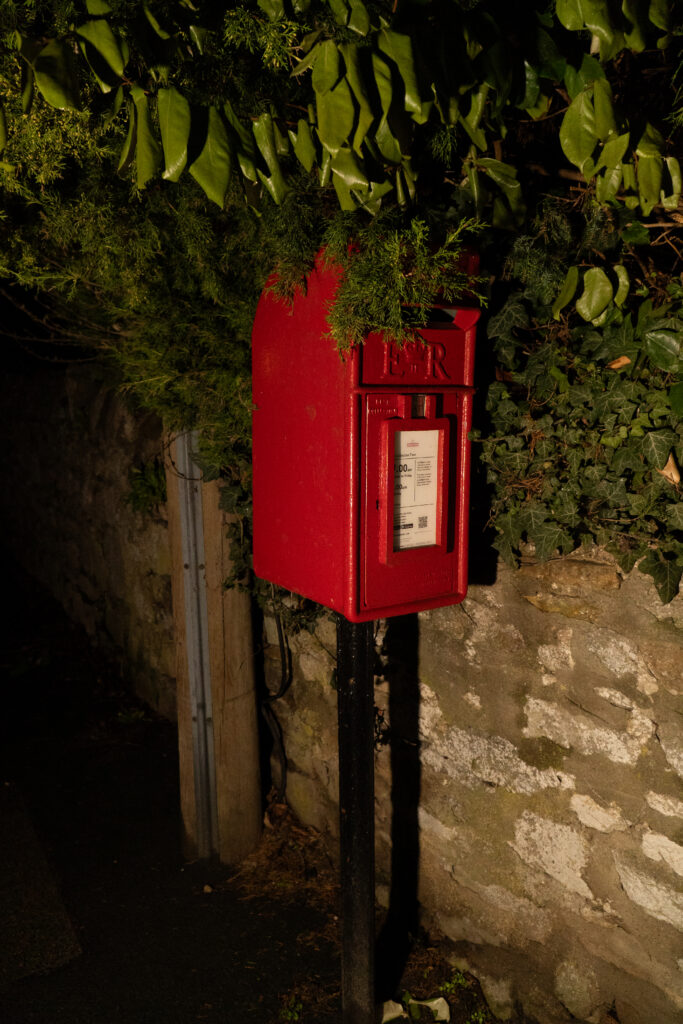
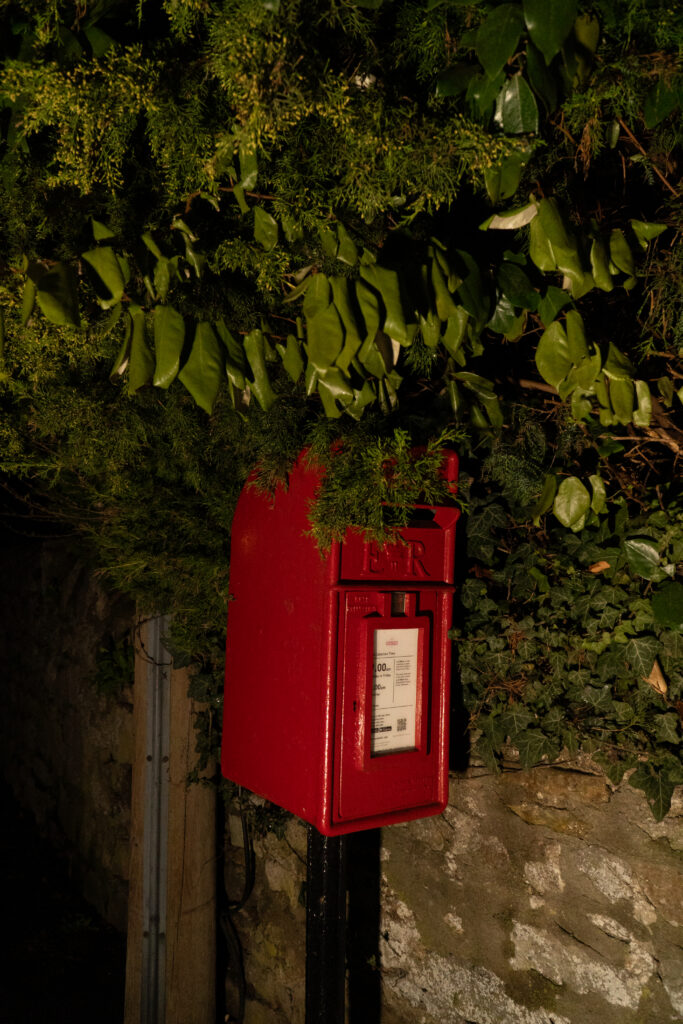
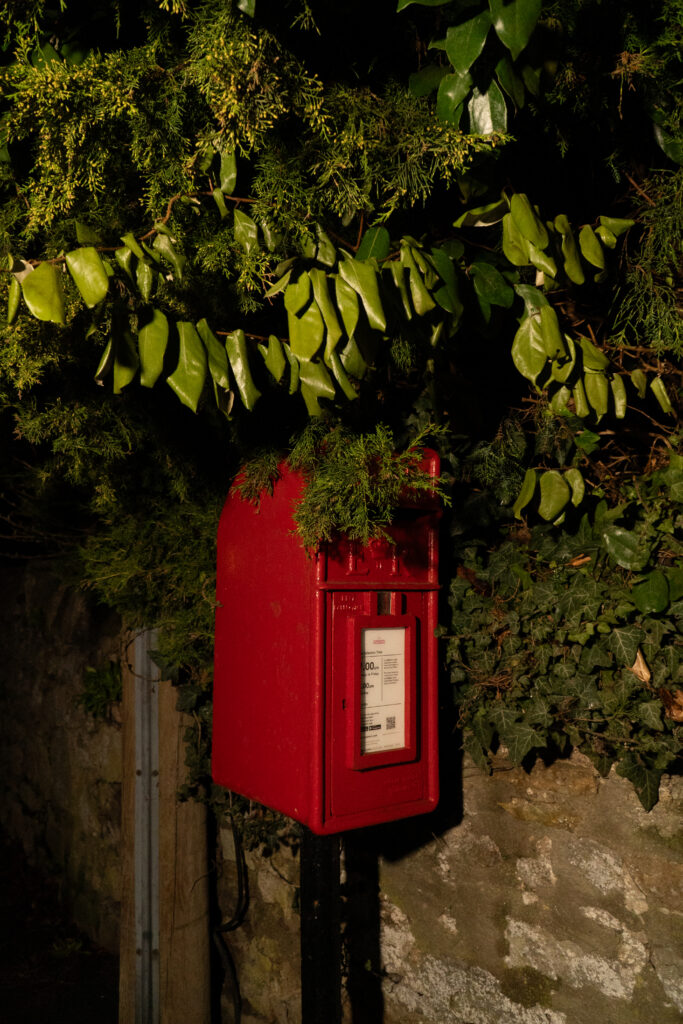
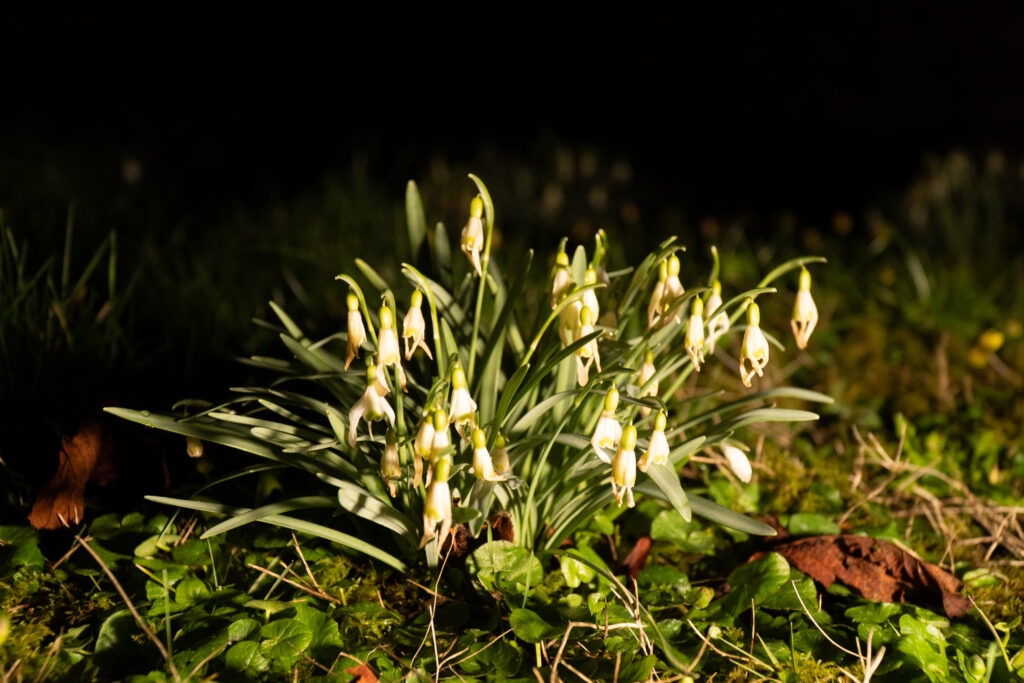
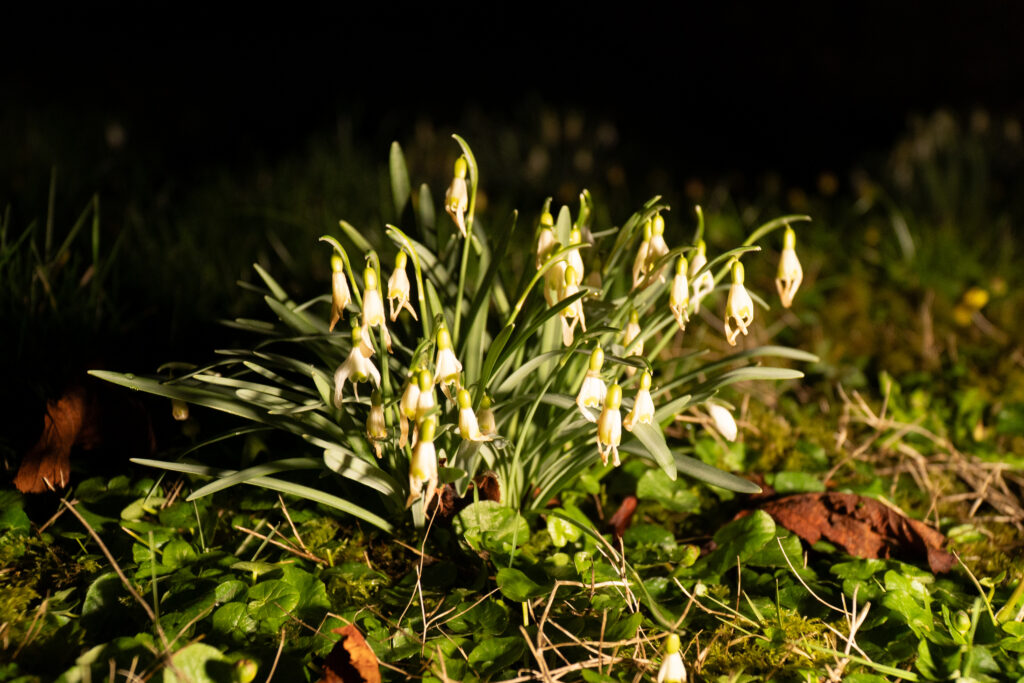
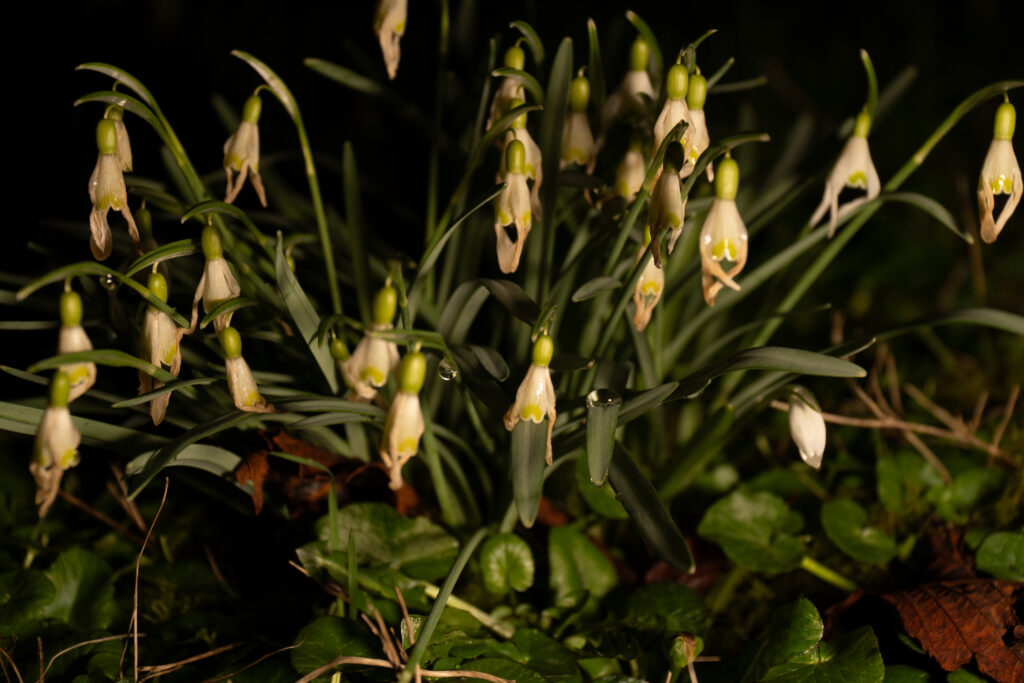
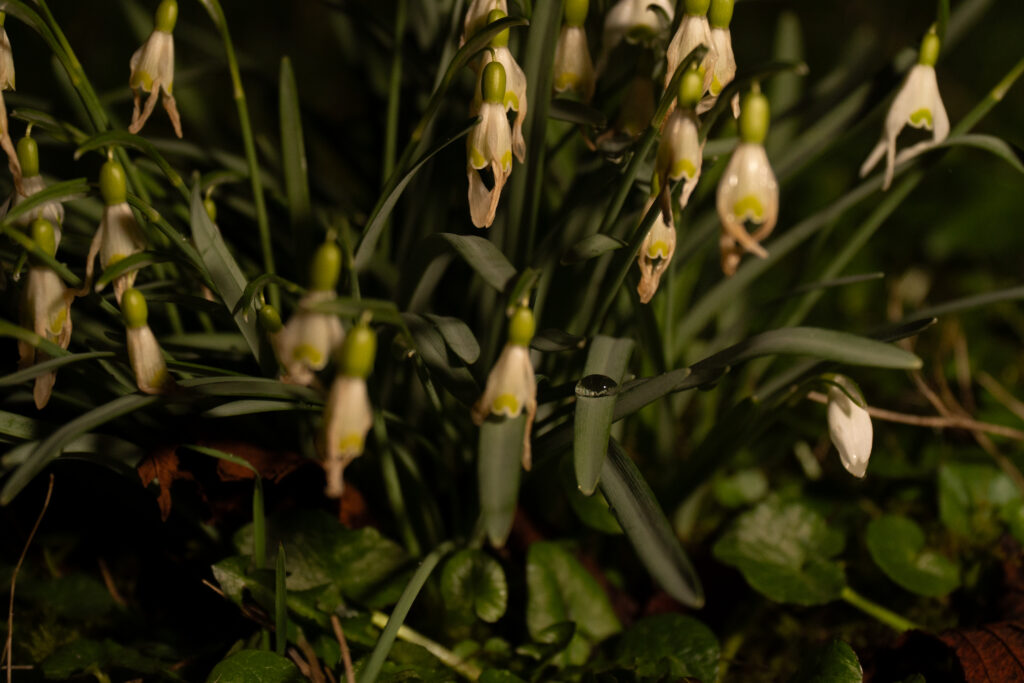
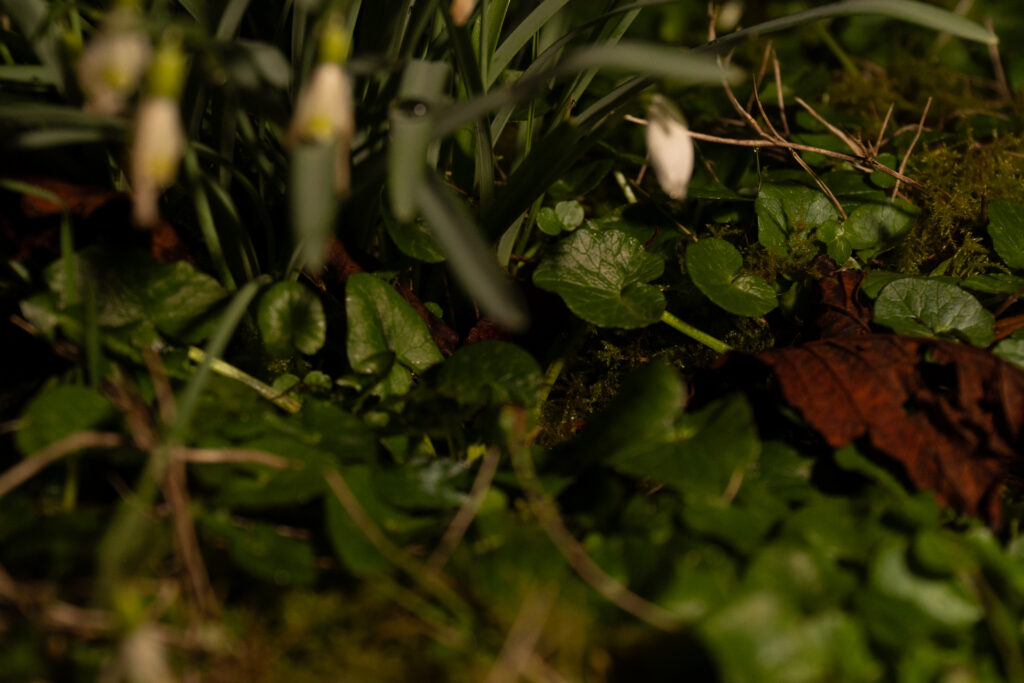
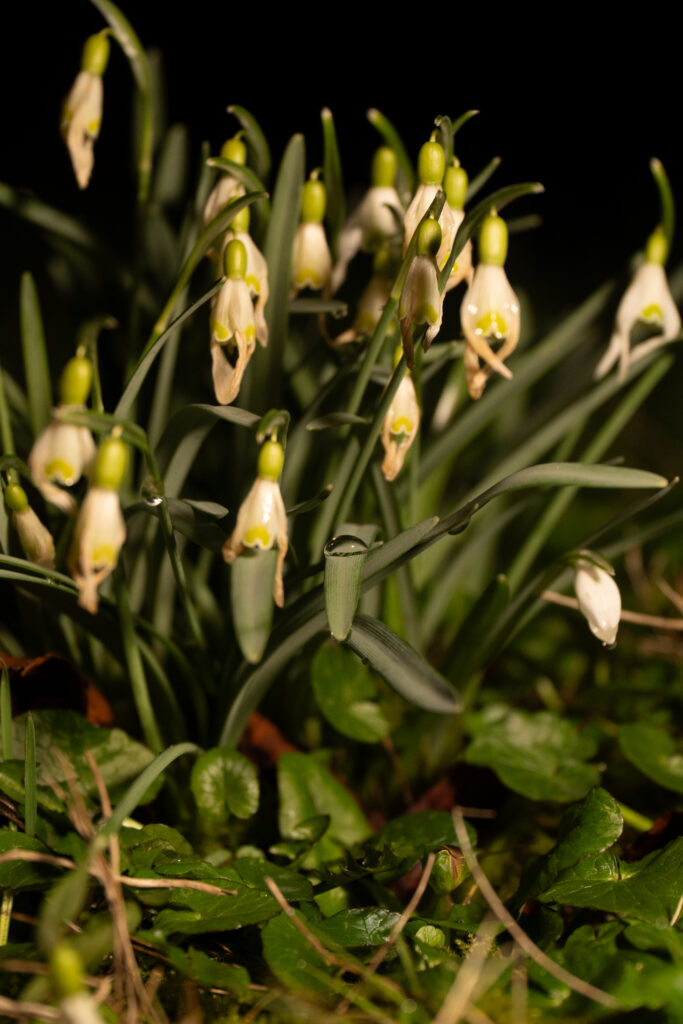
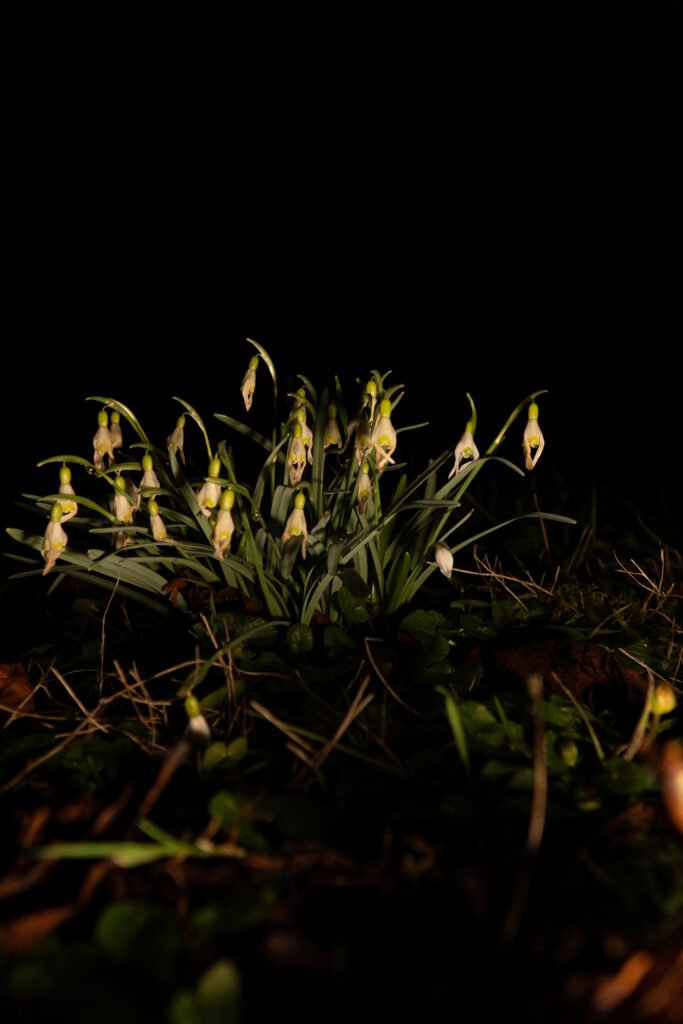
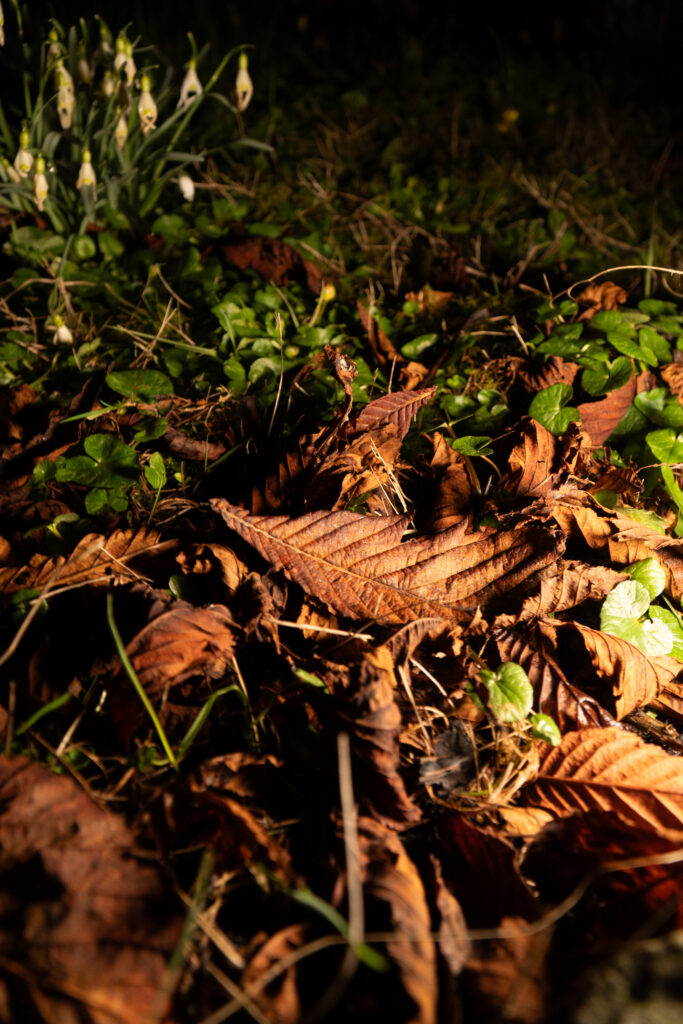
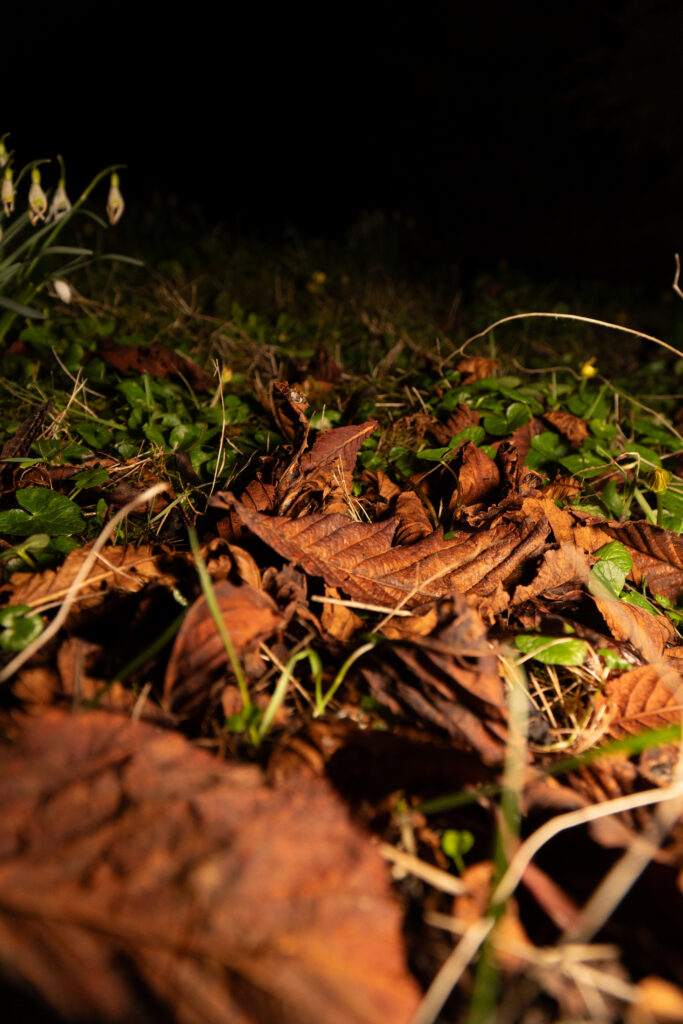
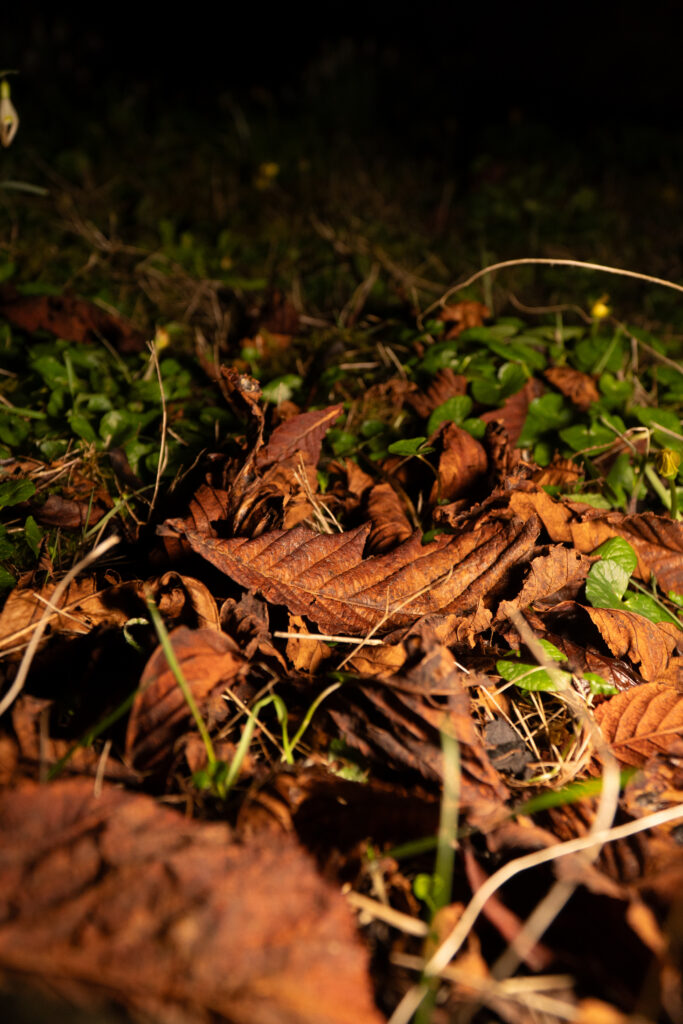
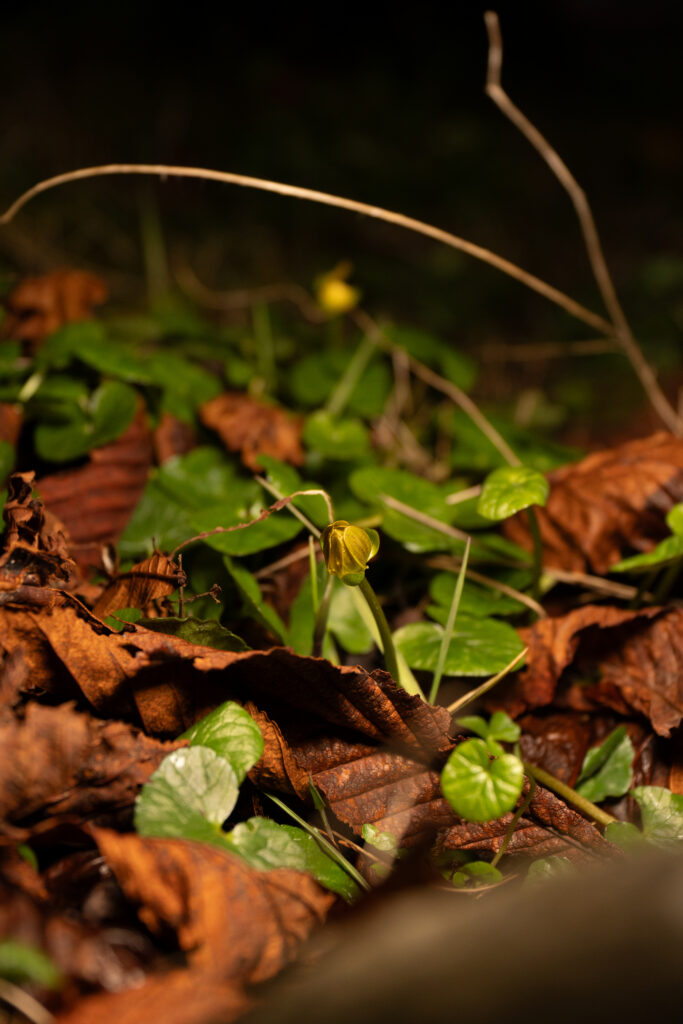
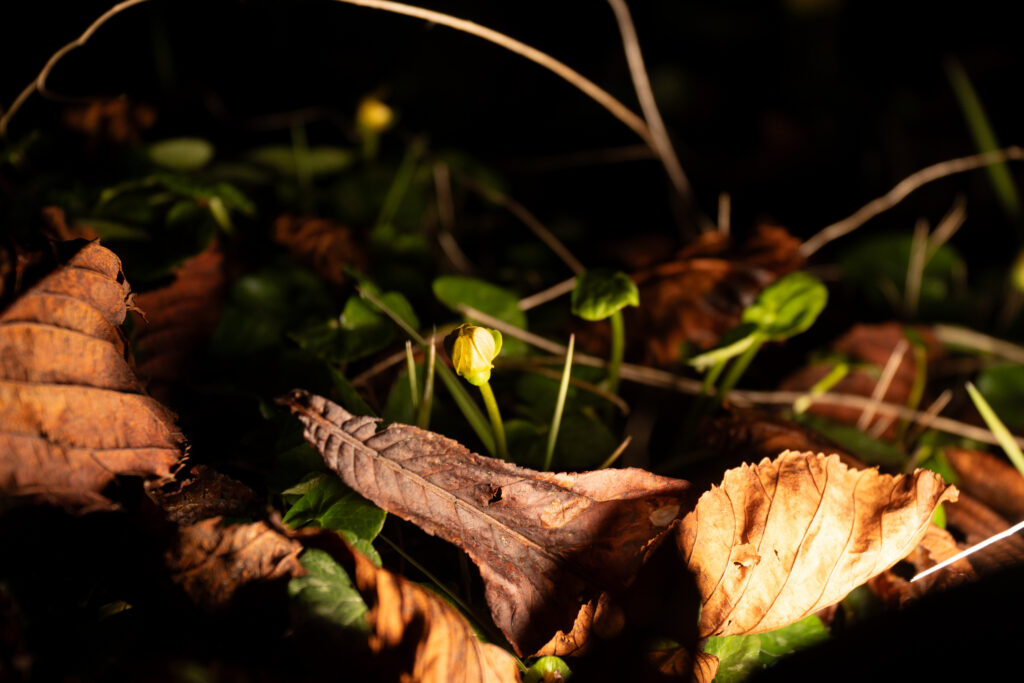
Lightroom Enhanced Edited Selection
Talk about
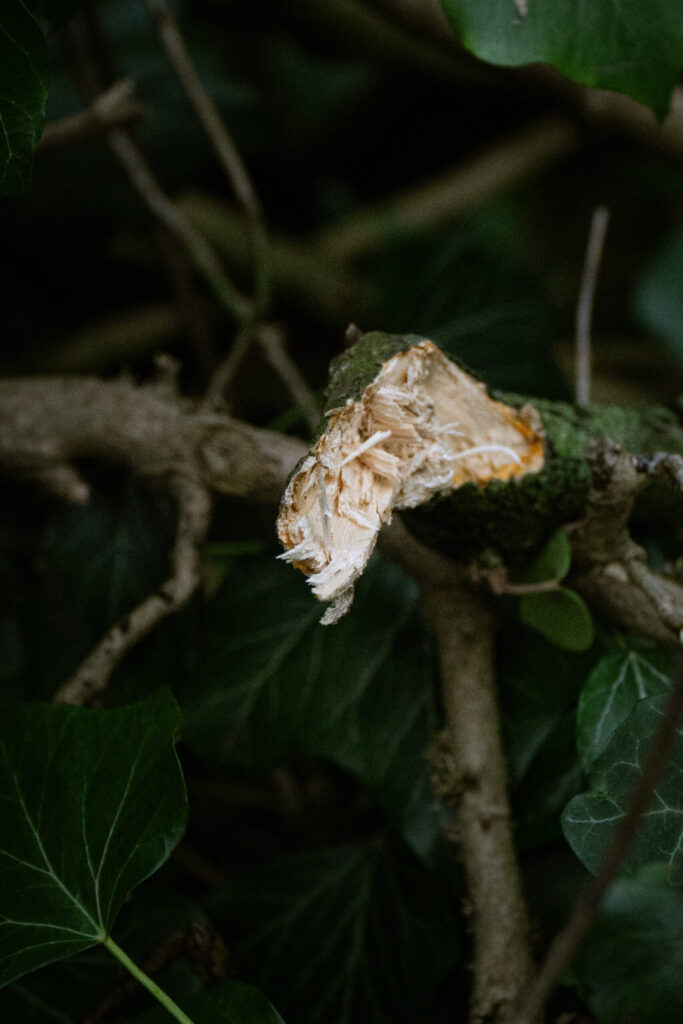
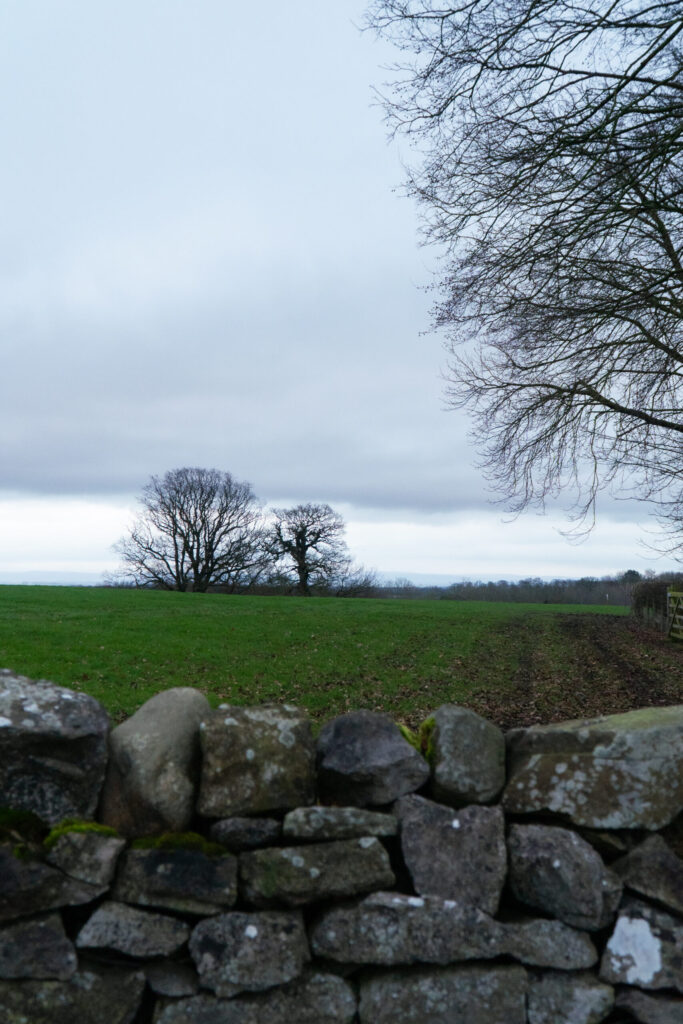
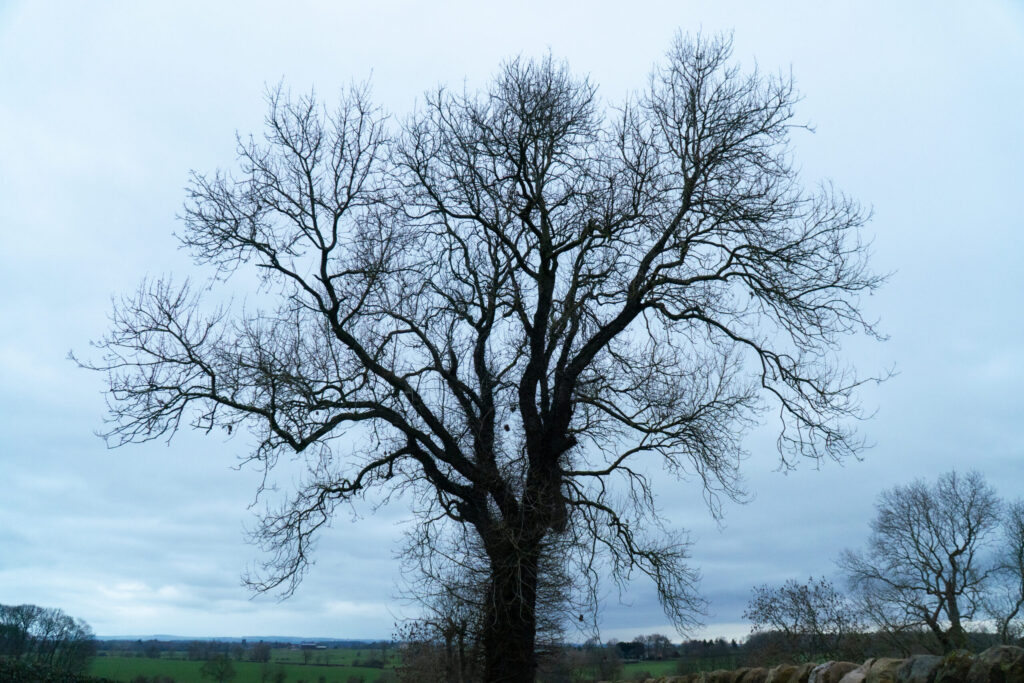
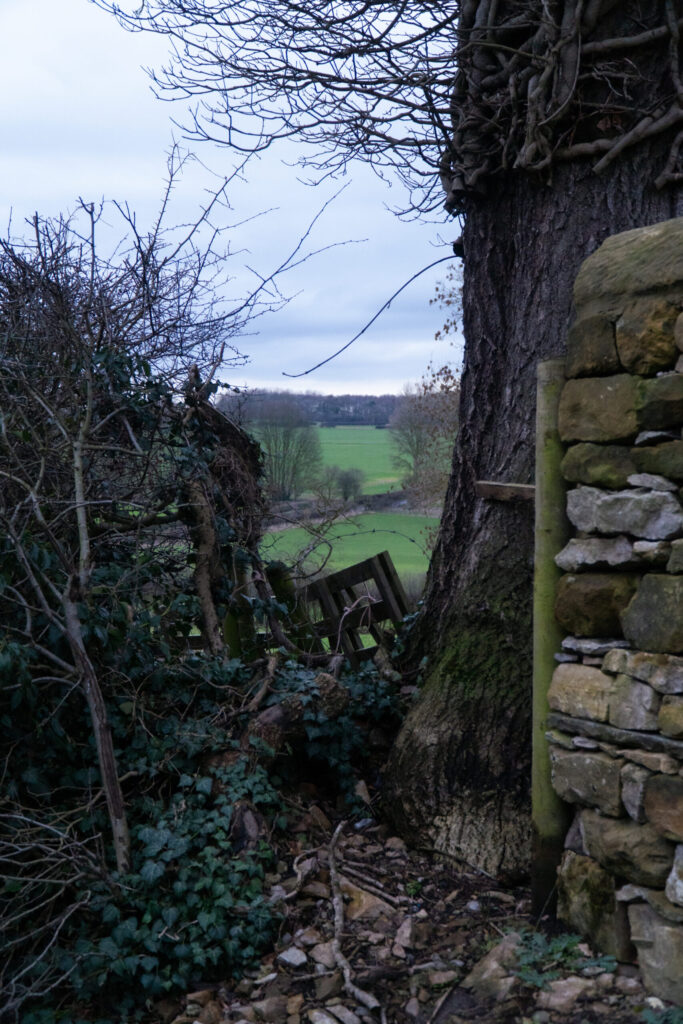
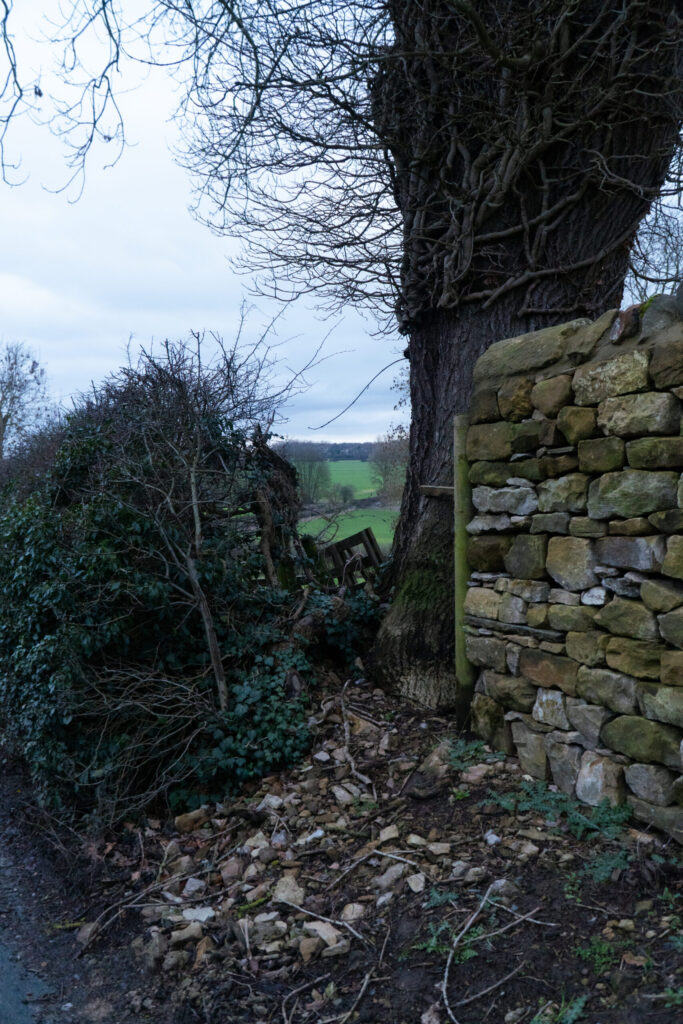
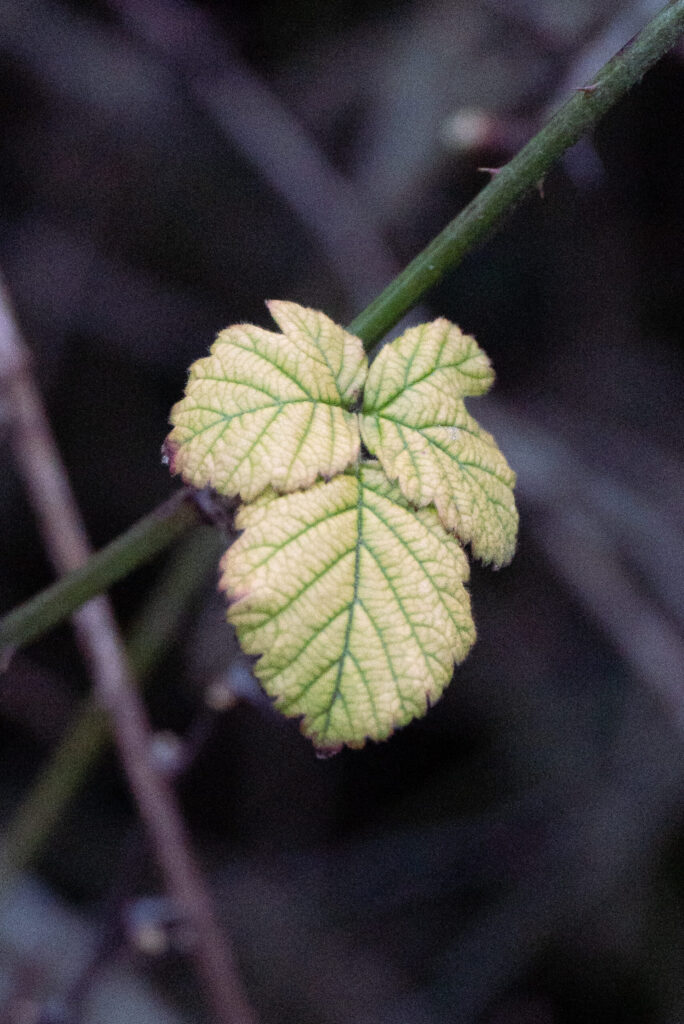
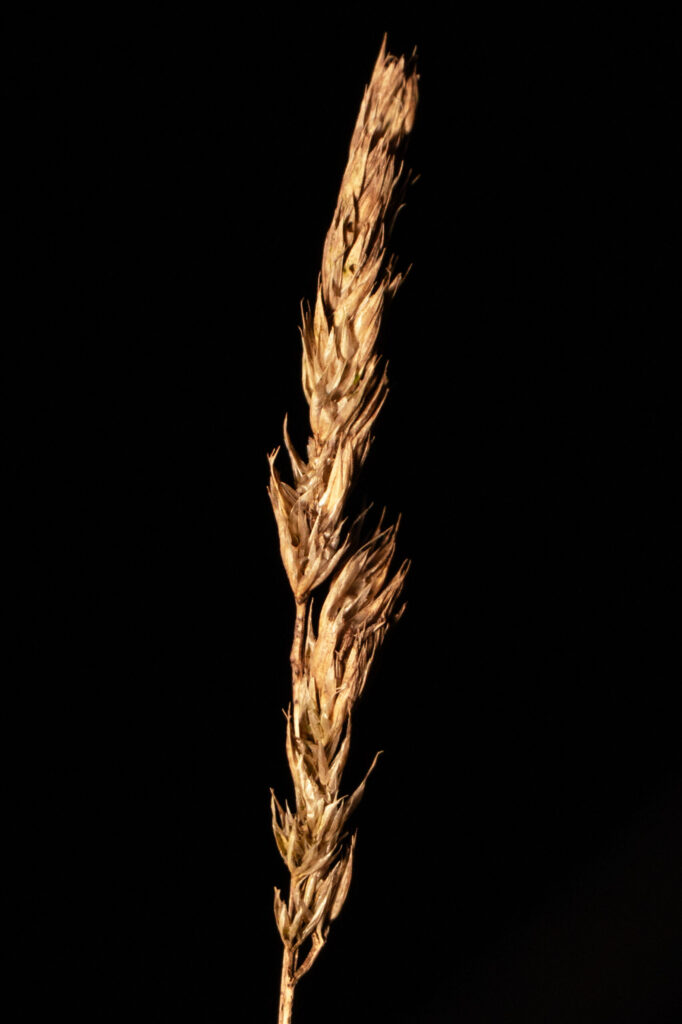
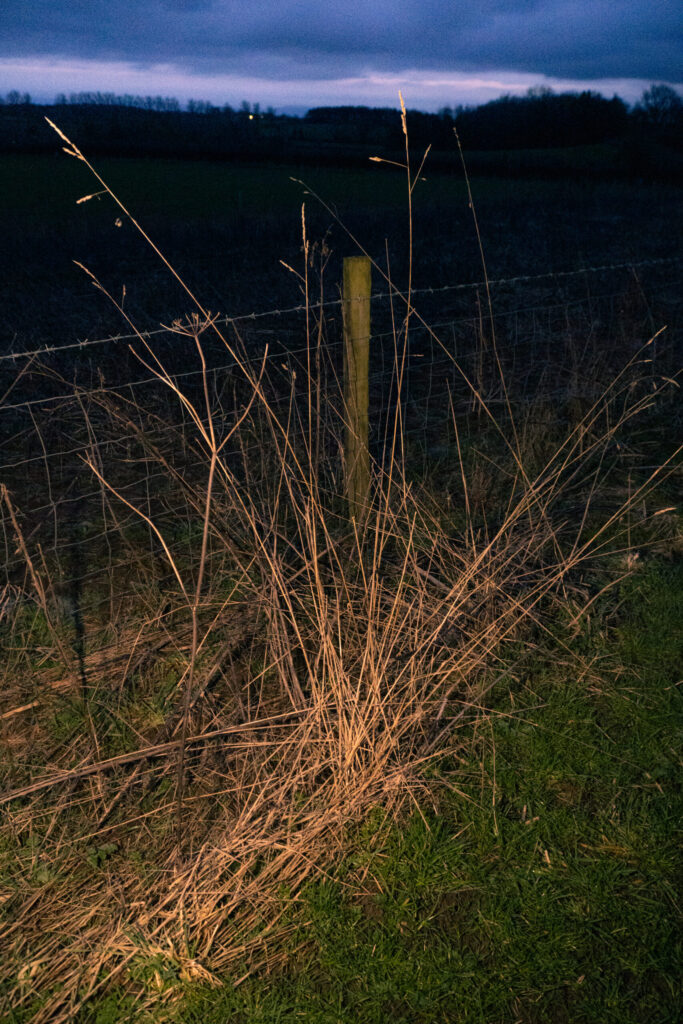
Lightroom Black and White Edited Selection
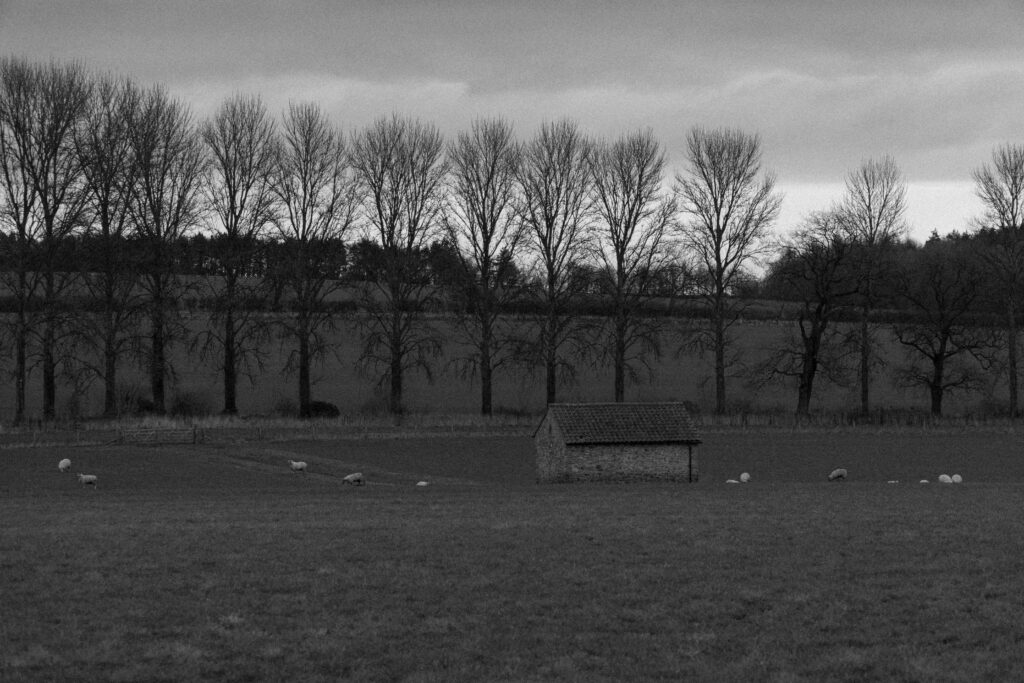
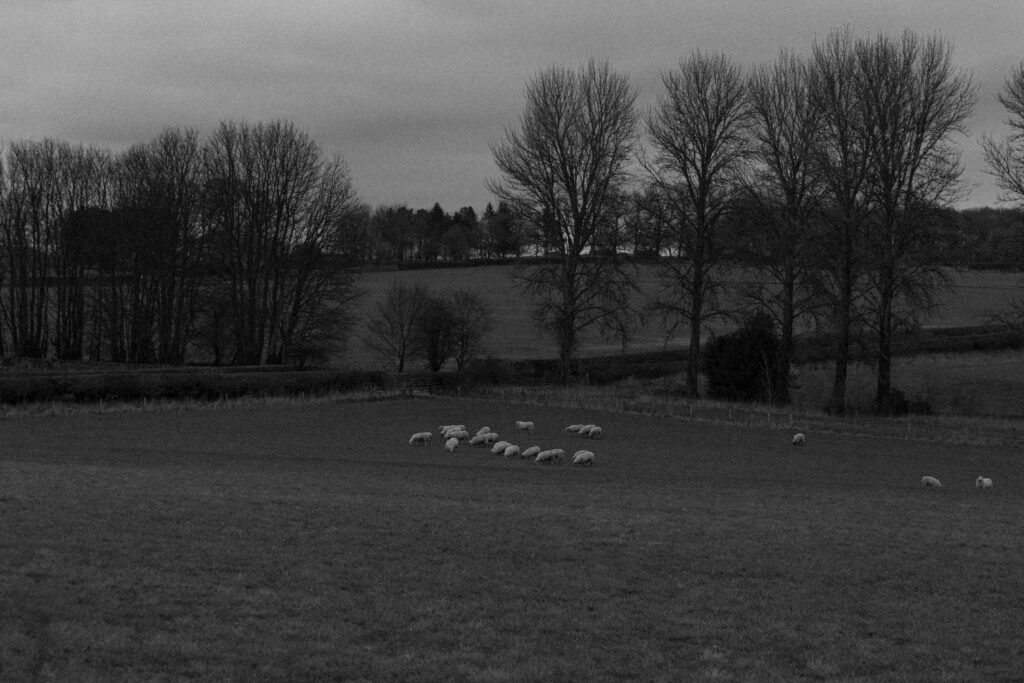
These edits are in response to Ansel Adams, I have tried to focus on creating a flat light where everything is around the same brightness. I have tried to make the sky dark and moody while retaining all details in the clouds. These were some inital ideas which are more greyscale.
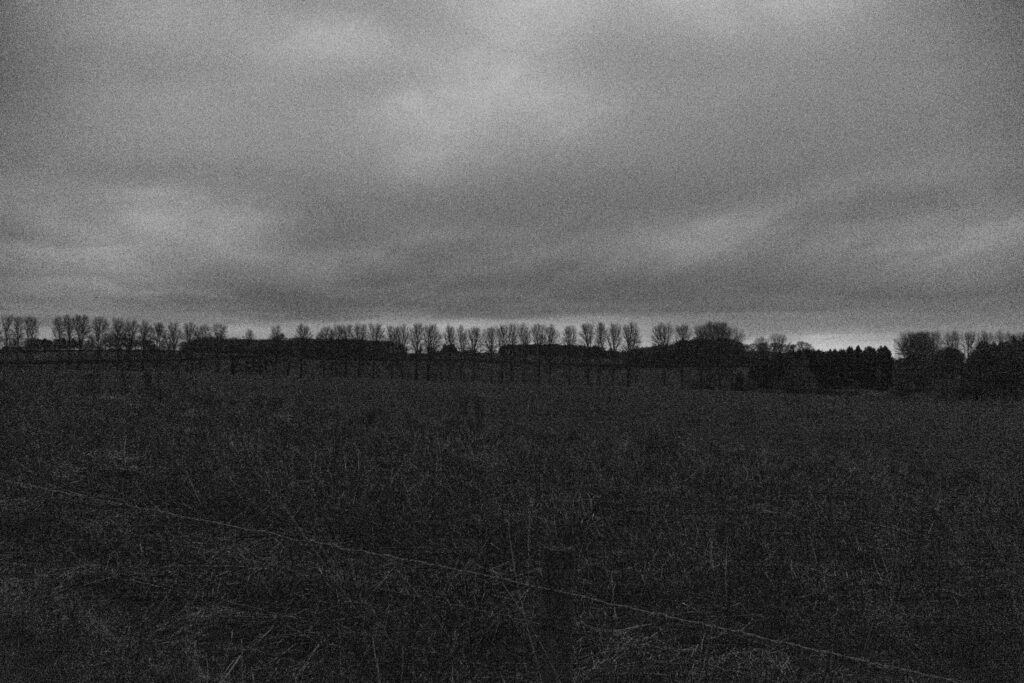
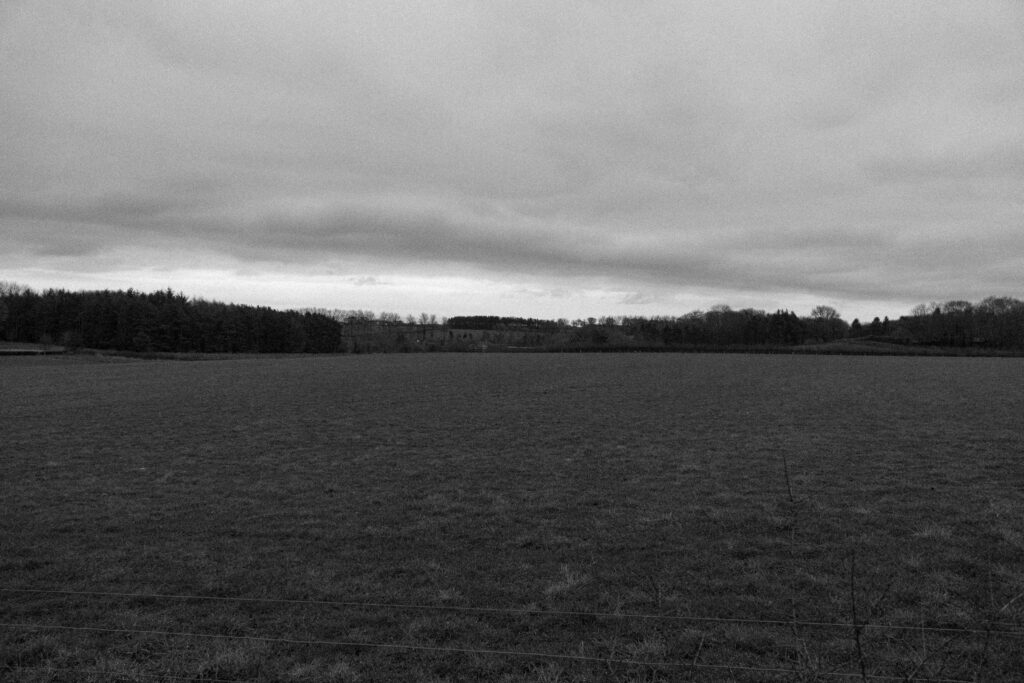
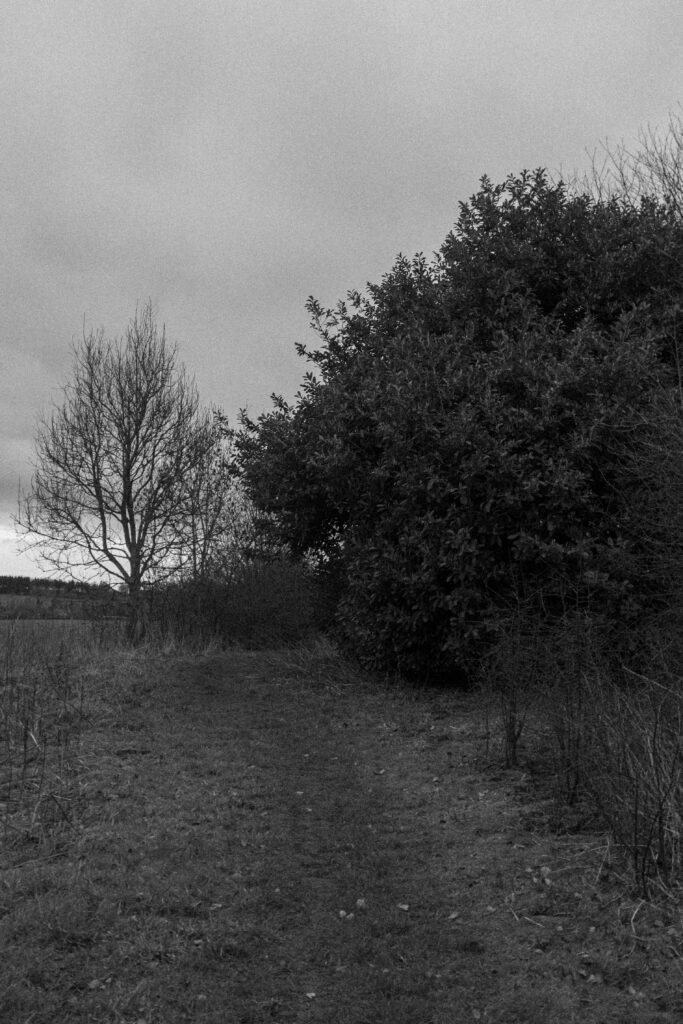
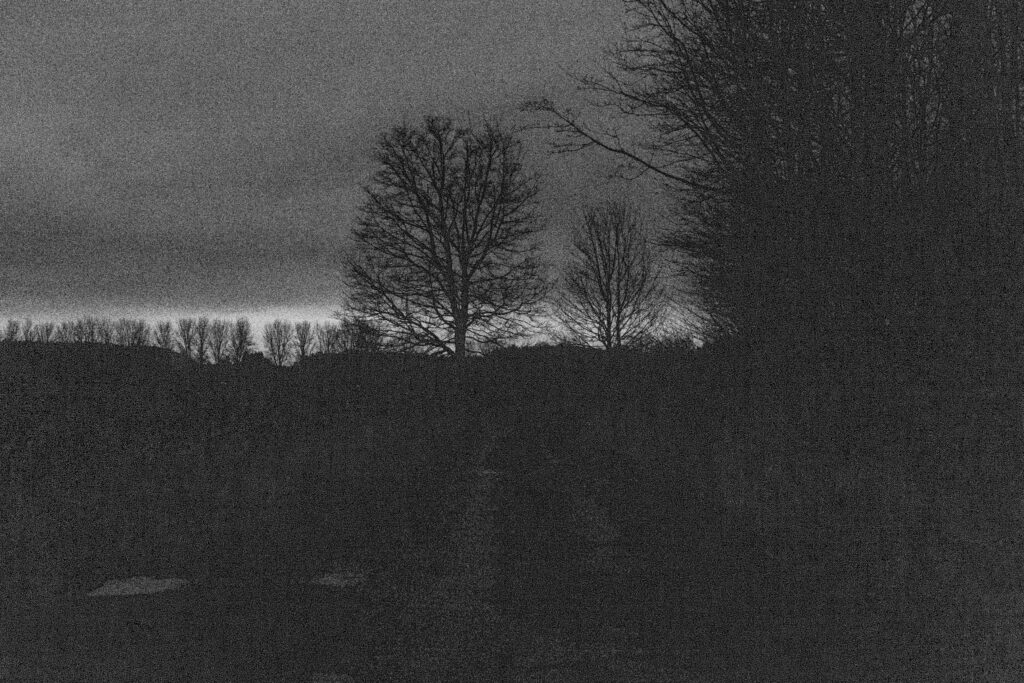
Lightroom Black and White Selection Refined
The last images were nice, but having reflected on them I have decided that they were too greyscale and flat. Below I have refined the edits to add further definition in order to see the layers of the land the the subjects. I have increased my exposure, adjusted the dehaze and clarity to add more definition and then made final adjustments to the highlights, shadows and whites and blacks. Lastly I added a black vingette to the images and set it to the colour setting so it was not as harsh to emulate a film print similar to my artist selection of Ansel Adams works.
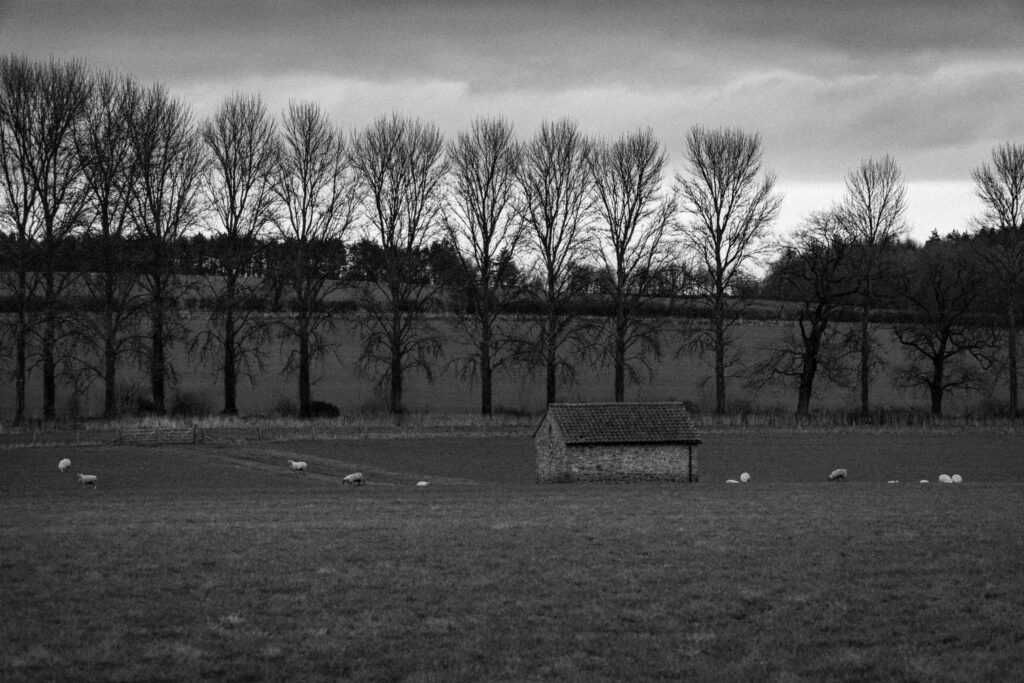
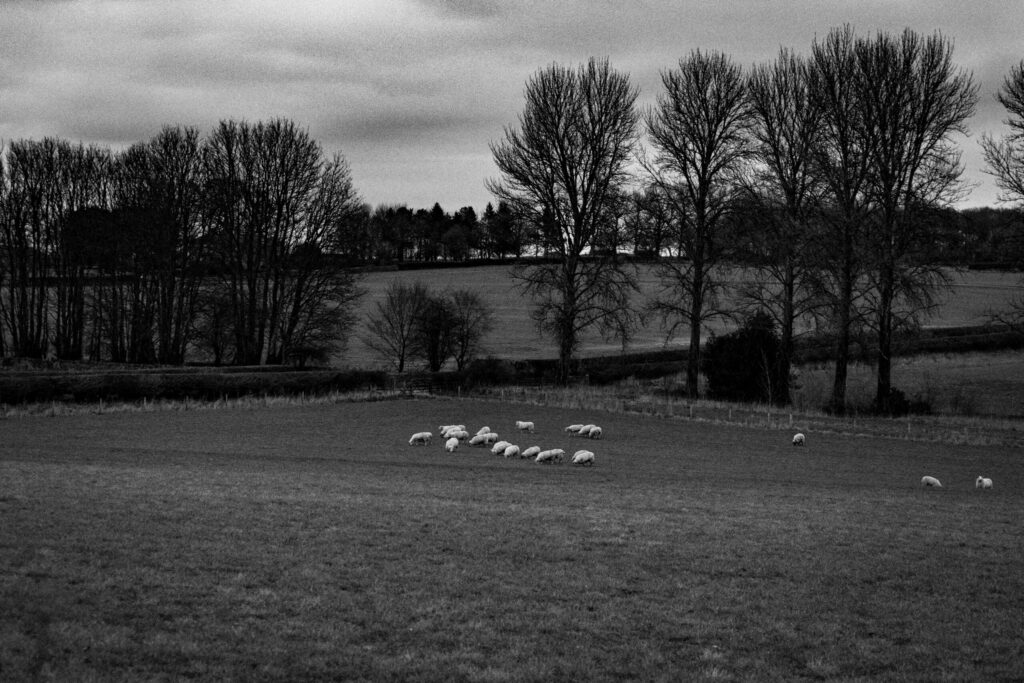
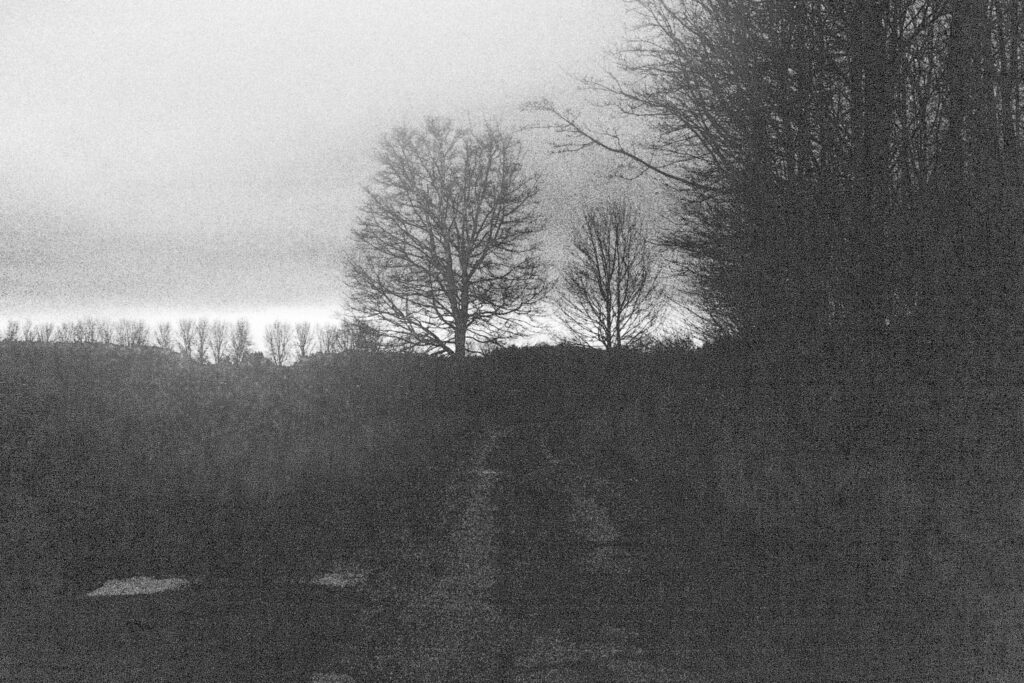
What I did differently in the proccess
Before
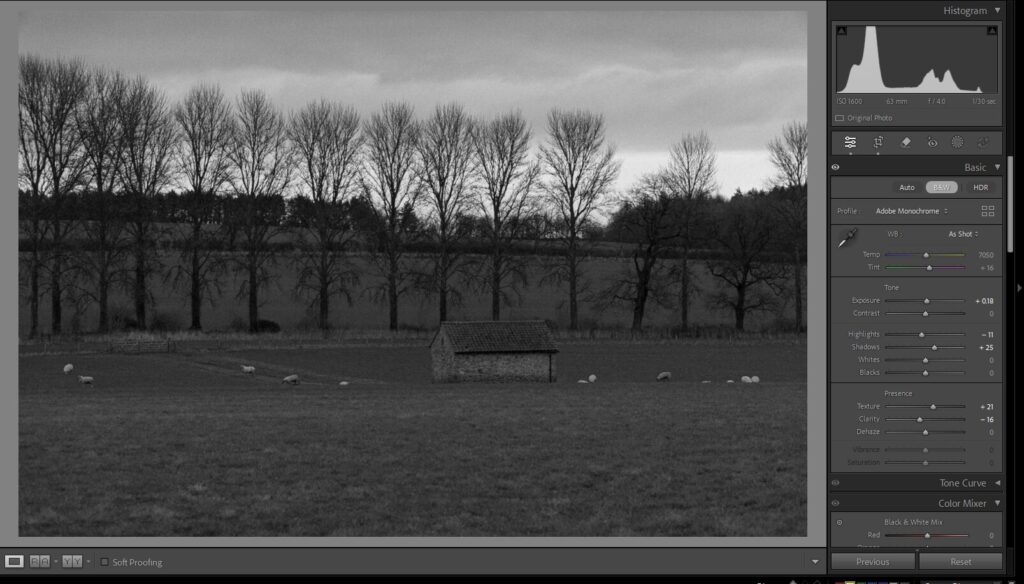
Not much seperation between layers of the image and feels more greyscale
After
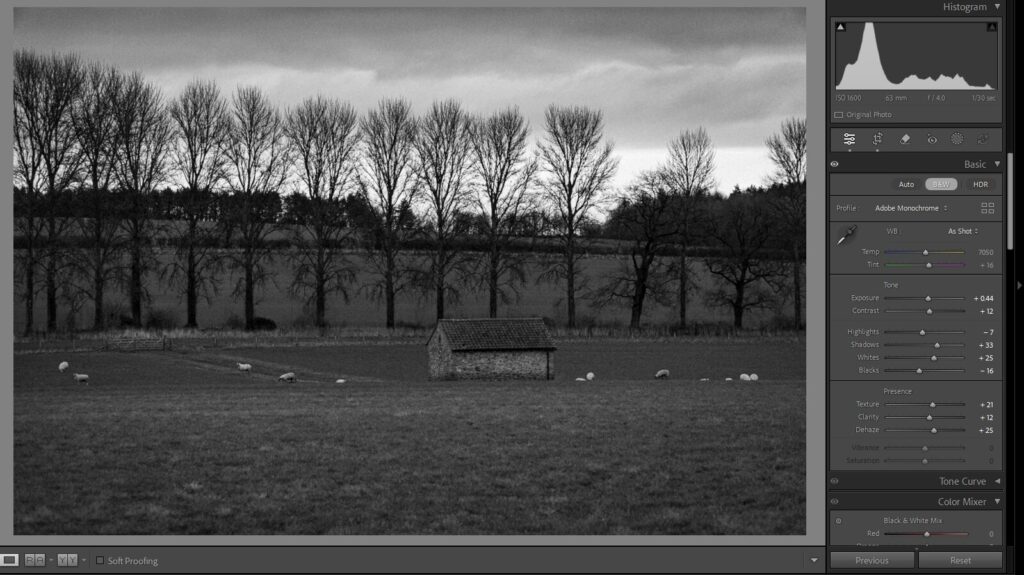
More contrast between layers of the landscape and more detail in the subjects (sheep and building)
I decied that I had taken away a bit too much clarity and that ended up removing some of the texture from the treeline and the building which made the image feel too flat and greyscale, so I decided in the refined version to boost the clarity and to add a little bit of dehaze to the image too to further define the treeline and onwards. Doing this also boosted the depth of the clouds and made them feel more dramatic and lively.
Creating a Cyanotype
Talk about how it is similar to ansel adams? with tonal range? idk
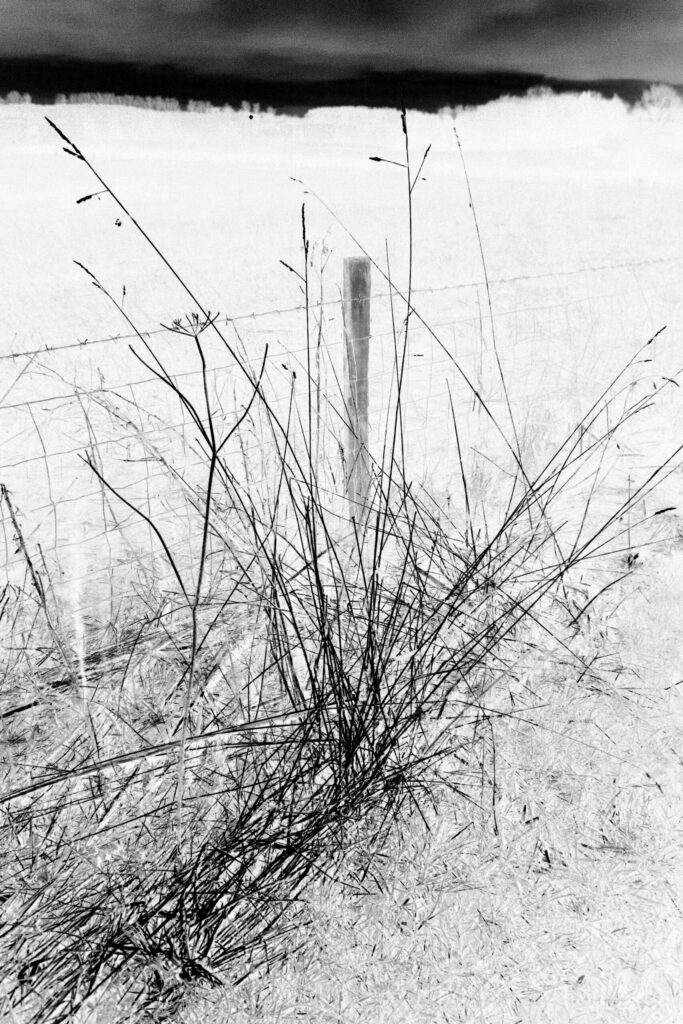
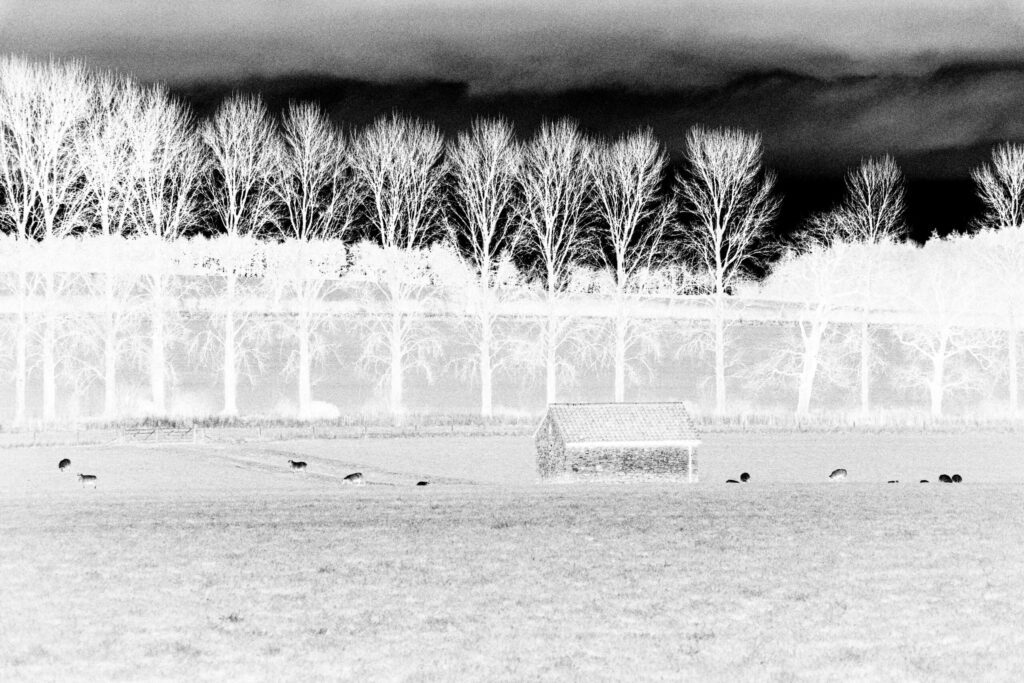
Photoshop Process – Creating a digital negative
Step 1 – Get the image into Photoshop from Lightroom
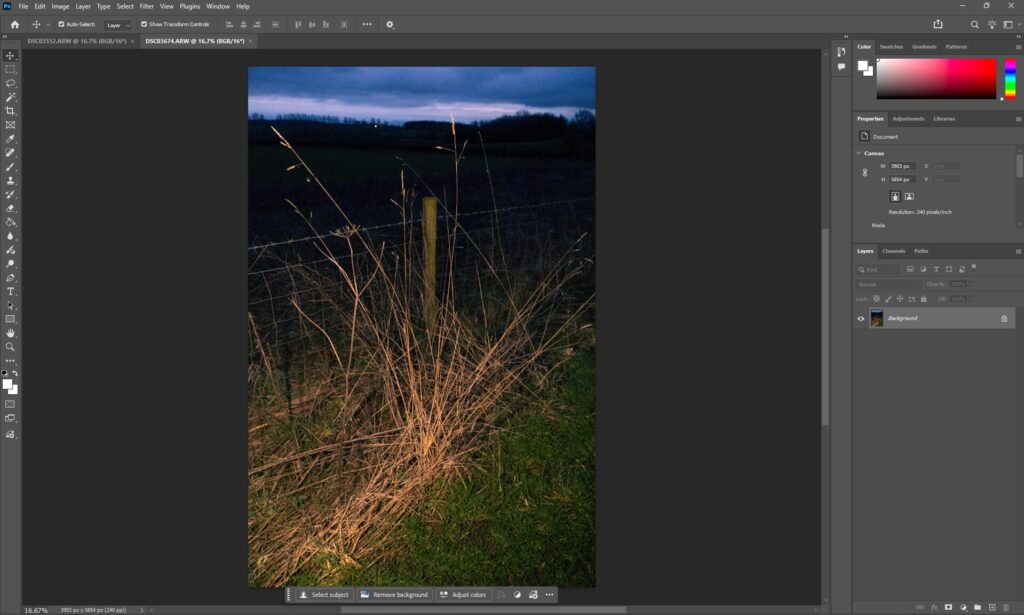
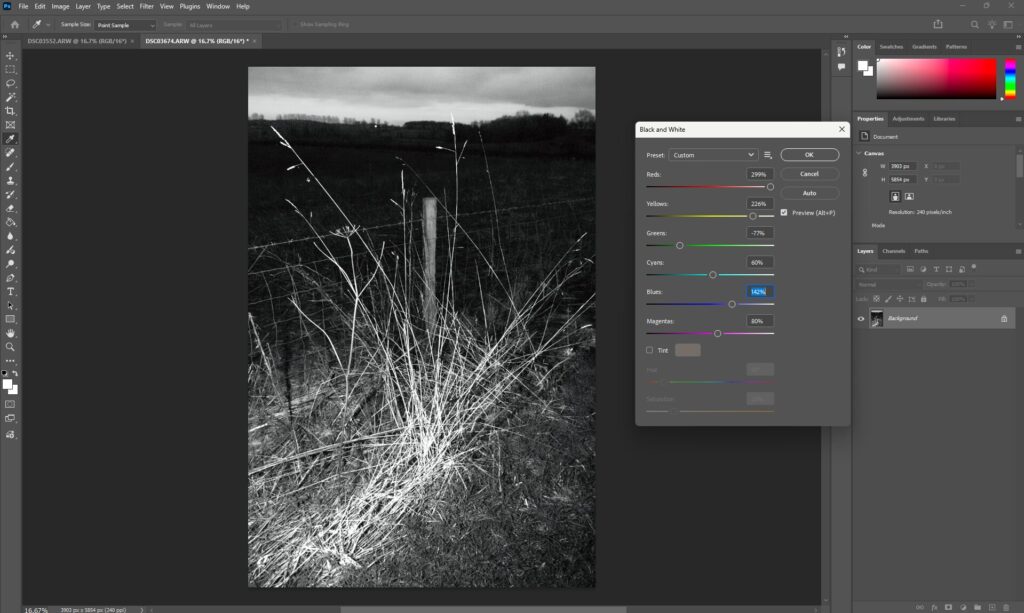
Step 2 – Make the image black and white
Here I have made the image black and white and then tuned the different colour levels to end up with a good base black and white image that has enough seperation between the different parts of the image.
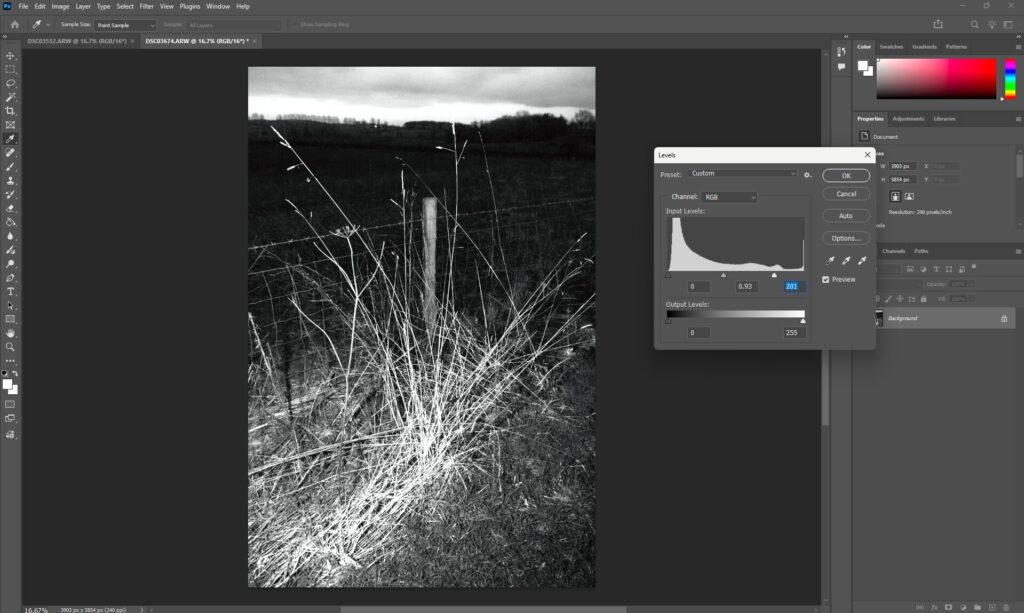
Step 3 – Levels adjustment
Now I will adjust the levels to ensure there are areas of contrasting blacks and whites to ensure that the areas of light and shade are hightended for the soon to be negative.
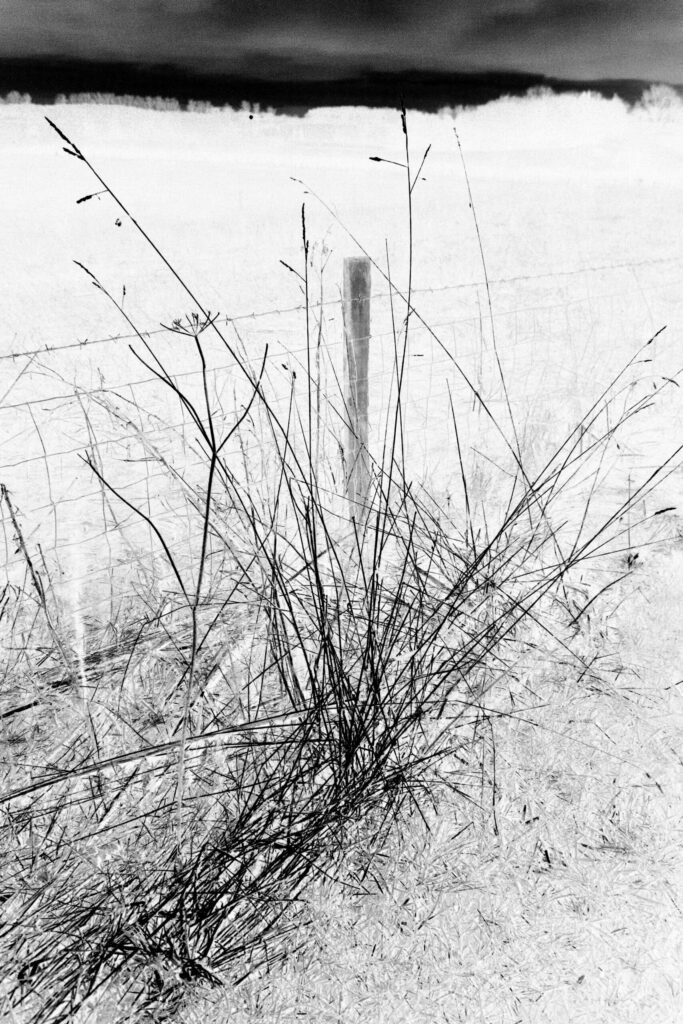
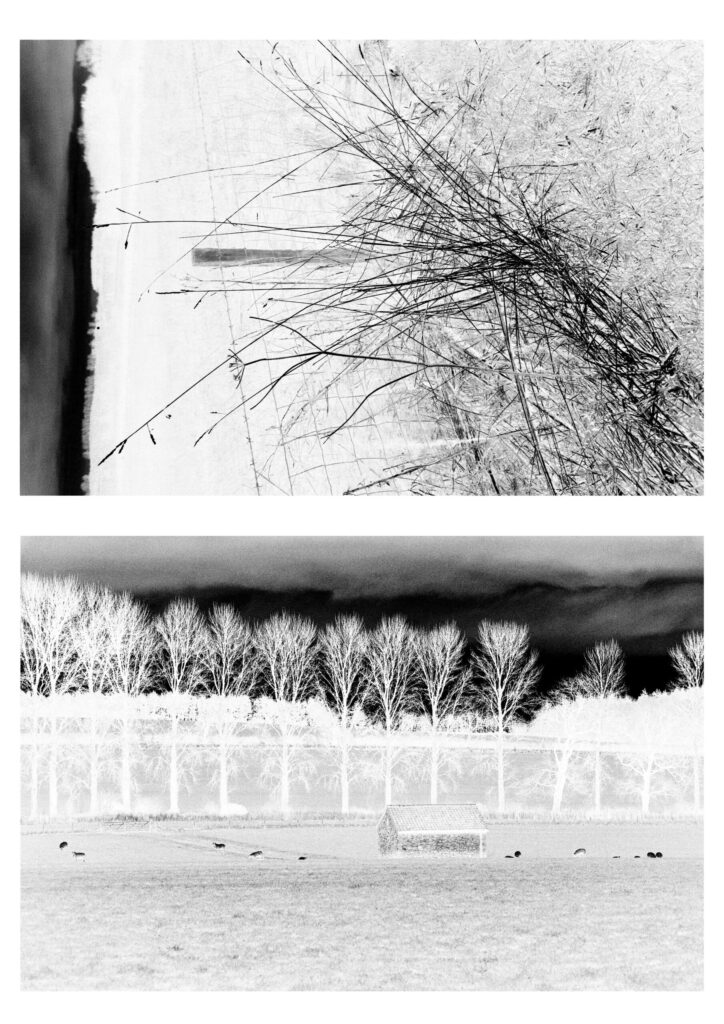
Step 4 – Invert the image and then layout for printing on acetate
Now I need to layout the image for printing. To do this I will make another image that I can print next to this one so I can make full use of an accetate sheet which will be used as my physcial negative of my images. The white or transparent areas of my accetate will allow the UV light to react with the chemical on my paper.
Physical Process
Step 1 – Coating the paper
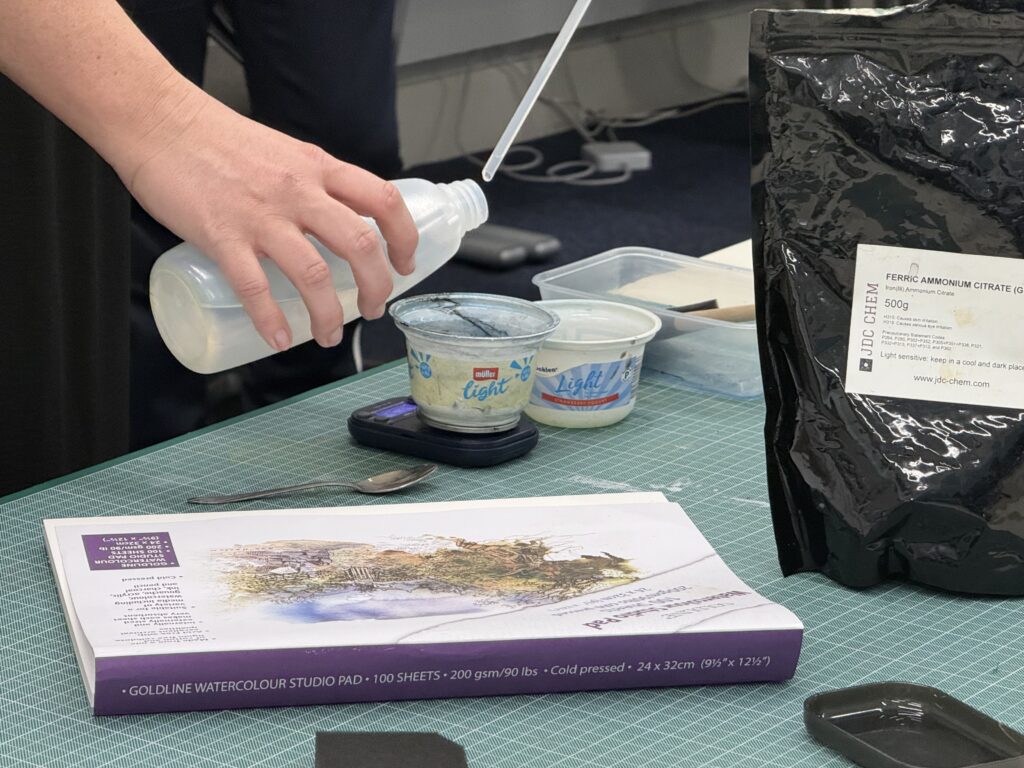
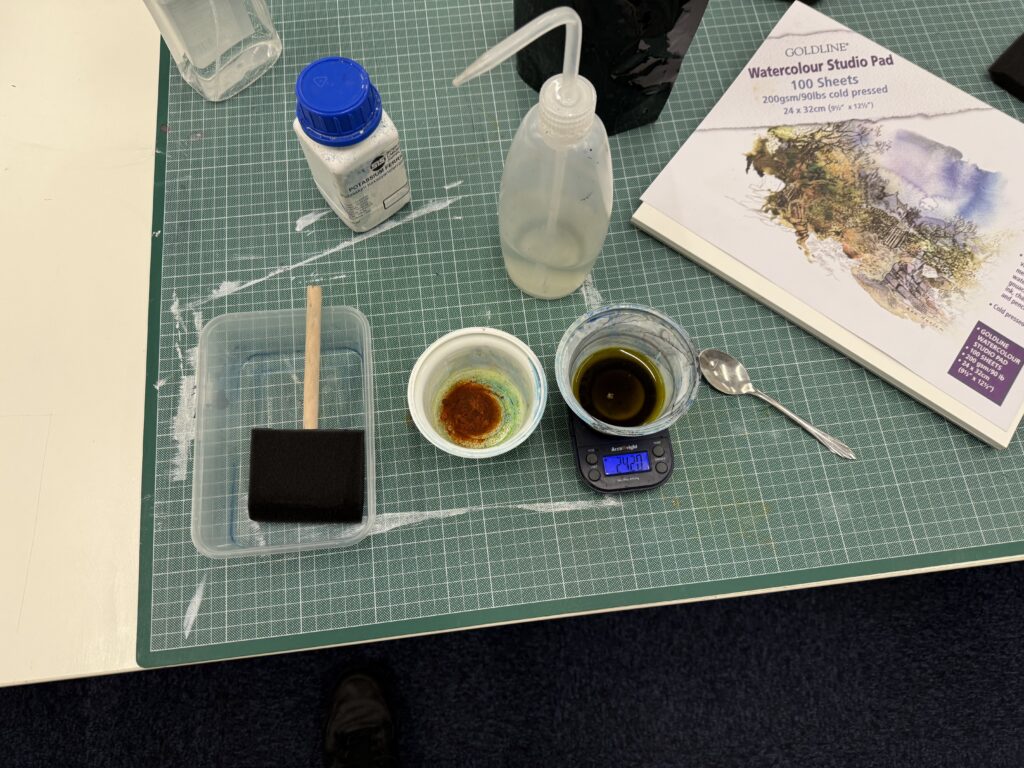
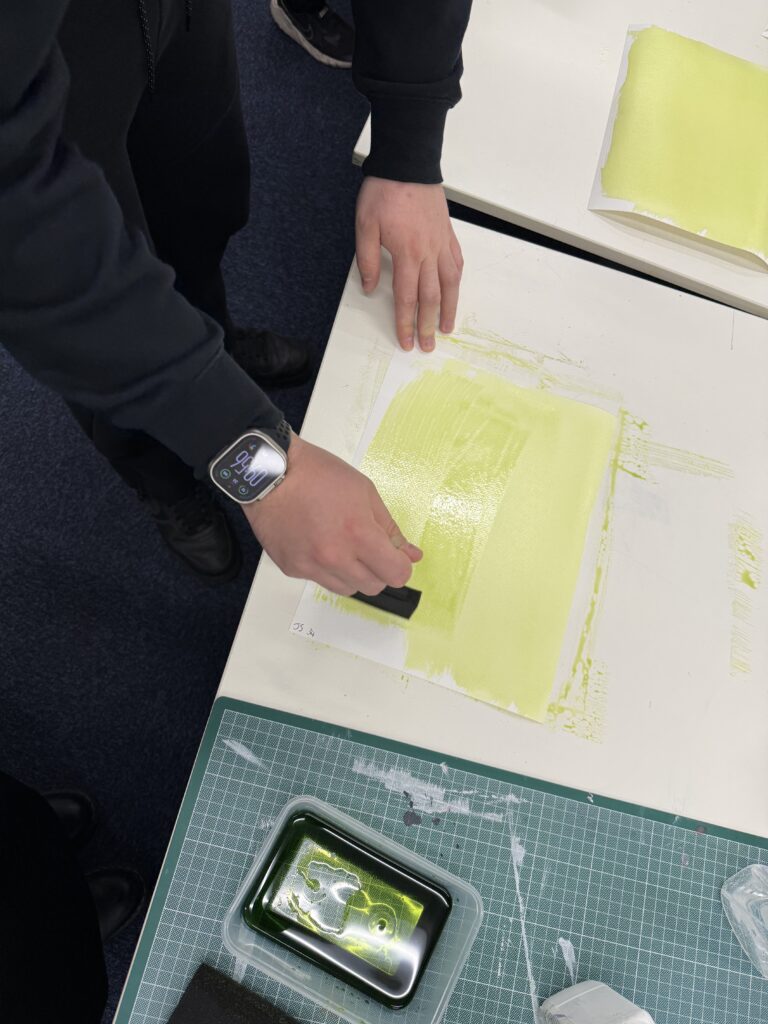
First of all we need to mix the chemicals then we can coat the paper with the chemical in subdued light to ensure we do not expose the print early. We mix 3g of ferric ammonium citrate with 12ml of distilled water for solution A, then we mix 1.5g of potasium ferricyanide with 12ml of water. We then mix these two solutions together to make the final solution. Once this solution is mixed we must work under subdued light to stop the chemical reaction from taking place. We use a foam brush to apply to chemical to water colour style paper. The foam brush is used to apply an even coat to the paper of the final solution.
Step 2 – Exposing the Print
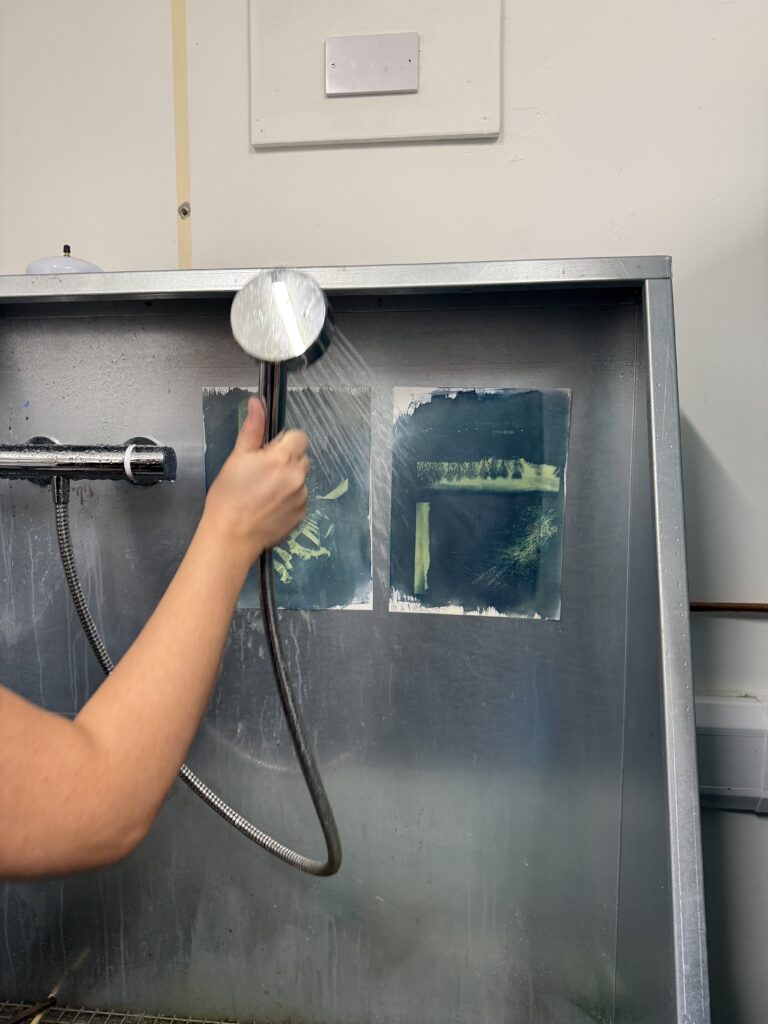
For exposing the print we will be using a UV light exposure unit. This is purely to speed up the process. We could leave the negative on top of the paper outside in the sun but this would take much more time. On the UV exposure unit we will set the vacumm to 2 minutes so there is heavy direct content with the print and the negative to ensure a good, high resolution print. Once the print has been exposed we need to take it off of the UV exposure unit and then wash off the remaining chemical to ensure the print does not keep exposing once we have finished.
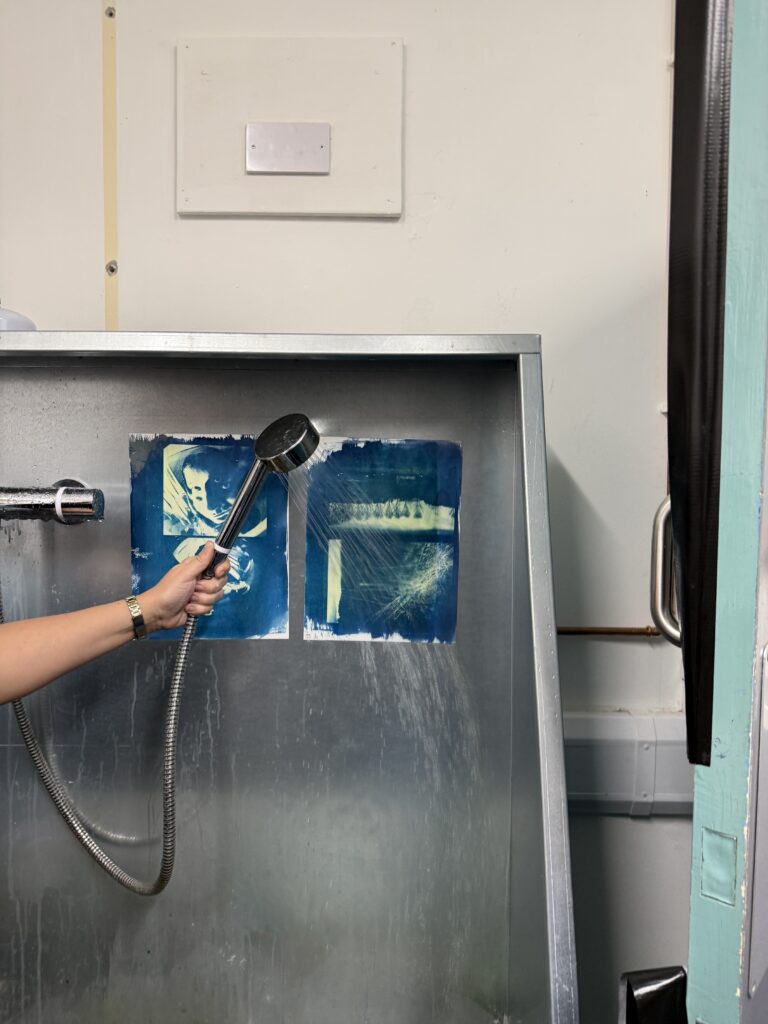
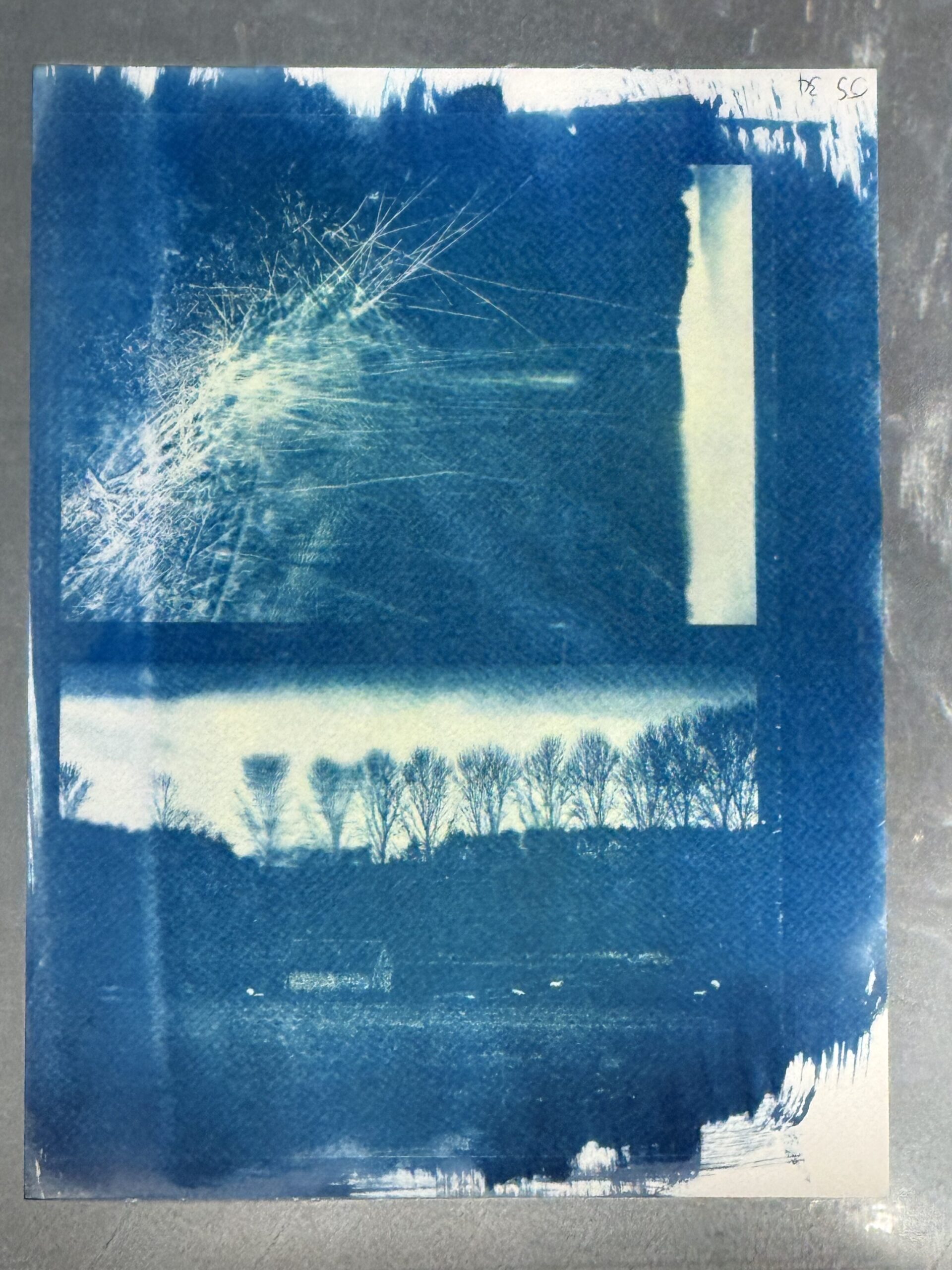
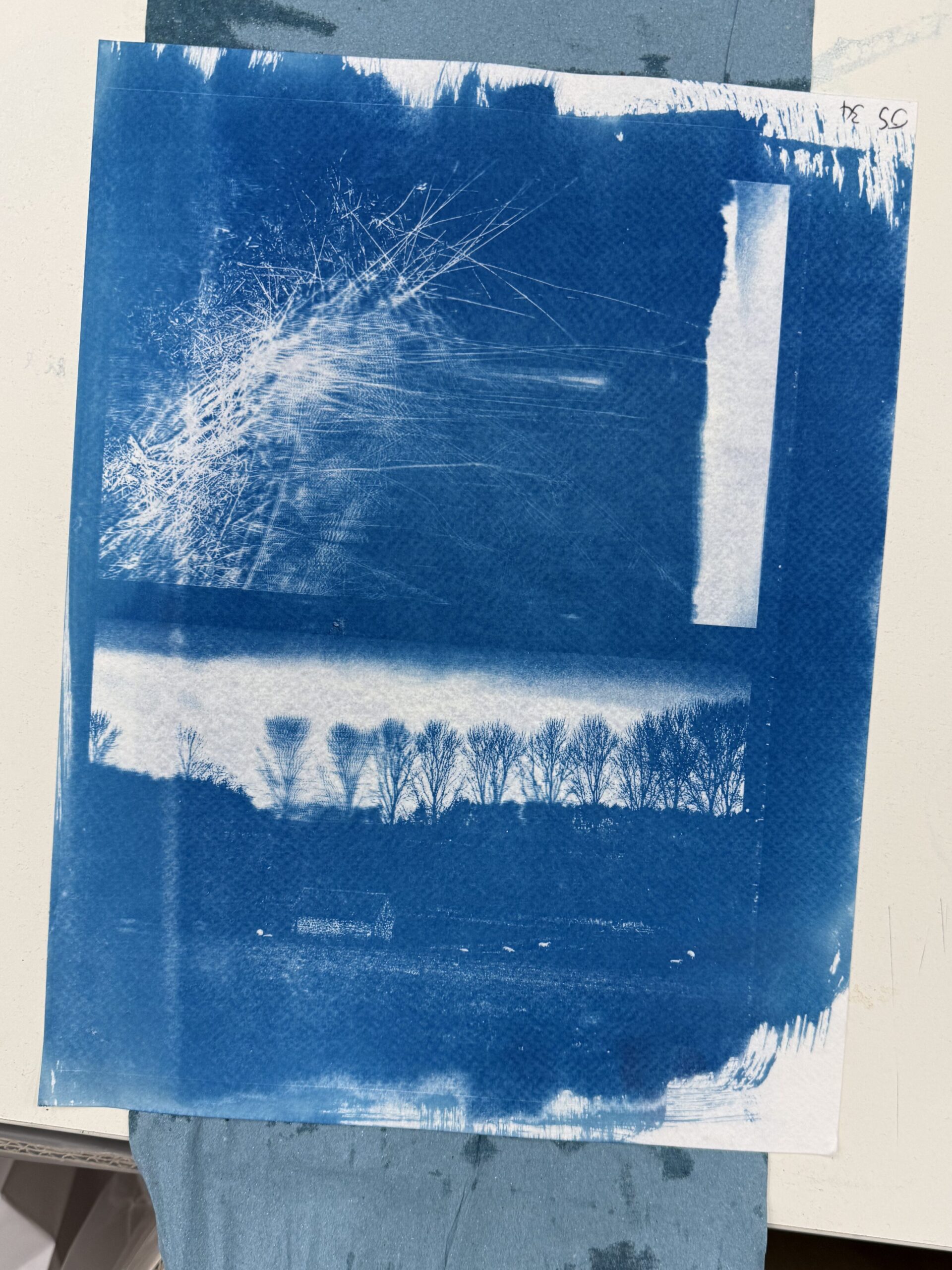
Final Prints
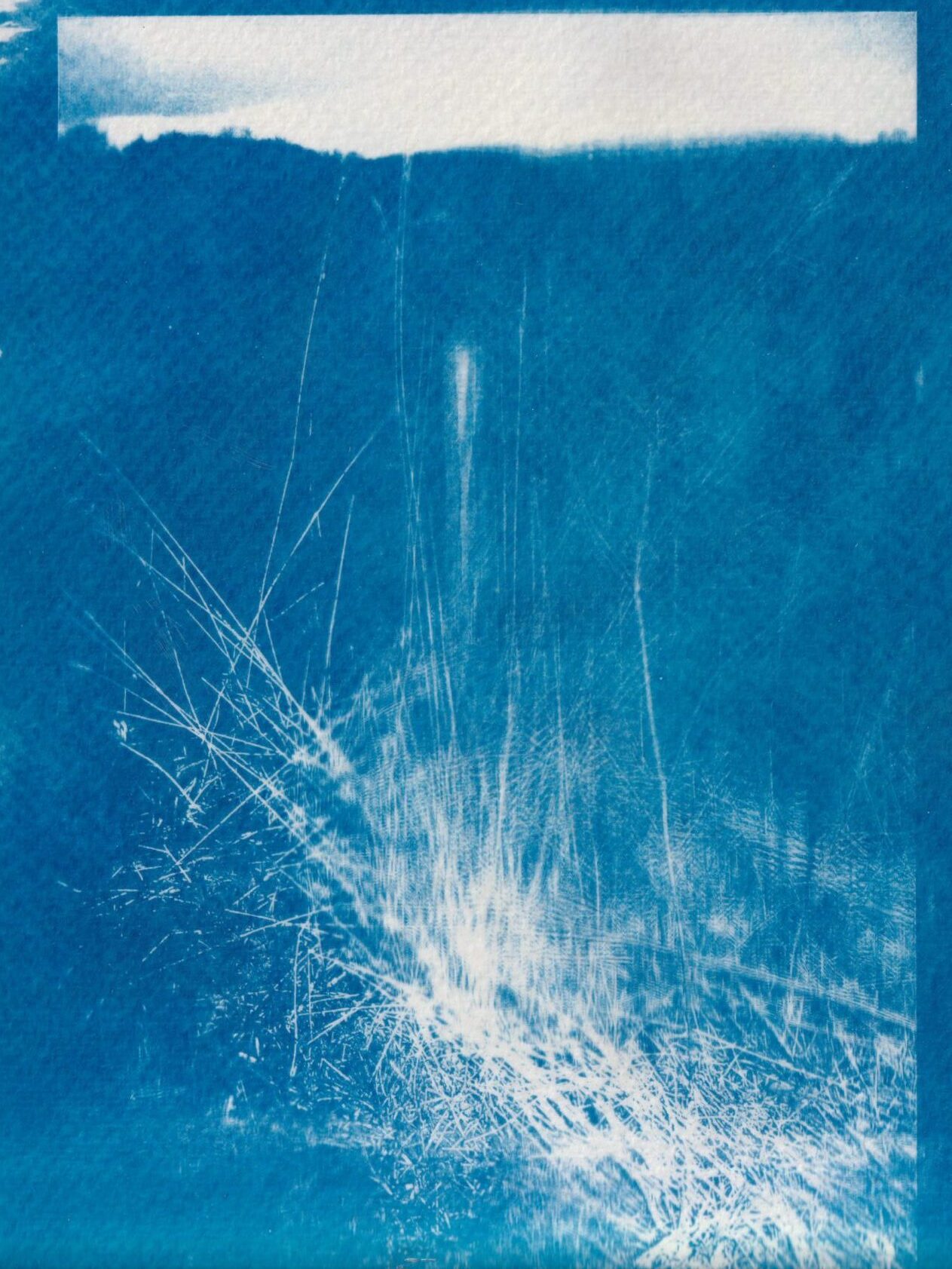
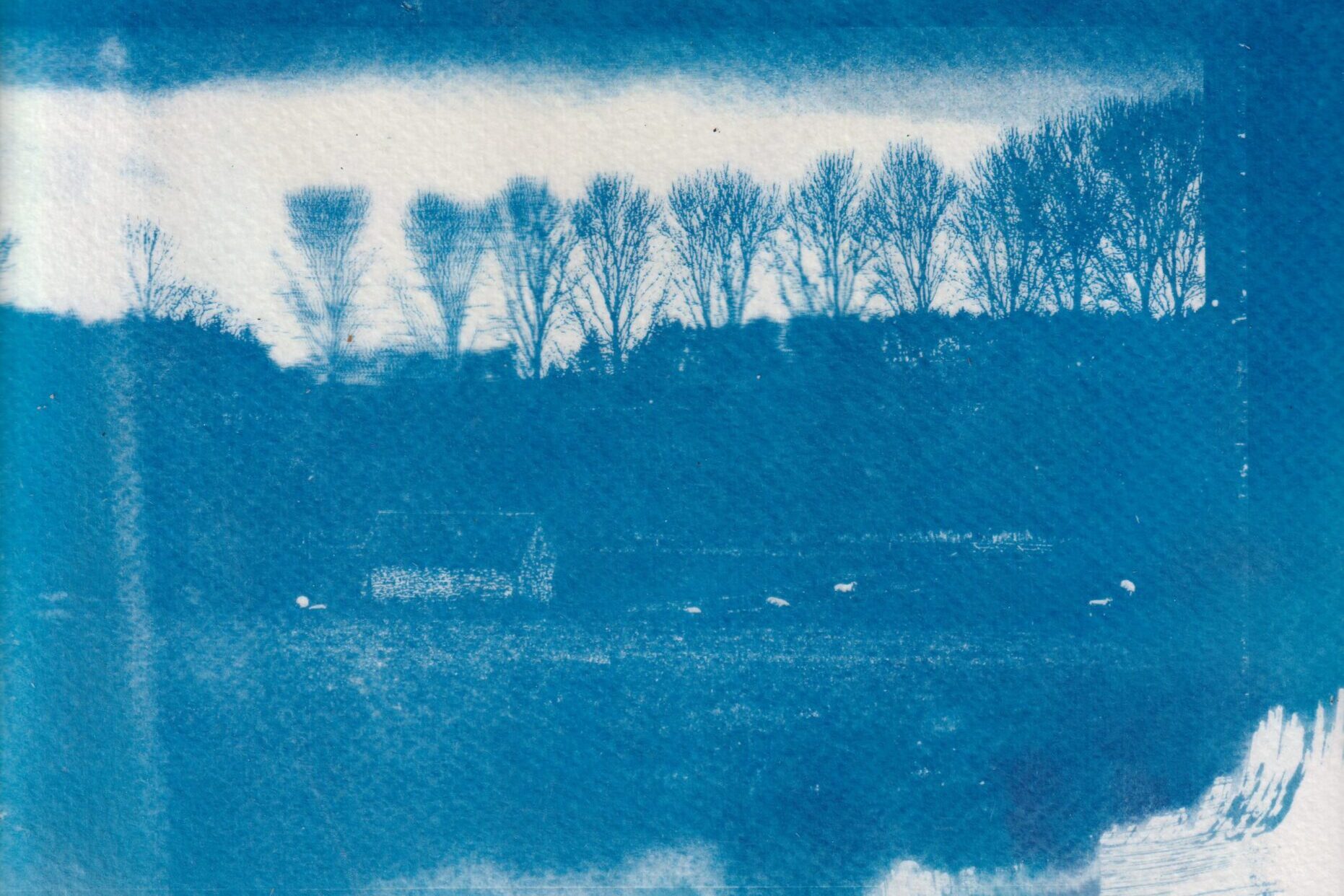
Cyanotype Photoshop Edits
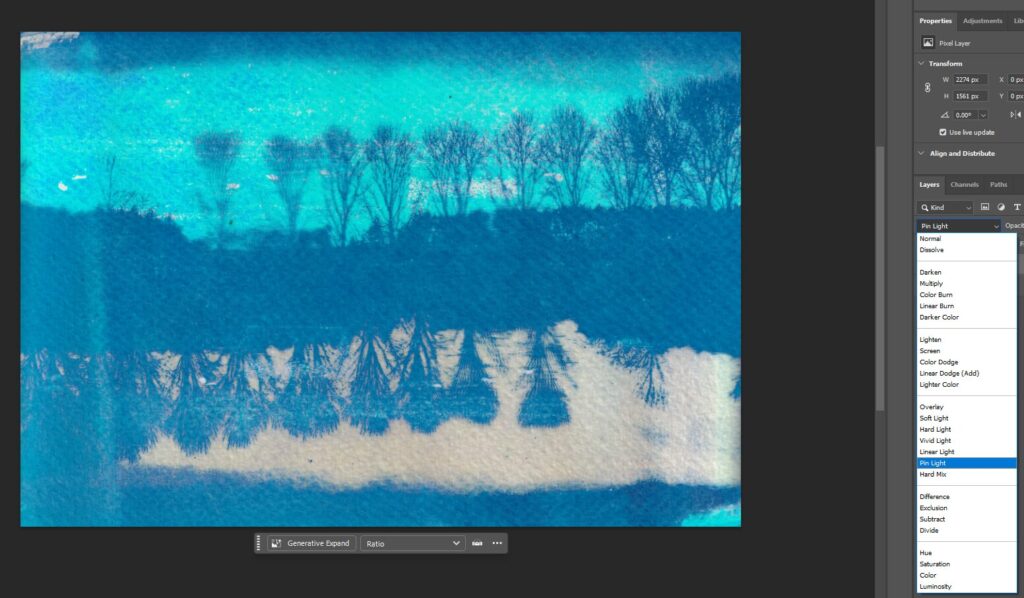
Edit 1: Rotate and Pin Light Blend Mode
Result
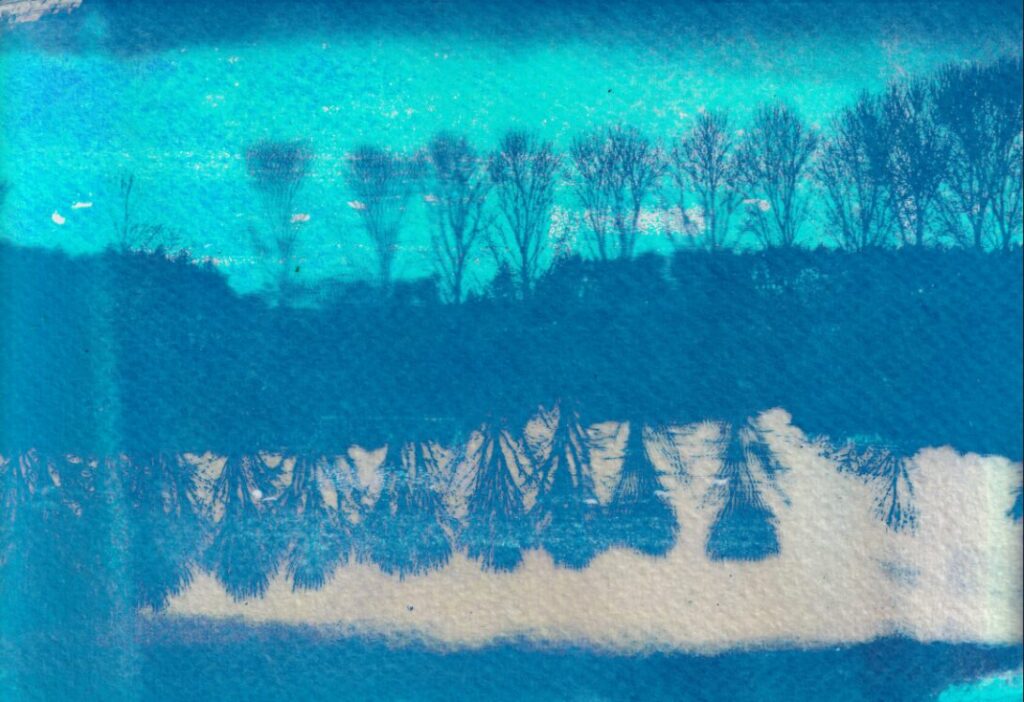
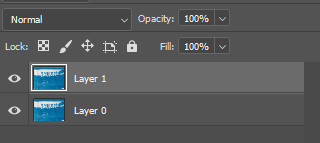
3 Step Process, duplicate, roate, change blend mode
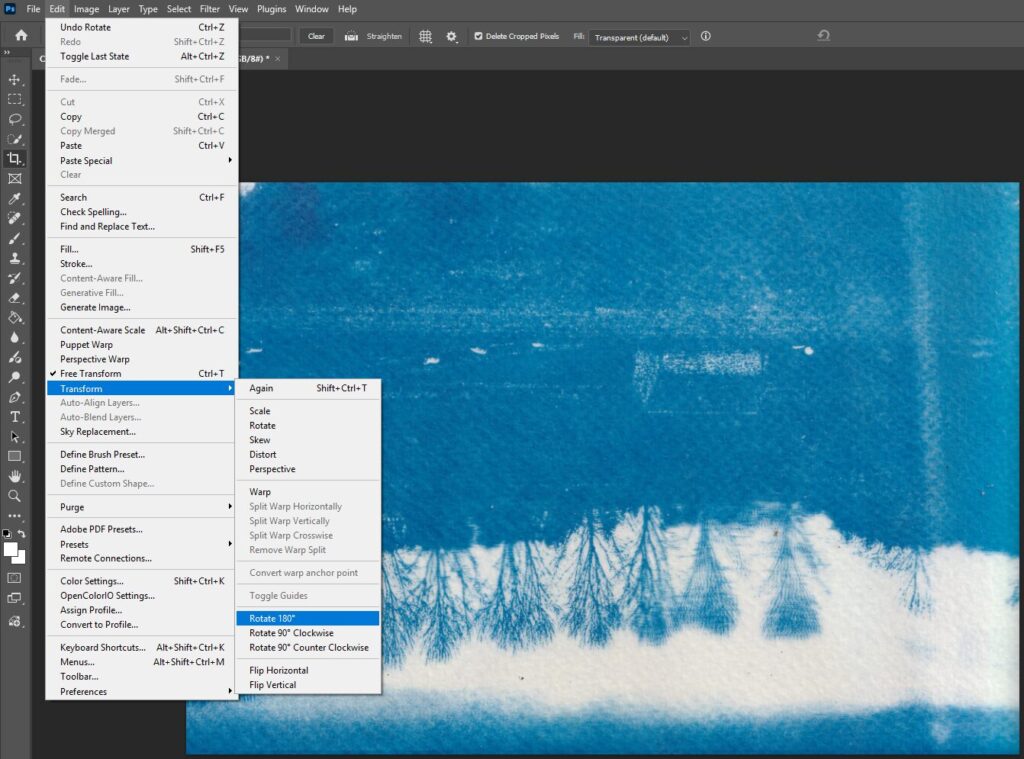
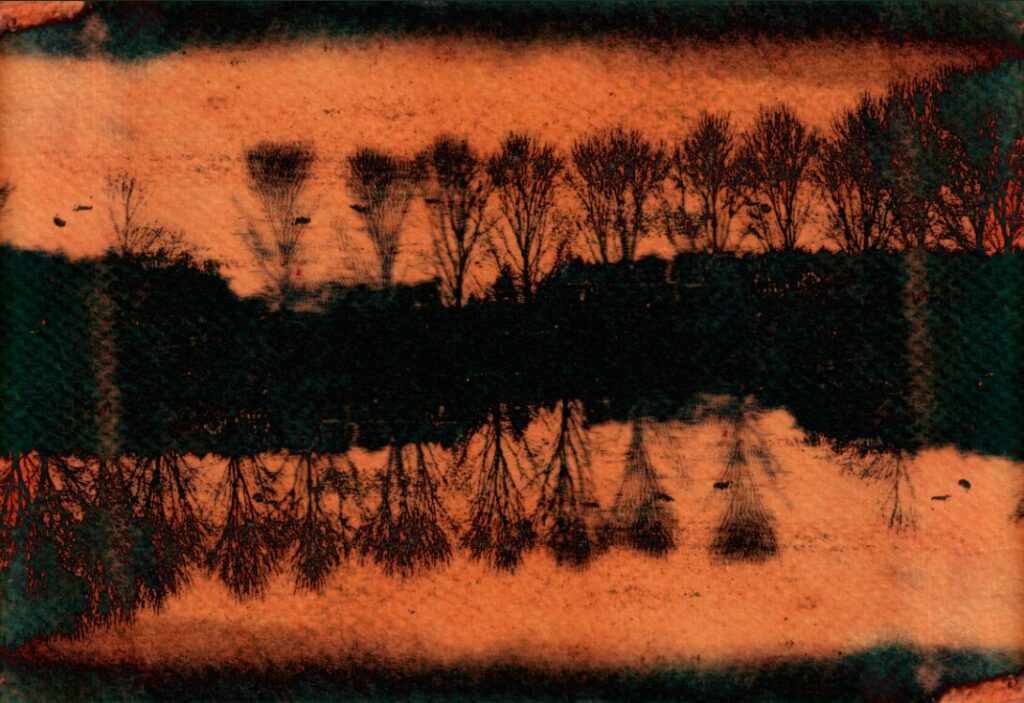
Edit 2: Rotate and Difference Blend Mode
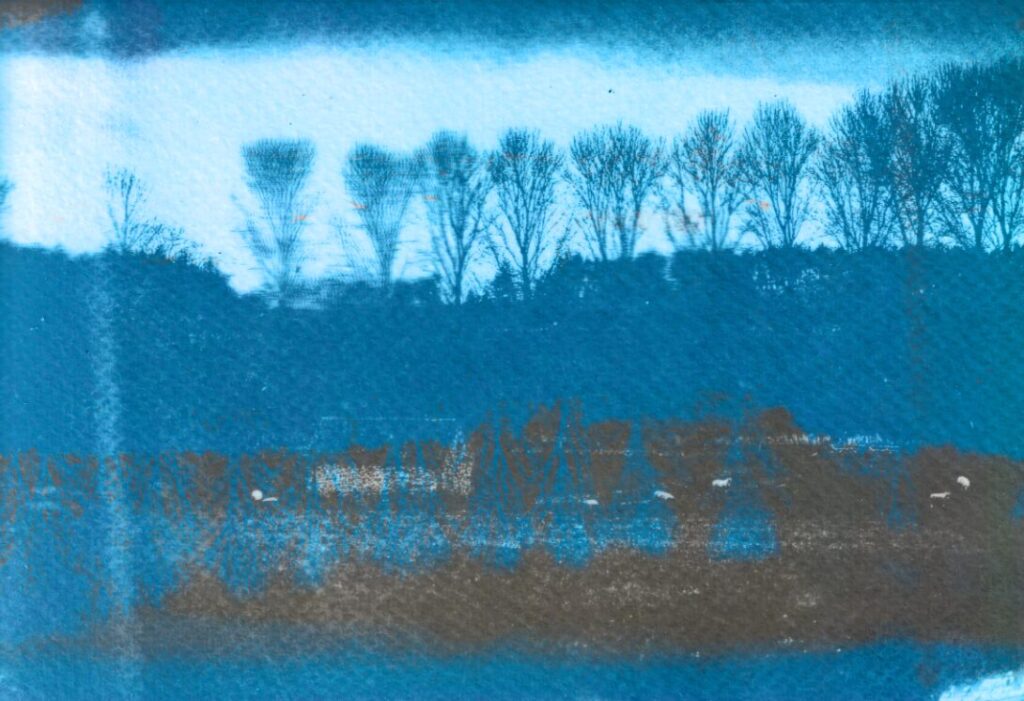
Edit 3: Rotate and Color Blend Mode
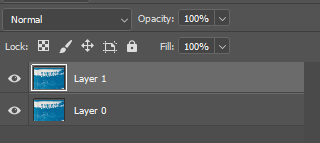
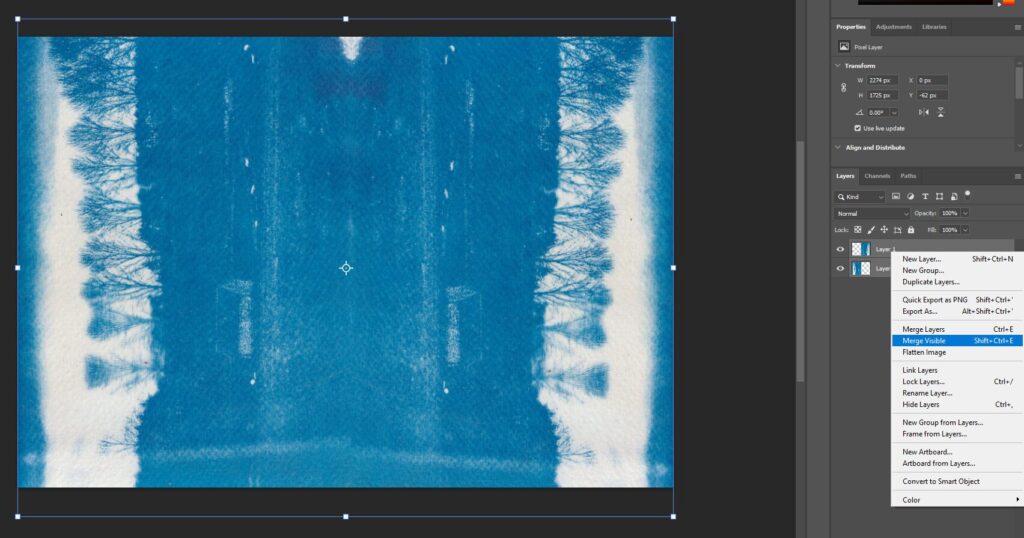
Edit 4: Duplicate image, rotate and then flip to make a mirror image on the left and the right, then merge layers and repeat to make a pattern
Results
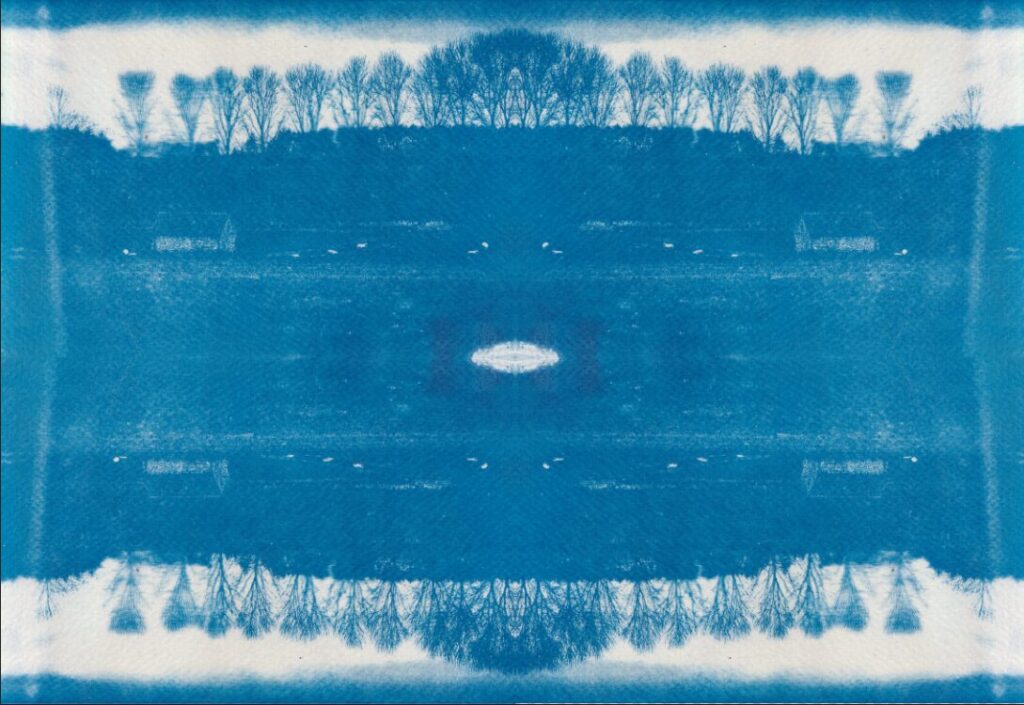
Process
Shoot 3 – Light
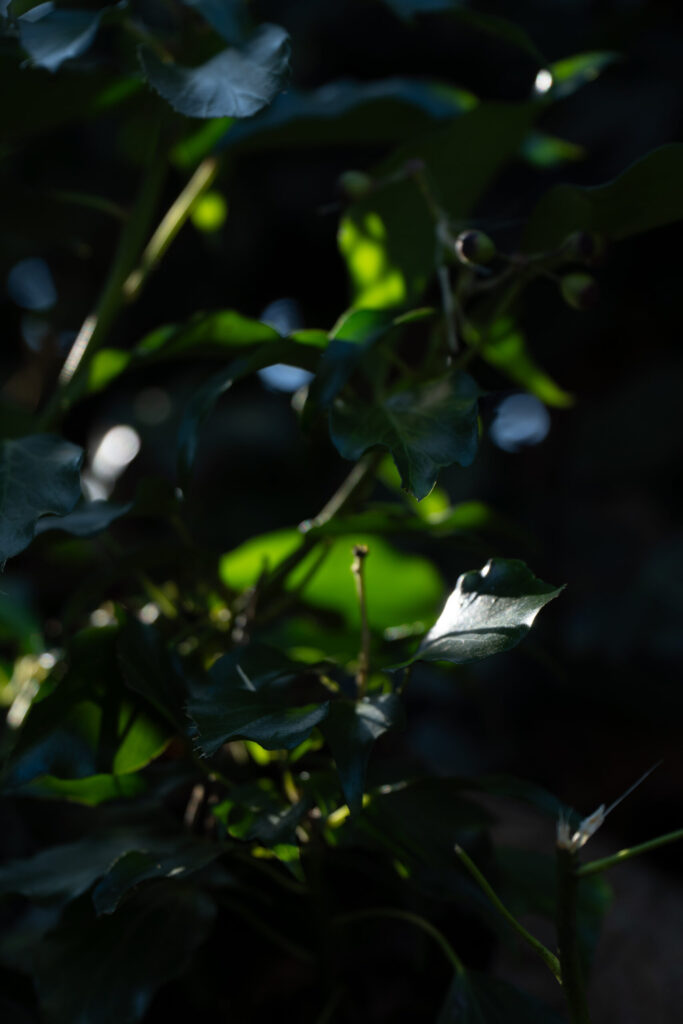
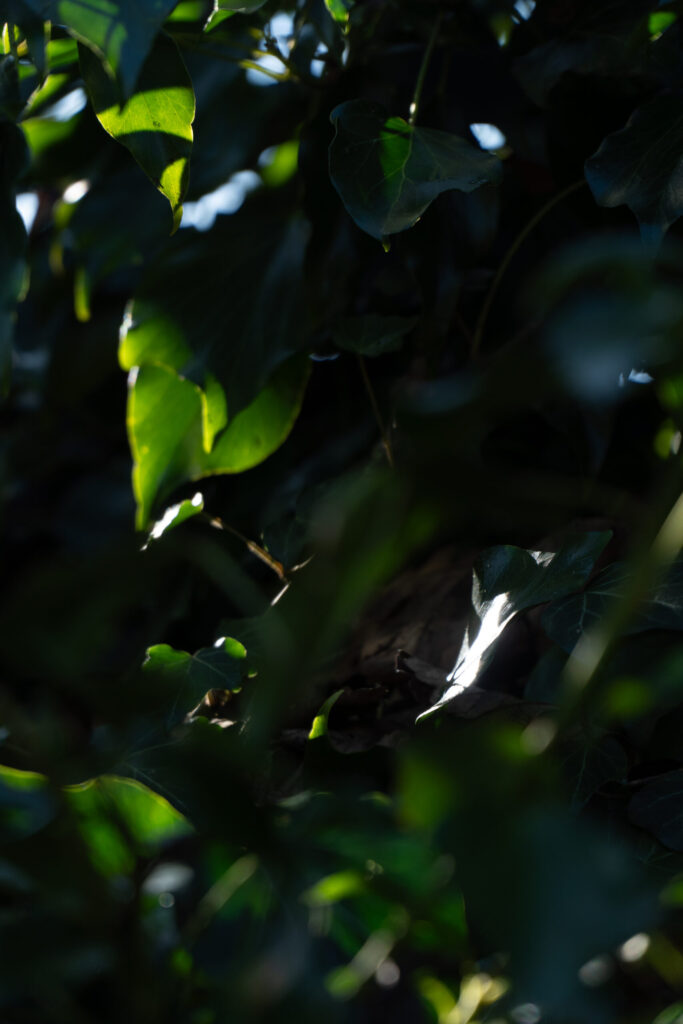
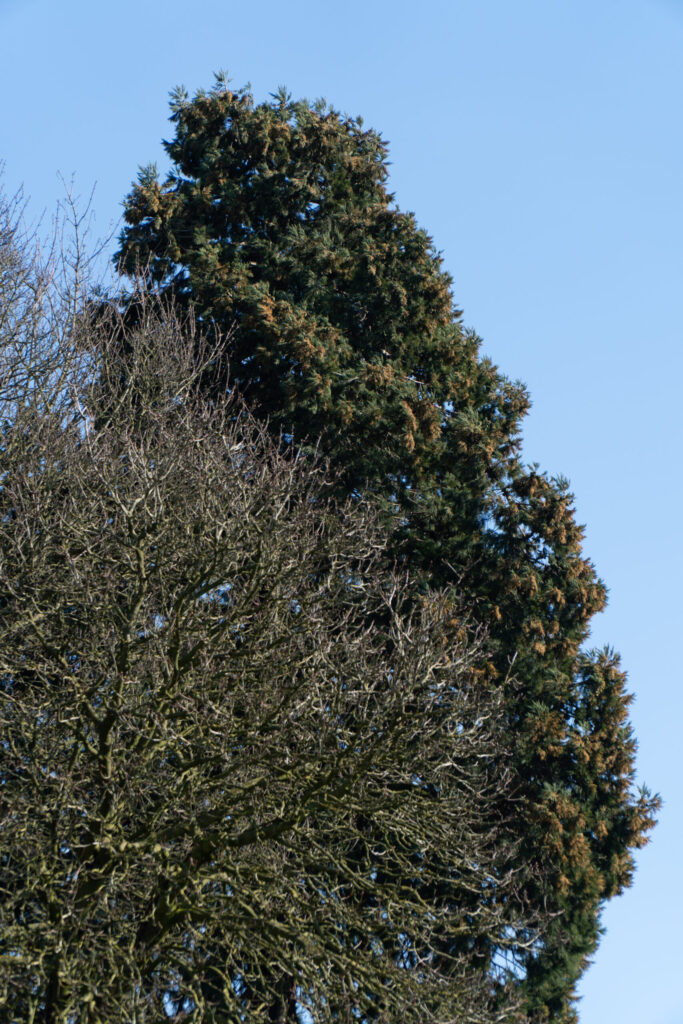
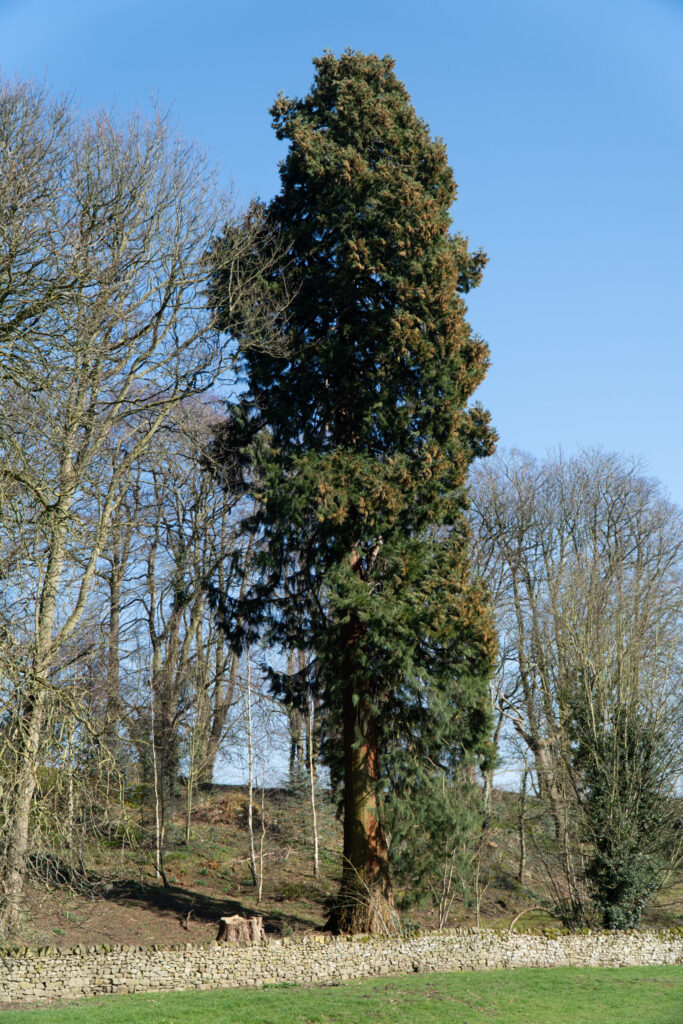
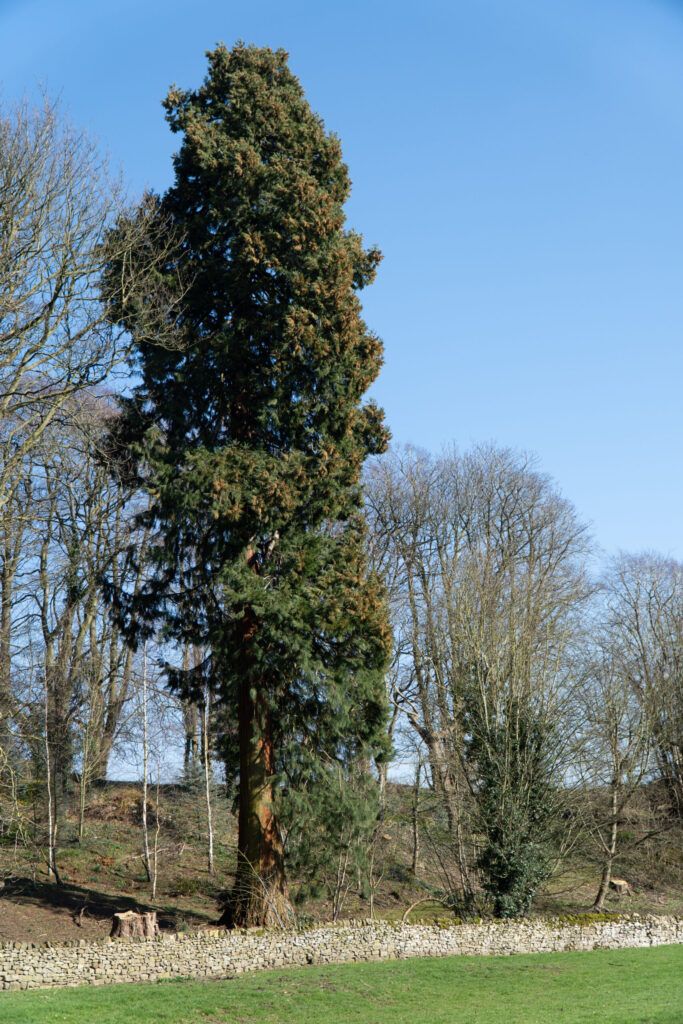
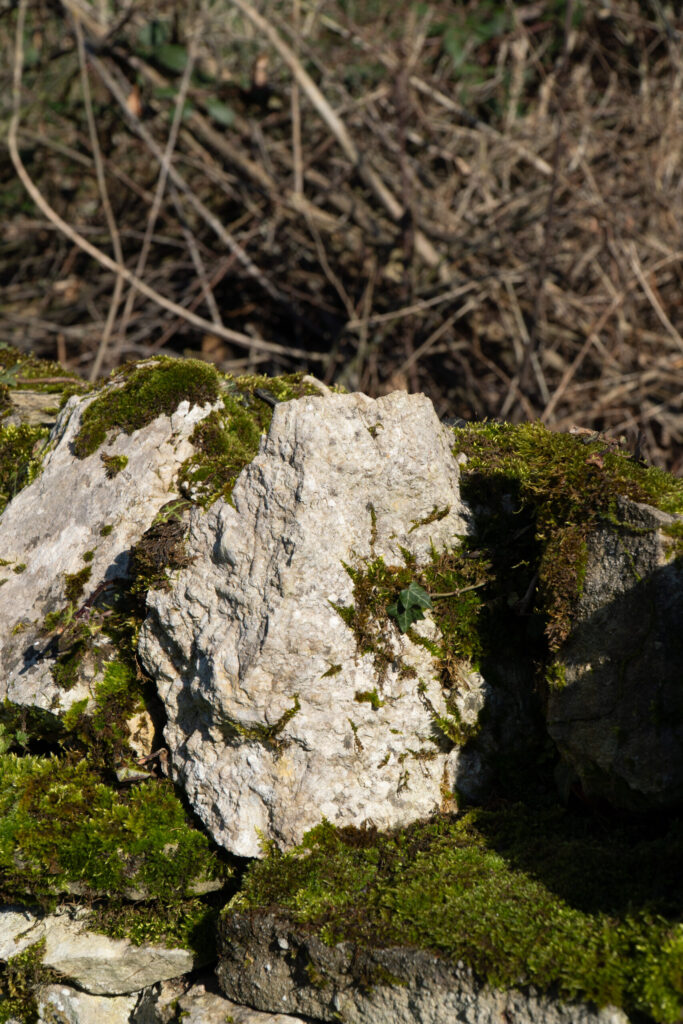
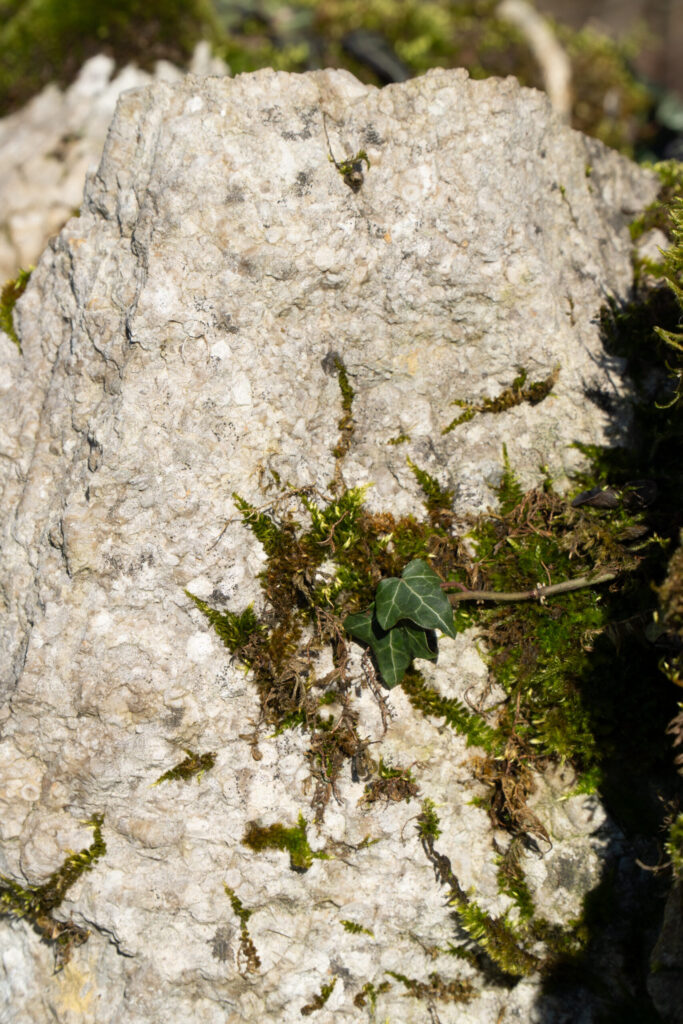
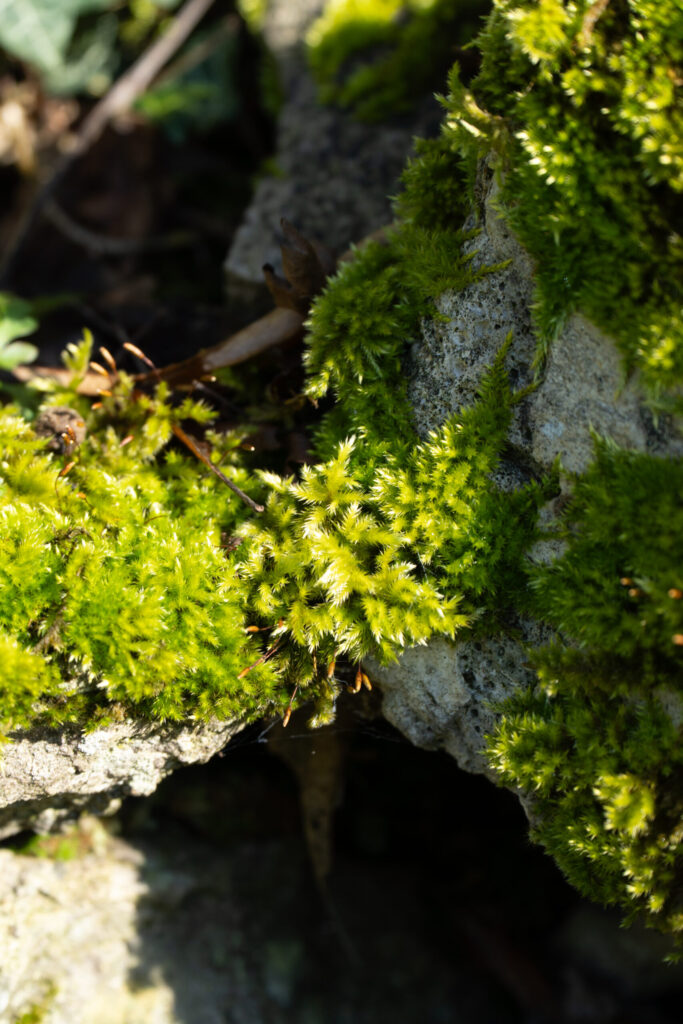
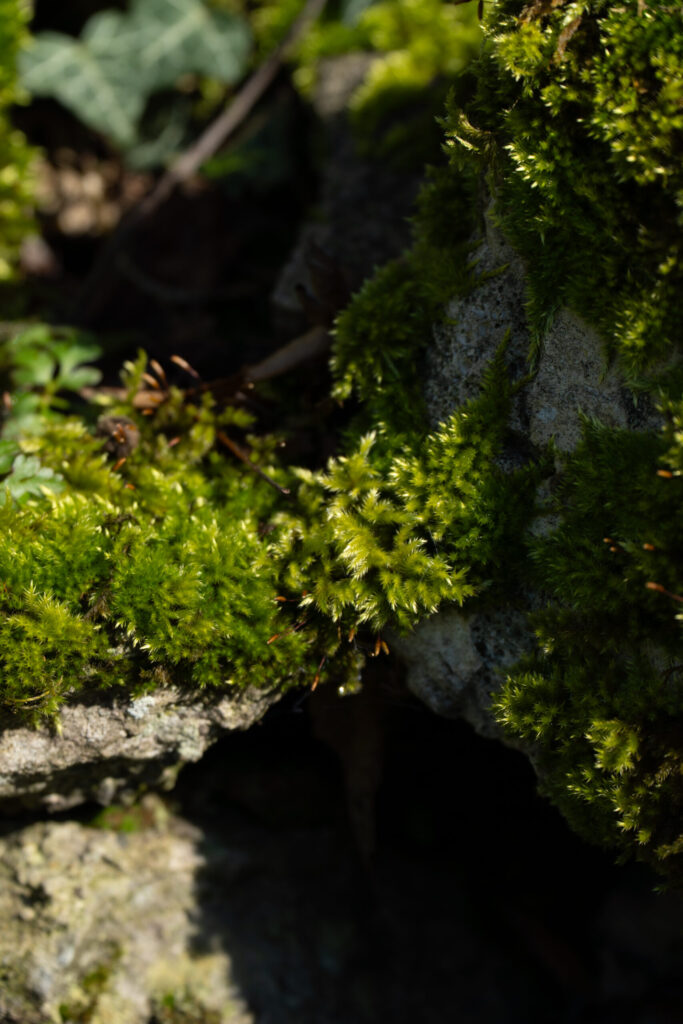
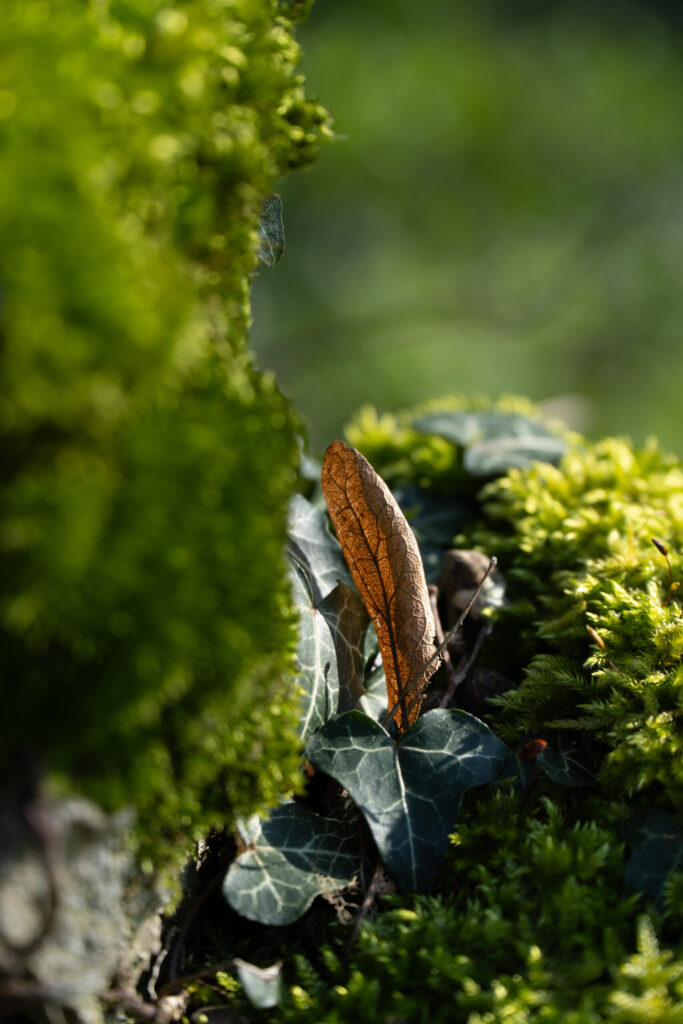
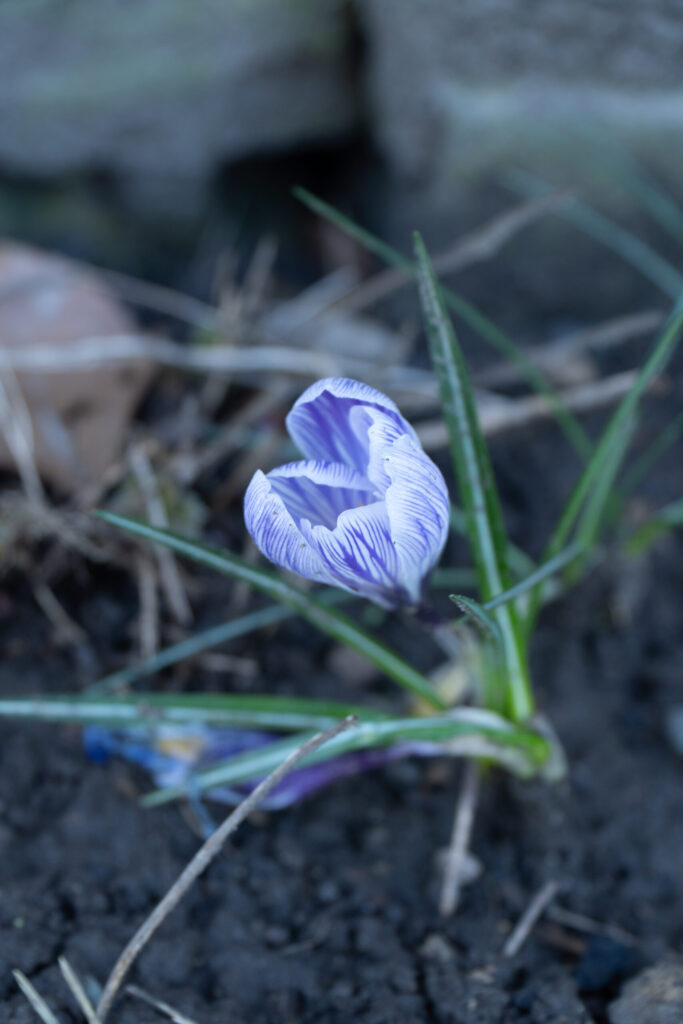
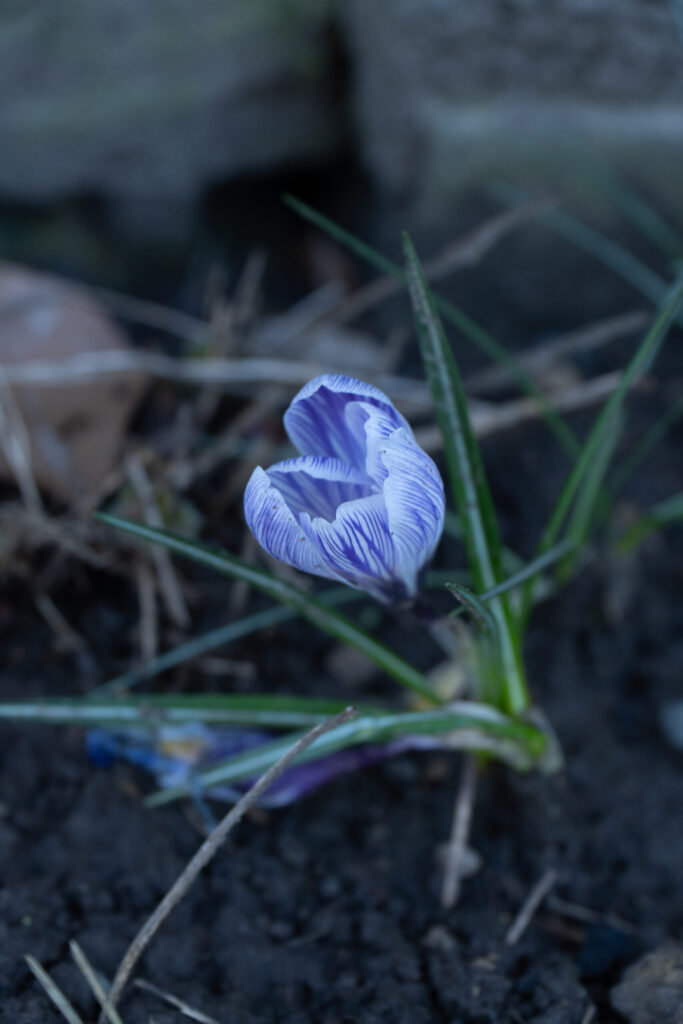
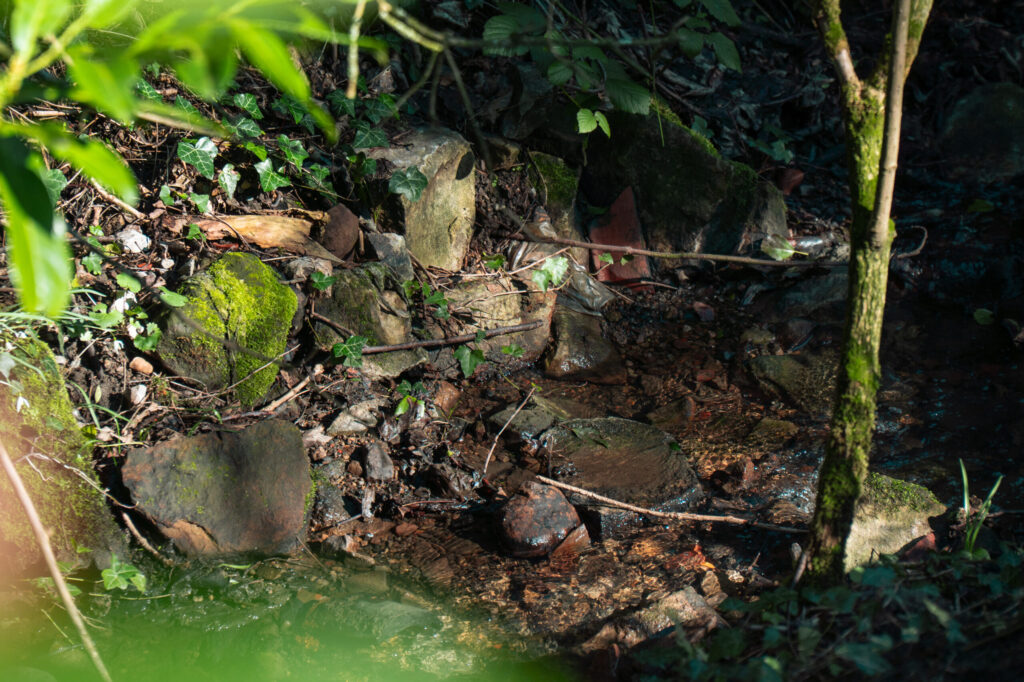
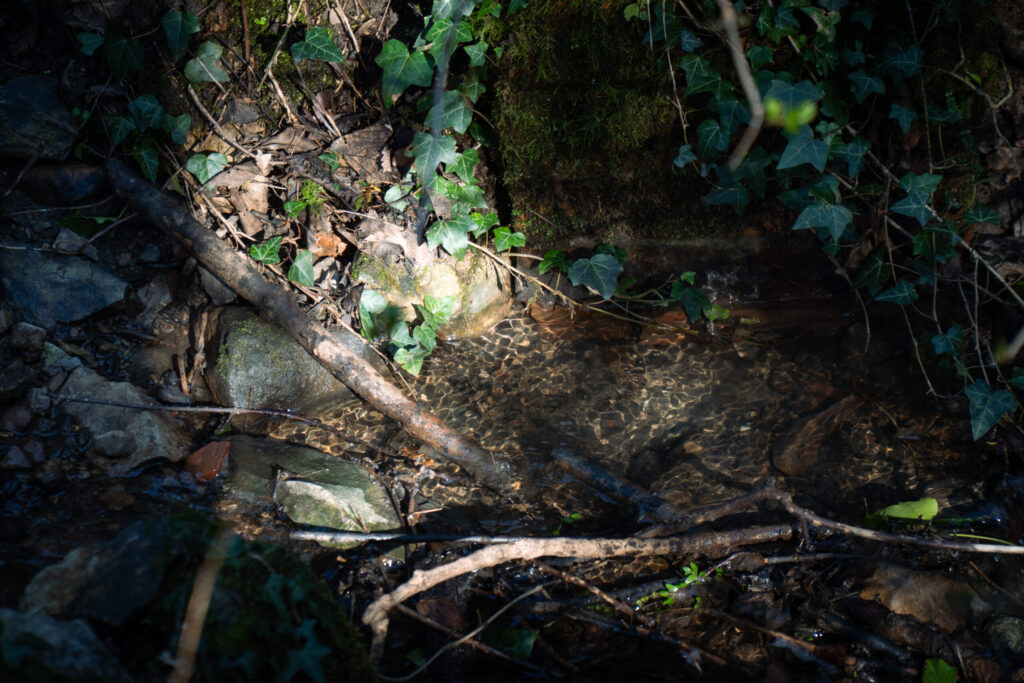
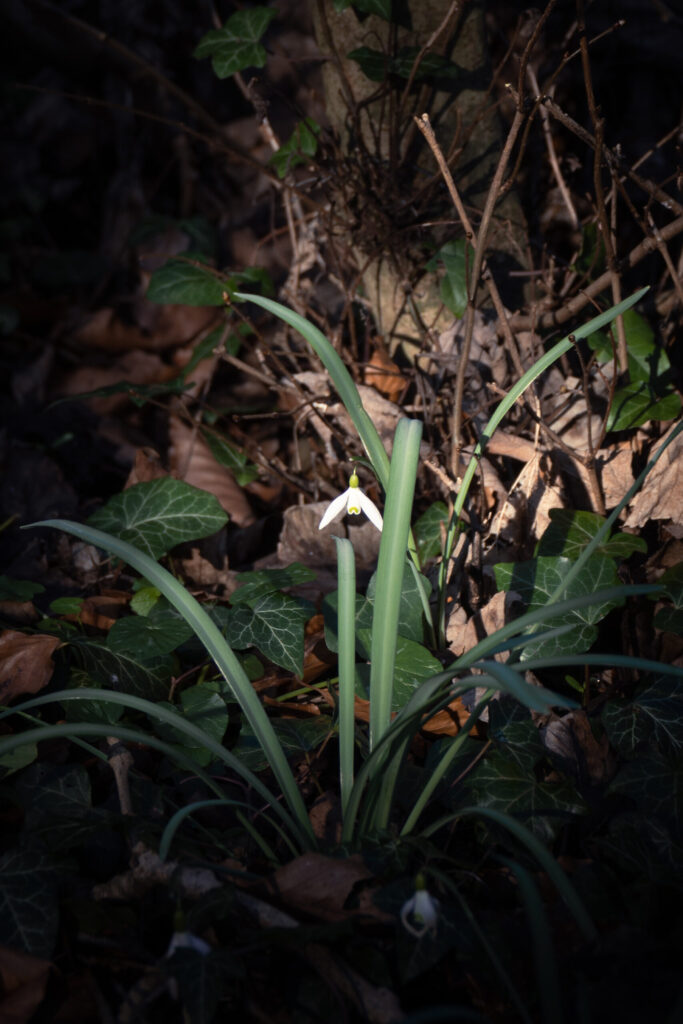
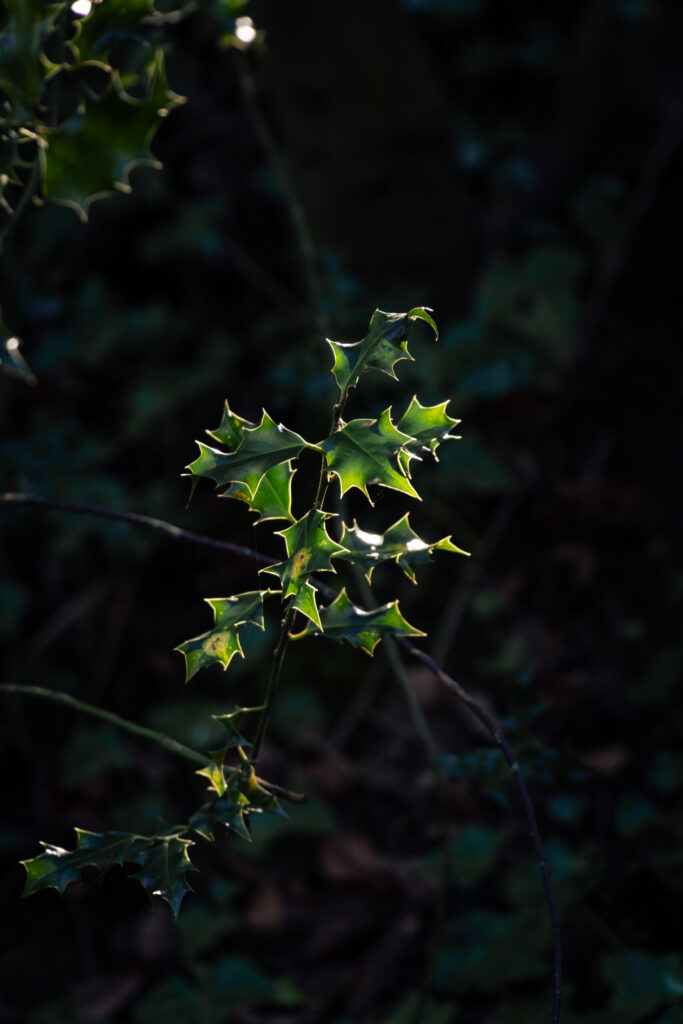
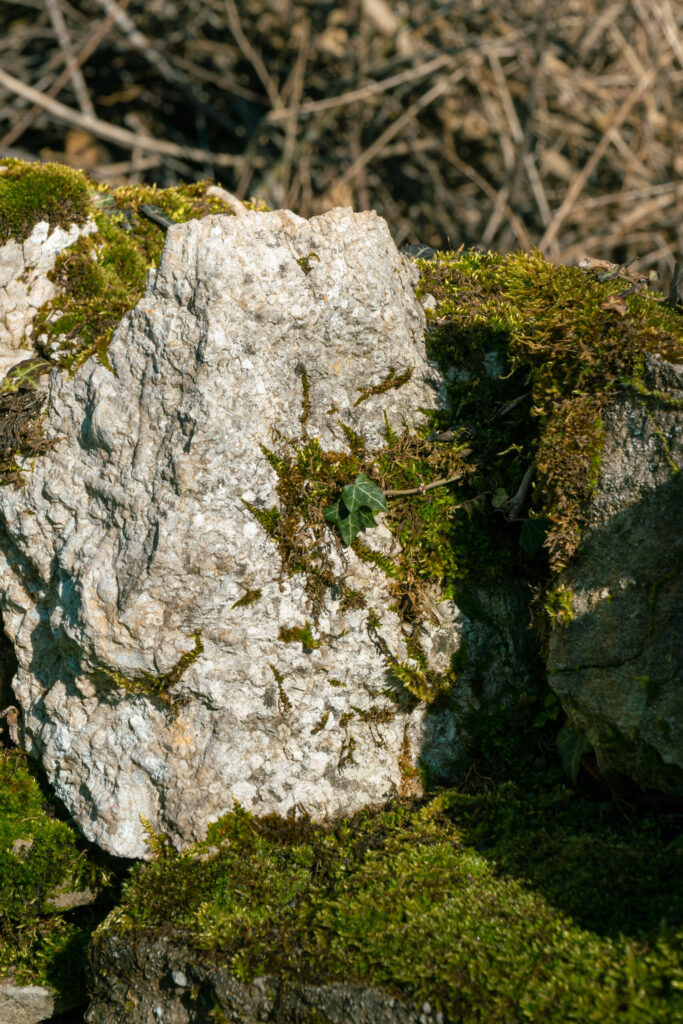
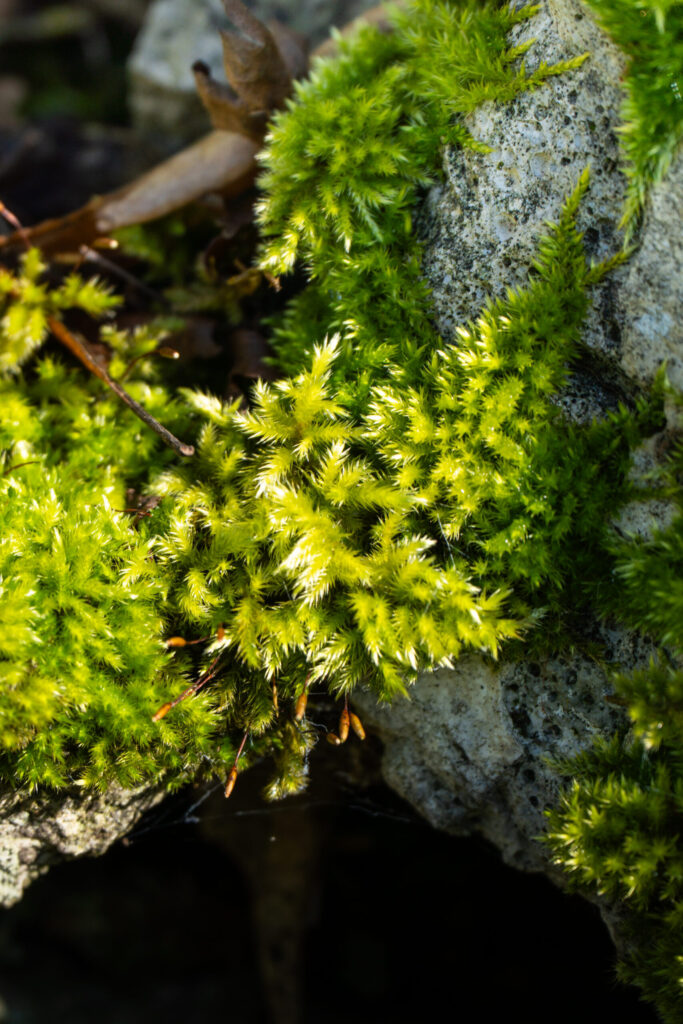
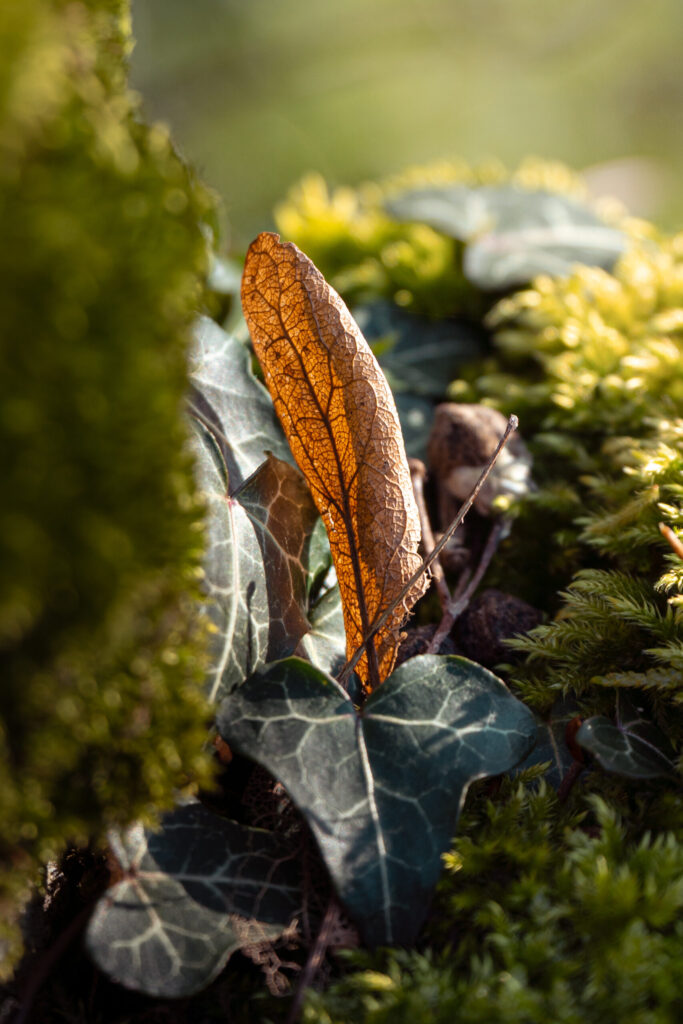
A shoot around mid-day walking through a forrest and then an open field with walls filled with details. I have tried to focus on the idea of isolation with individual places being lit up by the harsh mid-day sun. I have also played around wtih putting stuff in the foreground, out of focus. Which can be seen in my Lightroom Enhanced Edits where you can see leaves covering the left side of the screen that almost look like light leaks, which adds style to otherwise a flat image. The same can be said for the picture of the brown leaf in the moss, the moss on the left is completely out of focus but nicely frames the leaf.
View Full Shoot
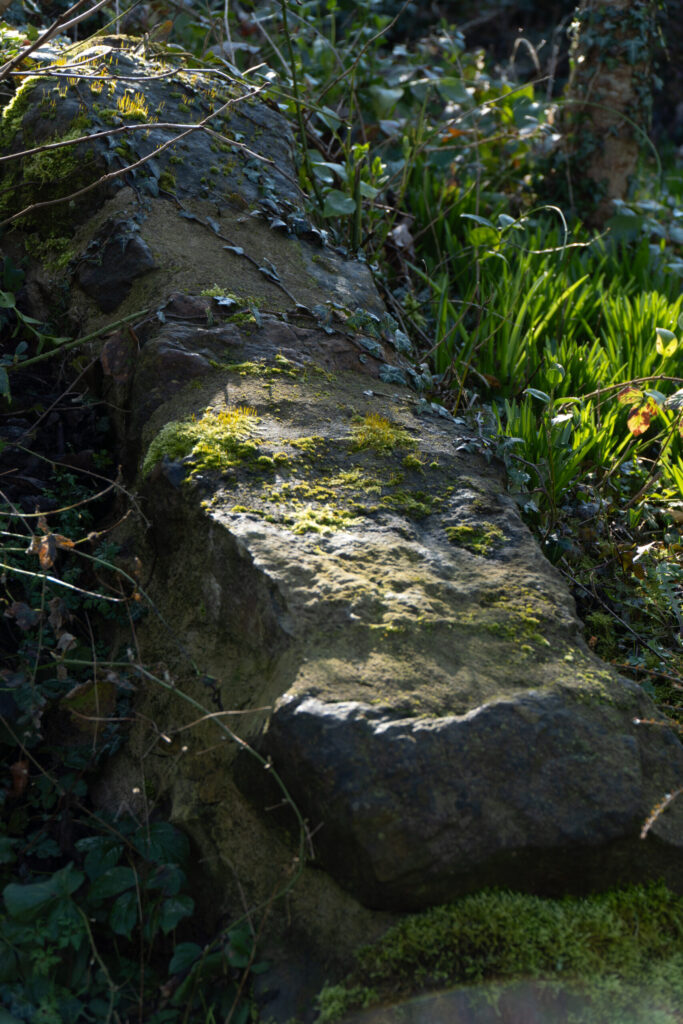
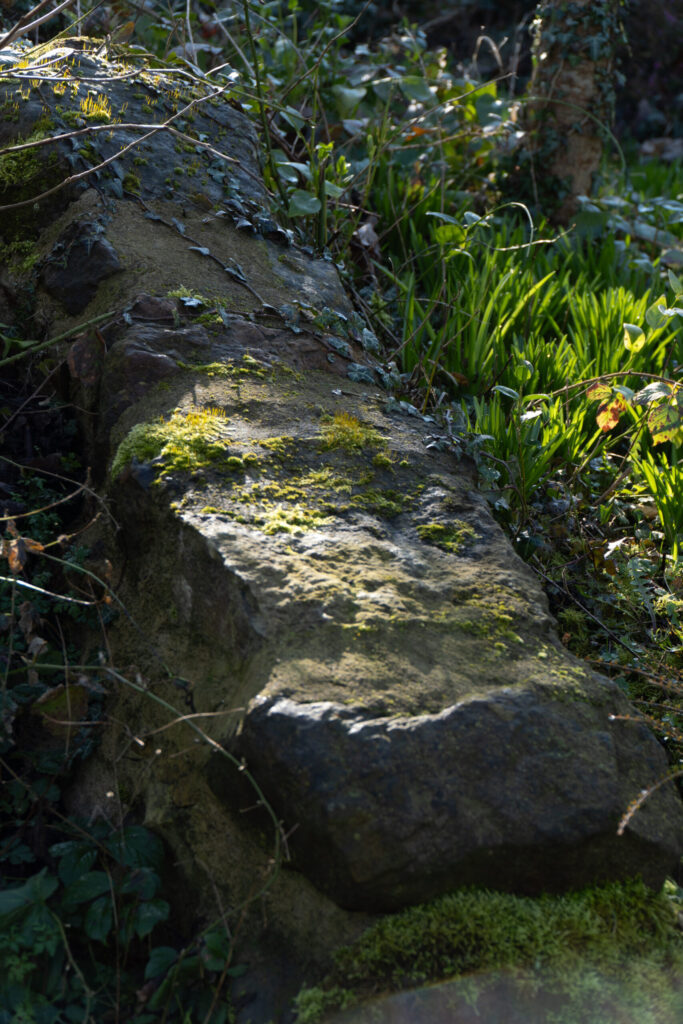
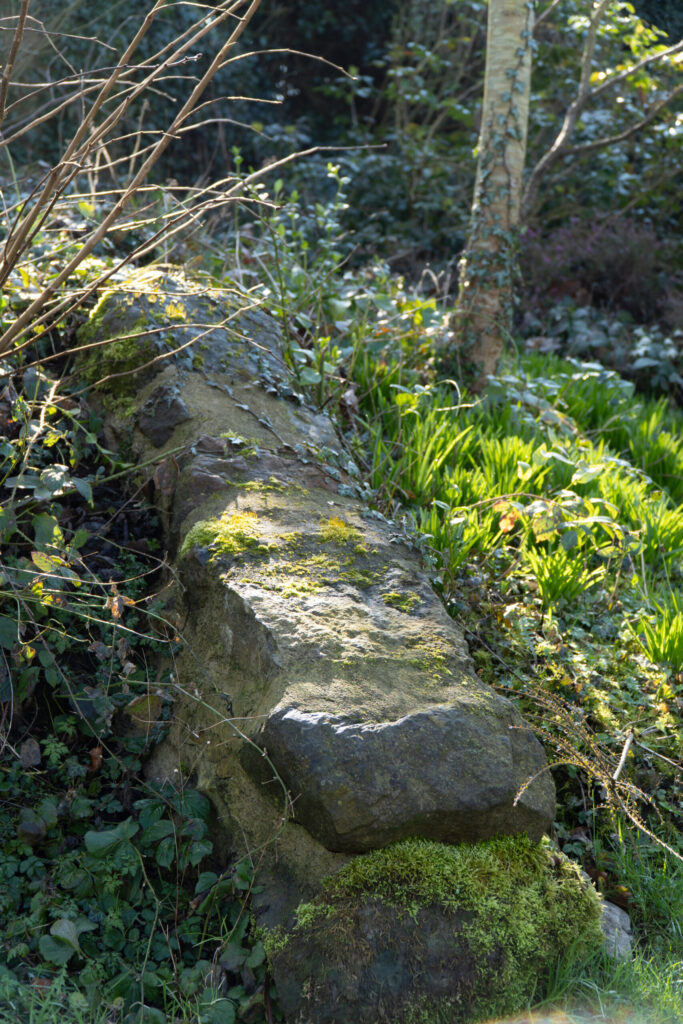
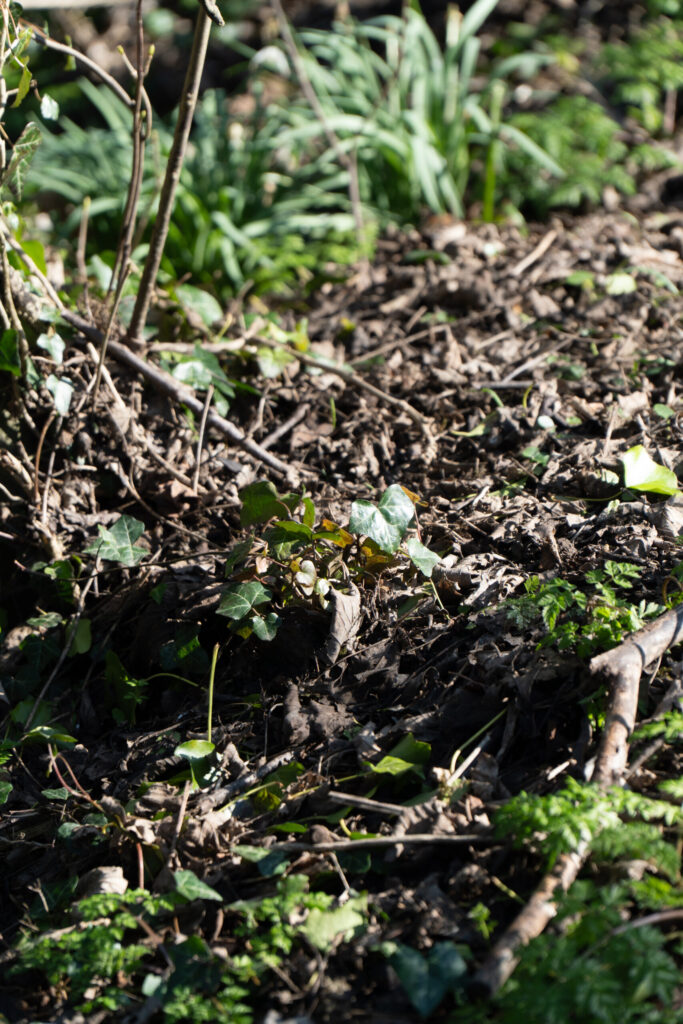
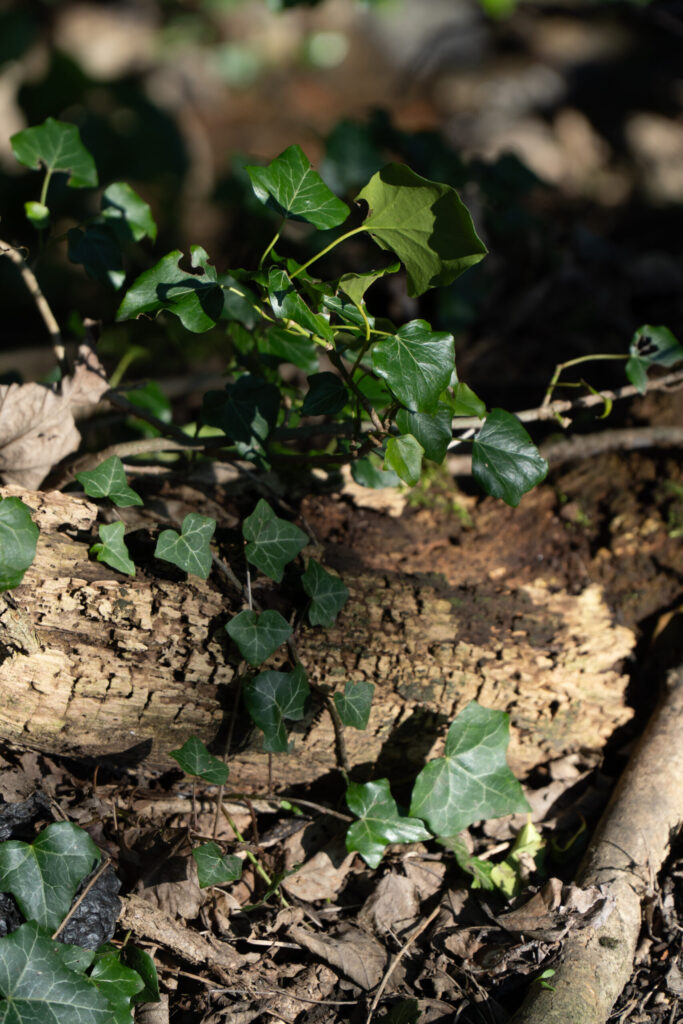
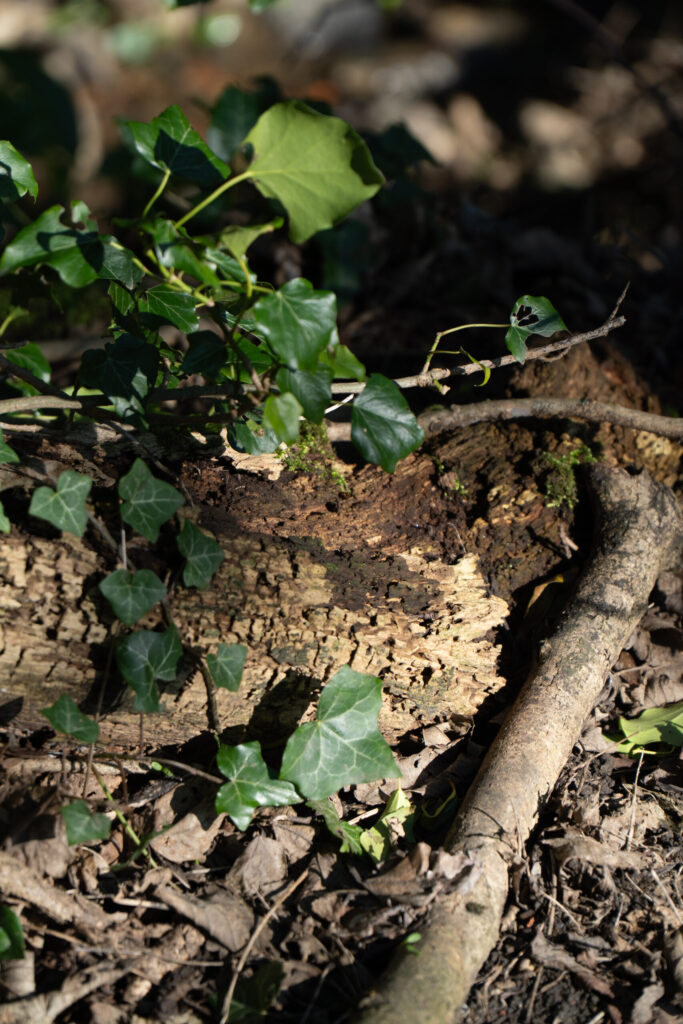
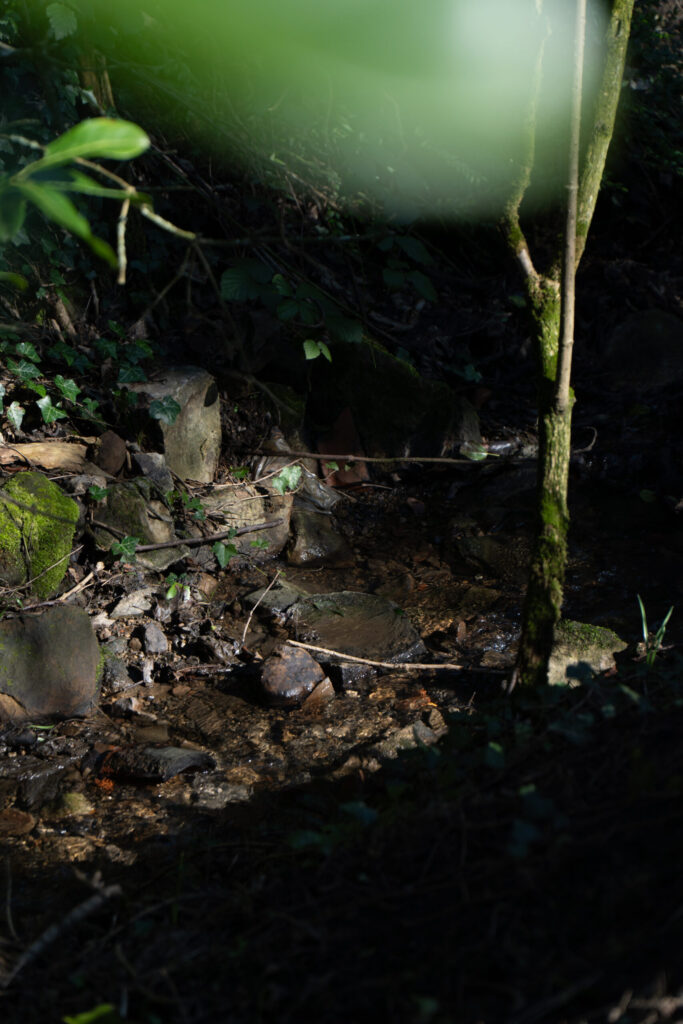
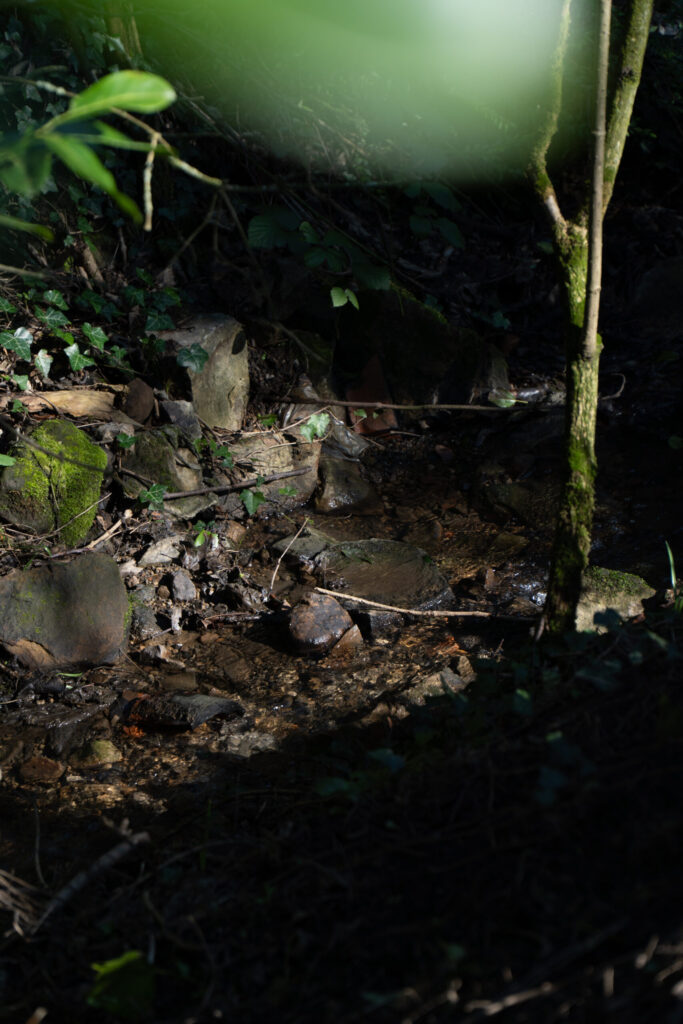
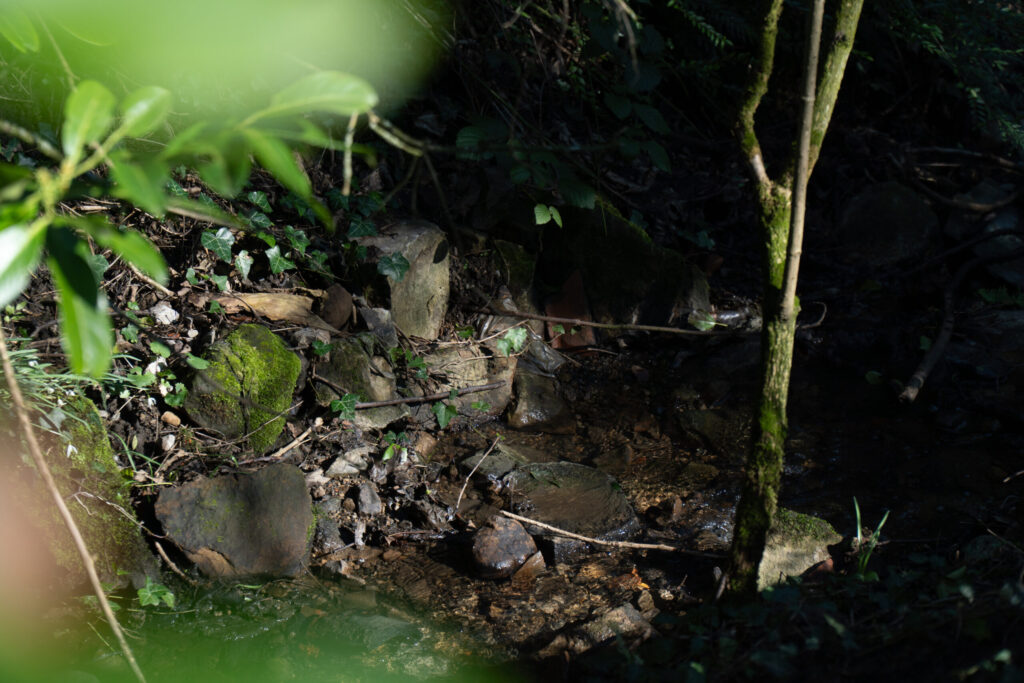
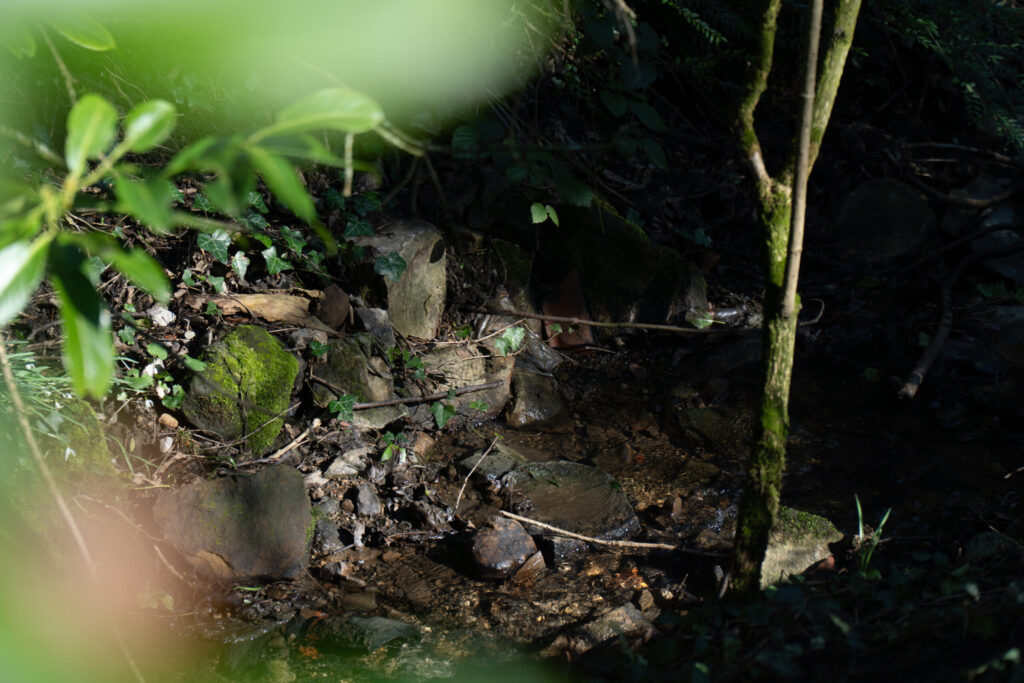
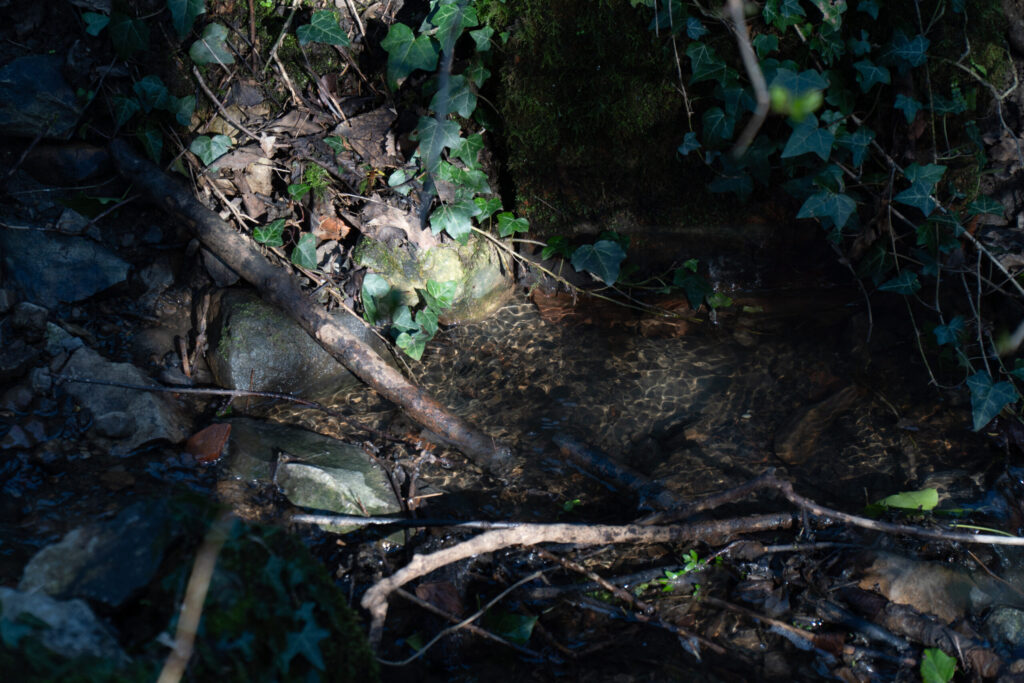
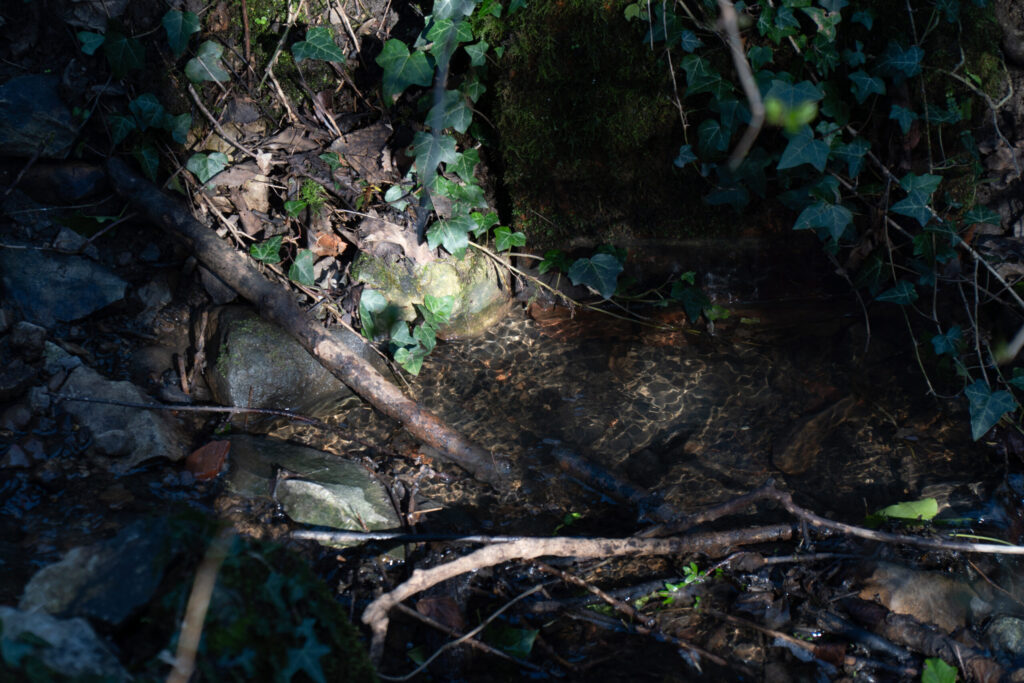
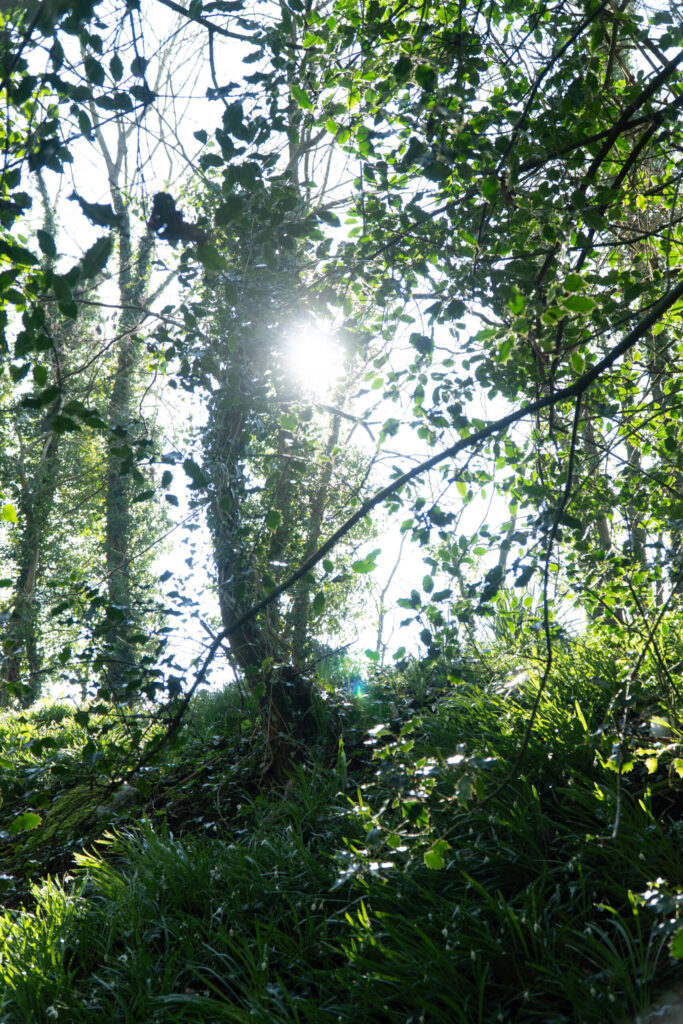
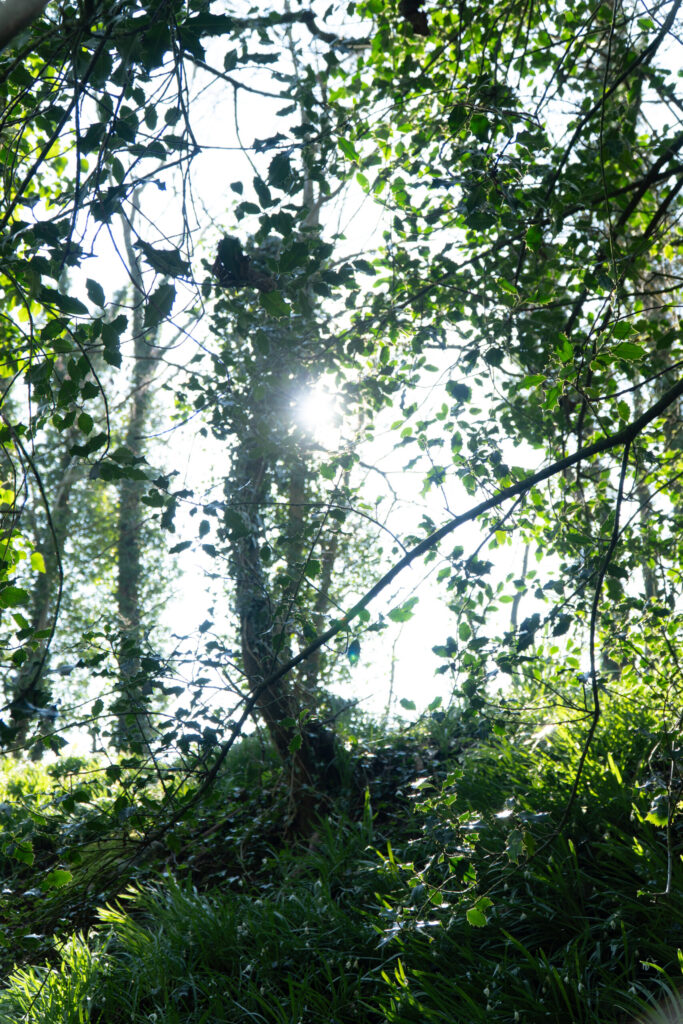
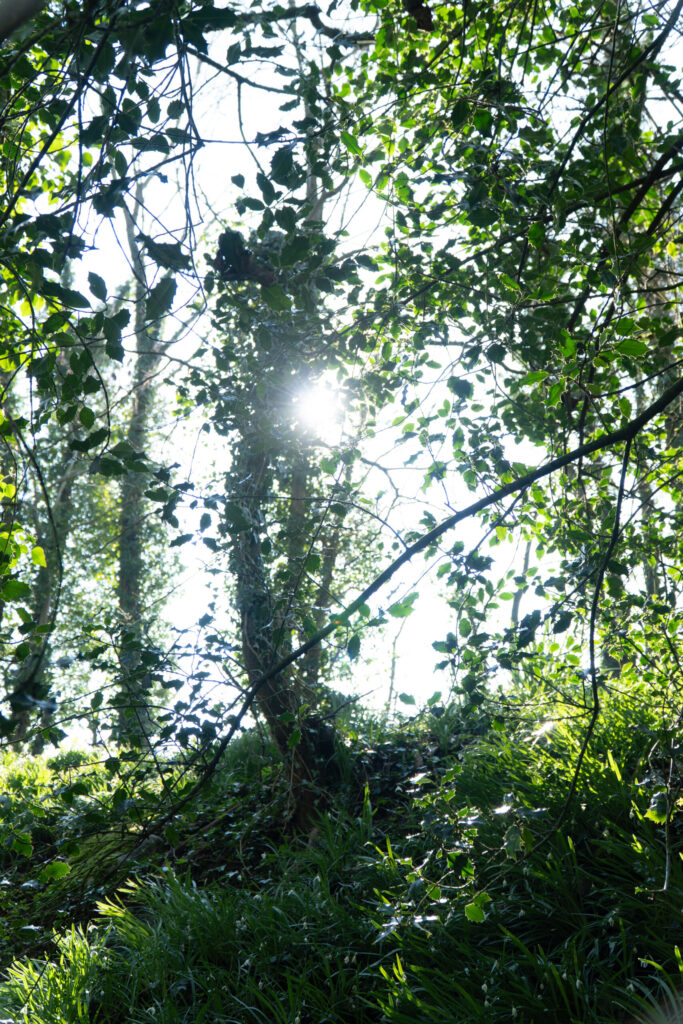
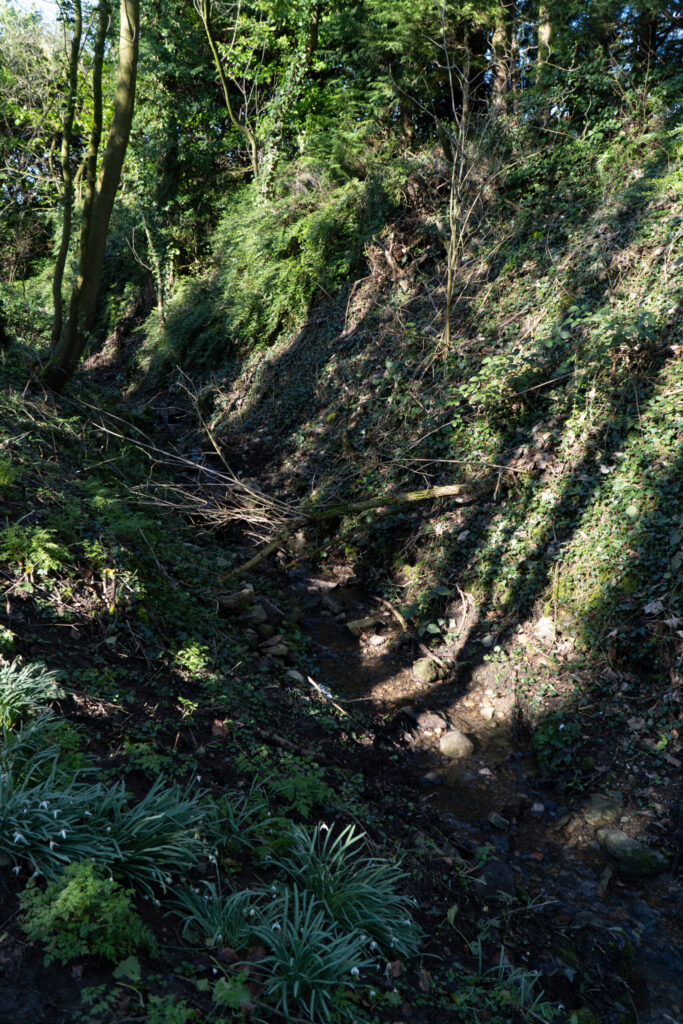
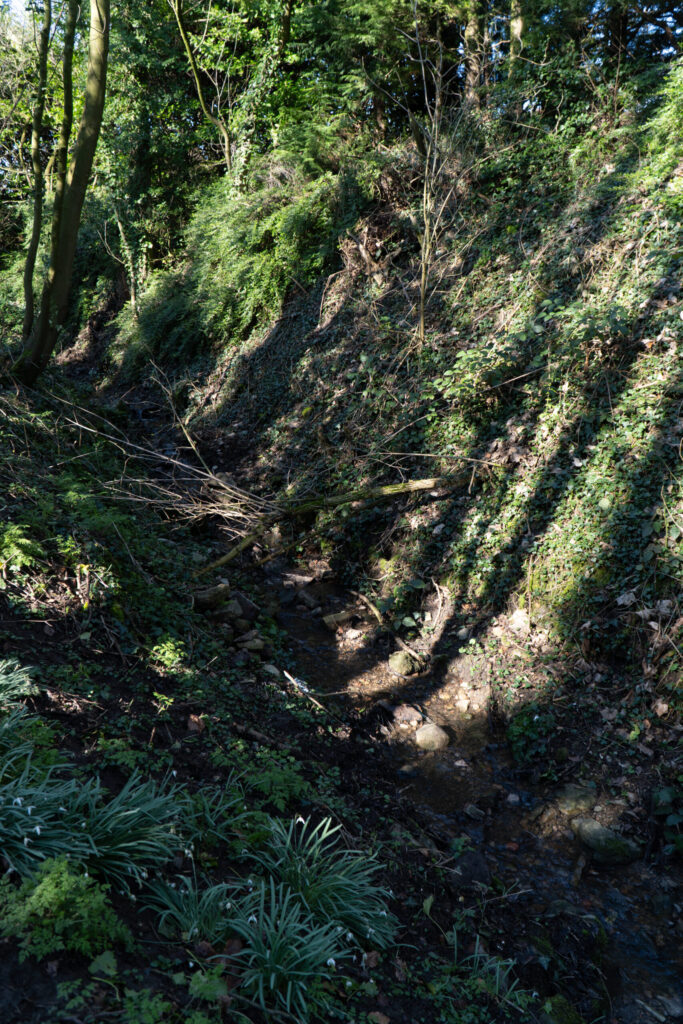
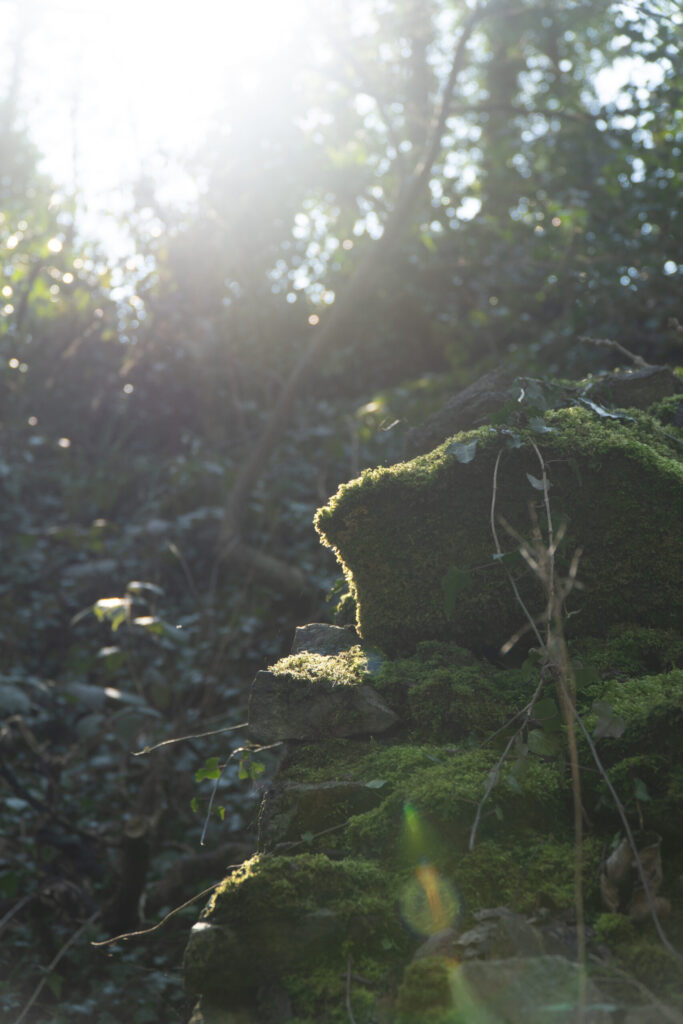
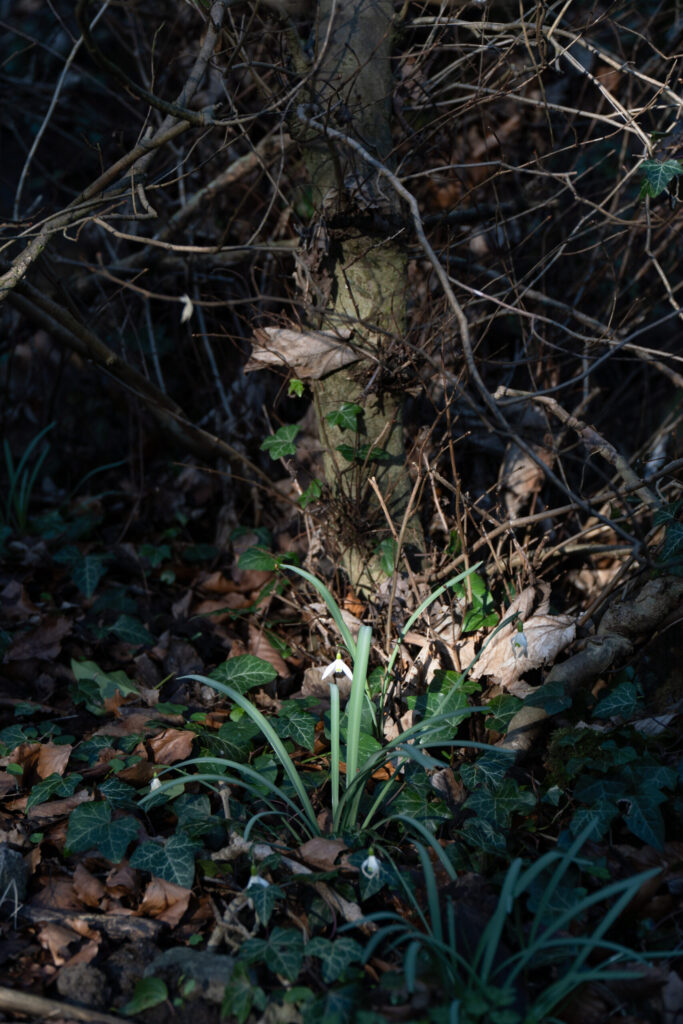
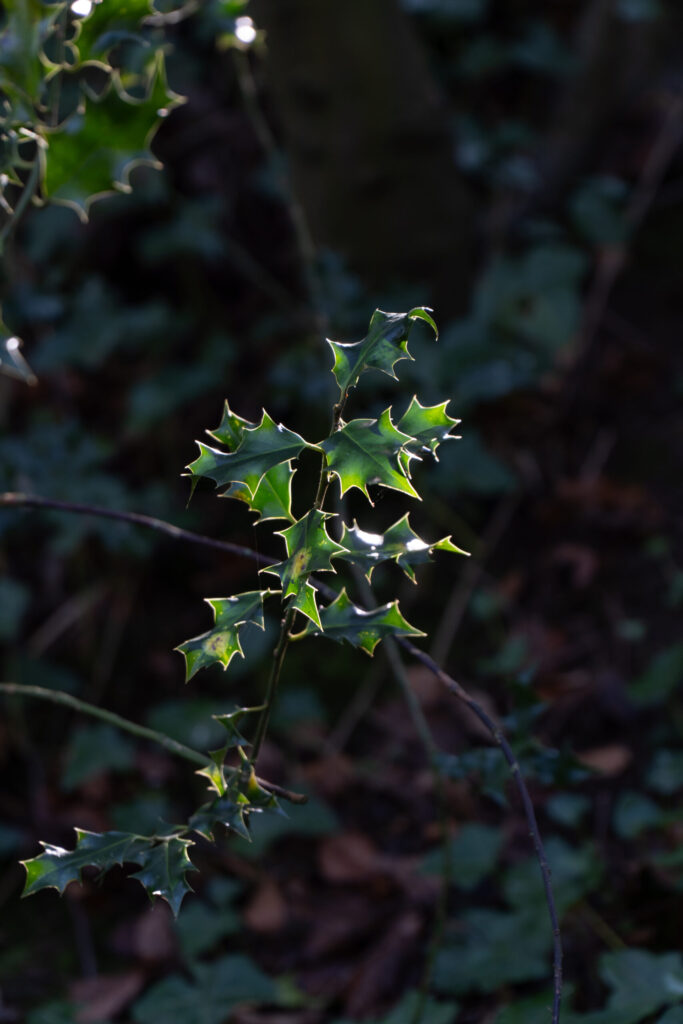
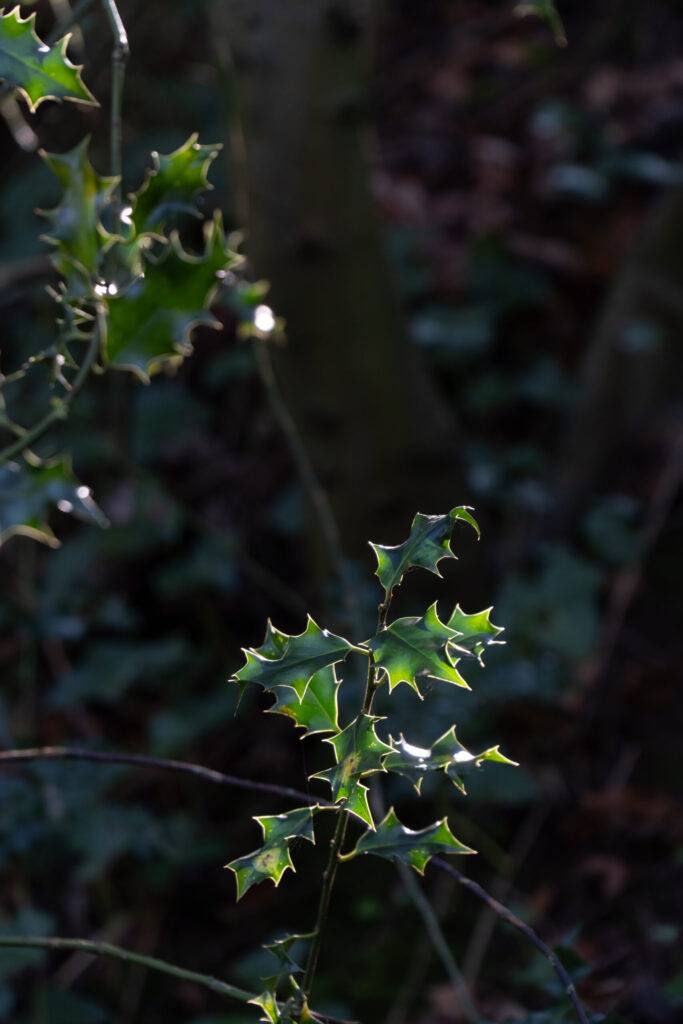
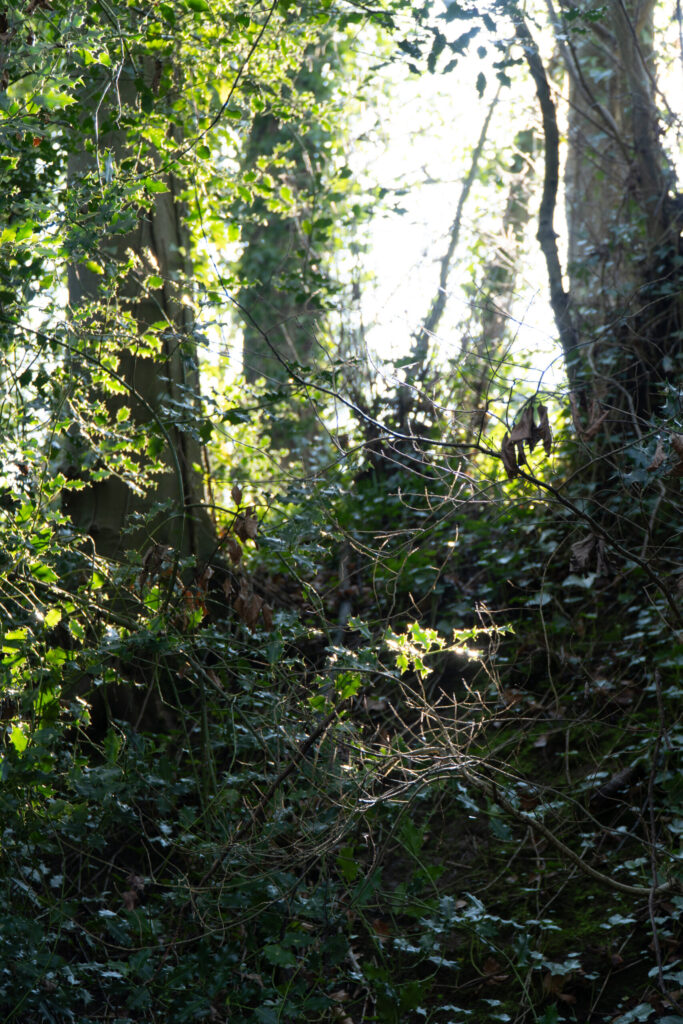
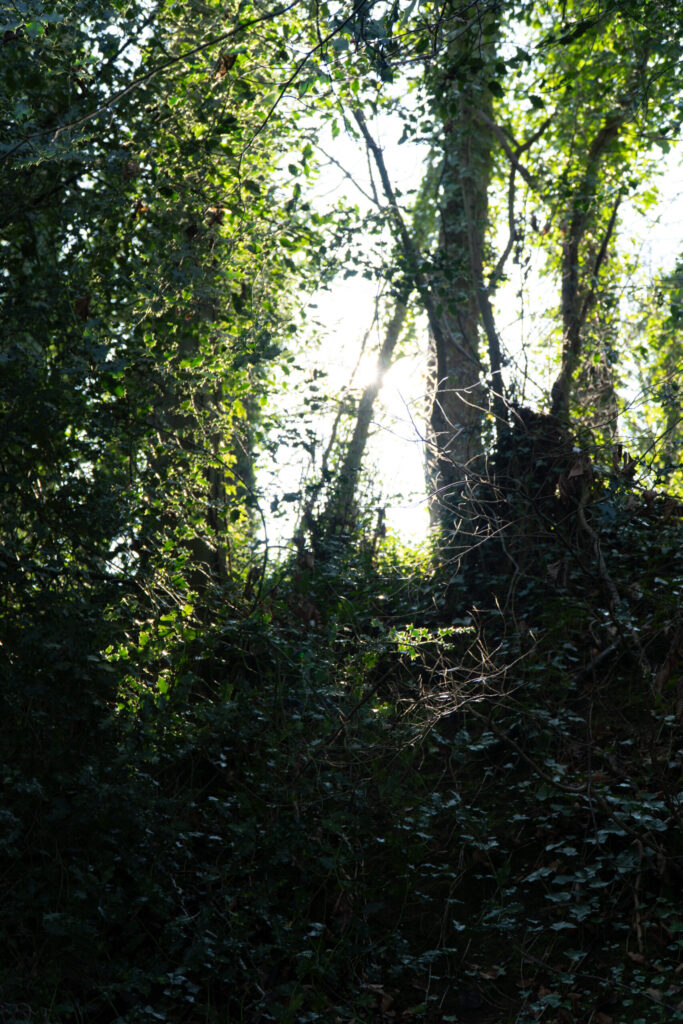
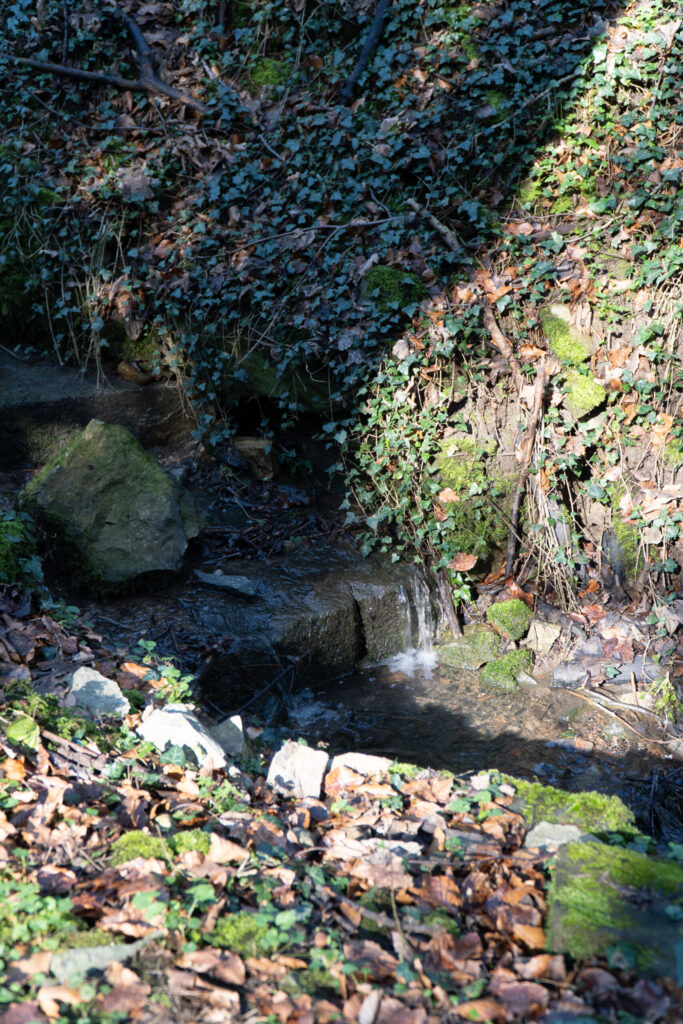
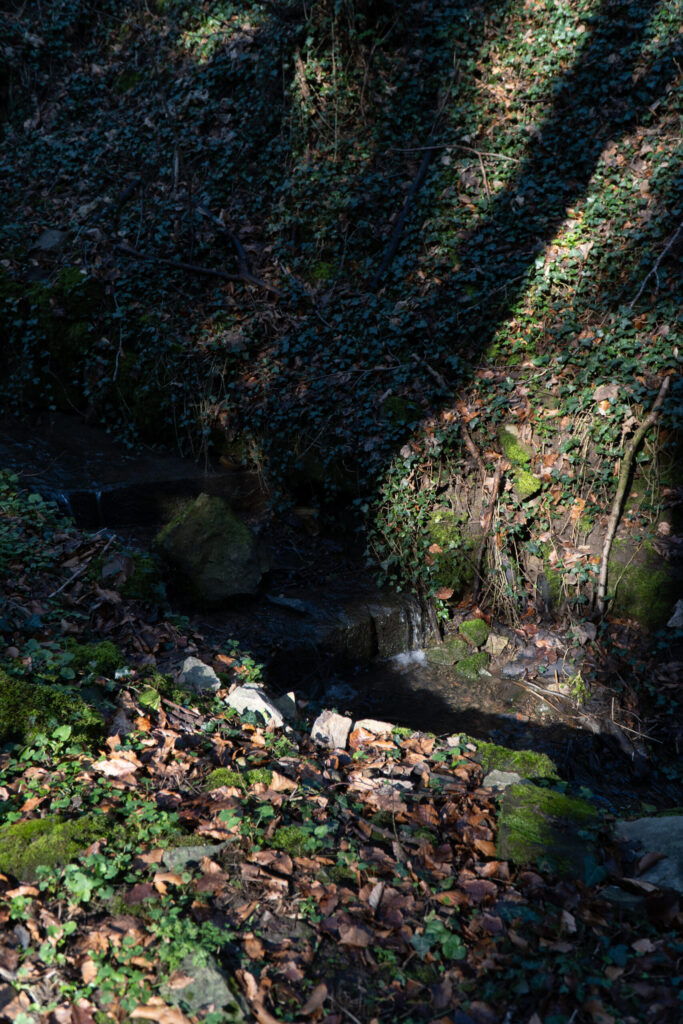
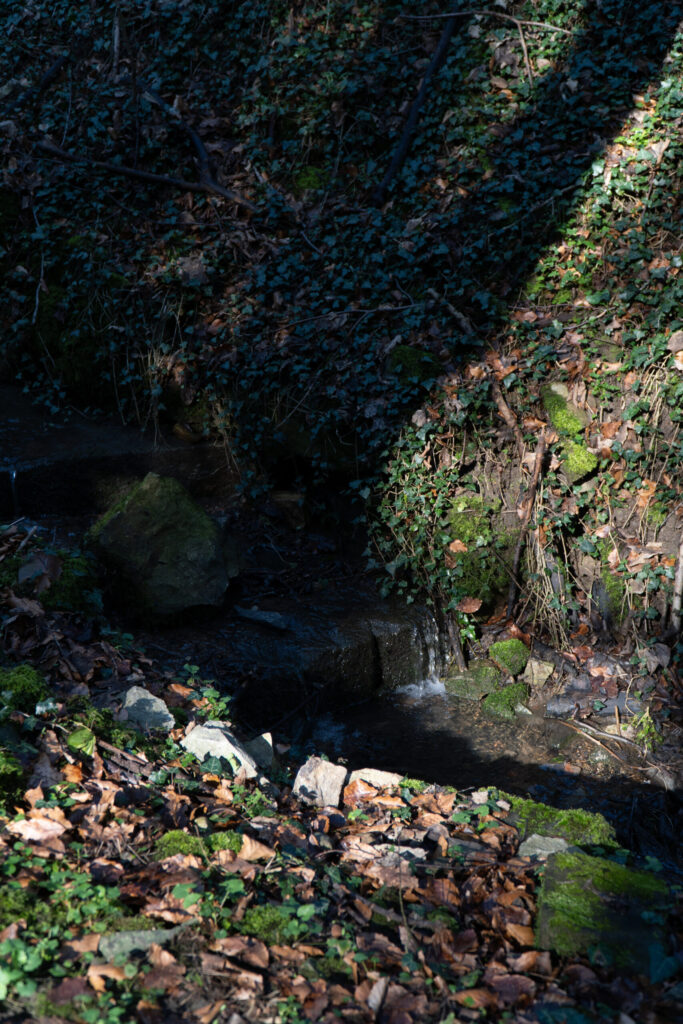
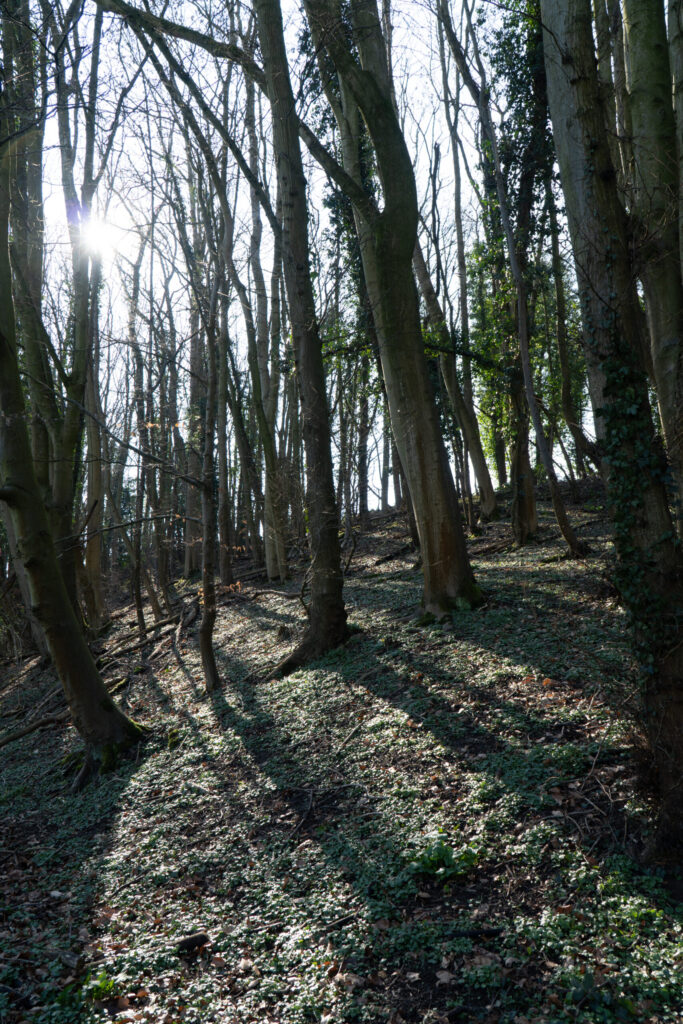
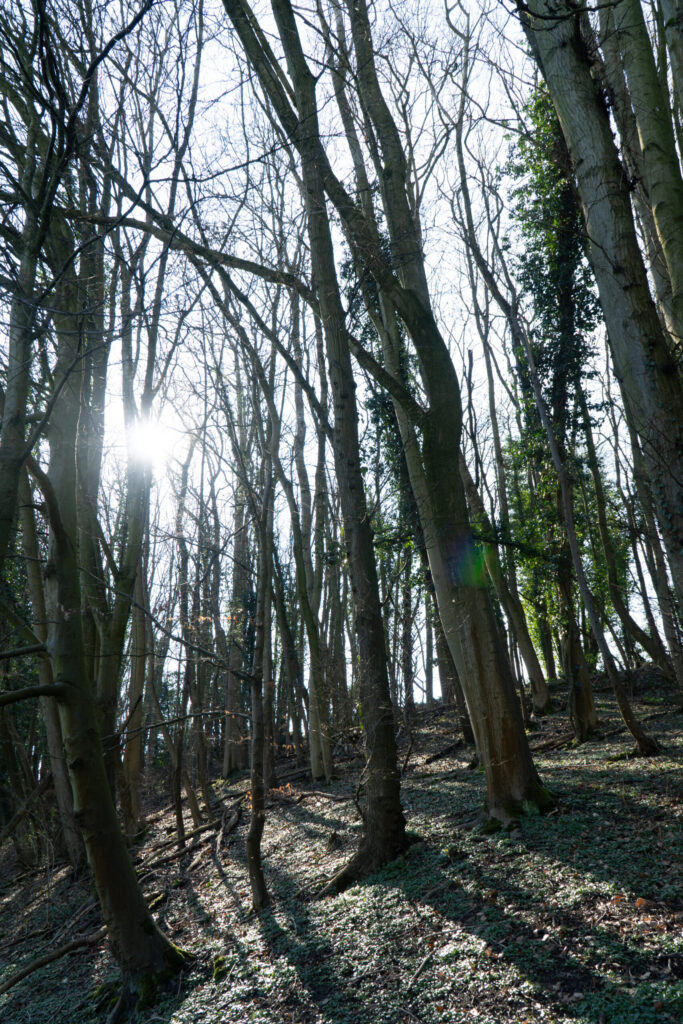
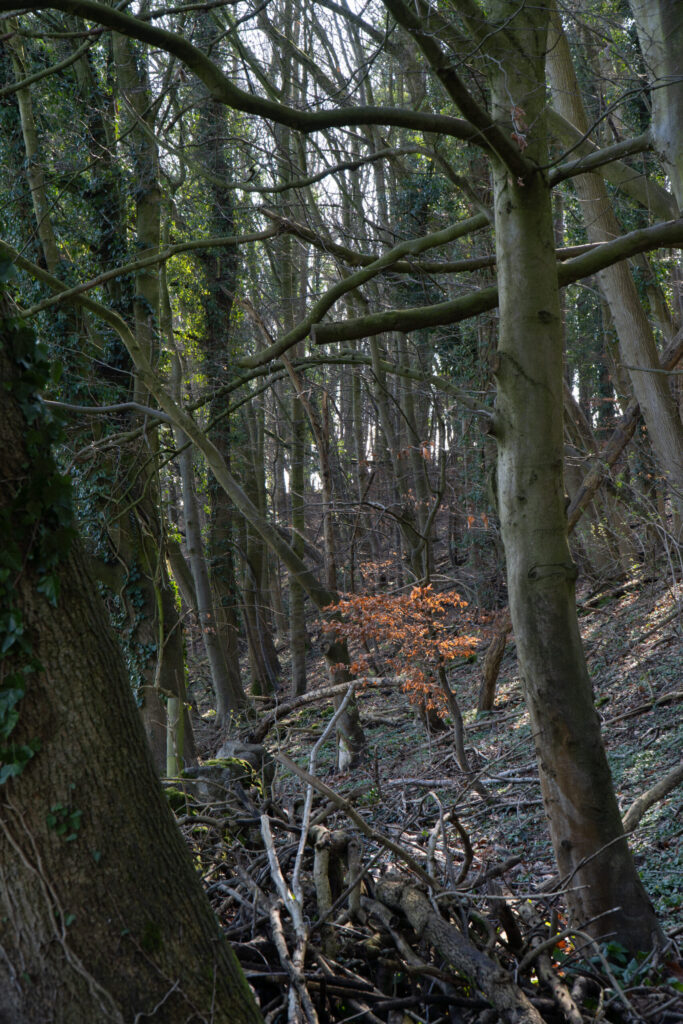
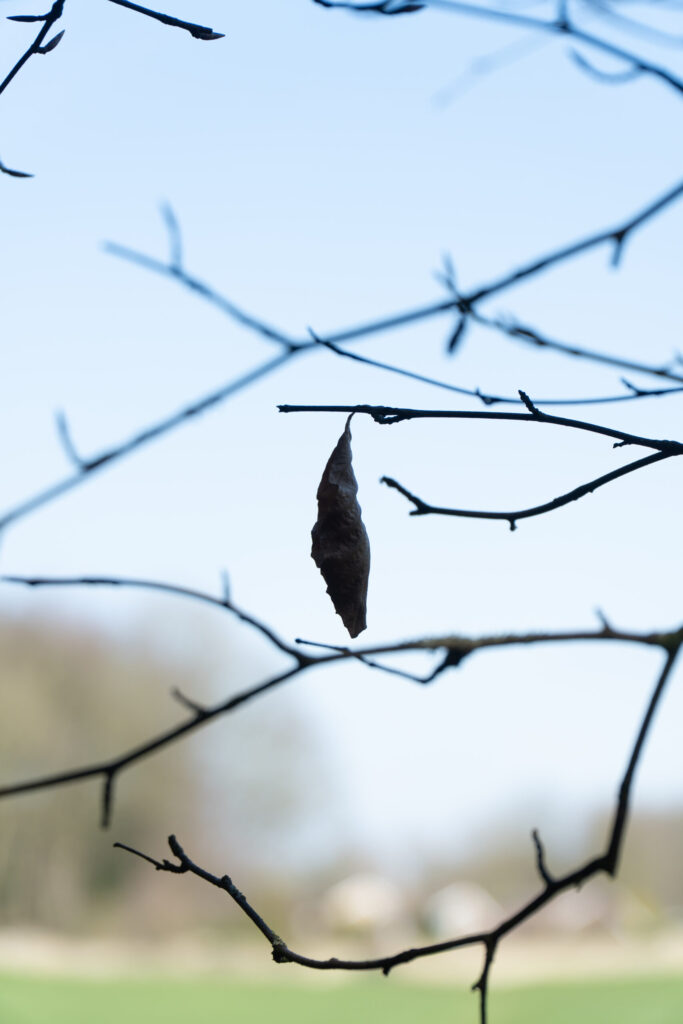
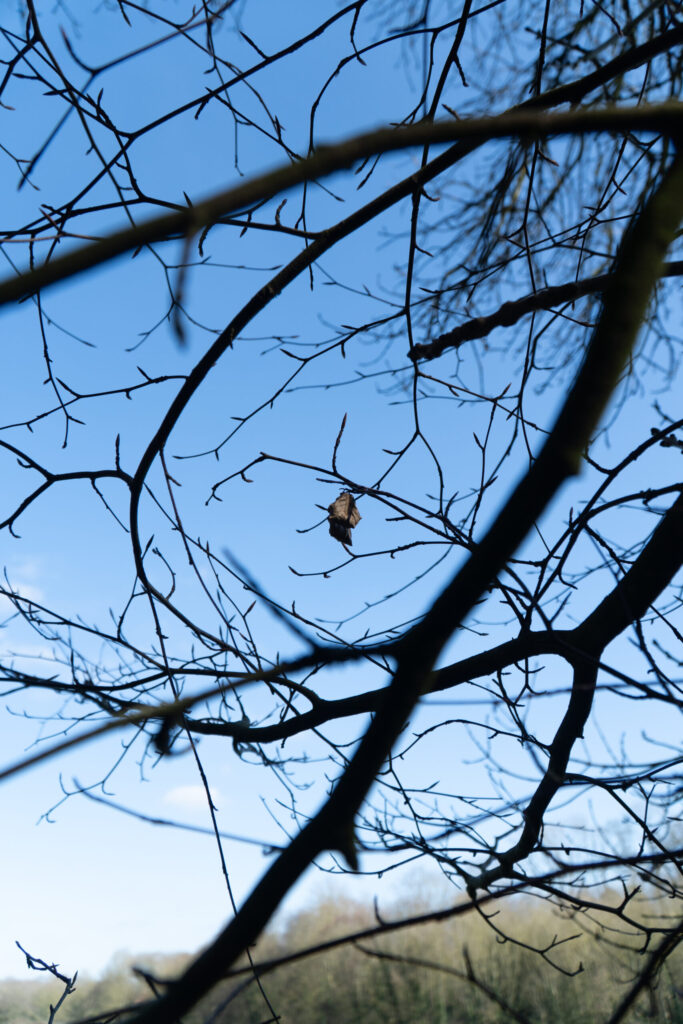
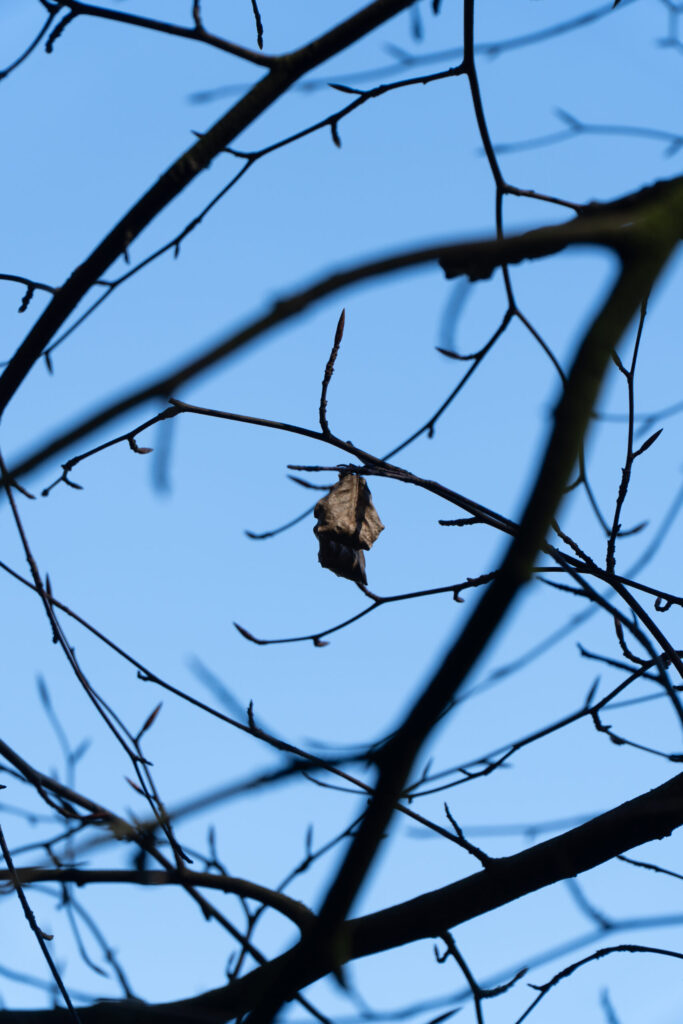
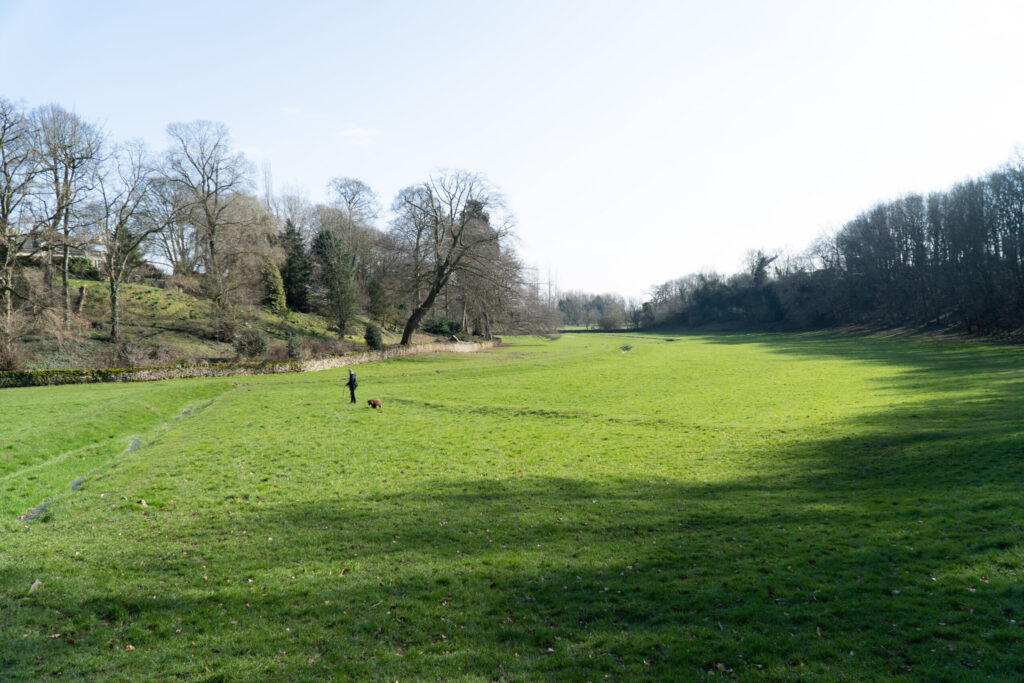
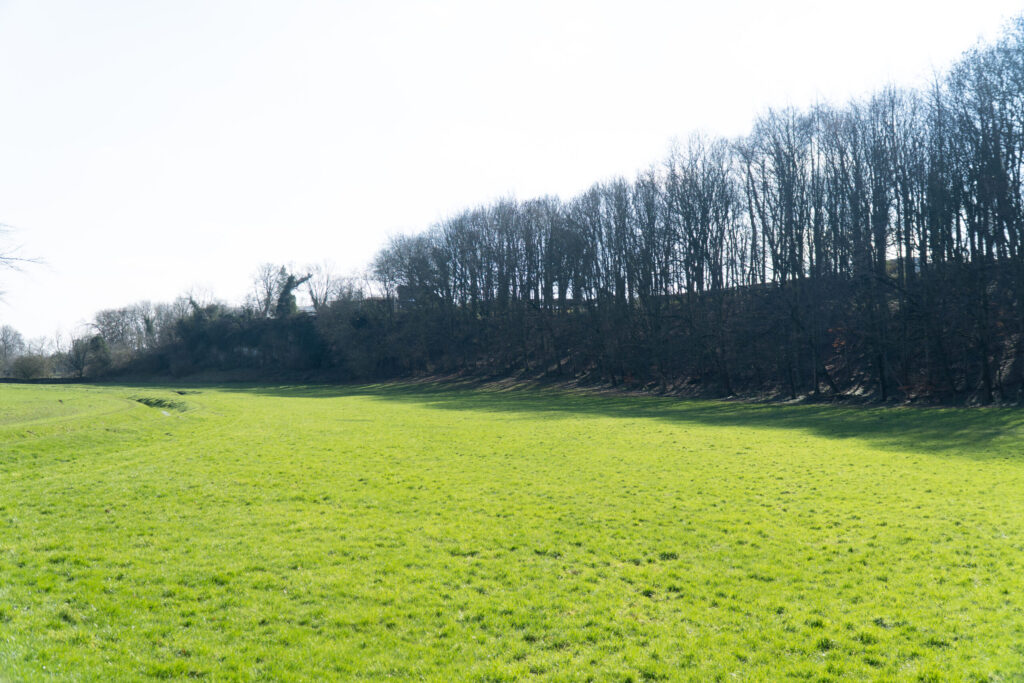
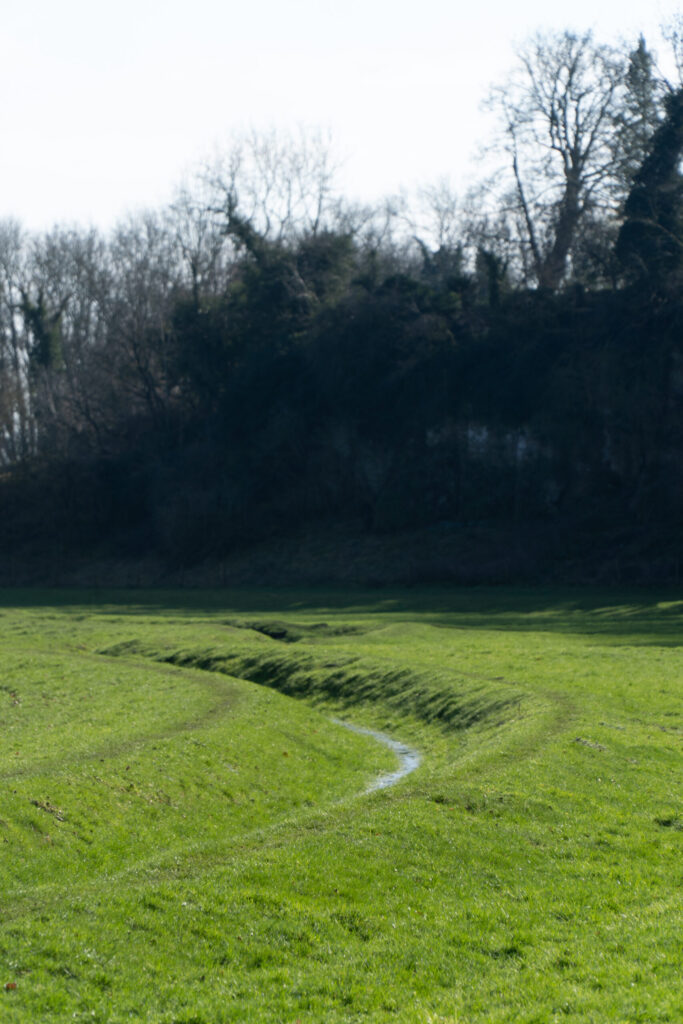
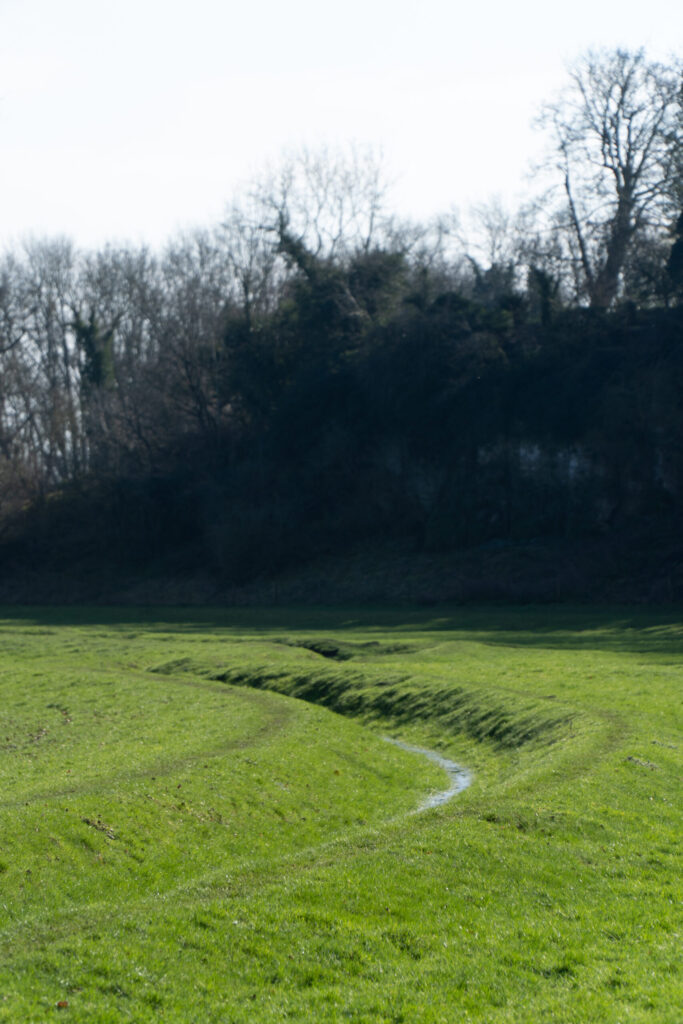
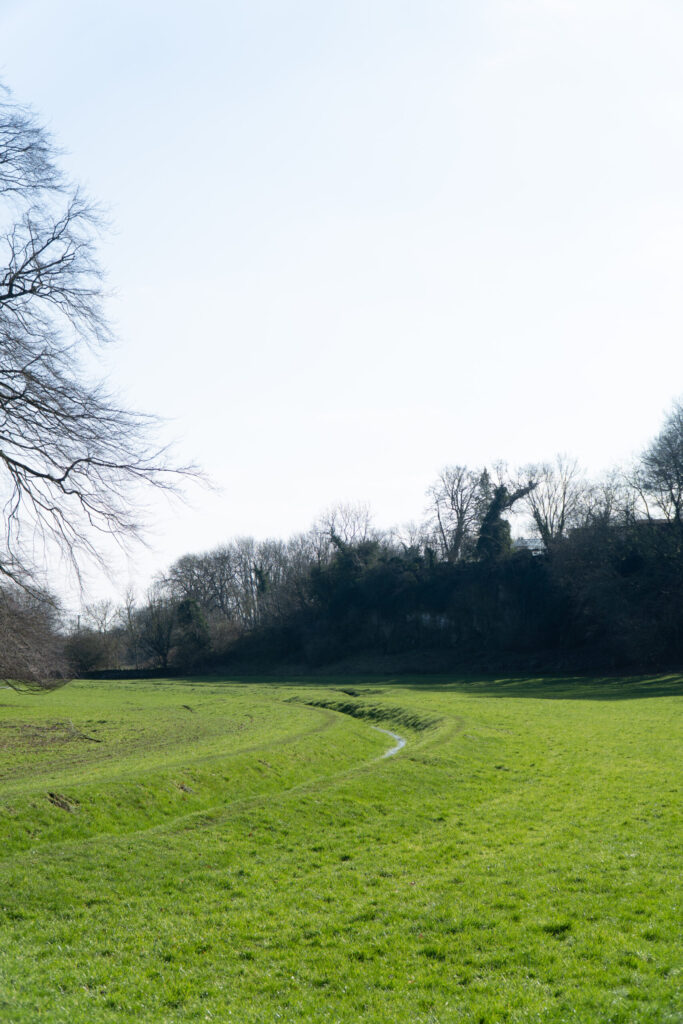
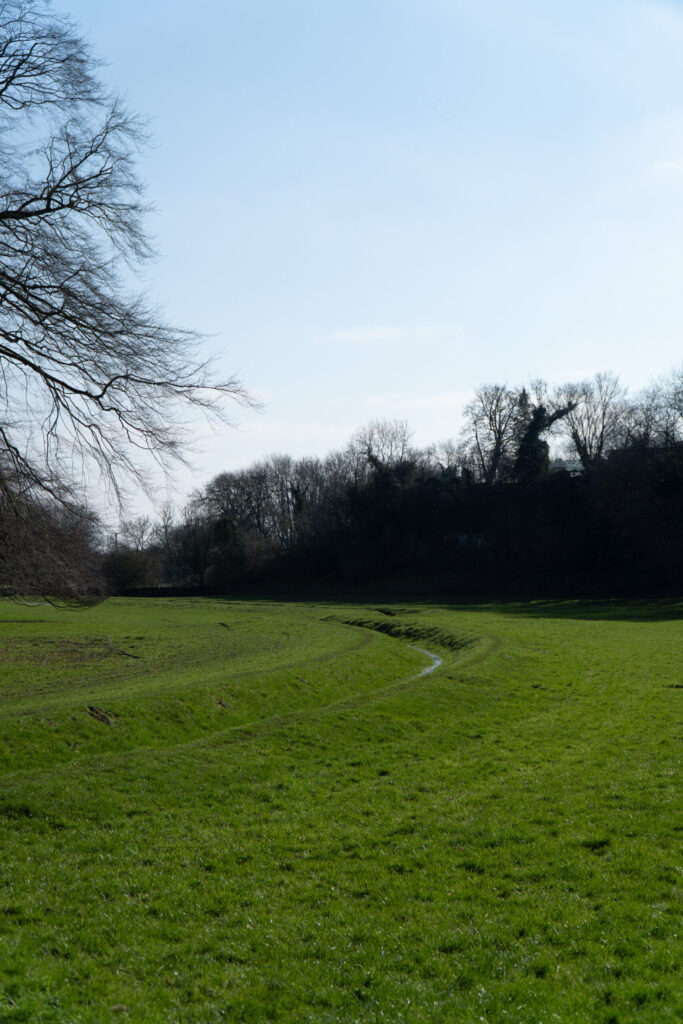
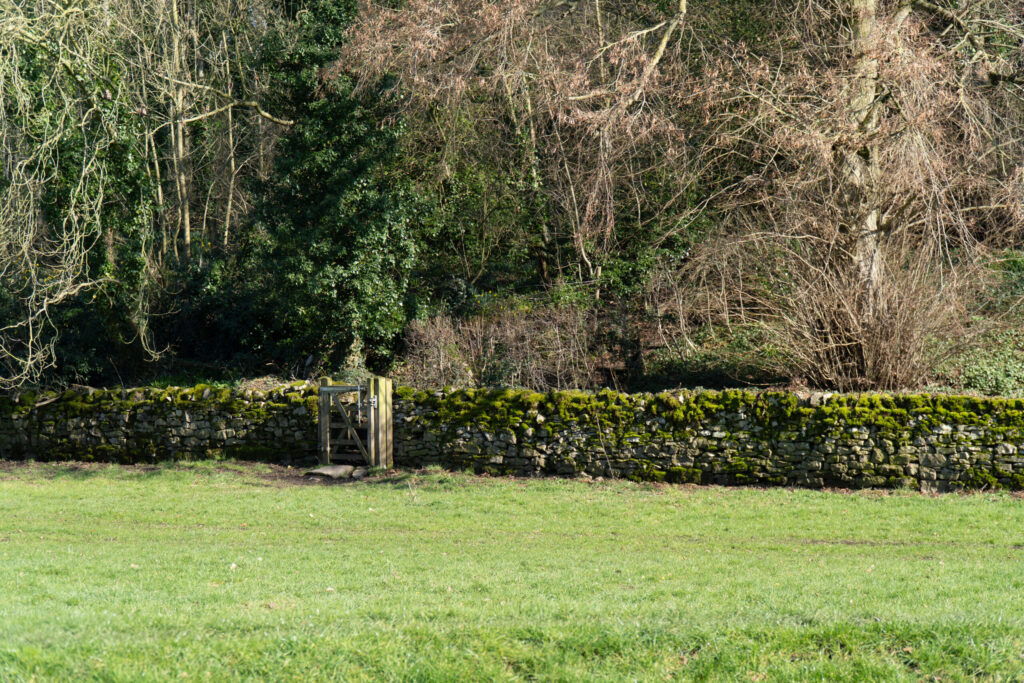
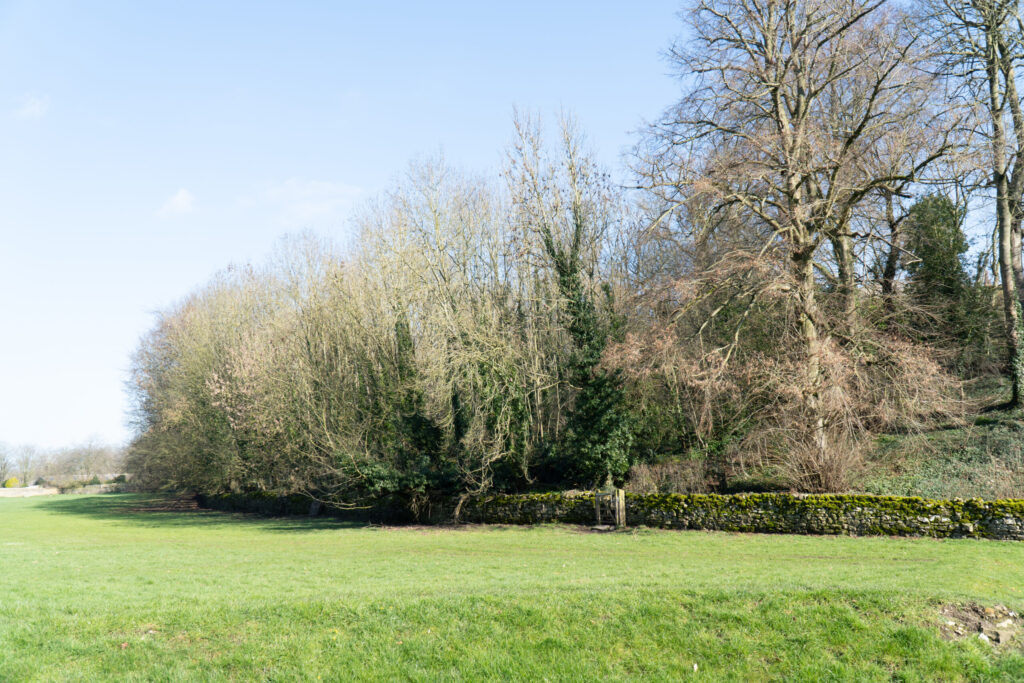
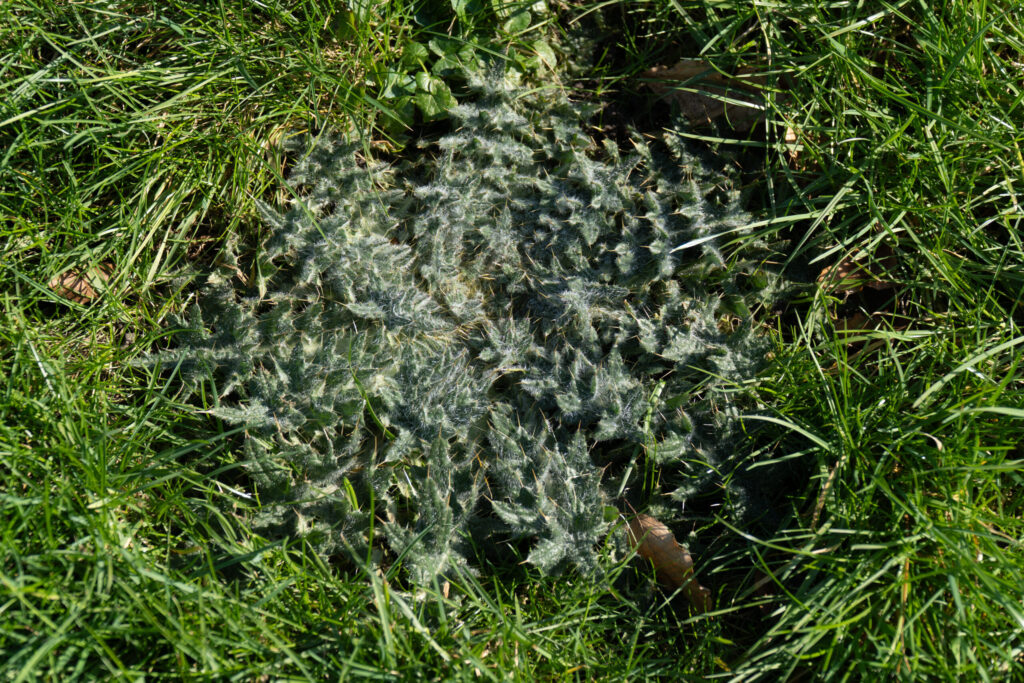
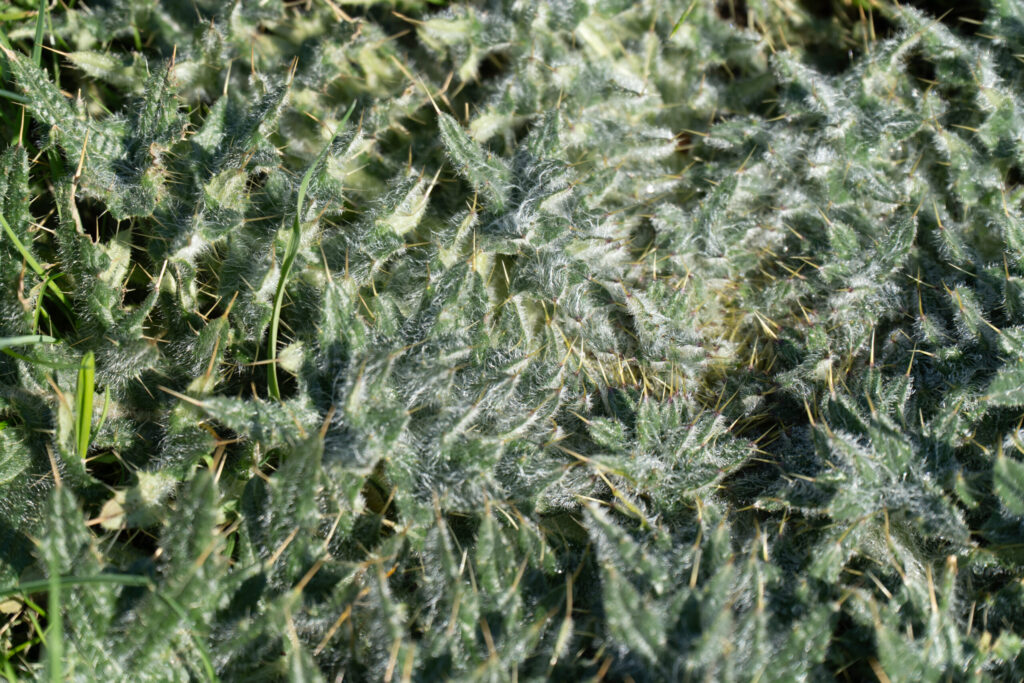
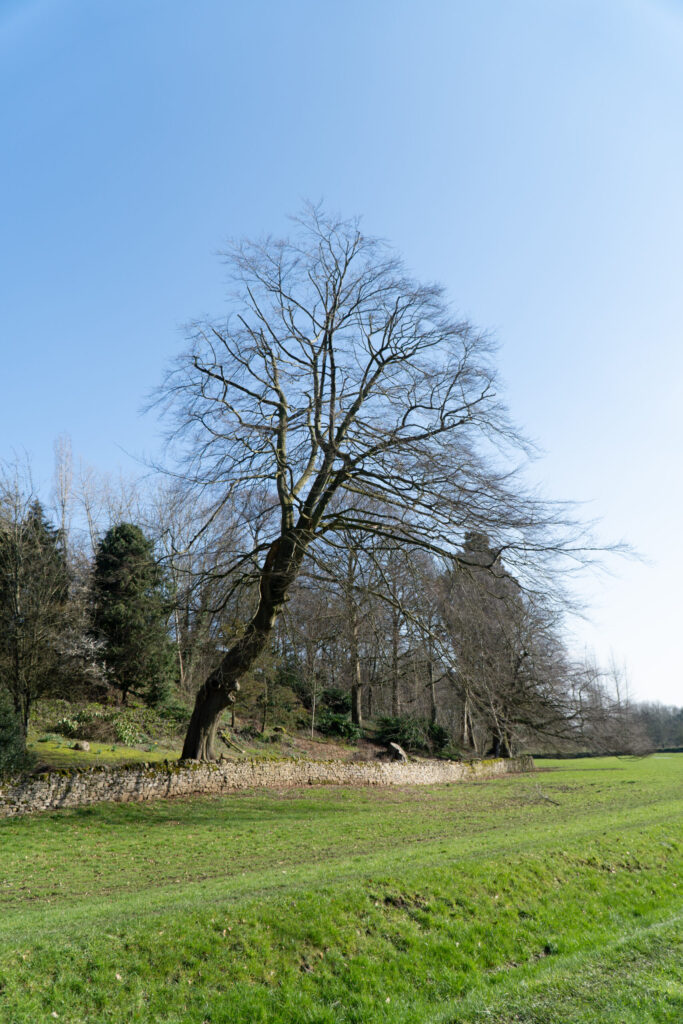
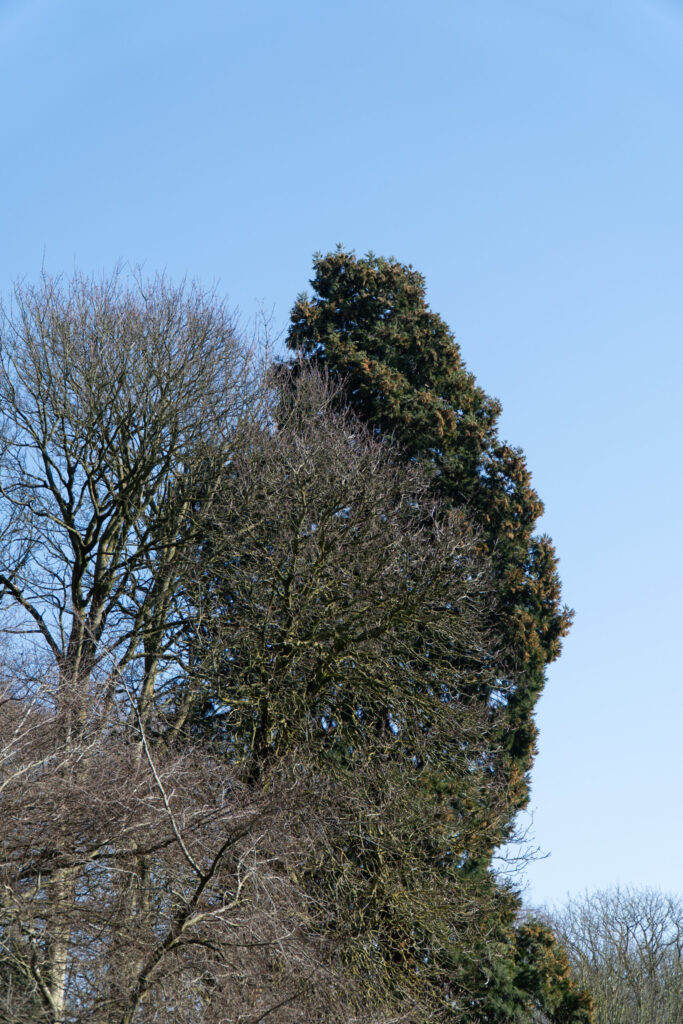
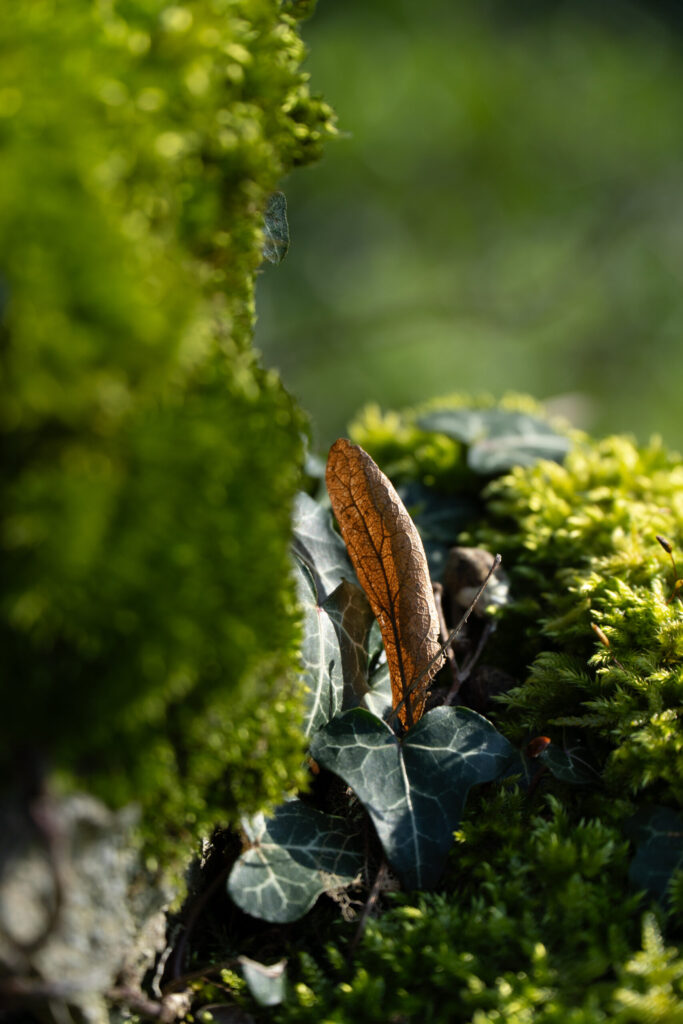
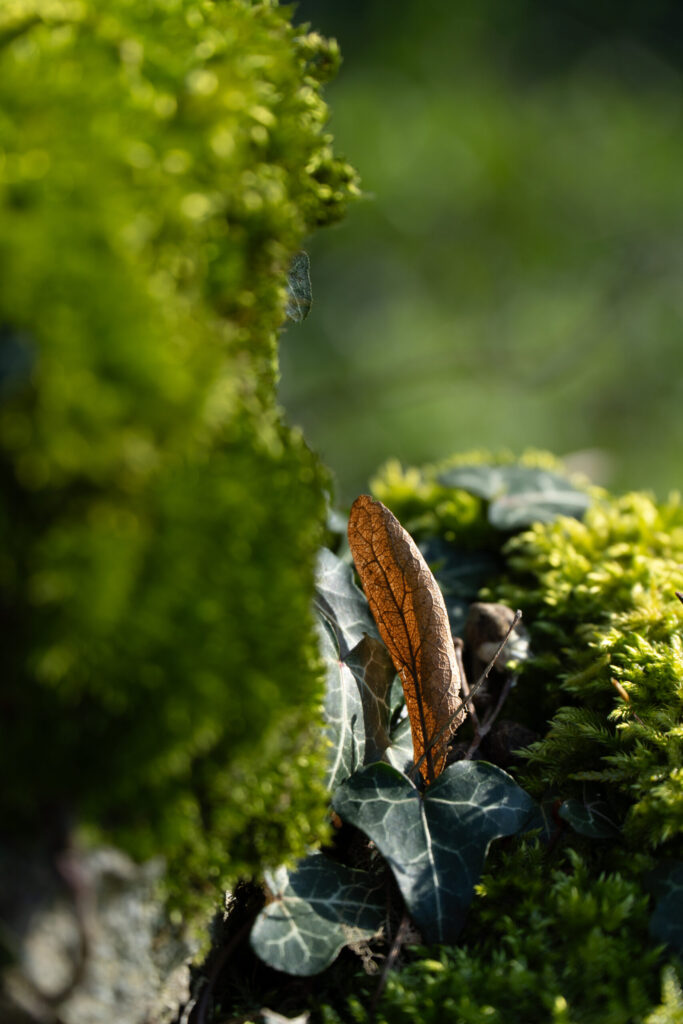
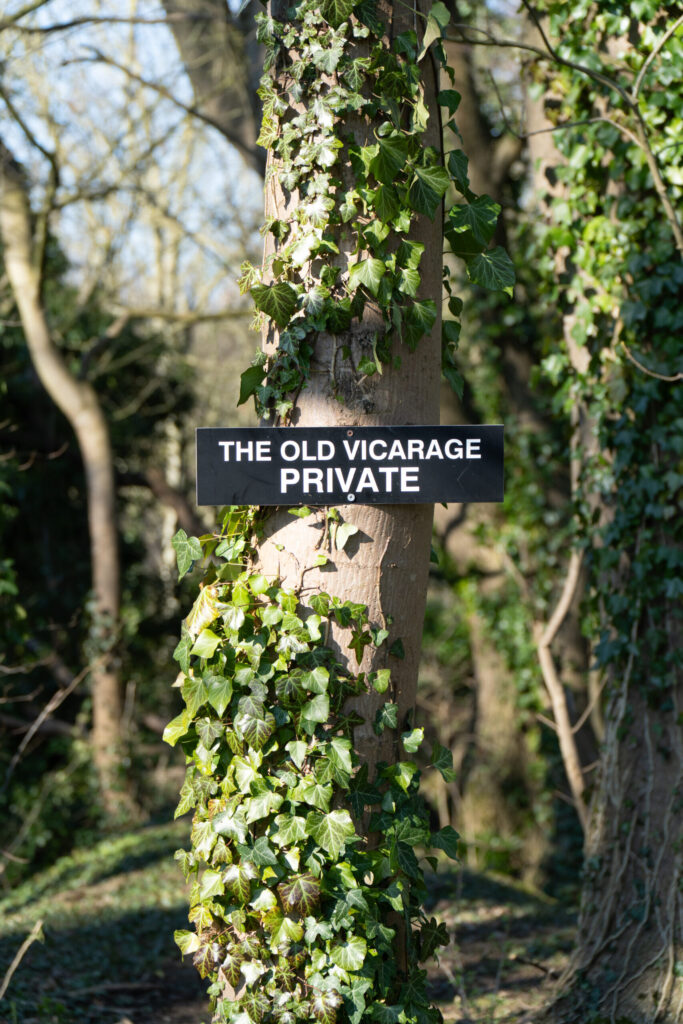
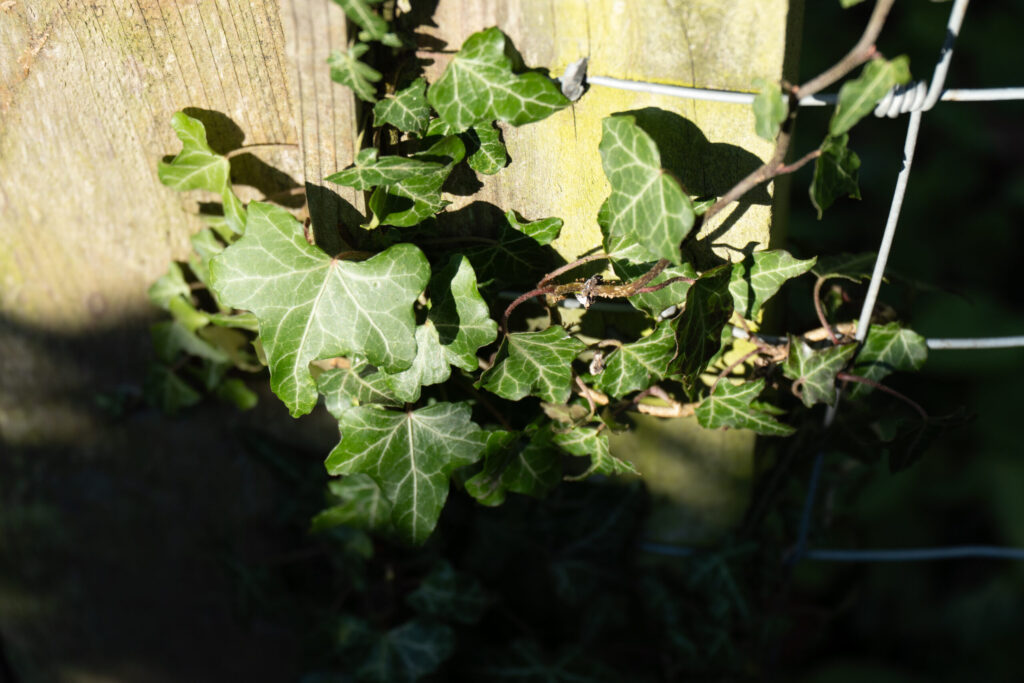
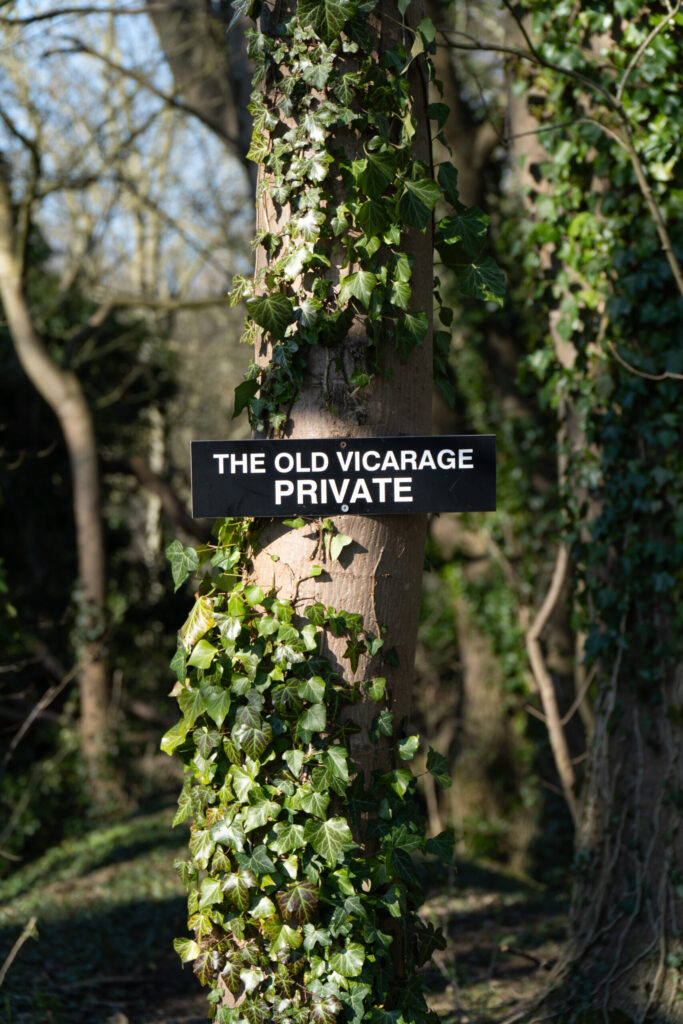
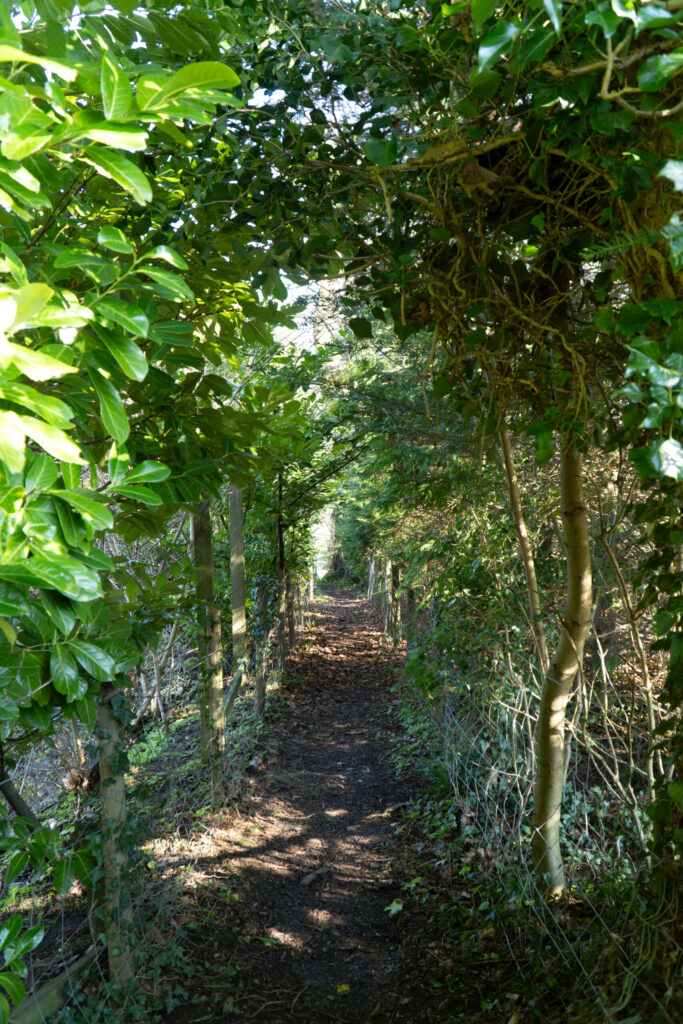
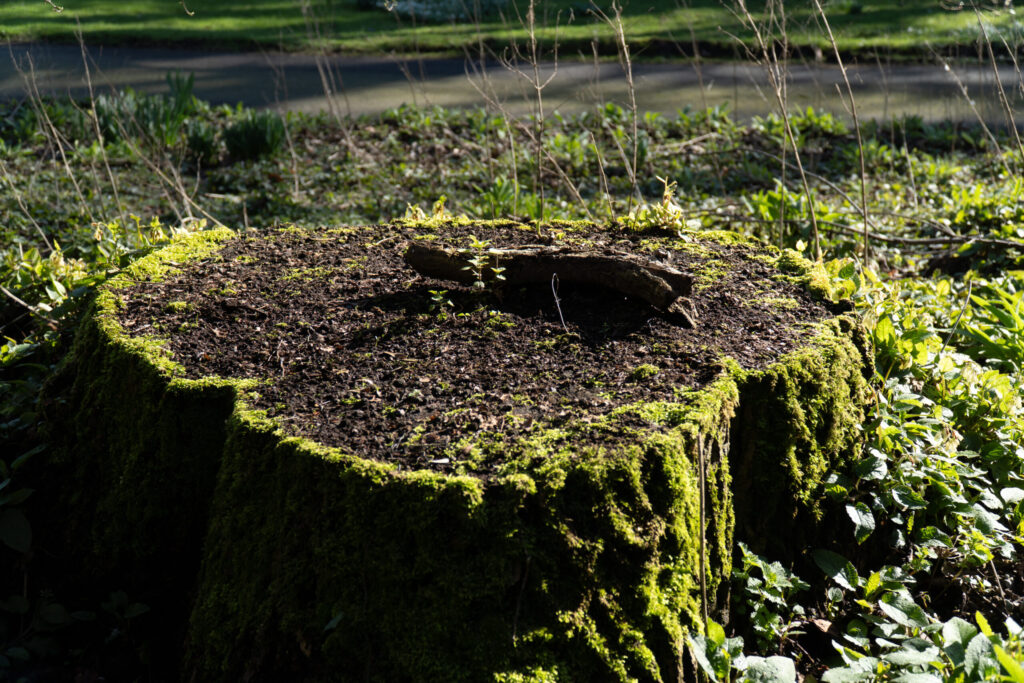
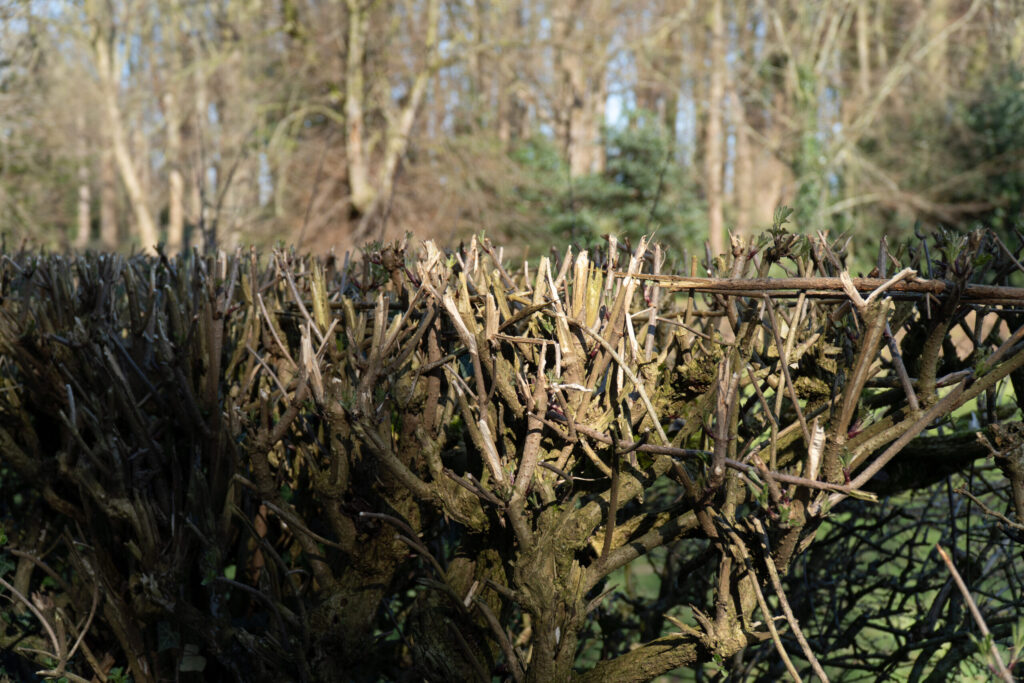
Lightroom Enhanced Edited Selection
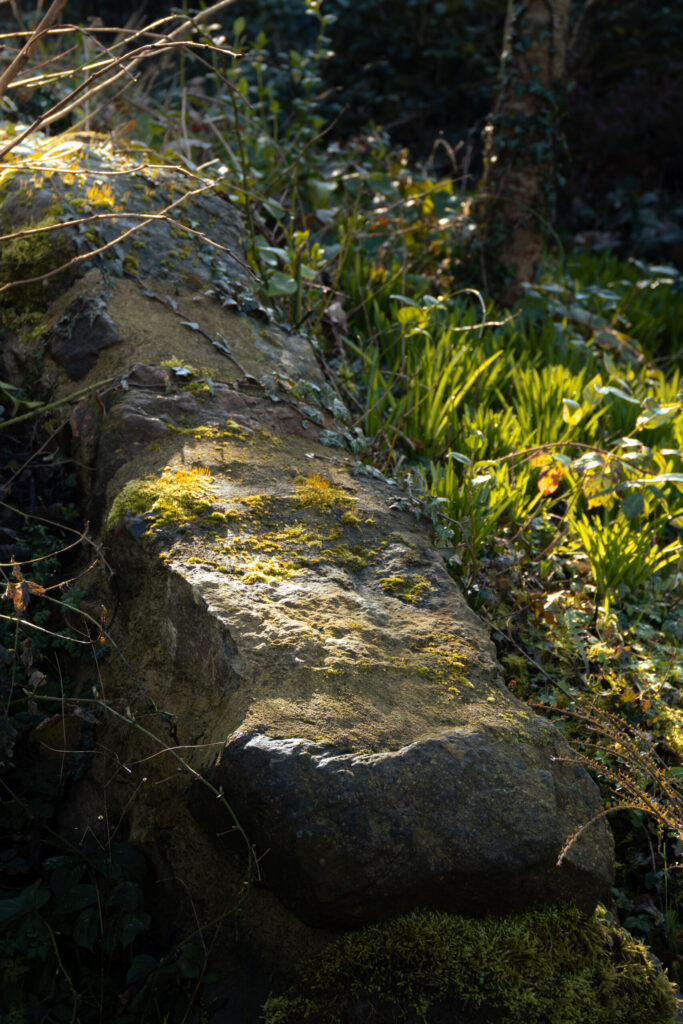
For this set of edits I really wanted to focus on lighting. I had taken this shoot at around mid-day, the sun was harsh and created deep areas of contrast between the highlights and the shadows of my photographs.
Lightroom Editing Process
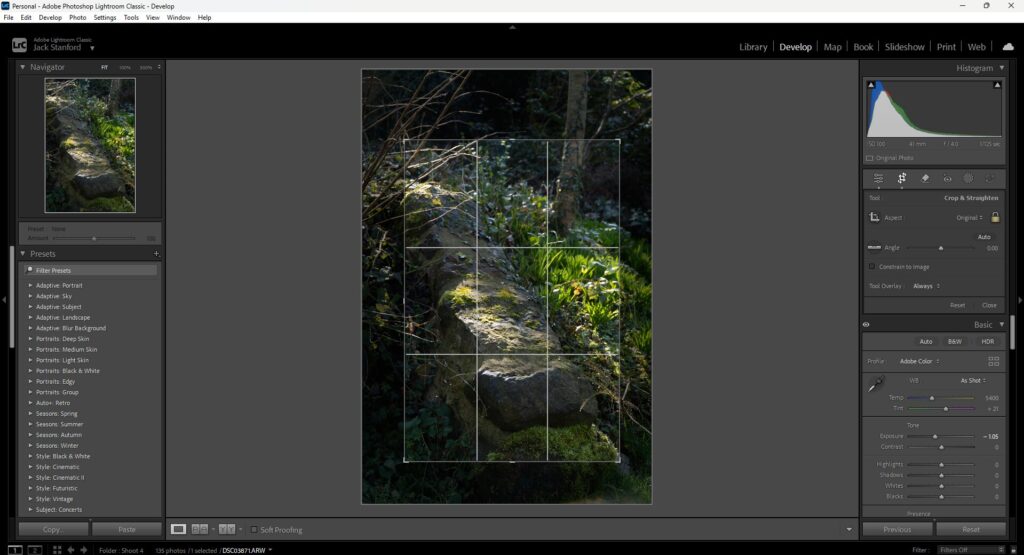
The following is a step by step proccess of how I handle my images in Lightroom.
Step 1 – Framing and Exposure
I often take my pictures slightly wider than I actually want them, this allows me to later reframe the image to be how I want it. I also at this stage will pick and exposure level that feels balanced across the whole image. So in the case of this image I dropped the exposure by -1.05EV which allows the shadows to naturally gain depth but also the light on the rock to become balanced and less blown out.
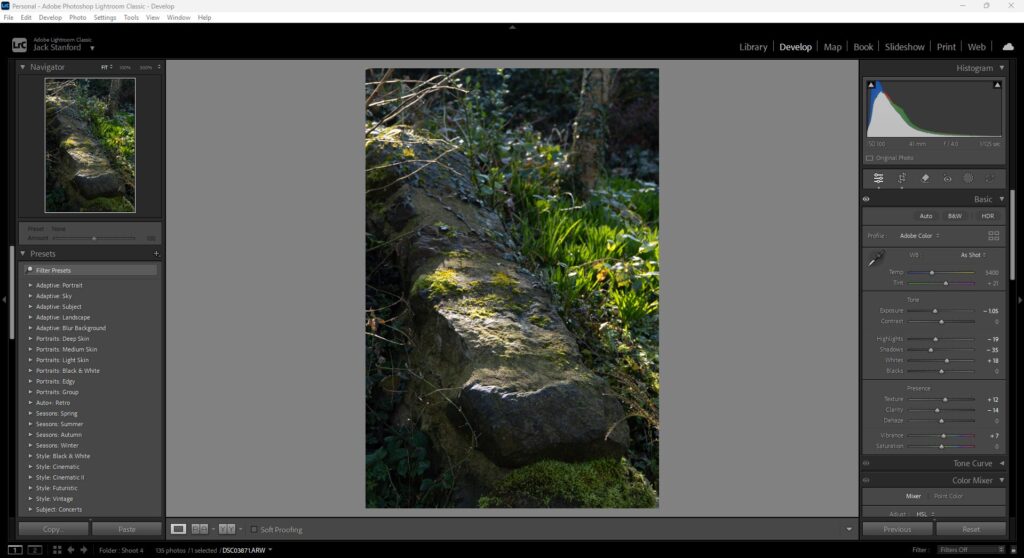
Step 2 – Toning and Details
At this stage I have balanced the image in compositon and general exposure. So now I need to adjust individual aspects of light like the highlights, shadows and in this case whites. All of this helps me tone the image and make it as lively or as flat as I want it. For this image due to the stark contrast of the light coming down onto the rock and the surrounding areas I had to crush the highlights quite a bit to ensure that the light looked natural.
Step 3 – Colour mixing
Now I need to add my personal touch to the image. I will do this by tuning the colours to appeal to me. In the case of this image I felt like the foliage and the moss on the rock needed to have a warmth to it to add to the idea of the sun beaming down on the rock. I pushed my yellows to orange and my greens to yellow which warms up the foliage beautifully.
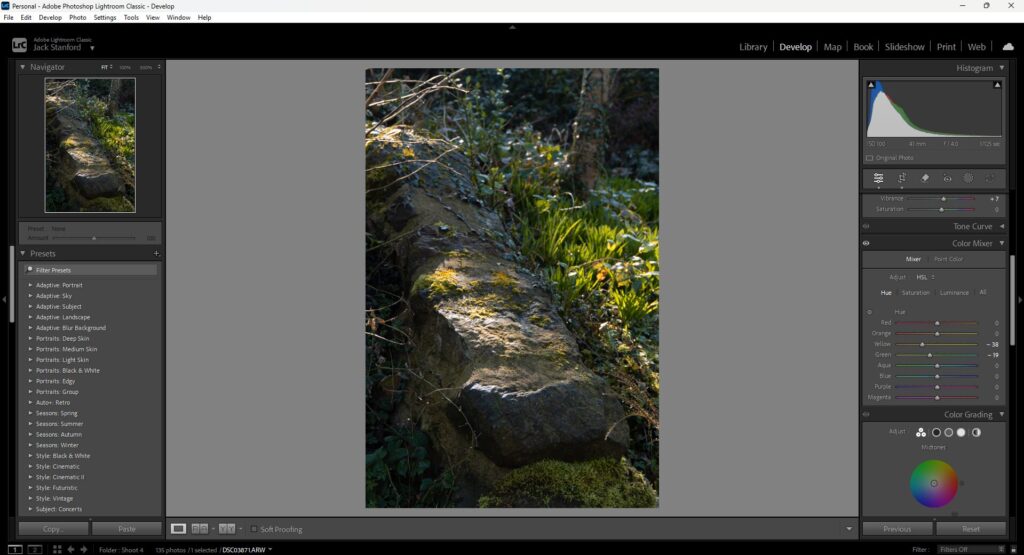
Step 4 – Colour grading
To continue from the last step I will also push my midtones to be warmer by using the midtones colour wheel and pushing it to the top right towards orange. This adds a warm hue into the, well, midtones.
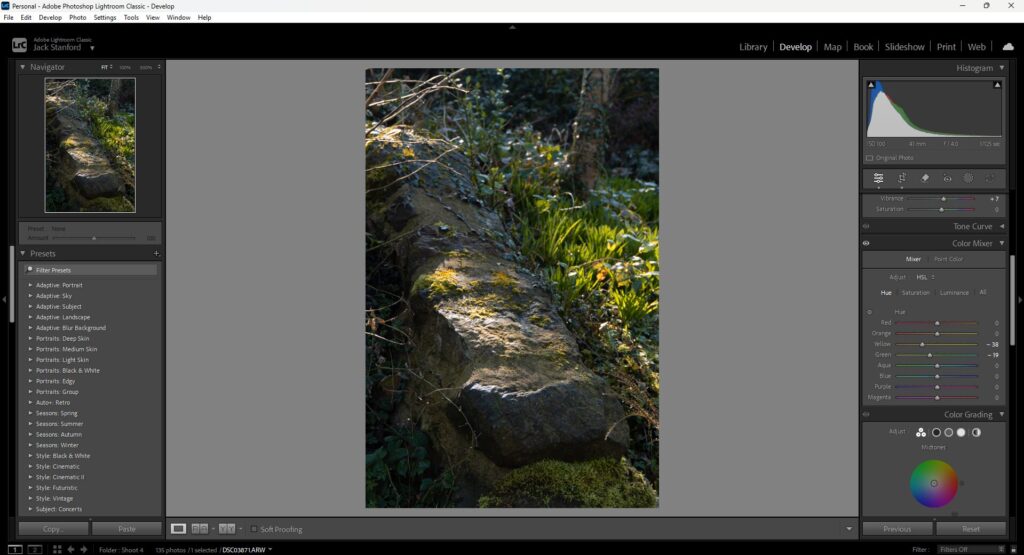
Step 5 – Masking the main subject to enhance light
Now I need to work with the light in this image to add more effect to the sun beam on the rock. To do this I will use masking to be able to boost the exposure slightly of the sun patch on the rock and in the foliage just behind. I also boosted the clarity very slightly here to add some extra detail.
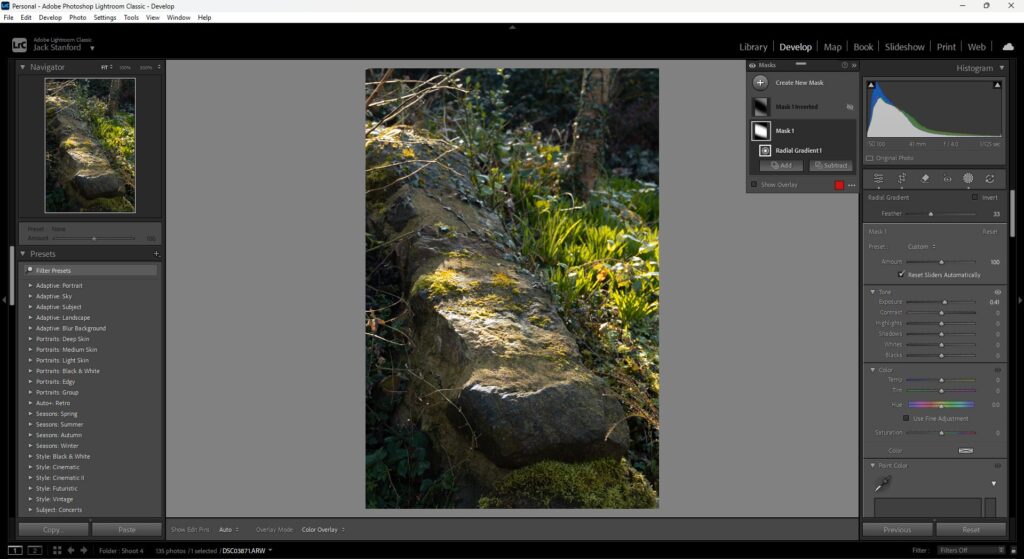
Step 6 – More masking to deepen shadows around subject
Here I added more masks around my subject, one in the top left to add some overexposure to where the sun looks like it is coming from, but also took out some clarity to this does not become too distracing in the overall image. I then also added a linear gradient to the bottom of the image to show a natural drop off in light from the edge of the rock onwards.
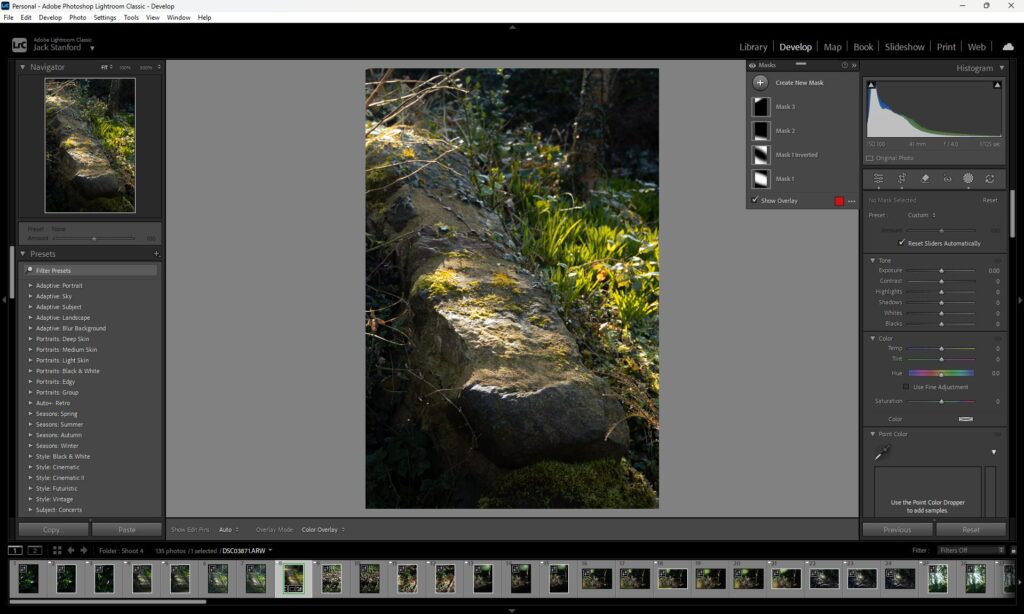
Shoot 4
Description
View Full Shoot
Lightroom Enhanced Edited Selection
Talk about